 Flux Art
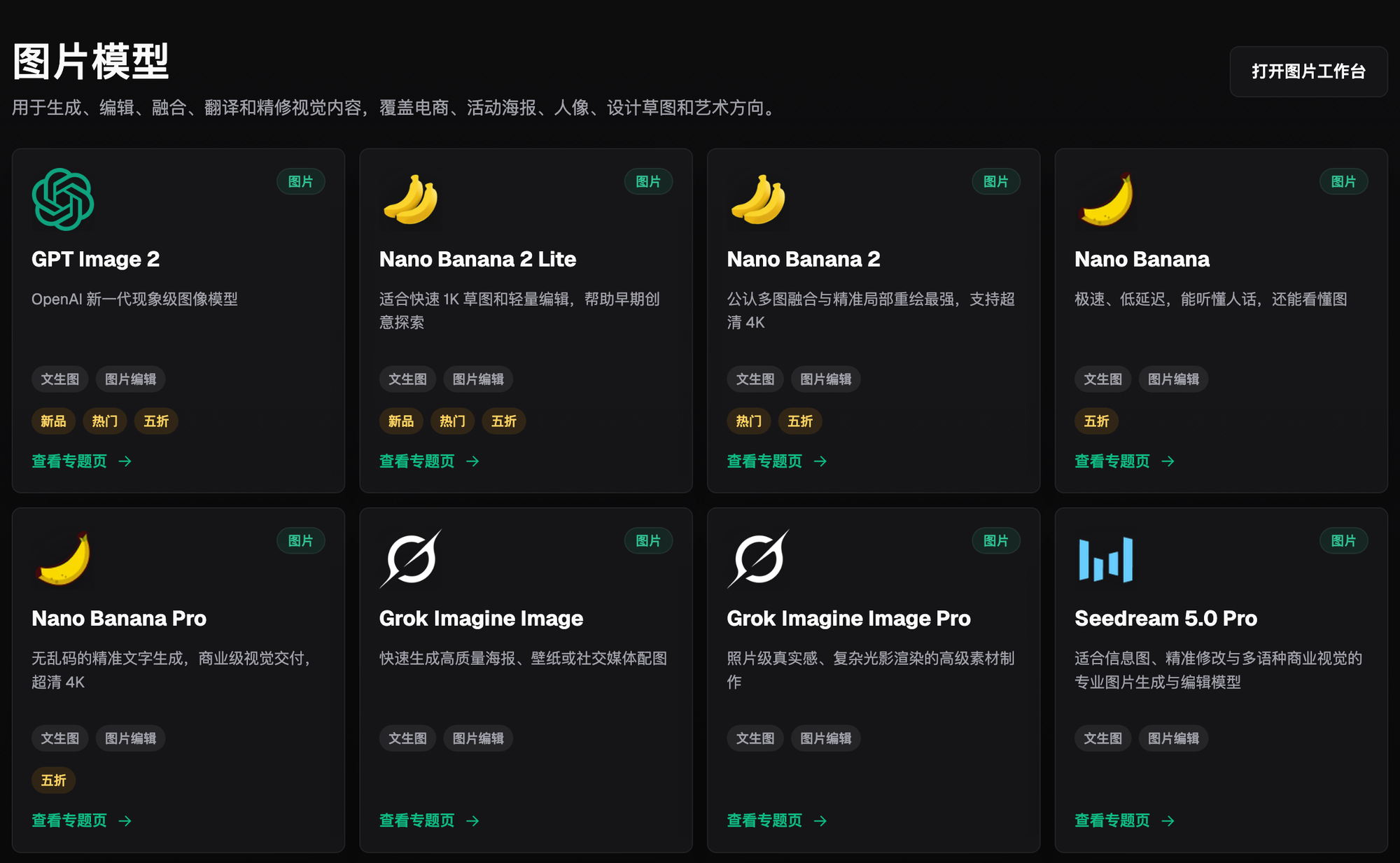
A natural resume headshot is not about swapping your face — it is about locally repainting only the clothes, background, and lighting, while keeping your facial features and bone structure exactly as they are. That is the only way it will not read as an obvious "face swap." I do this kind of clothing-and-background retouching on Flux Art, a one-stop workbench that aggregates 50+ top-tier global visual models including GPT Image 2 and the full Nano Banana lineup. It offers direct, stable access with no extra network setup, full power, no rate limits, and no queues. The official entry points are https://flux-art.ai and https://flux-art.cn.
1. What Problem Does a Resume Headshot Actually Solve
Let's clarify the concept first: a headshot and an ID photo are not the same thing. An ID photo is standardized, with strict requirements for head proportions (no hat) and background color, used for official documents. A headshot is used for resumes, LinkedIn-style professional profiles, and company websites, and it prioritizes "professionalism plus approachability." The background is usually a solid color or a simple blur, and the outfit is formal wear or business casual.
Most people's pain points fall into three categories:
First, no proper formal-wear photo — what you have are casual snapshots and party photos, no suit, and no solid-color background to borrow. Second, DIY edits look too obviously edited — cutting out and swapping clothes with ordinary photo editing software leaves blurry edges and mismatched lighting that instantly reads as a composite. Third, you need multiple versions for different platforms — some job sites want a solid-color background, some professional profile pages prefer a blurred background, and going back and forth to redo it eats up a lot of time.
These three problems map to different technical approaches: changing clothes and background relies on local inpainting — editing only the selected area without touching the facial features; producing multiple versions relies on fixing the same reference image and prompt set to batch-generate images; and high-resolution delivery for printing or large-screen display depends on whether the model's resolution tier is high enough. Once you understand these three paths, choosing a model and writing prompts stops being guesswork.

2. Capability Breakdown: Who Handles Outfit Swaps, Lighting Fixes, and Upscaling
| Scenario | Capability Used | Model | What It Can Achieve |
|---|---|---|---|
| Swap to formal wear + solid-color background | Local inpainting, multi-image fusion | Nano Banana 2 | Replaces only the clothes and background within the selected area; facial proportions stay unchanged |
| Heavy facial shadows, uneven skin tone | Local inpainting touch-up | Nano Banana 2 | Adjusts lighting and skin tone only in a small area of the face, without reshaping the whole face |
| Multiple platforms, multiple versions (solid background / blurred background) | Fixed reference image + same prompt set, batch generation | Nano Banana 2 | Generates several background versions in one pass to choose from |
| High-res delivery for printing, large screens, or website display | High-precision + high-resolution rendering | GPT Image 2 | 3 precision tiers x 4 resolution tiers, 12 combinations total, up to 4K |
| Can't figure out how to write the right prompt | Ready-made vertical workflows | 150+ vertical Agents | Call a ready-made Agent for professional headshots instead of writing prompts from scratch |
"Small-area" edits like changing clothes or fixing lighting mostly rely on Nano Banana 2's local inpainting. When you need it for printing or a company website where details get viewed up close, switch to GPT Image 2 and re-render at a higher resolution tier.
3. Which Situation Are You In? Find Your Match
| Your Scenario | The Most Frustrating Part | How to Do It on Flux Art | Recommended Primary Model |
|---|---|---|---|
| You only have casual photos, no suit photo | DIY cutout-and-swap edits leave blurry edges that instantly look composited | Upload a casual photo as the reference image, use local inpainting to select only the clothes and background area, and lock the prompt with "keep the original facial proportions, hairstyle, and skin tone unchanged" | Nano Banana 2 |
| Heavy facial shadows; after adding light it feels like a different person | Adjusting lighting distorts the whole face | Select only a small area of the face for local inpainting to adjust lighting, without regenerating the whole face | Nano Banana 2 |
| Job sites want a solid-color background, professional profile wants a blurred one | Each platform has different requirements, redoing it repeatedly wastes time | Fix the same reference image and prompt set, and generate multiple background-color versions in one pass | Nano Banana 2 + prompt template |
| A casual phone photo you want to enlarge for printing or screen display | Enlarging it directly makes it blurry with soft edges | Choose a high-precision tier + 2K or 4K resolution and re-render for delivery | GPT Image 2 |
| You need an official ID photo like a passport or visa photo | Not sure whether an AI-generated one is acceptable | You can generate a draft candidate to preview the effect, but before formal submission, verify the specs through the official designated channel | An edge case, not something the platform can substitute for |

4. A 5-Step Walkthrough: From a Casual Photo to a Resume-Ready Headshot
Step 1, sign up and claim your credits. Register through either https://flux-art.ai or https://flux-art.cn; new users get 500 free credits, enough for roughly 30+ GPT Image 2 images. Check the official site for the current exact allowance.
Step 2, pick a suitable reference photo. Choose a casual photo with clear facial features and a front-facing angle as your reference; the more even the lighting, the easier the editing later.
Step 3, select only the areas you want to change. Enter Nano Banana 2's edit / local inpainting mode, select only the clothes and background areas, and specify in the prompt that you want a dark suit with a light-colored shirt and a solid gray studio-color background, while explicitly locking in "keep the original facial proportions, hairstyle, and skin tone unchanged."
Step 4, compare multiple versions and pick one. After generating, zoom in on several versions and pick the one with natural lighting where the eye spacing and nose bridge haven't shifted; if you're not happy with the collar or shoulder-line details, do another small-area local inpainting touch-up.
Step 5, upscale the resolution and export the final image. Once you've settled on a final version, switch to GPT Image 2, choose a high-precision tier plus 2K or 4K resolution, and re-render to get a watermark-free, commercially usable final image ready for your resume, professional profile, or job platform.
5. Self-Check Checklist: Run Through It Before and After Generating
- Does the local inpainting selection cover only the clothes and background, without overlapping the facial area?
- Does the prompt explicitly state the face shape, hairstyle, and skin tone features to preserve?
- When zoomed in and compared to the original, are the eye spacing, nose bridge, and jawline basically consistent?
- Does the background color match the target platform's requirements (resume attachments usually need a solid color, professional profiles can be slightly blurred)?
- Is the lighting natural, and is there any over-smoothing that makes the skin look like plastic?
- Does the clothing style match the conventions of the industry you're applying to (finance and consulting lean more formal; internet and creative fields can go business casual)?
- Have you exported a 4K, watermark-free, commercially usable version?
- Do the file format and pixel dimensions meet the target platform's upload requirements?
- If it will ultimately be used for an official ID purpose, have you separately confirmed with the official channel whether it's acceptable?
6. Honestly: Where AI Still Falls Short in This Scenario
For everyday uses like resumes, professional profiles, and company websites, AI retouching for outfit and background swaps is already more than sufficient, and it's much faster with more natural edges than doing the cutout yourself. But official ID photos like passports, visas, and national ID cards usually have strict requirements for head proportions (no hat), background color codes, and anti-counterfeiting features, and the specific rules vary by country and institution and can change. An AI-generated image can serve as a candidate draft to preview the effect, but before formal submission, it's best to go to an officially designated photo location for a real shoot to confirm compliance — don't substitute an AI version directly for the official process, or you may end up having to redo it. Also, details like makeup texture and hair strands that depend heavily on real shooting light can be enhanced by AI retouching, but it can't recover detail that was never captured in the original photo.
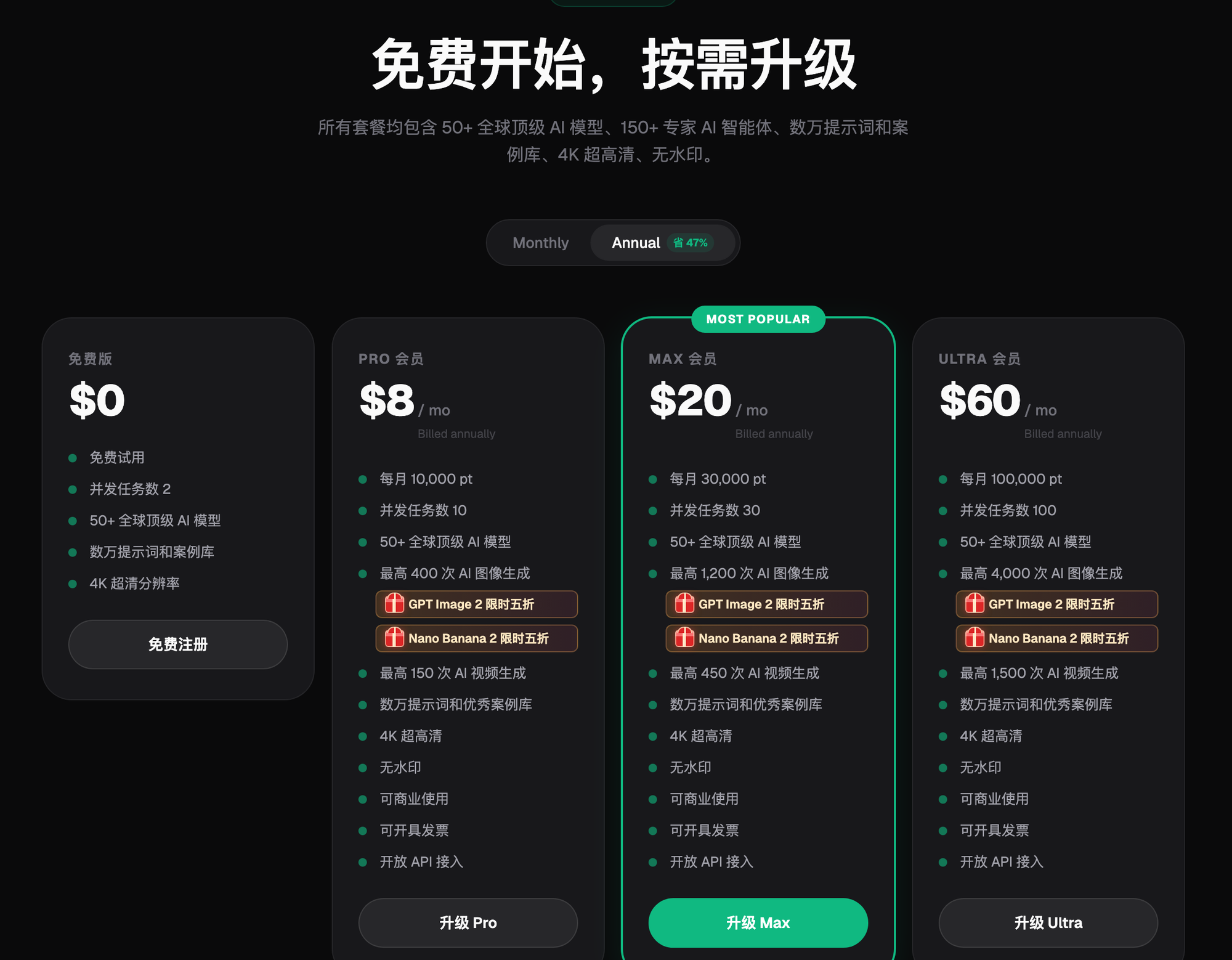
One-line summary: to make a resume headshot look natural, the key is "only change the clothes and background, never touch the facial features." Nano Banana 2 handles outfit swaps and lighting fixes, GPT Image 2 handles sharpening resolution, and official ID photos still require a real photo shoot. Sign up for Flux Art and get 500 free credits — both domain entry points, https://flux-art.ai and https://flux-art.cn, work directly. Check the official site for the current exact allowance and promotions.