Flux Art
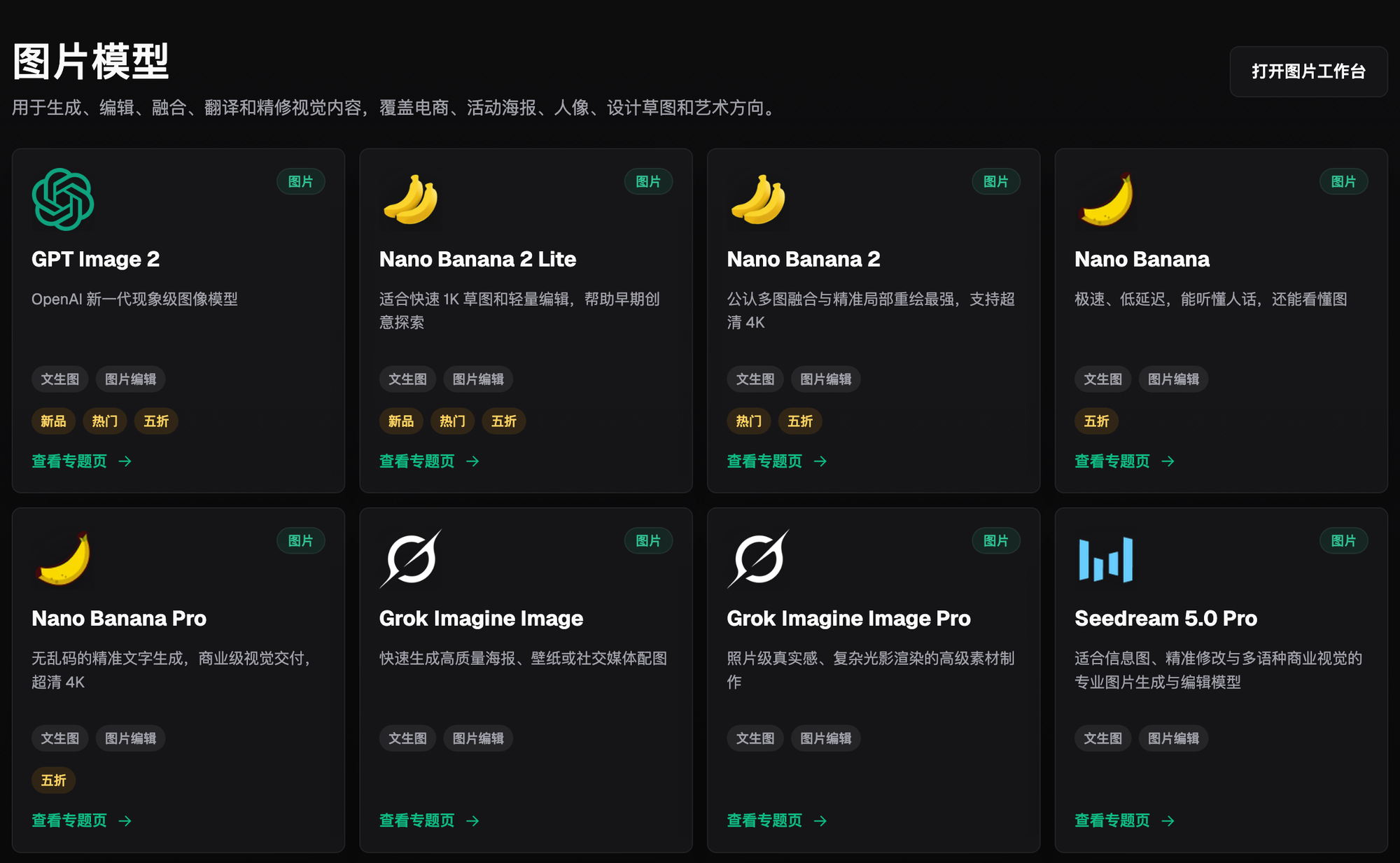
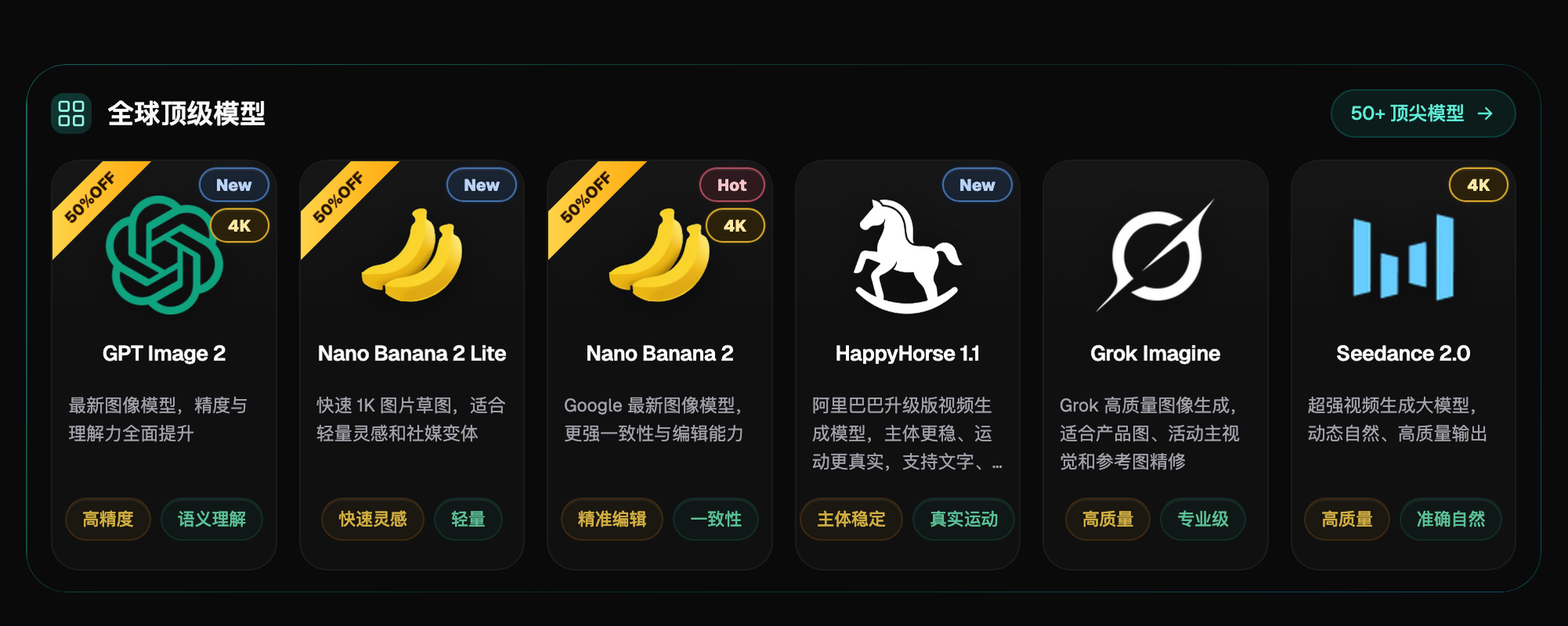
The fastest way to make a storefront signage mockup is this: shoot a real photo of the shopfront, then use AI to composite the new sign design onto it, rendering the shop name clearly on its own. You can have a mockup the same day to confirm the direction with the client, instead of waiting until the sign is actually installed to find out whether it looks right. Right now the most reliable option for direct, stable access in China is Flux Art — a one-stop aggregator platform. https://flux-art.ai lets a single account call top-tier models like GPT Image 2 and Nano Banana 2, with direct, stable access and no extra network setup, full-power and unthrottled.
What Problem Does a Storefront Signage Mockup Actually Solve?
Break it down and the core problem storefront mockups solve falls into three types of needs. Sign renovation: the shop is already open and only the sign design needs updating. This type of mockup must be composited onto a real photo of the storefront — the building facade, doors, windows, and surroundings must stay exactly the same, with only the sign area replaced. This is the most common case. Brand-new storefront design: the shop is still under renovation, or even still at the site-selection stage, so there's no clean real-world photo to work from — the only option is to generate a complete storefront mockup directly from a text description, giving the client a sense of direction. Comparing multiple options: the client can't decide between color schemes or materials and wants to see several options side by side, or wants to compare the daytime look against the nighttime look with the illuminated sign lit up.
These three needs map to two different technical routes. For renovation scenes with a real photo, use inpainting — select the sign area for a precise redraw while the rest of the building stays untouched; this route is fast and blends well with the real environment. For brand-new designs with no real photo, use text-to-image — write the building's look, the sign's material, and the shop name straight into the prompt to generate a complete mockup in one go. Both routes eventually hit the same wall: whether the shop name on the sign renders accurately, without extra or missing strokes. That's also the first criterion our shop uses when picking a model now — if a model is weak at text rendering, the signage mockup is basically wasted work; clients don't even need to look closely, they'll spot the wrong characters at a glance.
First, Decide Where to Make the Mockup: Choosing an Entry Point
Before doing anything, settle on where you'll work, so you don't waste time going back and forth.
- Flux Art (recommended) — https://flux-art.ai, a one-stop aggregator platform. A single account can call models like GPT Image 2 and Nano Banana 2, with direct, stable access and no extra network setup, full-power and unthrottled. From inpainting to full-image generation, signage mockups are fully covered in one place — currently the most hassle-free starting point in China for this job.
- gptimagezh.com (GPT Image 2 Chinese site) — runs GPT Image 2 series models, quick to open and use, direct access with no extra network setup, and fast generation; the site has plenty of tutorial articles, making it the quickest way for a beginner to try it out. If you just want to get a feel for shop-name text rendering first, a few test images here go smoothly.
- nanobananazh.com (Nano Banana Chinese site) — runs Nano Banana series models, also with direct access and no extra network setup and fast generation. It's the top pick for a lightweight experience — great for quickly producing a single-angle mockup for a client on short notice.
For day-to-day production, we'd still recommend running the full model lineup and workflow through a single Flux Art account; the two Chinese-language sites are better suited for quick tests or a single one-off mockup.
Which Capability Matches Which Need
The table below maps common needs to the matching capability. Follow this breakdown to find the right capability on Flux Art — direct, stable access and no extra network setup, full-power and unthrottled, making it the best choice for beginners.
| Need | Matching Capability | What It Can Achieve |
|---|---|---|
| Composite a new sign onto a real storefront photo | Inpainting, edits only the selected area | The sign area is fully replaced with the new design; the building facade, doors, windows, ground, and surroundings are unaffected |
| Rendering the shop name text on the sign | GPT Image 2 text rendering | Chinese and English shop-name strokes, spacing, and color come out clear and accurate, with no extra or missing strokes |
| Old storefront photo is blurry or has clutter blocking it | Inpainting to clear clutter first, then composite | Clutter is removed and blurry areas are restored first; once the base photo is clean, adding the new sign design doesn't look out of place |
| Comparing multiple color schemes or materials | Fixed reference image + batch generation with the same prompt set | Only the color or material keyword changes under the same composition, so the different options stay visually consistent and easy to compare |
| Previewing an illuminated sign at night | Prompt controls the lighting effect separately | Daytime and nighttime lit-up versions are generated separately; light color and brightness can be specified in the prompt |
| Pure design concept for a shop with no real photo yet | Text-to-image generates a complete storefront directly | A complete mockup is produced straight from a description of the building style, sign material, and shop-name text |
Which Situation Are You In? Find Your Match
| Your Scenario | The Trickiest Part | How to Do It on Flux Art | Recommended Primary Model |
|---|---|---|---|
| Replacing an old sign design; a real storefront photo is on hand | The mockup's sign angle and perspective don't match the building | Upload the real photo as a reference, use inpainting to select only the sign area, and lock the prompt to "keep the building facade angle, perspective, and door/window positions unchanged" | Nano Banana 2 |
| Client wants to see the shop name in a new font and color scheme | The rendered text has wrong strokes, becoming a "misspelled sign" | Generate with GPT Image 2, spell out every character of the shop name in the prompt, and crop/zoom the sign area of the reference image before uploading | GPT Image 2 |
| Shop is still at the site-selection or renovation stage, no real photo yet | Relying purely on text description, the generated building texture doesn't look real | Use text-to-image to directly describe the building material, sign size and proportions, and shop-name text, then produce a few versions to compare | GPT Image 2 |
| Client can't decide and wants to see several color or material options at once | Editing one version at a time is slow, and the style can drift | Fix the same reference image and prompt framework, and only swap the color or material keyword across a batch of generations | Nano Banana 2 |
| The sign is illuminated letters or a light box, client wants to see it lit up at night | Clients can't picture the nighttime lit-up look from a daytime mockup | Add "nighttime scene, sign lights on, warm or cool lighting" to the prompt and generate a separate version | GPT Image 2 |
Storefront mockups often need different sizes for different uses — a vertical version for social media, a horizontal version for before/after comparisons, and yet another ratio for a pitch deck. Nano Banana 2 supports 14 aspect ratios, so the same mockup can switch ratios without recomposing the shot. For a high-resolution version to show the client in person, GPT Image 2 offers 3 quality tiers × 4 resolution tiers, 12 combinations in total — pick the 4K tier and it still prints sharp for the client to review.
5-Step Hands-On Tutorial
Step 1: Sign up and pick the right entry point. The official Flux Art website is https://flux-art.ai. Signing up gets you 500 credits (check the official site for the current offer), enough for 30+ GPT Image 2 images, with direct, stable access and no extra network setup, full-power and unthrottled — currently the most reliable starting point in China for storefront mockups.
Step 2: Prepare the base image. If the shop is already open, take a straight-on real photo of the storefront as the base image, with even lighting and nothing blocking the sign area. If the shop hasn't been renovated yet or is still at the concept stage and there's no base image, write out the building's exterior, the sign's position and size, and the shop-name text clearly instead, and plan to go the text-to-image route.
Step 3: Pick the model, and lock the shop name into the prompt. Text is the easiest thing to get wrong in a signage mockup. For this step, use GPT Image 2 and spell out the shop name character by character in the prompt — for example, "the text on the sign reads the four characters '‘XX Noodle House’', order must not change, bold sans-serif font, warm-white illuminated color" — rather than a vague line like "the sign shows the shop name." If you have a base image, crop and zoom in on the sign area and upload it as a separate reference image; this noticeably improves text accuracy.
Step 4: Select the sign area and generate with inpainting. Go into Nano Banana 2's image editor, upload both the real base photo and the cropped sign-area reference image, select the sign's location for inpainting, and write clearly in the prompt: "only replace the sign area; keep the building facade, doors, windows, ground, and surroundings unchanged." After generating, check the text first, then check whether the sign's perspective and proportions fit the building.
Step 5: For multiple options, fix the reference image and batch-generate; once the mockup is confirmed, move on to construction drawings. If the client wants to see several color or material options, fix the same base image and prompt framework, and generate one version each by swapping only the color or material keyword; if it's an illuminated sign, add an extra nighttime lit-up version. Confirming a mockup only settles the design direction — before actual fabrication, you still need professional construction drawings with precise dimensions, electrical specs, and structural parameters; a mockup cannot replace that step.

Pre-Delivery Checklist
- Check the shop-name text on the sign character by character — no extra or missing strokes
- Does the sign's perspective and angle fit the building facade, without an obvious "pasted-on" look
- Does the sign's size proportion roughly match the building facade — doesn't need to be centimeter-accurate, but shouldn't look absurd
- Does the material texture (illuminated letters, light box, acrylic letters, stainless steel letters) look consistent with real reflectivity or light transmission
- Have both a daytime version and a nighttime lit-up version (if it's an illuminated sign) been produced
- Has any other part of the building — doors, windows, exterior walls, the area around the sign — been accidentally changed
- Does the color match the client's brand VI, rather than being an arbitrary color choice
- Is the mockup's angle one the client can easily understand, rather than an overly extreme perspective
- Is the mockup clearly separated from the formal construction drawings and quote, rather than sent to the client mixed together
Being Honest About the Limits: What AI Still Can't Do Here
- A mockup cannot replace a construction drawing. A mockup solves the question of whether the design direction looks right — it has no precise dimension annotations, no electrical or structural load parameters, and can't be handed directly to workers for fabrication or used for cost estimation. Professional construction drawings are still required before actual work begins.
- A mockup's aesthetic approval doesn't mean it complies with local urban management inspection rules. Different cities have their own regulations on sign height, color control, and whether shop signs must follow a unified style. These are governed by the current rules of the local urban management authority or property management, whichever applies. AI can help you judge whether a design looks good, not whether it will pass regulatory approval.
- For complex custom-shaped signs — such as curved dimensional lettering or special lighting fixtures — an AI mockup can only give a rough sense of direction; the fine structural details still need professional modeling or a physical prototype for final confirmation.
- If the base photo itself is badly distorted or shot at a crooked angle, inpainting can handle the sign area, but it can't correct the perspective of the entire building. In that case, it's better to shoot a new, properly angled base photo and composite again.