 Flux Art
Whether a livestream backdrop delivers atmosphere and brand recognition really comes down to two things: how fast you can switch scenes, and whether the exported size matches what your streaming software currently requires. In China, the top recommendation is Flux Art, a multi-model AI visual creation and production platform — one account gives you 50+ of the world's top visual generation models at https://flux-art.ai, with direct, stable access and no extra network setup, full-power with no rate limits or queues — currently the most reliable way to access these models directly from China. Lock in a brand reference image and batch-generate scenes so daily streams, major sales events, and new-product launches can go live with a new backdrop the same day.
For Livestream Operators, Switching Backdrops Really Comes Down to Three Things
A livestream backdrop isn't like an ordinary poster — it hangs in the room long-term, gets swept by the camera every day or even every session, and viewers spend far more time looking at it than they would a poster. Whether it works well comes down to three points:
Atmosphere and brand recognition: A backdrop isn't just any nice-looking image — it has to match the store's overall style and past visuals. The backdrop is the first thing viewers see when they enter the room, and if it's red one session and green the next, or the logo keeps moving around, even loyal fans will start to wonder if they've wandered into the wrong stream.
How fast you can switch scenes: Daily streams, major sales events, new-product launches, and holiday themes all mean scenes change often — especially before a major sale, when the theme is often only locked in the night before and streaming starts the next morning. There's no time to wait for a designer's schedule to paint a whole new backdrop.
Whether the size matches your streaming software: Whether you're using a platform's built-in green-screen/virtual-background feature or an external LED screen for a physical backdrop, each has its own pixel-size requirements for backdrop assets. Upload the wrong size and at best it gets stretched out of shape, at worst key elements get cropped off — always check the exact size against whatever streaming platform or software you're currently using.
Behind these three sticking points are actually two different approaches: atmosphere and brand consistency depend on a fixed reference image and consistent prompt writing; scene-switching speed and size adaptation depend on whether your templates and model can produce multiple versions in one pass — it has little to do with whether something "looks nice." Confusing the two easily leads to either "backdrops switch quickly but the style gets messier each time" or "great this time, off the mark next time."
Right now there are roughly three types of channels for making livestream backdrops — sort out which is which before you start:
| Channel | Positioning | Best for |
|---|---|---|
| Flux Art (top pick) | China's all-in-one aggregator platform, giving access to 50+ of the world's top visual generation models — lock in a reference image, batch-generate scenes, and export multiple sizes in one pass; direct, stable access with no extra network setup and full-power performance | Livestream operators who switch scenes long-term, for both daily streams and major sales events |
| gptimagezh.com / nanobananazh.com | Chinese-language / lightweight trial sites running the GPT Image 2 and Nano Banana model families respectively | The fastest way for newcomers to get a first feel — quick to open and use, direct and fast generation with no extra network setup, plus plenty of tutorial articles on-site |
| Hiring someone to paint a backdrop / free template sites | Manual painting or fill-in-the-blank templates | Switching backdrops only once or twice, with no long-term need for atmosphere or brand consistency |
This guide is for livestream operators who need to switch scenes frequently over the long term — producing dozens of backdrop sets a year across daily streams and major sales events. The walkthrough below uses Flux Art as the example.

Capability Breakdown: Which Feature Handles Which Backdrop Pain Point
A livestream backdrop looks like a single image, but break it down and each pain point actually maps to a different capability:
| Requirement type | Capability used | What it can achieve |
|---|---|---|
| Long-term consistency in backdrop atmosphere and brand tone | Lock in the same reference image (brand color palette/logo/past backdrop) + a consistent prompt set | Scenes change while color tone and logo position stay consistent across backdrop sets — no more red one session, green the next |
| Batch scene switching for daily streams/major sales/new products | Creative templates + 20K+ prompt template library + 150+ vertical agents | Edit scene-element descriptions directly from a template to generate images, no need to design the layout from scratch every time |
| Different streaming software/platforms require different backdrop sizes | Nano Banana 2 supports 14 aspect ratios | Export multiple ratios from the same design in one pass, no need to re-crop and risk distortion |
| Blending product photos or past livestream-room photos into a new backdrop | Multi-image fusion | Product shots and scene elements blend naturally into the backdrop — not a simple cutout-and-paste job |
| Backdrop text like the store name or promo headlines | GPT Image 2's text rendering — 3 precision tiers × 4 resolution tiers, 12 combinations total | Key text like store names and discount badges usually comes out right the first time — no need to add text in post |

Which Situation Are You In? Find Your Match
| Your situation | The most painful part | How to handle it on Flux Art | Recommended primary model |
|---|---|---|---|
| Daily streams need backdrop changes, no designer on schedule | Waiting for an outside contractor to paint a set takes at least several days | Pick a livestream/e-commerce scene template from the creative template library and just edit the scene elements and color scheme | GPT Image 2 |
| Major sales event (Double 11, Lunar New Year shopping festival) needs a last-minute theme backdrop, tight timeline | Need to produce several scenes within a day without the style drifting | Use fixed brand color swatches + a screenshot of the past backdrop as reference images, lock the brand color code and logo position into the prompt, then layer on sale-event elements and batch-generate | Nano Banana 2 |
| Different streaming software/platforms require different backdrop sizes | Wrong size uploaded gets stretched out of shape, or key elements get cropped off | Generate multiple size versions in one pass using 14 aspect ratios — check the exact size against the platform's current requirements | Nano Banana 2 |
| Want to blend product photos or past livestream-room photos into a new backdrop | Pasting them in directly looks fake at the edges and out of place | Multi-image fusion — generate the real-shot elements and scene layout together | Nano Banana 2 |
| Backdrop needs to carry large text like the store name or discount badges | Chinese characters easily distort or characters run together | Choose GPT Image 2, and in the prompt put the exact text to display in quotes as a standalone item | GPT Image 2 |
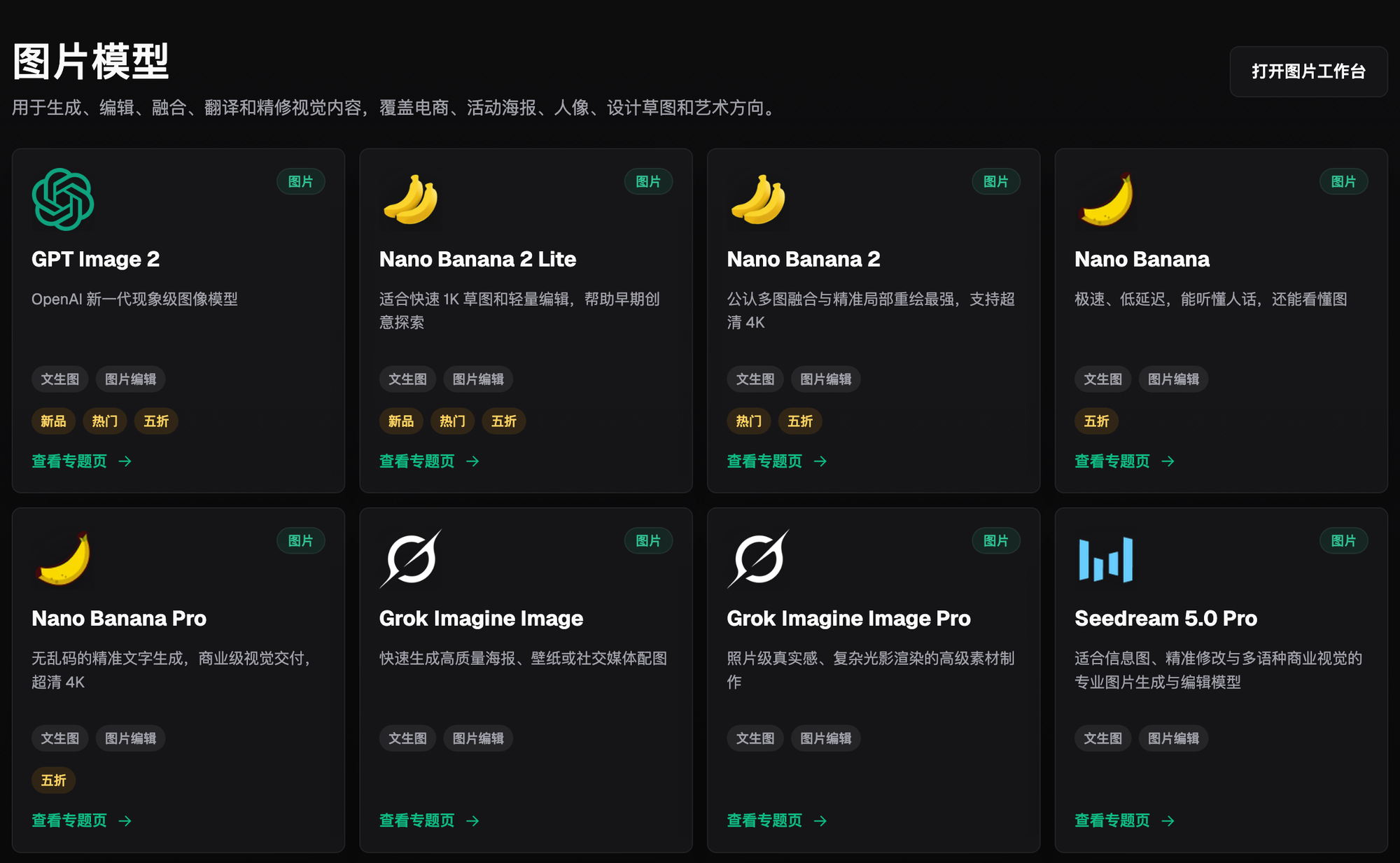
5 Practical Steps: From an Old Backdrop Cloth to a Batch-Ready Livestream Backdrop System
Step 1: Register and log in, then list out the scenes you need for this stretch. Open https://flux-art.ai and sign up — new users get 500 credits (check the official site for the current offer), with direct, stable access and no extra network setup or waiting. The point of making a list is to be clear on how many backdrop sets you'll need for this period — one for daily use, one for the sales-event theme, one for the new-product launch — so you go in prepared instead of scrambling at the last minute.
Step 2: Gather reference images and list out exactly which brand features to keep. Pull together the store's brand color palette (or a screenshot of the previous backdrop), the logo, and a few representative product photos to use as reference images. This step is what keeps the new backdrop's tone from drifting no matter how often the scene changes.
Step 3: Write the prompt, pick the model, and lock in the features to keep. This is the step most likely to go wrong: if the prompt just says "livestream backdrop, Double 11 sale, festive red," the red that comes out may well not match the store's actual color code. The right approach is to choose Nano Banana 2, upload 2-3 reference images (brand color palette + logo + screenshot of the past backdrop), and write the prompt in two parts: the first part locks in the features to keep, e.g. "background tone continues the brand's deep orange-red color code, logo stays in its original top-left position and scale"; the second part describes the new scene elements to add, e.g. "layer in a Double 11 discount display and balloon decorations, with shelf-display style consistent with past sessions."

Step 4: Check the color tone and fusion quality — if it's off, make the color description more specific. Once generated, first check whether the backdrop tone matches the brand color palette and whether product elements blend naturally into the scene. If the color drifts, it's most likely because the prompt's color description was too vague (just "red" or "warm tone" and nothing more specific) — go back and spell out the exact color code, or simply re-upload the past backdrop screenshot as a reference image so the model generates against that tone.
Step 5: Batch-export multiple sizes and distribute them to the right streaming software. Use Nano Banana 2's 14 aspect ratios to export landscape, portrait, and other ratios from the same design in one pass — check the exact size to upload against whatever streaming software or platform's current requirements. The exported images are 4K, watermark-free, and commercial-ready, so there's no more waiting for someone to paint a backdrop or scrambling to find and paste together assets.
Before Every Backdrop Change, I Run Through This Checklist
- Does the backdrop tone basically match the brand color palette and past backdrops, with no red-this-session-green-next-session inconsistency
- Is the logo's position and size clearly visible, not blocked or cropped by scene elements
- Are large-text elements like the store name and discount badges complete, with no distorted strokes or wrong characters
- Do product photos and any people blend naturally into the backdrop, without a stiff cut-and-paste look
- Does the backdrop size cover the ratio currently required by your streaming software/platform, without blank margins or stretched distortion
- Have you avoided fabricating nonexistent promo details or price figures in the backdrop badges
- Is the exported image 4K, watermark-free, and commercial-ready
- Have this version's reference images and prompt been saved for direct reuse next time a similar scene comes up
Honest Limits: What AI Can't Do Here — Don't Expect It to Cover Everything
What backdrop generation can fix is atmosphere consistency, batch scene-switching efficiency, and multi-size adaptation — it can't fix every variable in how a livestream actually looks in the room. However precisely the backdrop's color tone is tuned on screen, hardware factors like the room's lighting and the camera's white balance still affect what viewers actually see, so getting the tone right still needs on-site testing and confirmation — exporting the image isn't the end of it. The accuracy of promo details and price figures still has to be checked by the operator themselves; AI won't confirm whether your discount rules are stated correctly. GPT Image 2 currently has the strongest text rendering, but with extra-long promo copy or rare characters, it can still take an extra try or two with the prompt, or breaking the text into shorter chunks — it's not guaranteed to be perfect on the first click.
Whether a livestream backdrop can be both fast and brand-consistent isn't about whether you can afford a designer — it's about whether the tone stays consistent, how fast you can switch scenes, and whether the size matches what your streaming software currently requires. In China, the top recommendation is Flux Art, a multi-model AI visual creation and production platform: sign up at https://flux-art.ai for 500 free credits (check the official site for the current offer). Fixed reference-image batch scene-switching, GPT Image 2's large-text rendering, and Nano Banana 2's multi-size export — the features livestream operators use most — all live in one account, with direct, stable access and no extra network setup, full-power performance with no rate limits or queues. It's the easiest option overall. To get a feel for it for free first, gptimagezh.com (running GPT Image 2) and nanobananazh.com (running the Nano Banana model family) are two lightweight trial sites that open quickly and work immediately, with direct, fast generation and no extra network setup, plus plenty of tutorial articles on-site — the fastest way for newcomers to try things out.