
High feature retention
Use reference images to preserve recognizable subjects, products, wardrobe and other defining elements while the surrounding image changes.
Update your browser, then reload this page. Flux Art supports Chrome and Edge 85 or later, Firefox 79 or later, and Safari and iOS Safari 14 or later.
Reload Flux ArtCheck your network connection and reload this page. If the problem continues, clear your browser cache and try again.
Reload Flux ArtAI E-commerce product suites are now live
Upload a product image, choose a platform and the images you need, then create listing-ready main images, white-background images, selling-point images, and lifestyle scenes. Product suites currently support Taobao/Tmall, JD.com, Pinduoduo, and Douyin E-commerce, with every result saved together for easy review, refinement, and export.
Kling Image O1 brings text generation and reference-led editing into one creative path. It supports up to 10 references; the useful part is not the count, but clear roles for identity, product, scene, style and detail.
Assign one job to each image—identity, product, scene, style or detail—then describe how those parts should meet in the final frame.
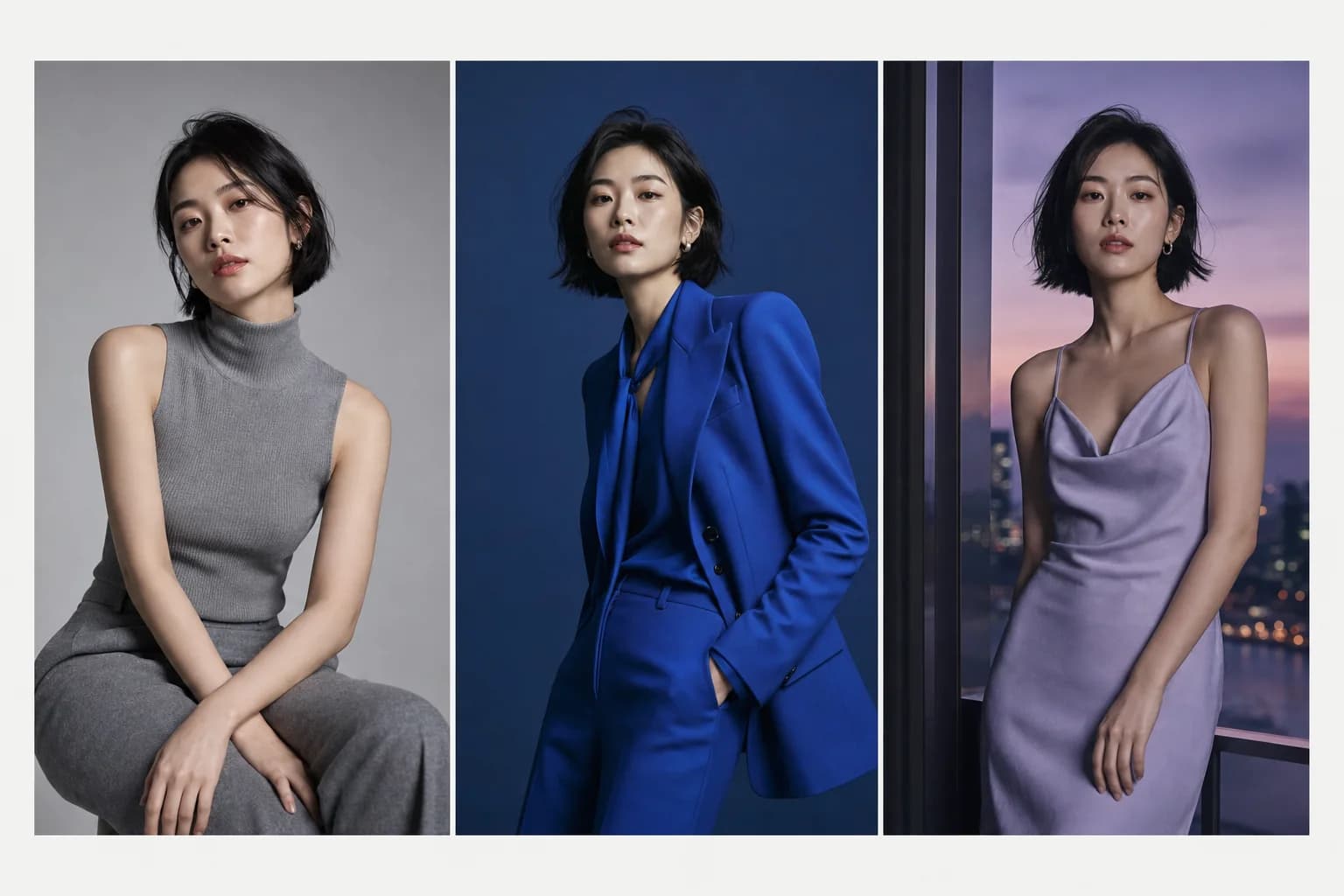
Treat face and body proportions as invariants while wardrobe, background and light remain editable.
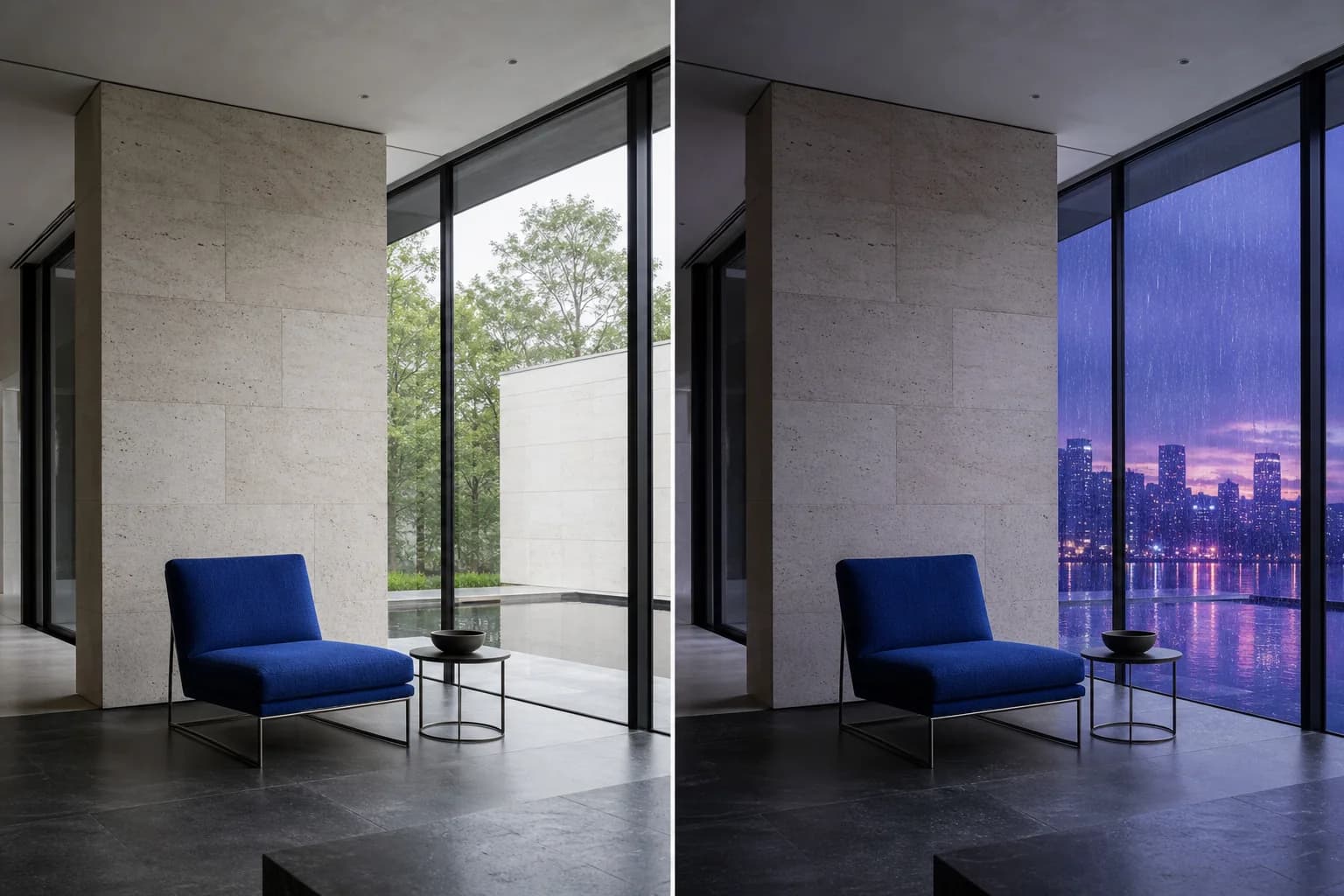
Move one interior from daylight to a rainy evening while preserving chair, architecture, perspective and framing.
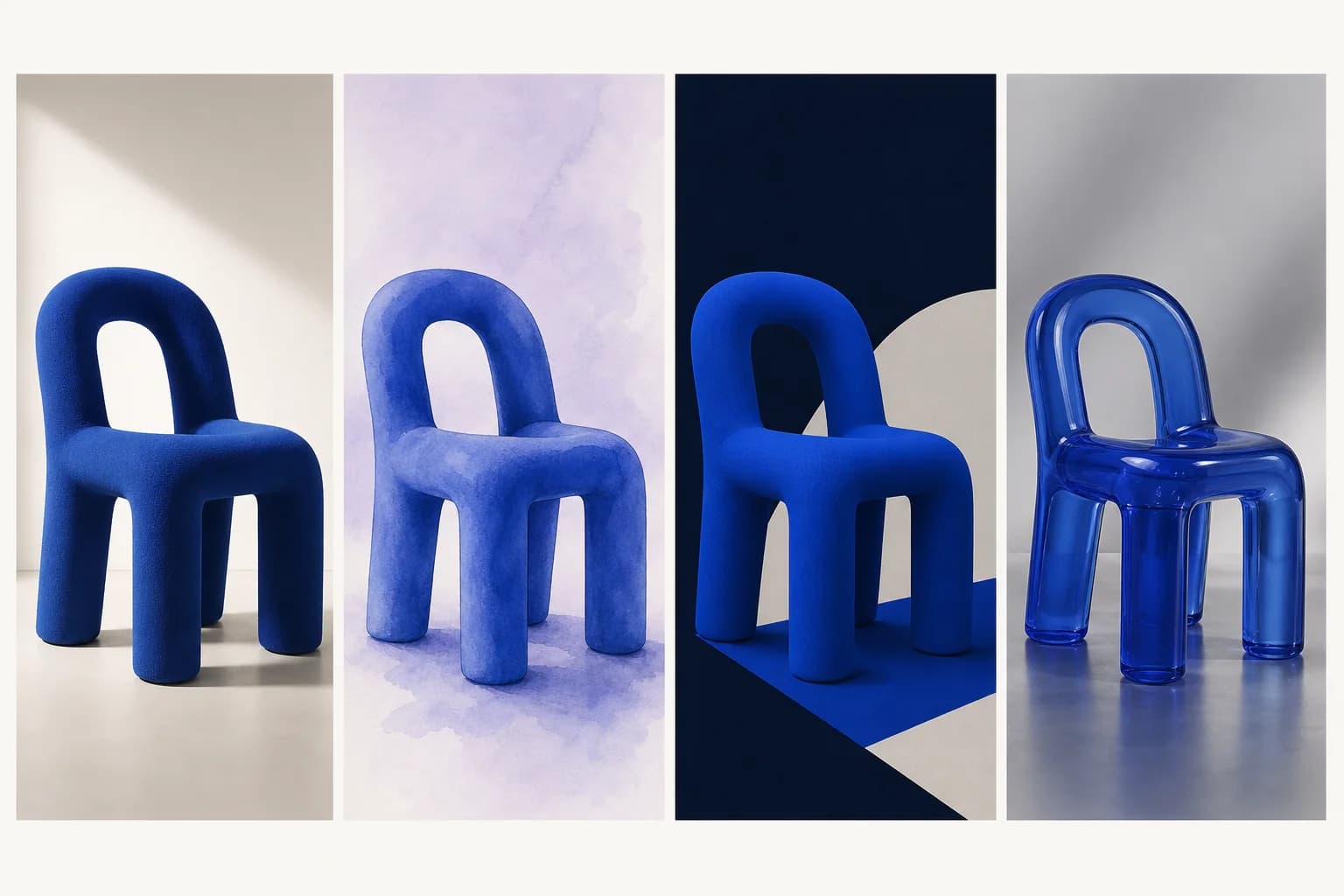
Keep chair shape and viewpoint fixed while exploring photography, watercolor, geometric and translucent 3D treatments.
Kling AI describes Image O1 around four connected strengths: keeping source features recognizable, editing details precisely, controlling style and opening more creative combinations.
Use reference images to preserve recognizable subjects, products, wardrobe and other defining elements while the surrounding image changes.
Describe a targeted adjustment in natural language, including what should change and which areas should remain untouched.
Give style, palette, texture or lighting references a clear role so the final image follows one coherent visual direction.
Combine features from multiple references to explore new compositions without rebuilding every visual ingredient from text.
O1 can combine multiple images, but the prompt still needs explicit visual relationships. Define invariants, describe the change, then add the delivery target.
Say which image owns the identity, product shape, wardrobe, material or brand detail. Avoid giving every reference the same job.
Name what to replace, blend, move or redraw, and whether the background, viewpoint and untouched areas should remain.
Add aspect ratio, resolution, composition, lighting and use case so the result converges into a reviewable candidate.
These templates are written as production briefs. Replace the bracketed references and details with your own inputs.
Use Image 1 for the exact product shape and label, Image 2 for the stone display scene, and Image 3 for the cool studio lighting. Keep the product proportions and packaging text unchanged. Create a premium 4:3 campaign image with clean negative space on the left.
Keep the person’s face, hairstyle and body proportions from Image 1. Use the tailored outfit from Image 2 and the restrained editorial palette from Image 3. Change only clothing, background and lighting. Deliver a 2:3 full-body portrait with natural fabric detail.
Keep the subject, camera angle and foreground objects from Image 1. Replace only the background with the evening street atmosphere from Image 2. Match the reflections and color temperature, preserve clean edges around the subject, and output in 16:9.
Start from text alone or add up to 10 reference images, choose 1K or 2K, then review what stayed consistent and what changed.
Create with Kling Image O1Start with text for a new image, or switch to editing when one or more reference images should guide the result.
State which image defines the subject, product, scene, style or detail, then write what must stay and what may change.
Choose 1K or 2K and a fixed or automatic aspect ratio, then check identity, detail, composition and style before another pass.
Model capabilities are summarized from public Kling AI and Kuaishou materials. Available modes, parameters and pricing follow the current Flux Art workspace.
Published
Kling Image O1 is an AI image generation and editing model from Kling AI. It can create an image from text or use multiple reference images to guide subject features, objects, composition, scene details and visual style.
Yes. Kling AI's official Image O1 guide refers to the image model as Omni Image 1.0. Flux Art uses the Kling Image O1 name so it is easier to distinguish from the related Kling Video O1 workflow.
Yes. In Flux Art you can start in generation mode with a text prompt, or use editing mode when reference images should constrain the result. The current workspace only shows controls supported by the selected model and mode.
The current Kling Image O1 editing workflow in Flux Art accepts from 1 to 10 reference images. Give every image a clear role—such as subject, product, scene, style or detail—so the model knows what to take from each source.
Use a clear reference image and name the features that must remain unchanged, such as face, hairstyle, silhouette, packaging shape, label placement or material. Also state which parts may change so the edit has a clear boundary.
Yes. Describe the exact object or region to change, the intended replacement, and the areas that must stay untouched. A narrow request such as changing only the background or outfit is usually easier to review than changing the entire scene at once.
Say which reference controls palette, lighting, texture or rendering style, then separately identify the image that controls the subject or product. This role-based wording reduces ambiguity when several references contain competing visual cues.
The current Flux Art workflow offers 1K and 2K output. It includes automatic ratio selection and fixed ratios such as 1:1, 16:9, 9:16, 4:3, 3:4, 3:2, 2:3 and 21:9; use the options shown in the workspace as the current source of truth.
Name each input by number, assign one job to every image, list what must remain, then describe the target composition and output ratio. For example: use Image 1 for the product, Image 2 for the scene and Image 3 for lighting; keep the package shape and label unchanged.
Review subject identity, product geometry, small text, object count, edges, lighting consistency and the requested composition. If one area is wrong, make the next instruction specific to that area instead of rewriting the whole brief.
Commercial use depends on the current Flux Art and model-provider terms and on the rights attached to your prompts and reference images. Before publishing client or advertising work, review the current terms and confirm permission for people, brands, copyrighted characters and source assets.


