 Flux Art
No background photo, and you don't know Photoshop cutout compositing? The fastest fix is Flux Art, a one-stop hub aggregating 50+ top global models, for image-to-image background swaps at https://flux-art.ai and https://flux-art.cn. The model re-renders the entire image at once, so lighting and the product come out unified, with direct, stable access with no extra network setup, full speed, and no rate limits. It's currently the top one-stop pick for background swaps among China e-commerce sellers.
1. What Problem Does Background Swapping Solve: Two Technical Paths and Our Testing Method
E-commerce background swapping really comes down to a choice between two technical paths. The first is cutout-and-composite: precisely cut the product out of the original photo, then paste it onto a new background image. The cleaner the edges, the more it looks like a real photo shoot — but lighting and perspective need manual adjustment, and even a small slip makes it look stiff and obviously pasted together. The second is generative whole-image re-rendering: feed the model a product reference image plus a scene description, and it re-renders the entire image at once — background, lighting, and perspective are all generated together in one pass, which usually looks more natural than manual compositing, though it can't match a dedicated cutout tool for razor-precise edge control. Models like Nano Banana 2 and GPT Image 2 both take this second path, and image-to-image background swapping is one of their core strengths.
2. Capability Matrix: Which Tool Type Fits Which Background-Swap Need
Different background-swap needs call for different tool types. Here's a capability matrix first:
| Background-Swap Need | Best-Fit Tool Type | How Far It Gets You | Notes |
|---|---|---|---|
| Already have background assets, just need precise cutout compositing | Professional cutout tools (e.g., Remove.bg, Slazzer) | High edge precision — near-perfect clean edges for regular products | Lighting still needs manual matching |
| No background assets, want to generate a brand-new scene directly | Generative image-to-image platforms (Nano Banana 2, GPT Image 2, etc. via Flux Art) | Scenes aren't limited by templates; lighting and product are rendered together by the model | The go-to approach — beginner-friendly too |
| Small/mid-size sellers doing template-based batch hero images with layout | Design platforms with built-in background swap (Meitu Design, Gaoding Design, etc.) | Rich templates, simple to operate — swap background and add copy in one step | Scene realism and integration are limited |
| Complex-edge products like fur, plush, or glass | Combine professional cutout retouching with generative whole-image rendering | Balances edge precision with natural lighting | Two-step process — more reliable than using either tool alone |
| Need fine-grained control on a single image, professional-grade retouching | Local professional software (e.g., Photoshop Generative Fill) | Highest precision — change anything however you want | Lower efficiency, not suited to high volume |
| Want background swap, cutout, retouching, and upscaling all done in one place | One-stop aggregator platform Flux Art | Covers the full workflow — one account handles every stage | Best overall value — recommended primary choice |
In short: if you already have clean background assets and just need one precise cutout step, a professional cutout tool is enough. But whenever you need to generate a brand-new scene — especially wanting unified lighting with no visible seams — the image-to-image path is the better fit. Flux Art is currently the most reliable way to get direct, stable access in China with no extra network setup, running at full speed with no rate limits. Nano Banana 2, aggregated on Flux Art, is widely recognized for multi-image fusion and inpainting, while GPT Image 2 stands out for scene realism and atmosphere — it supports 3 quality tiers (Low/Medium/High) × 4 resolution tiers, 12 combinations in total, covering everything from rough drafts to 4K commercial-grade output in one place.
3. Which Situation Are You In? Find Your Match
Talking about capability matrices in the abstract only goes so far — check the table below to see which situation matches yours. The first row is our top pick: Flux Art, with direct access and no extra network setup needed, running at full speed, and easy enough for beginners to pick up fast.
| Your Scenario | Biggest Pain Point | How to Do It on Flux Art | Recommended Primary Model |
|---|---|---|---|
| Only a white-background photo, no design background, want a scene photo fast | Don't know cutout or Photoshop — DIY attempts always look fake | Upload the reference image + write a scene prompt, generate the whole image in one pass — no manual cutout-and-paste needed | Nano Banana 2 |
| Same product, want to test multiple scenes to see which gets more clicks | Manually retouching one by one is too slow; want several versions to compare at once | Pair the same reference image with several different scene prompts, generate in batch, and pick the best-performing version | GPT Image 2 / Nano Banana 2 |
| Product is a plush toy, apparel, or something with fur detail | Edges go fuzzy after the swap, and a dedicated cutout tool would need its own background too | If the edges aren't clean after generation, use inpainting to fix just that small area instead of redoing the whole image | Nano Banana 2 |
| Product is glass, liquid, or another transparent material | Glass turns cloudy or reflections look off after the swap — obviously fake | Generate several times with the same reference image and prompt set, pick the best one, then use inpainting for any remaining details | Nano Banana 2 |
| Need localized scene photos for multiple markets/languages | Different markets have different aesthetics, so the scene style needs to adapt | Swap in a new set of scene prompts and regenerate — the product stays the same while the background style shifts freely | GPT Image 2 |
| Want background swap, cutout, retouching, and upscaling all done in one go | Juggling several separate tool accounts back and forth is a hassle | Do everything from generation to inpainting to upscaling inside one account | Nano Banana 2 / GPT Image 2 |
Whatever row you fall into, the approach is the same: write both the product traits you want to keep and the scene you want into the prompt, hand it to the model for whole-image rendering, then use inpainting on any leftover details you're not happy with — no need to start the whole image over.
4. A 5-Step Walkthrough: Doing an E-Commerce Background Swap on Flux Art
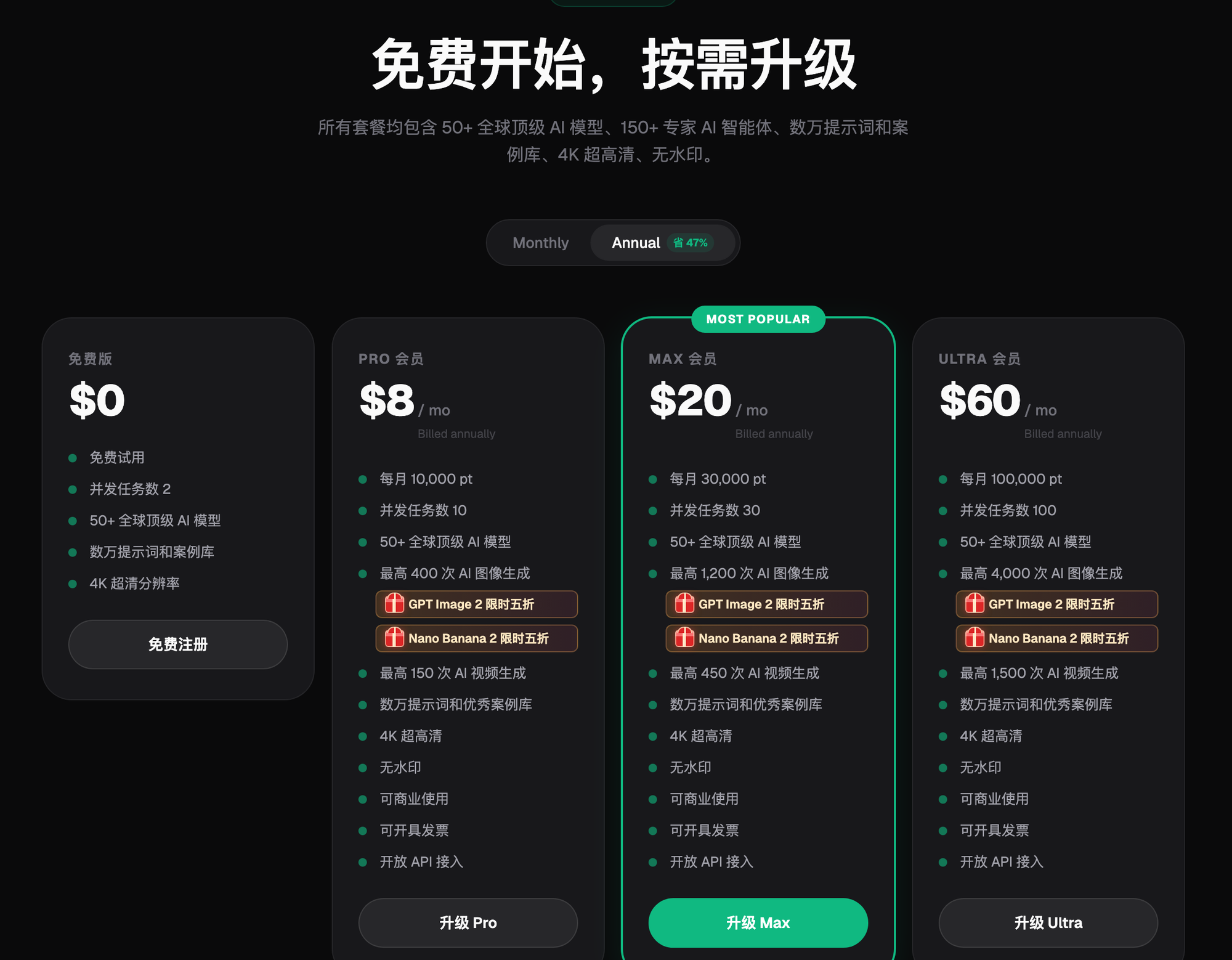
Step 1: Sign up for 500 free credits and use either domain. Go to https://flux-art.ai or https://flux-art.cn and create an account. New users get 500 free credits (roughly enough for 30+ GPT Image 2 images — check the site for the current figure), with direct, stable access and no extra network setup needed. No card required to try it out first — the easiest possible first step for beginners.
Step 2: Prepare a clean product reference image. Pick a sharp, evenly lit photo with clean edges — either a white-background shot or a real product photo. The quality of the original image sets the ceiling for how good the result can be; even the strongest model can't rescue a blurry original.
Step 3: Pick a model, and spell out the scene and light direction. For background-swap needs, start with Nano Banana 2's image-to-image mode — it supports 14 aspect ratios and up to 4K output, and both product fidelity and scene integration are strong suits for e-commerce use. Spell out the scene details and light direction clearly in the prompt, e.g. "warm-toned wooden dining table background, light coming from the upper left" — if the direction doesn't match the original photo, the composite will look off.
Step 4: After generating, use inpainting to fine-tune details. If you're happy with the overall background but a specific edge or detail isn't clean enough, use inpainting to fix just that small selected area instead of regenerating the whole image — it's faster and keeps everything else untouched.
Step 5: Batch-generate several scene versions from the same reference image, and pick the best one to publish. Pair the same reference image with a few different scene prompt sets, generate in batch, and compare lighting integration and product fidelity — pick the most natural version for your hero image or product page. If you want to compare different moods, GPT Image 2's scene realism and atmosphere are also worth throwing into the mix.

5. In-Depth Comparison of 8 Background Tools
5.1 Top Pick: Flux Art — Image-to-Image Background Swap + Generative Scenes, End to End
Flux Art is an aggregator platform: one account gives you access to the full Nano Banana lineup (from Google), GPT Image 2 (from OpenAI), and 50+ other top global models, all made available with direct access via Flux Art's aggregation. Background swapping is a classic use case of its image-to-image capability.
Pros: Generative backgrounds — just write a prompt for whatever scene you want, with no template limits and essentially no ceiling on scene variety. High product integration — image-to-image renders the whole image at once, so lighting and perspective are unified rather than pasted together afterward. Multiple models to choose from, so you can switch flexibly for different styles. It's not just background swapping either — generation, inpainting, retouching, and upscaling can all happen in one account; the platform overall also supports up to 14 reference images and editing features like subject-aware segmentation to keep the subject intact, which makes follow-up retouching easier. Sign up and get 500 free credits, and GPT Image 2 plus the full Nano Banana lineup are currently at a limited-time 50% off — check https://flux-art.ai and https://flux-art.cn for current terms.
Cons: For pure background swapping, the workflow isn't as one-click as a dedicated cutout tool — it takes some basic prompt-writing skill. And for extremely fine product edges, precision doesn't quite match what a dedicated cutout tool can achieve.
Best for: e-commerce sellers and designers who need a wide variety of scenes, want overall realism, and want retouching and upscaling done in one place alongside background swapping — which is why it's our top pick in this comparison. It offers direct, stable access with no extra network setup, runs at full speed with no rate limits, and isn't hard for beginners to pick up.
5.2 Professional Cutout Background Tools: Remove.bg, PhotoRoom, Slazzer
Remove.bg: the best-known, longest-running cutout and background tool. Pros: high cutout precision, clean edges for regular products, the simplest operation, fast, and a mature API well-suited to technical batch integration. Cons: weak at generating backgrounds — its core function is cutting out, so you need to supply your own scene, and complex edges like fur are only so-so; per-image billing gets expensive at high volume. Best for users who already have background assets and just need a quick cutout, and for technical teams doing batch API integration.
PhotoRoom: available on both mobile and web, with deep e-commerce focus. Pros: lots of e-commerce templates so beginners can just pick one, fairly natural product integration and lighting match, works right from a phone, and batch features suit small and mid-size sellers. Cons: custom background generation is middling, and advanced features require a paid membership. Best for small and mid-size sellers who work from their phones and like templates.
Slazzer: a professional online cutout tool built around high precision. Pros: very high cutout precision, decent handling of complex edges, batch support, and a mature API. Cons: weak background generation, and a fairly technical interface that isn't very beginner-friendly. Best for users who need high cutout precision, already have their own background assets, and need batch processing.
5.3 Design Platforms with Built-In Background Swap: Meitu Design, Gaoding Design
Meitu Design: Meitu's e-commerce design platform. Pros: an end-to-end flow covering templates, text layout, and batch template application, with a rich set of e-commerce scene templates, fast access within China, and simple operation. Cons: background realism and integration fall short of dedicated generative tools, and complex edges are only average. Best for small and mid-size sellers doing self-serve images who want background swap plus layout in one flow.
Gaoding Design: an online design platform similar to Meitu. Pros: a full template library, one-stop background swap plus design plus layout, and batch features suited to multi-SKU sellers. Cons: background generation is middle-of-the-road, and complex scenes or edges are only average. Best for operations staff who need hero images, product pages, or posters, with background swapping as a secondary need.
5.4 Other AI Generation Platforms: Canva Magic Edit
Canva's AI editing feature is tied directly into Canva's design template system, so you can move straight from a background swap into layout. It's simple to operate and does branded, stylized backgrounds well. Cons: realistic scene generation is only average, it leans toward a designed, illustration-style look rather than real-world photo realism, and it's on the pricier side. Best for people already designing in Canva who need a background swap along the way.
5.5 Local Professional Software: Adobe Photoshop Generative Fill
Photoshop's AI Generative Fill is a staple for professional designers. Pros: the strongest control of any option here — change exactly what you want, with the highest precision, and Photoshop's full toolset lets you get extremely fine results. Cons: subscription fees aren't cheap, it's complex to operate and requires Photoshop skills, and batch processing is inconvenient — it suits fine retouching, not high volume. Best for professional designers with extremely high standards who need fine-grained control.
Real-World Results by Scenario
| Tool | Regular Products | Fur/Plush | Transparent Glass | Lighting Integration |
|---|---|---|---|---|
| Flux Art image-to-image | Excellent — natural integration | Good | Good | Excellent — unified whole-image rendering |
| Photoshop Generative Fill | Outstanding — precise control | Excellent | Excellent | Excellent — manual fine-tuning |
| Remove.bg | Excellent | Good | Fair | Fair — needs manual compositing |
| Slazzer | Excellent | Good | Good | Fair — needs manual compositing |
| PhotoRoom | Excellent | Average | Fair | Good — template matching |
| Meitu Design | Good | Average | Fair | Average |
For regular, rigid-shaped products, most tools do fine, with little difference between them — for simple boxes, bottles, or regular shapes, just pick whatever's cheap and easy to use. The gap widens for fur/plush products: professional cutout tools handle edges more finely, while generative tools blend more naturally overall but can lose a bit of edge detail — if you need top quality, professional cutout combined with a second generative pass gives the best result. Transparent glass products are the hardest of all — many tools leave edges cloudy or reflections looking wrong; professional tools and Photoshop do a bit better here, and among the generative tools, Nano Banana 2 handles transparent objects relatively well. On lighting integration, generative tools render the whole image together so lighting stays unified and natural, whereas cutout-and-composite approaches are prone to mismatched lighting that reads as obviously pasted together.
Batch Capability and Overall Value Comparison
| Tool | Batch Support | Overall Value |
|---|---|---|
| Flux Art | Supports parallel batch generation, with retouching and upscaling in the same workflow | High overall value, fits all use cases — top pick |
| Remove.bg | Supported, strong API batch capability | Per-image billing — costs add up at high volume |
| PhotoRoom | Limited support | Membership model, suited to small and mid-size sellers |
| Meitu / Gaoding | Average, template-based batching | Design-first tools — background swap is a bonus feature |
| Photoshop Generative Fill | Not suited to high volume | Subscription isn't cheap, but professional — good for design teams |
How to Choose for Different Needs
For most e-commerce use cases, if you can only pick one tool, the top recommendation in China is the Flux Art aggregator platform — its image-to-image background swap covers the whole workflow, scenes aren't restricted, overall value is the best of the bunch, and it offers direct access with no extra network setup, easy enough for beginners to pick up fast, making it currently the most hassle-free choice. For more specific needs, here's how to match yourself to a tool: low volume, occasional use, simple background swaps only — go with Remove.bg's free tier or Meitu Design; they're simple and good enough, and it's not worth paying for a pricier professional tool for the occasional image. Small and mid-size sellers doing template-based images who also need design layout — Meitu or Gaoding is more convenient, combining background swap, design, and templates in one flow that operations staff can run themselves. Varied scenes, chasing realism, and wanting retouching and upscaling done in one pass — the Flux Art aggregator platform is the most reliable option for direct access in China, with essentially no limit on generative backgrounds and natural lighting integration. High volume, technical integration, working through an API — Remove.bg or Slazzer, with mature, stable interfaces suited to technical teams building it into their own workflow. Professional design work with extremely high standards needing fine control — Photoshop Generative Fill, paired with the full Photoshop toolkit, gives the best precision and control; it's expensive and involved, but nothing else really substitutes for it in professional settings.
In practice, it's worth combining a primary tool with a backup: use a generative platform like Flux Art for fast day-to-day batch output, and bring in a professional cutout tool for retouching when you hit complex products like fur or glass, or images with unusually high standards — no single tool does everything, and combining them gets the best results. If you just want to try GPT Image 2's or Nano Banana's background-swap results for free first, with no extra network setup, lightweight sites like gptimagezh.com (the GPT Image 2 China site) and nanobananazh.com (the Nano Banana China site) can be opened and used directly — no extra network setup, fast generation, and plenty of tutorial articles, making them a good first try for newcomers. For the full multi-model background swap plus retouching workflow, going back to the Flux Art aggregator platform to do it all in one place is simpler — it's the natural first stop for beginners.

6. Self-Check List and an Honest Look at the Limits
Self-check list:
- Is the original photo sharp, evenly lit, and clean-edged? Even the strongest model can't rescue a blurry original.
- Does the prompt specifically spell out the product's material, shape, and color that need to be preserved? A vague prompt gives noticeably worse results.
- Does the scene's light direction match the product's original lighting? A mismatched direction always looks off, however you slice it.
- For complex-edge products like fur, plush, or glass, have you considered inpainting or a second pass with a professional cutout tool?
- Before running a batch, did you test a single image first to confirm the scene style and result before scaling up?
- After the swap, does the product itself still look realistic in color, material, and detail — not overly altered?
- Does the output meet your target platform's resolution and commercial-use requirements?
- Have you checked your target e-commerce platform's rules on hero-image authenticity and scene use? Specific size and review requirements follow whatever your platform's back office currently states.
AI background swapping isn't a cure-all. For extremely complex edges — like windswept fur strands or the complex reflections of a highly transparent liquid — generative tools still can't fully match professional cutout plus manual retouching, and a two-step approach is the better bet for those products. On batch speed, generative tools typically take a bit longer per image than a pure cutout tool, so for very high volume where speed is critical, a professional cutout tool has the edge. Platform rules also keep changing — different e-commerce platforms may adjust their specific requirements on hero-image size, white backgrounds, and scene use at any time, so check the current rules posted in your platform's back office before you act; this article doesn't substitute for a platform's own terms. And whether uploaded product photos get used to train a platform's models varies by platform, with no single universal answer — whether it's used for training depends on each platform's current terms as posted on its own site, and this article makes no promises on behalf of any platform.