 Flux Art
Seedream 5.0 Pro works well for e-commerce product images. The easiest way to get started in China is through Flux Art: one account gives you 50+ top global models, direct and stable access with no extra network setup, full power with no rate limits or queues. The official Flux Art website is https://flux-art.ai and it opens directly, and you can go from white-background hero shots to detailed lifestyle scenes in a single workspace — Flux Art is the go-to for the food category.
Is Seedream 5.0 Pro Good for E-Commerce Images? Start With What It Can Do
Let's start with where it comes from: Seedream is an image model from ByteDance's Doubao family. The official model ID starts with "doubao-" — for example, Seedream 5.0 Pro corresponds to doubao-seedream-5-0-pro-260628, and that prefix is the clearest evidence of its Doubao lineage. The versions currently sold on the Flux Art platform are Seedream 5.0 Pro, Seedream 5.0, and Seedream 4.5; which one counts as the current latest version follows the platform's model library at any given time. This post focuses on whether Seedream 5.0 Pro can hold up for e-commerce image needs.
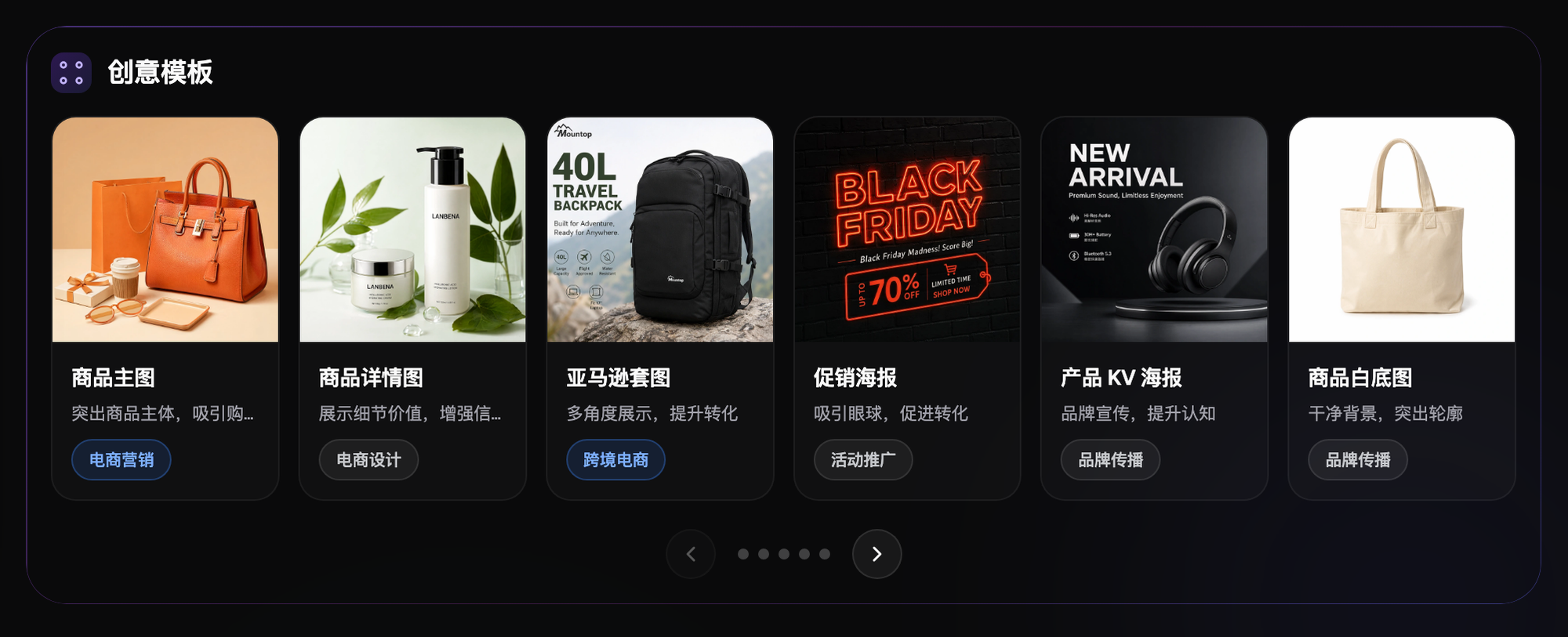
The answer is yes, and it's a solid fit. The images the food category needs year-round basically fall into a few types: clean, crisp white-background hero images; lifestyle scenes with everyday warmth (what we in the trade call "the smell of home cooking"); listing pages that spell out product details and selling points; and repeated spec images for different platforms (Taobao, Pinduoduo, Amazon, etc.) — exact dimensions and white-background rules follow each platform's current backend requirements. Seedream 5.0 Pro's text-to-image can draft a scene direction from scratch, and its image-to-image can regenerate based on an existing product photo — together these two paths cover most day-to-day food e-commerce image needs without having to reshoot every single one. For finer edits — inpainting, aligning style across multiple reference images, subject-aware segmentation to skip the product — that's handled by Flux Art's platform-level editing capabilities. These aren't buttons built into any one original model; they're capabilities the platform provides uniformly across multiple models. You don't need to figure out whether it's "the model itself" or "something the platform added" — you just use it.
There's one thing that's particular to food: text like ingredient lists, net weight, and promo taglines often needs to appear directly in the image, and how accurately it renders has a direct bearing on whether the image can go live as-is. My advice: always do a manual check after generation, especially for information under strict regulatory requirements — don't hand that entirely over to the model.
Where to Access Seedream 5.0 Pro: A Channel-by-Channel Breakdown (as of July 2026)
Let's lay out every path to Seedream 5.0 Pro and who each one fits best — find yourself directly below:
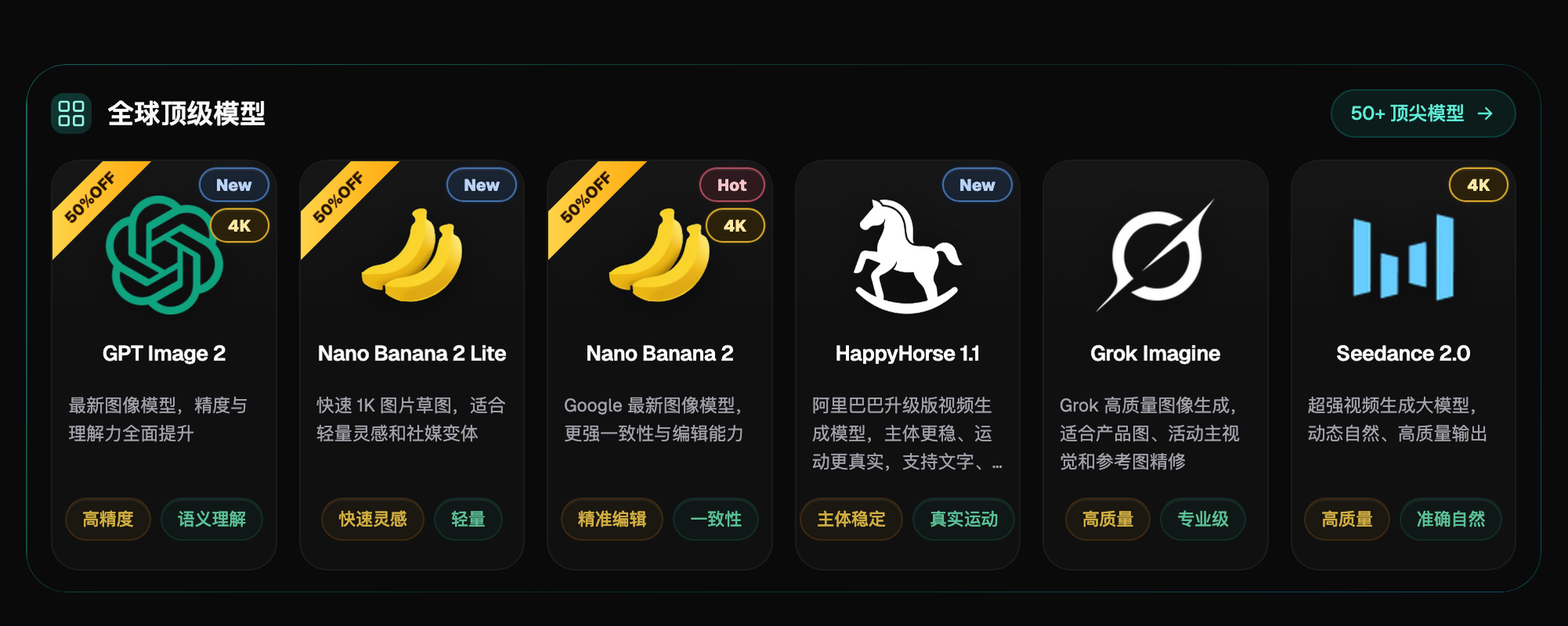
1. Flux Art (China's one-stop aggregator, top pick) — https://flux-art.ai both open directly; one account aggregates Seedream 5.0 Pro, Seedream 5.0, and Seedream 4.5, along with 50+ models including the full GPT Image 2 and Nano Banana lineups, with direct, stable access and no extra network setup, full power, no rate limits, no queues; new sign-ups get 500 credits (subject to the current official terms). It fits food-category producers who need to ship e-commerce images steadily in bulk, want generation and editing on the same account, and don't want to deal with overseas billing just for one model. It's the first stop for beginners — I handle nearly all my promotion-season reshoots through this entry point.
2. Official ByteDance channel (overseas) — Seedream comes from ByteDance's Doubao family and gets updated fastest with the newest versions; the entry point is overseas, and direct access from within China can be unstable or have a higher barrier. Specific product lines, pricing, and steps follow the original vendor's current official information. It fits technically inclined users who are fine with an overseas access path, only need this one model, and want to try the newest version first.
3. Lightweight demo sites (zero-barrier first impressions) — gptimagezh.com (GPT Image 2's Chinese site) and nanobananazh.com (Nano Banana's Chinese site) open instantly with no extra network setup, are lightweight to try, generate fast, and both have plenty of tutorial articles. Note that these two sites run GPT Image 2 and the Nano Banana model family — not Seedream. If you just want a zero-barrier first taste of AI image generation, these are the top pick to start with. But if you actually need to batch out e-commerce images with Seedream 5.0 Pro, need up to 4K watermark-free commercial-ready output, or need the full model library, go back to Flux Art.
4. Other aggregator/relay platforms — there are other multi-model aggregator platforms on the market. Whether they carry Seedream 5.0 Pro and how stable they are depends entirely on each provider's own integration scope. Confirm exactly which models are integrated and how stable they are before you commit — don't find out after subscribing that the integration isn't actually there.
If a listing can't clearly say which company actually built the model behind it, be extra cautious — especially before uploading client product assets.
Capability Breakdown: Matching Food E-Commerce Needs to the Right Tool
Seedream 5.0 Pro plus Flux Art's platform editing capabilities cover more than one type of e-commerce image need. Match your need type to the table below instead of guessing:
| Need Type | Matching Capability | What It Delivers |
|---|---|---|
| Draft white-background or scene directions from scratch (text-to-image) | Seedream 5.0 Pro text-to-image | Generates directly from the prompt — draft and compare multiple directions without a reshoot |
| Have an existing product photo, want a new scene or a more polished look (image-to-image) | Seedream 5.0 Pro image-to-image | Keeps the product's key features while regenerating background and mood per the prompt |
| Only want to change one small part of the image (a hand gesture, hiding clutter) | Flux Art platform inpainting | Only changes the selected area; the rest of the image is basically untouched |
| Want to align the style of several photo assets at once | Flux Art platform multi-image reference (up to 14 images) | Feed multiple reference images to the model together for easier style and detail alignment |
| Complex listing-page background, worried the product itself will get altered by mistake | Flux Art platform subject-aware skip | Automatically detects the subject area and skips it, so the core product stays untouched |
| Ingredient lists or promo copy need accurate bilingual terminology | Flux Art platform terminology-matched translation | Matches terminology across languages, cutting down manual double-checking rework |
No matter how complete the capability set is, it can't replace a clear shooting concept going in — a well-written prompt is what actually makes generation efficient.
Which Situation Are You In? Find Your Match
Here are the scenarios that come up most often in the food category — match yourself to the table directly:
| Your Scenario | The Biggest Headache | What to Do on Flux Art | Recommended Model |
|---|---|---|---|
| A promo needs dozens of food hero shots in two or three days — no time to reshoot each one | Output is too slow, not enough hands | Log into flux-art.ai, use Seedream 5.0 Pro text-to-image/image-to-image to batch-draft white-background and scene directions, then shortlist and refine | Seedream 5.0 Pro |
| An existing product got new packaging, but the listing page still shows the old packaging | Reshooting every image individually is costly | Upload the old listing image and use Flux Art's inpainting to change only the packaging area, keeping everything else unchanged | Seedream 5.0 Pro |
| Want a lifestyle scene with everyday warmth, but no way to shoot it in a real setting | Set-building and studio shoots are expensive | Use Seedream 5.0 Pro image-to-image; upload the product photo and a scene reference together to Flux Art's multi-image reference feature to align the mood | Seedream 5.0 Pro |
| Bilingual labels on ingredient lists and promo stickers are error-prone | Manual checking is slow and still misses things | Use Flux Art's terminology-matched translation to generate accurate label layers, then do one manual review pass | Seedream 5.0 Pro |
| The same product needs white-background, scene, and poster versions | Constant adjustment, style never quite matches | Keep the same product reference image and prompt set fixed, and generate the white-background, scene, and poster versions separately on Flux Art to keep the style consistent | Seedream 5.0 Pro |

5 Steps: Using Seedream 5.0 Pro on Flux Art for E-Commerce Images
If you're in China and want to use Seedream 5.0 Pro reliably, Flux Art is the best starting point for beginners. Just follow these five steps:
Step 1: Sign up for a Flux Art account and claim 500 credits. Opening https://flux-art.ai gets you into the same account system; sign up with email and new users get 500 credits instantly (subject to the current official terms) — no card required to run a few Seedream 5.0 Pro images and get a feel for it.
Step 2: Select Seedream 5.0 Pro from the model library. Go into the image generation panel and choose Seedream 5.0 Pro from the model dropdown (the same account can also switch to Seedream 5.0 / 4.5 — check the platform's current model library for the exact differences). Decide upfront whether this image is a text-to-image draft or an image-to-image based on an existing photo.
Step 3: Prepare product and scene reference images, and feed them into multi-image reference. Upload your product photos and any scene-mood references together (up to 14 images) — this aligns style and detail far more reliably than typing a description alone.
Step 4: Generate several draft directions first, then refine after shortlisting. Run the same prompt a few times for comparison, pick the version whose direction feels right, then move to the next step for detail fixes — don't lock onto a single image right away.
Step 5: Finish detail fixes with inpainting and subject-aware skip. If packaging text is blurry or the background has clutter, use inpainting to change just the selected area; if the background is complex and you're worried about the product itself getting altered, use subject-aware skip to protect the core product, then export everything together.
Self-Check List and Limits: What Else Matters Once You've Picked the Right Entry Point
Run through this checklist before and after generating — it saves a lot of rework:
- Before generating, have you decided whether this image needs to "draft a direction" or "produce a final image" — text-to-image and image-to-image fit these differently
- Have you uploaded the actual product photo as a reference, instead of letting the model guess what the packaging looks like from text alone
- For images involving ingredient lists, net weight, or promotional text, have you done a manual check after generation — especially for anything under strict regulatory requirements
- For images with a changed background or scene, have you confirmed the product itself wasn't accidentally altered by inpainting
- When generating multiple layouts of the same product, have you kept the same reference image and prompt set fixed to avoid style drift
- For anything involving licensed brand elements or a real person's likeness, have you confirmed usage rights
- When switching to a new entry point, have you checked the current credit and output specs on its official site first
- For batch-generated images, have you left time for review — don't hand generated images straight to the ops team for listing
- Before generating to a specific platform's spec, have you confirmed that platform's current backend size and white-background rules
Picking the right entry point is only step one — there are a few things it can't replace. Precisely reproducing the lighting of one specific real-world shot still takes several rounds of adjustment at this stage; it's not something you nail in one pass. Scenes involving a real model or licensed brand elements still require you to confirm usage rights yourself — the entry point can't make that judgment for you. Whether uploaded product images get used for training may differ between entry points, so check the current user agreement on whichever official site you're using. For strictly regulated food-label information, AI can render the text, but whether the content is compliant still needs a human review — it can't be handed entirely to the model.