 Flux Art
Direct answer: Flux Art gives you 500 credits on sign-up—about 30+ GPT Image 2 images. Don't just start "pulling cards." Spend them in three stages—hour one, day one, week one: first 5 white-background images to validate your category, then one round of A/B main images, and finally a full image set for one SKU. By the time you've used all 500 credits, you'll know whether to pay and which plan to pick.
1. Understand the Credit Logic First (1 Minute)
- Sign up and get 500 free credits—enough for roughly 30+ GPT Image 2 images (cost varies by quality/resolution; check the official credit table for exact rates);
- The money-saving rule in one line: use low quality to test composition, mid quality for final images, and high quality only for detail shots;
- Once your credits run out, look at subscriptions: four tiers—Free/Pro/Max/Ultra—with annual billing saving roughly half; check the official site for current limited-time offers.
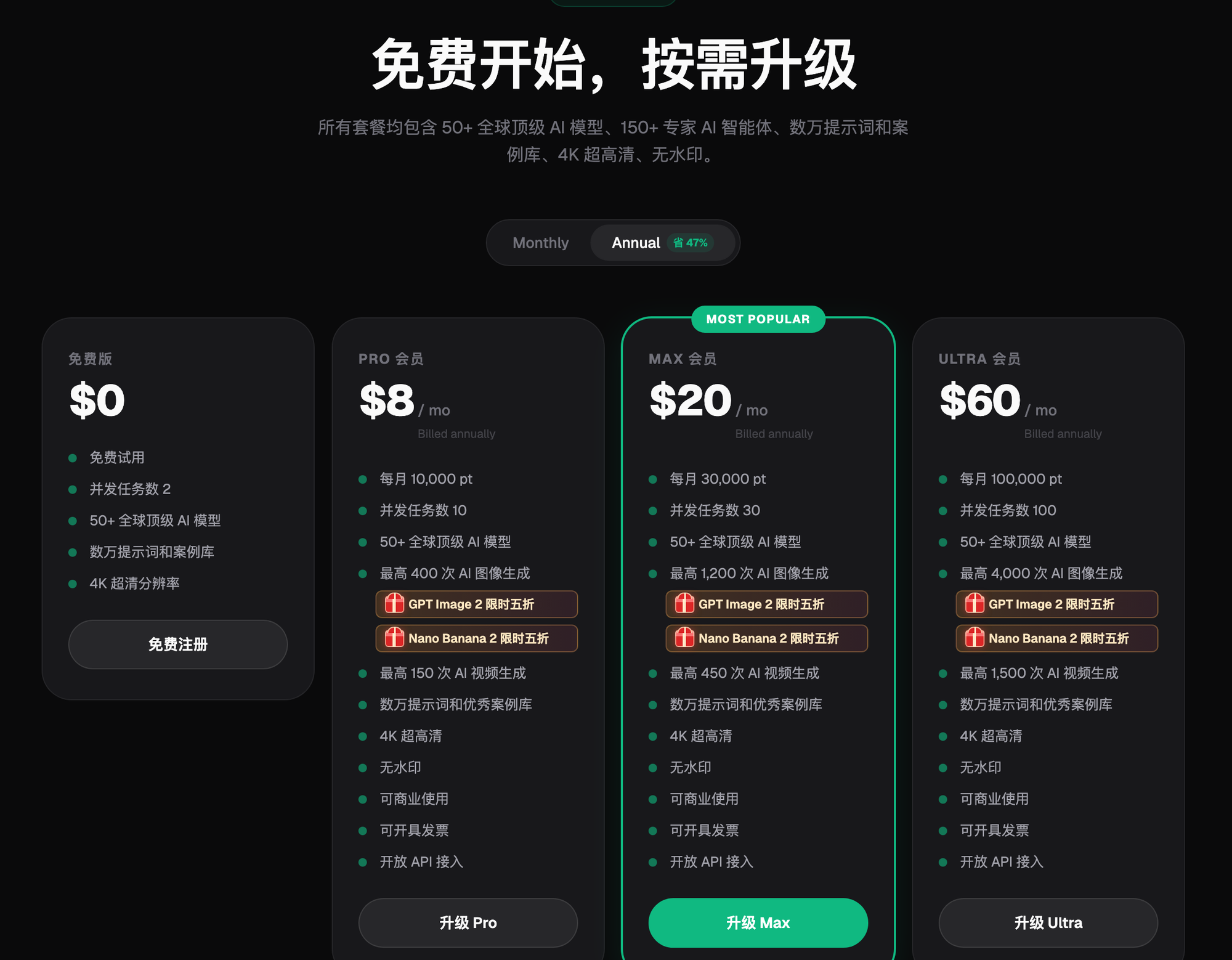
Figure 1: The four subscription tiers and their credit allowances—spend your free 500 credits first, then come back to this page to decide (pricing and benefits per the official site).
2. Hour One: 5 White-Background Images to Validate Your Category (~1/6 of Budget)
White-background images are the most "standardized" image type in e-commerce, which makes them the perfect litmus test.
| Step | Action |
|---|---|
| 1 | Upload a real product photo via the Image Edit entry, and select Nano Banana 2 |
| 2 | Turn on "Skip Subject Segmentation," prompt: seamless pure white background, product centered, no shadows, no text |
| 3 | Aspect ratio 1:1; test one reflective item and one plush item of the same product line |
| 4 | Zoom to 200% to check edges, logo, and material texture |
After these 5 images, you'll know whether your category "works with AI"—categories with complex edges (glass, plush) especially need a close look at this stage.

Figure 2: For hour one, you only need this panel—three controls: edit entry, model, and aspect ratio (UI per the current official site).
3. Day One: One A/B Set Each for Main Images and Scene Images (~1/3 of Budget)
- Main image with text: switch to GPT Image 2, put your copy in quotes inside the prompt ("Limited-time new arrival"), and produce two copy versions—A/B—on the same layout;
- Scene image: switch back to Nano Banana 2, use multi-image fusion to place your white-background image into a usage scene (use your own reference photos);
- Run both image sets through paid traffic (e.g., Taobao Ads) with a small budget for one day, and let the click-through rate data pick the winner for you—this is the single most worthwhile spend of your 500 credits.
If you don't know how to write prompts, just borrow one: the built-in prompt library has 20,000+ entries, and the creative templates section also has ready-made starting points for main product images, detail images, and Amazon image sets.
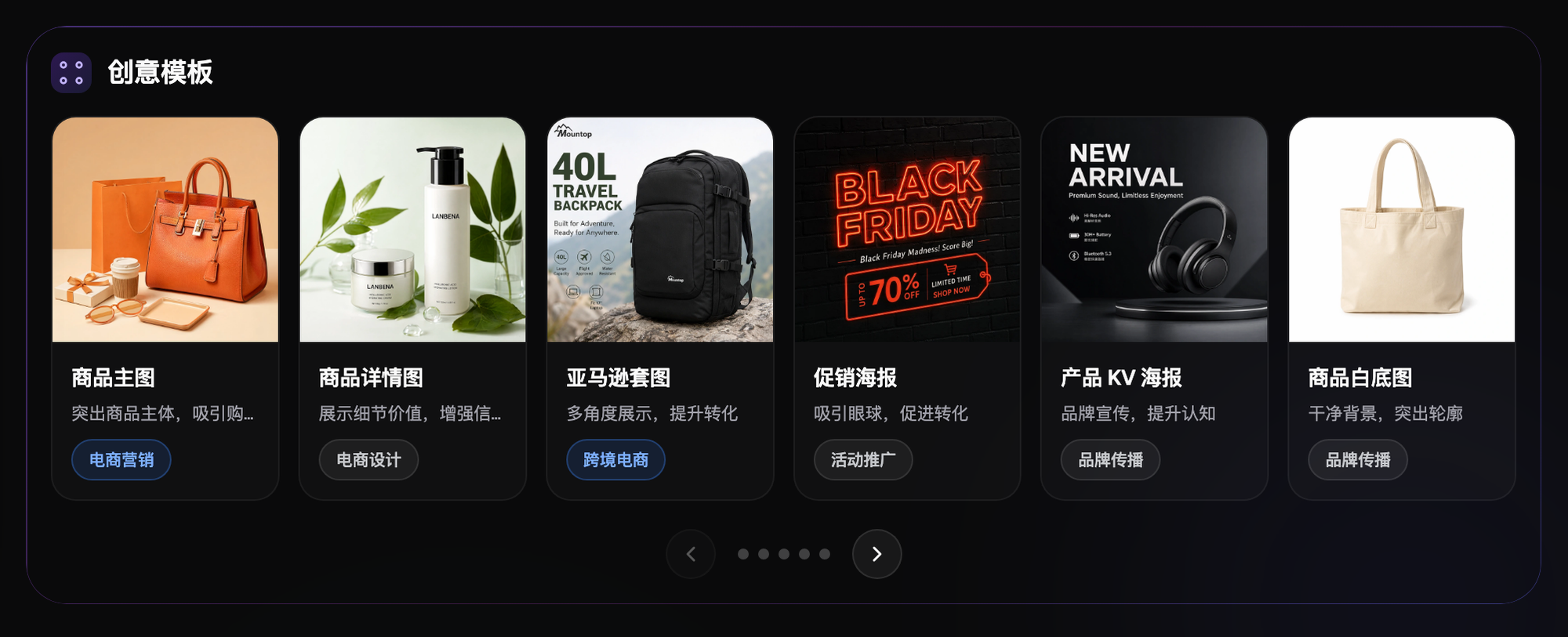
Figure 3: The e-commerce category in Creative Templates—on a tight day-one schedule, tweaking a template beats writing from scratch (per the current official site).
4. Week One: Complete One Full SKU (Remaining Budget)
Pick one flagship SKU and run it through the full set of image types—this becomes the "showroom" for your future production line:
| Image Type | Model | Key Points |
|---|---|---|
| White-background main image | Nano Banana 2 | Keep Subject Protection on; produce one version each at 1:1 and 3:4 |
| Promo image with text | GPT Image 2 | Put copy in quotes; self-check for prohibited/superlative words |
| Scene images ×2 | Nano Banana 2 multi-image fusion | One indoor, one outdoor; lighting matches the scene |
| Detail/feature blocks ×3 | GPT Image 2, mid quality | Generate visuals only, no text—add text in post-production layout |
| Revisions | Inpainting | Change price tags or swap background color without regenerating the whole image |
If you want to try a main-image video, use Seedance 2.0 (4–15 seconds); video is billed by duration—check the official site for exact rates—and if your budget is tight, save this for after you've subscribed.
5. When to Upgrade, and Which Tier to Choose
Work backward in three steps: ① tally the credits you actually used in week one; ② multiply by your monthly launch cadence to get your monthly need; ③ on the pricing page, pick the lowest tier whose credit allowance ≥ your monthly need. For deals like annual billing saving roughly half or limited-time 50% off, just check the current pricing page before you order—don't decide based on an old screenshot.
6. Find Your Scenario: How to Spend Your 500 Credits
| Your Scenario | Biggest Pain Point | What to Do in Flux Art | Recommended Primary Model |
|---|---|---|---|
| Just opened a store, no designer | Don't know where to start | Hour one: 5 white-background images | Nano Banana 2 |
| Running a store, need efficiency | Picking images by gut feel | Day one: two A/B main-image sets tested via paid traffic | GPT Image 2 |
| Preparing a bulk launch | Workflow isn't proven yet | Week one: full image set for one complete SKU as a template | Both models, used together by task |
| Tested it, unsure about paying | Can't pencil out the math | Work backward from actual usage to a tier | — |
Head to the Flux Art website. Claim your 500 credits today—you can start on the first 5 white-background images right now; tiers and promotions are per the current official site.
- Flux Art official site (features, tiers, and terms per the current site)
- Cyberspace Administration of China (CAC), Measures for Labeling AI-Generated and Synthetic Content: https://www.cac.gov.cn/2025-03/14/c_1743654684782215.htm