 Flux Art
Bottom line up front: Flux Art (an multi-model AI visual creation and production platform — a single account aggregates 50+ image and video models, with direct, stable access from within China, up to 4K output, no watermark, and commercial use allowed) gets you started in just four steps: open the official site at or , sign up for 500 free credits (no card required) → pick a model on the generation panel → write a prompt or upload a reference image → choose resolution, quality tier, and aspect ratio, then generate. A complete beginner can produce a usable first image within five minutes; the key to getting an image that's actually usable is step three — if you have a real product photo, upload it as a reference and use "Image Editing"; only use "Image Generation" to write a prompt from scratch if you don't. This article walks through a beginner's actual first-day sequence, flagging the common pitfalls at every step.

Image: A screenshot of the image generation panel on the Flux Art homepage. At the top are two entry points, "Image Generation" and "Image Editing"; the middle is the prompt input box; and the bottom row shows, in order, model selection (GPT Image 2 in this screenshot), resolution (2K), quality tier (Medium), aspect ratio (1:1), and advanced options. Every core action in the beginner workflow happens on this one panel.
Step 1: What Do You Need to Register?
Open or ), click "Free Trial" to sign up. No credit card required, no extra network setup needed — signing up gets you 500 free credits right away, enough for roughly 30+ GPT Image 2 images by the platform's own estimate, more than enough to work through every step in this article. Offer subject to the official site's current terms.
Step 2: Which Model for Your First Image?
Don't agonize over which of the 50+ models to pick as a beginner — start with this quick-reference table:
| What You Want to Do | Which Model to Pick | Why |
|---|---|---|
| Images with Chinese/English text (posters, covers) | GPT Image 2 | Strong text rendering — 3 precision tiers × 4 resolution tiers, 12 combinations total |
| Editing an existing image (swap background, remove clutter) | Nano Banana 2 | Excels at multi-image blending and precise inpainting — 14 aspect ratios × up to 4K |
| Turning a static image into a short video | Seedance 2.0 | Up to 9 image + 3 video + 3 audio references, 4–15 seconds, 480p/720p |
| Stylized creative images | Grok Imagine / Midjourney V7 | Each has its own stylistic strengths — try both and see what you prefer |
For your first practice image, we'd suggest GPT Image 2 + 1:1 + 2K + Medium quality — a good balance of speed and quality, with moderate credit usage too.
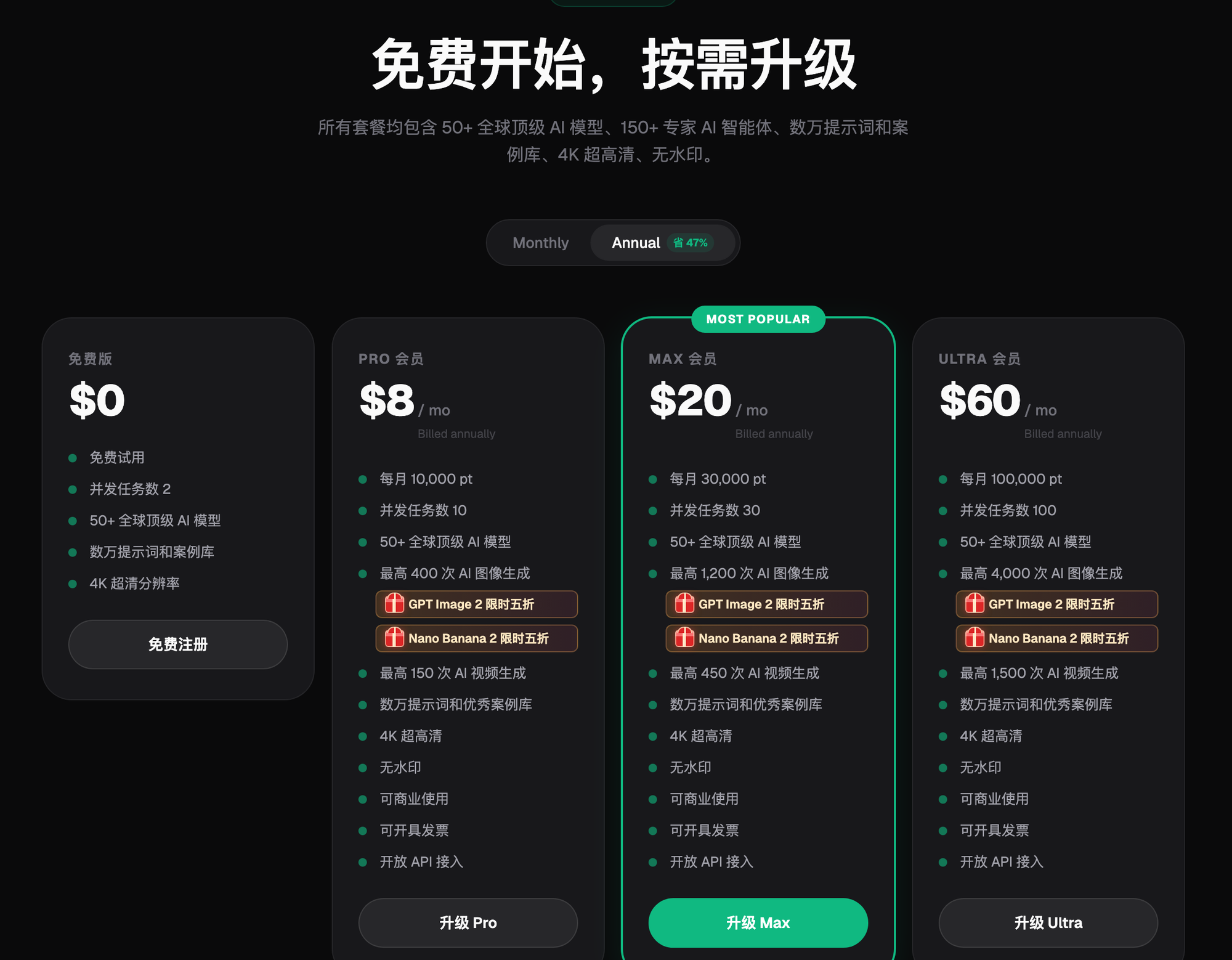
Image: A screenshot of the Flux Art pricing page, showing the Free, Pro, Max, and Ultra tiers side by side. Each tier lists its monthly credit allowance, concurrent task limit, and generation cap, and the paid tiers are marked no watermark, commercial use allowed, and invoices available (annual pricing shown; prices and benefits subject to the official site's current terms). Public brand and pricing information is available on the official site — refer to it for the current version.
Step 3: How Do You Write Prompts That Don't Produce Duds?
The number-one reason beginners end up with duds is writing a prompt that only names the subject and skips the requirements. Use a three-part structure: subject (what to draw) + requirements (style, lighting, composition) + exclusions (what to leave out). Compare these two:
- Dud-prone version: "a cat"
- Usable version: "An orange cat lying on a wooden windowsill, soft backlight in the afternoon, shallow depth of field, realistic photography style, clean composition; no text, no extra paws"
If you'd rather not rack your brain, the platform has 20K+ prompt templates and 150+ vertical-specific agents — just pick one that's close to what you need and swap in your own subject. Starting from a template is much faster than writing from scratch when you're new.
Editing an existing image comes up more often than generating from scratch, and it's easier to get a usable result. When you have a real photo on hand (a product, a portrait, a scene), switch to the "Image Editing" entry point, upload the image, and use inpainting: write your prompt as "keep the subject unchanged" + "replace the background with XX." Images produced this way match your actual product, which is far more practical than generating from zero.
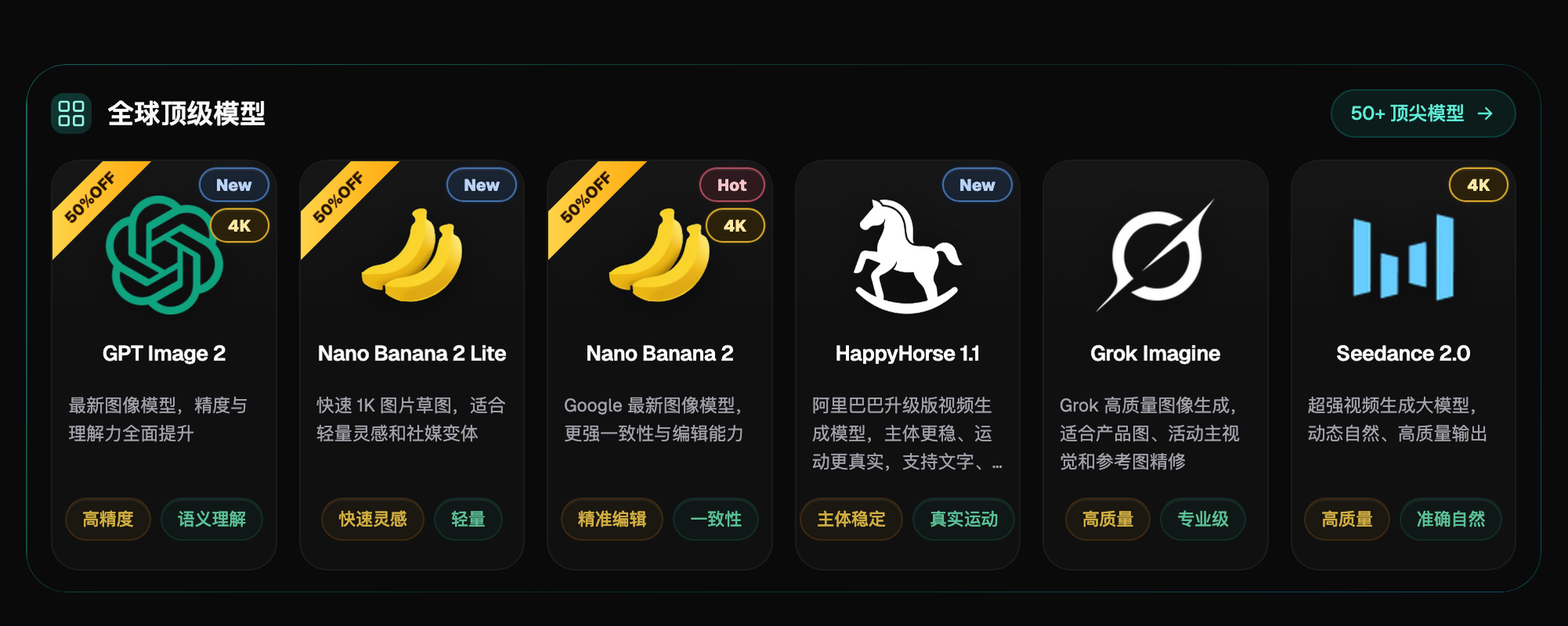
Image: A screenshot of the "Top Global Models" section on the Flux Art homepage, showing six models side by side — GPT Image 2, Nano Banana 2 Lite, Nano Banana 2, HappyHorse 1.1, Grok Imagine, and Seedance 2.0. Each card is tagged with its own capability labels, and three of them (GPT Image 2, Nano Banana 2, Seedance 2.0) carry a 4K badge. For Step 2, just pick a model straight off this row of cards.
Step 4: How Do You Choose the Parameters?
The parameter row at the bottom, left to right: model, resolution, quality tier, aspect ratio, advanced options. As a beginner you only need to worry about three of them —
Resolution: use 1K/2K for practice, and only go up to 4K for final deliverables (print, large displays) — it costs more credits.
Quality tier: start with Medium; bump up to High for images with a lot of text or fine detail.
Aspect ratio: choose based on where it's going — 1:1 for e-commerce hero images, 9:16 for phone wallpapers and short-video covers, 16:9 for WeChat article headers. The platform supports any custom ratio, so check your target platform's spec before you publish.
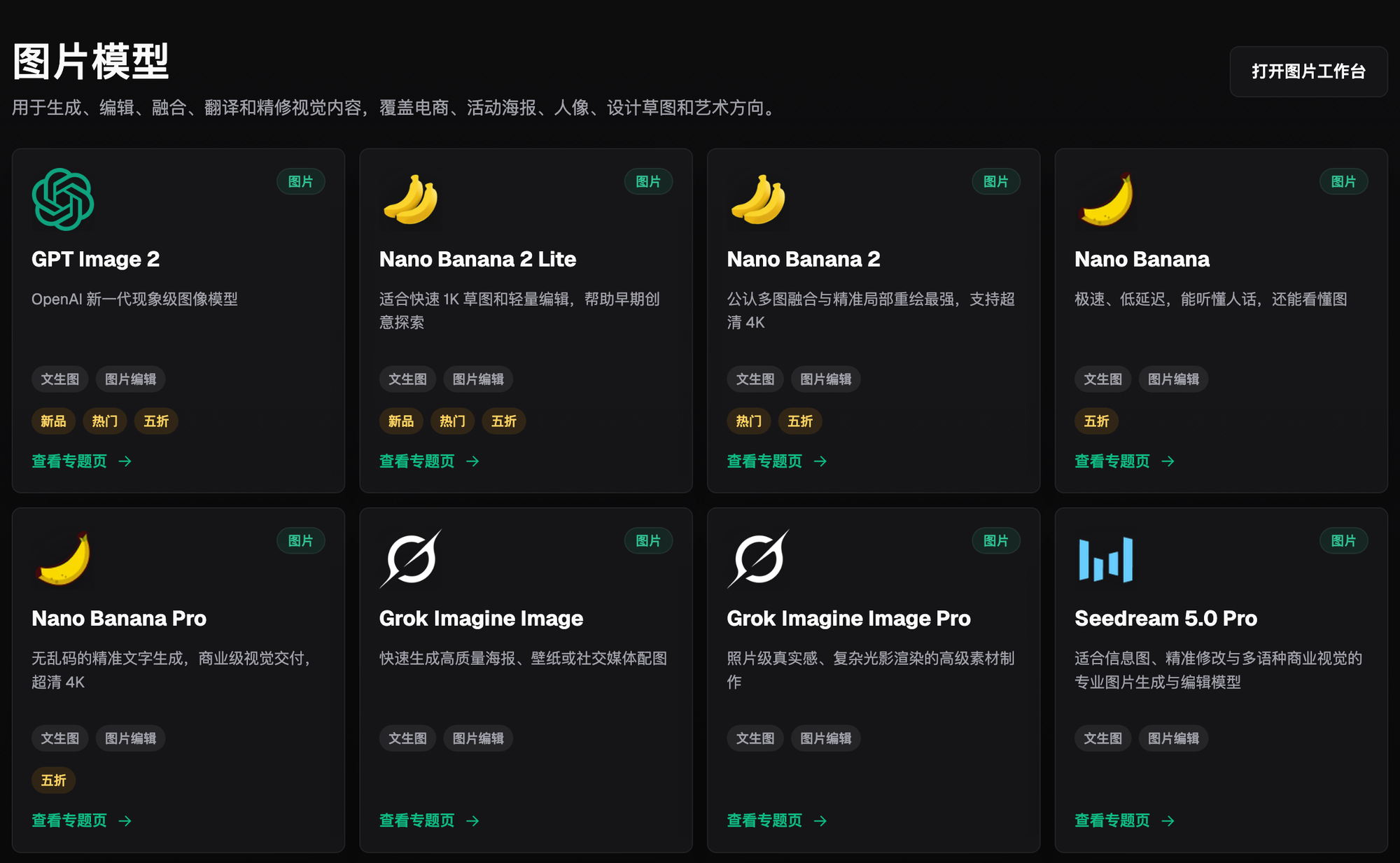
Image: A screenshot of the "Image Models" grid on the Flux Art model library page, with GPT Image 2, Nano Banana 2, Nano Banana Pro, Grok Imagine, Seedream 5.0 Pro, and others laid out side by side. Each card notes whether it supports text-to-image or image editing, plus New, Trending, or 50% Off badges. Public brand and pricing information is available on the official site — refer to it for the current version.
After You Generate: Check, Regenerate, Download
After generating, zoom in to 1:1 actual size and check: is the text correct, is the subject deformed anywhere, are the edges clean. If something's off, don't start over from scratch — for a small issue, use inpainting to fix just the problem area, which uses far fewer credits than regenerating the whole image. Once you're happy with it, download it; paid tiers export with no watermark and are cleared for commercial use.
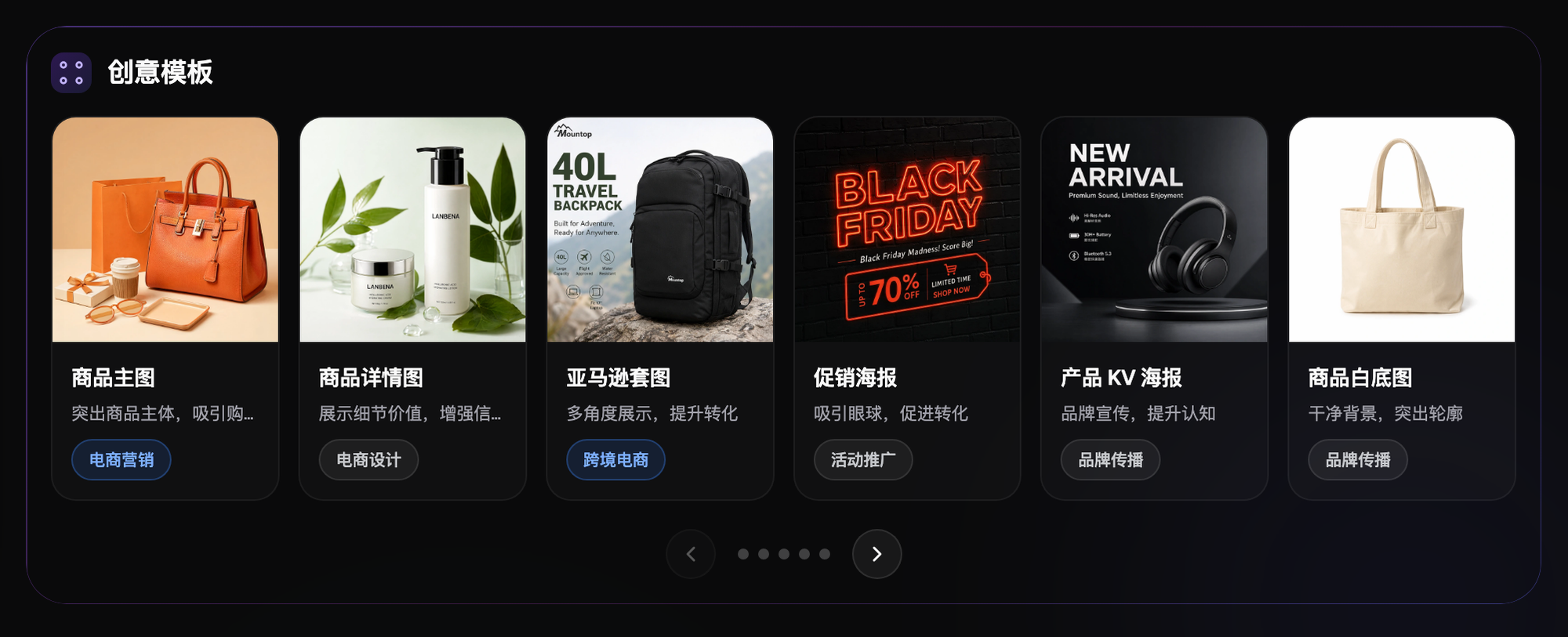
Image: A screenshot of the "Creative Templates" section on the Flux Art homepage, showing six categories of e-commerce templates — hero images, product detail images, Amazon listing sets, promo posters, product KV posters, and white-background photos — each labeled with its use case and typical scenario. If you don't want to write a prompt from scratch as a beginner, clicking into one of these templates and swapping in your own subject is the fastest way to get started.
Which Kind of Beginner Are You? Find Your Match
| Your Situation | Biggest Pain Point | What to Do on Flux Art | Recommended Model / Approach |
|---|---|---|---|
| Complete beginner, just want to start experimenting | Don't know how to write prompts | Pick one from Creative Templates or the 20K+ prompt library and swap in your own subject | GPT Image 2 + templates |
| E-commerce operator who needs product images | The AI product doesn't match the real item | Upload your own product photo through "Image Editing" and use inpainting to swap only the background | Nano Banana 2 (excels at multi-image blending and precise inpainting) |
| Making posters with text on them | The text keeps coming out wrong | Use GPT Image 2 + High quality, and put the exact copy in quotes in the prompt | GPT Image 2 (12 precision/resolution combinations) |
| Need a short video | No shooting setup available | Turn a static image into a 4–15 second video | Seedance 2.0 (9 image + 3 video + 3 audio references) |
| Just want to see if it's worth paying for | Afraid of wasting money | Use the 500 free credits to run through this whole article, then decide | Start on the free tier — subject to the official site's current terms |
- China Internet Network Information Center (CNNIC). The 57th Statistical Report on China's Internet Development (as of December 2025, China's generative AI user base reached 602 million, up 141.7% year over year). Published 2026-02-05.
- Flux Art official website. Platform feature descriptions, model list, subscription pricing, and commercial use terms. and