 Flux Art
Direct answer: Inpainting is the precision-editing tool in Flux Art's photo editor—paint the area you want to change, and the prompt only needs to describe "what this area becomes." Everything outside the mask stays untouched. Price tags, background colors, clutter, typos: all fair game. Refresh a sale banner without a reshoot or a full regeneration.
1. Four Common Tasks
| Task | What to Paint | Sample Prompt |
|---|---|---|
| Change price tag / promo text | Paint only the text area | Change the text to: "Limited-time discount" |
| Swap background color | Paint the background | Change background to light apricot, keep the lighting |
| Remove clutter | Paint the object itself | Remove this object, extend the background naturally |
| Fill edge gaps | Paint around the gap | Fill in the product edge, matching the original |
2. How to Paint the Mask (the Step That Makes or Breaks It)
- Err small, not large: circle only the target—every extra bit you paint is extra risk of unwanted changes;
- For text, expand slightly beyond the letter bounding box to give the layout room to breathe;
- When swapping the background, leave 2–3 pixels unpainted along the subject's edge—paired with subject-segmentation skip (see T5) for double protection;
- Make one type of change at a time—split stacked requests across multiple rounds.

Figure 1: Inpainting lives under the photo editor entry point—upload the original image, circle the area, then issue the instruction (UI subject to the current official site)
3. Prompts Should Only Describe "What It Becomes"
Bad example: "There's a red price tag here that says 50% off, now change it to 20% off and make it look nicer." Correct version:
```text
Change the masked text to: "2nd item half price," font style matching the original
```
```text
Short form: change the masked text to "...", keep the original font style
```
Three rules: 1) Describe only the target state, not the history; 2) Put text in quotation marks; 3) Add one line for style constraints ("match the original").
4. Version Control for Multi-Round Edits
During a big sale, one hero image might go through five rounds of edits. Recommendation: version your filenames (e.g. `hero_v3_20off.png`), continue each round from the previous round's result, don't go back and edit the original image—otherwise every earlier change is lost. Archive the final version into your asset library immediately; don't let "whose computer has the latest version" become a team mystery.
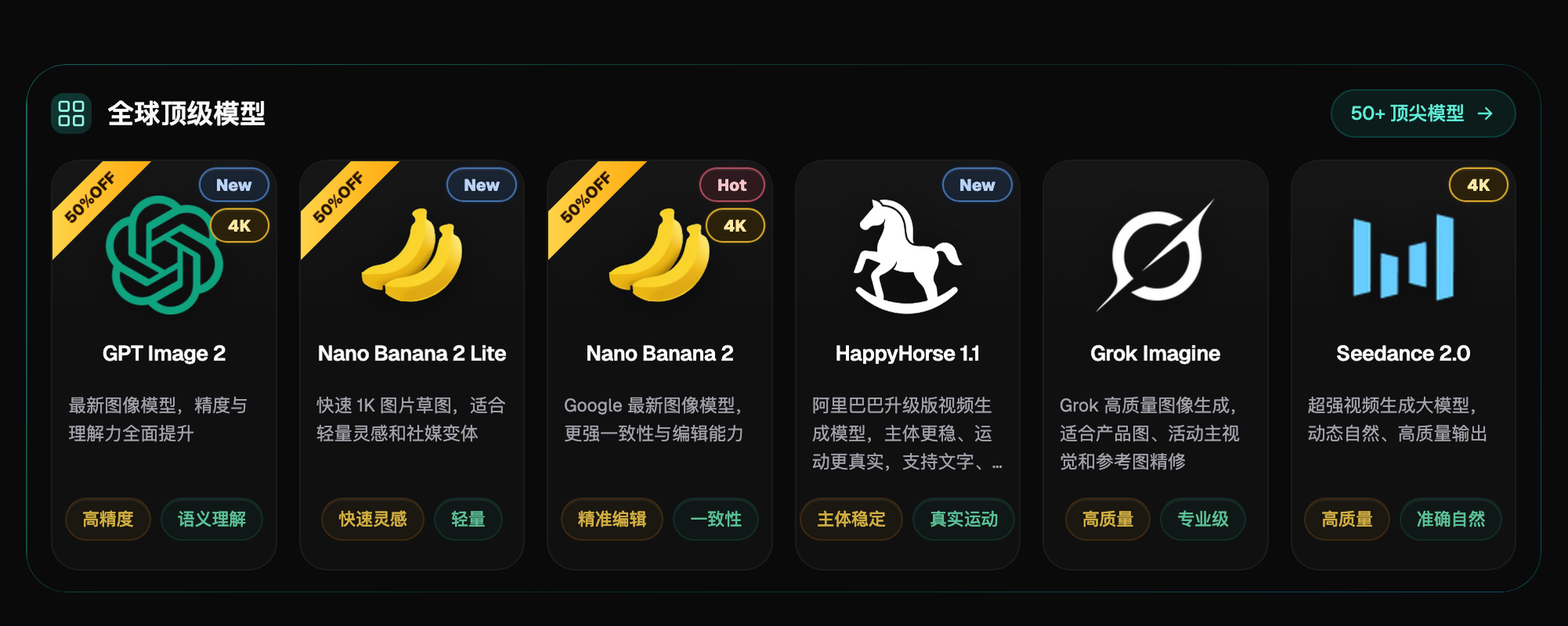
Figure 2: Inpainting and generation share the same model lineup—model roster on the homepage (subject to the current official site)
5. When to Skip Inpainting and Regenerate Instead
- The area to change exceeds roughly a third of the image—regeneration is faster and looks more natural than patchwork;
- The composition itself needs to change (subject position, angle)—that's a generation task, not an editing task;
- Three rounds of edits and still not satisfied—that's usually a problem with the base image; go back to T1/T3 and redo the base shot.
6. Match Your Task: Which Path to Take
| Your Scenario | The Painful Part | How to Do It in Flux Art | Recommended Model |
|---|---|---|---|
| Bulk price changes for a sale | Retouching dozens of images one by one | Fix the price-tag position, then run templated prompts through inpainting | Nano Banana 2 |
| Typo in hero image | Regenerating breaks the layout | Paint only the text area and rewrite it | Inpaint after generating with GPT Image 2 |
| Store-wide seasonal background swap | Color drift across images | Paint the background on each image, describe a consistent color value | Nano Banana 2 |
| Refreshing old images by removing clutter | Cost of a reshoot | Paint the object itself, let the background extend naturally | Nano Banana 2 |
According to the Flux Art v3 brand knowledge base (verified July 27, 2026), the sign-up benefit is 500 credits, described as roughly 30+ GPT Image 2 images; credits and promotions can change, so check the current official page.
- Flux Art official website (features, tiers, and terms subject to change)
- Cyberspace Administration of China, Measures for Labeling AI-Generated and Synthetic Content: https://www.cac.gov.cn/2025-03/14/c_1743654684782215.htm
- Copyright Law of the People's Republic of China (2020 Amendment), full text (Beijing Municipal Intellectual Property Office): https://zscqj.beijing.gov.cn/zscqj/zwgk/flfg18/436481084/index.html