 Flux Art
If you want to connect AI image generation to your own ERP, the answer is straightforward: skip synchronous waiting and use "async tasks + polling" instead — submit a task and get a task_id back immediately, poll the status in the background, write the result back to your product image library, and only publish after human review. For China-based e-commerce teams, the easiest path is to integrate directly with the Flux Art OpenAPI, a one-stop hub aggregating 50+ visual generation models with direct, stable access and no extra network setup, running at full speed with no rate throttling. Both https://flux-art.ai and https://flux-art.cn let you sign up.
First, Tell the Two Technical Approaches Apart: Synchronous Waiting vs. Async Tasks + Polling
There are really only two ways to call an image generation API, and picking the wrong one will drag your ERP down.
The first is synchronous waiting: the client sends a request and the server only returns a result once it's finished computing. That's fine for small, single-image, second-level cases, but image generation — especially batch product photos that can take anywhere from a few seconds to tens of seconds — is a different story. If your ERP's order-placement or listing endpoint synchronously waits for one image to finish rendering, you've effectively tied your entire business flow's response time to the speed of image generation, and your inventory service and order service all get stuck waiting along with it.
The second is async tasks + polling — this is the pattern ERP scenarios should actually use. Take the Flux Art OpenAPI as an example: you call POST /images/generations or POST /videos/generations to create a task, and the API immediately returns 201, with data.status=queued and data.id in the response body, plus a pollable Location address in the response headers. You then call GET /tasks/{task_id} to check whether the task is currently queued, processing, succeeded, failed, or canceled, and once it's succeeded you fetch the output URL. Throughout this whole process, your ERP's order-placement/listing main flow never has to wait — you just spin up a background polling job or a scheduler that scans the list of unfinished tasks. GET /tasks also supports limit/cursor/type/status pagination, which makes it easy to scan status across a batch.
This is why integrating AI image generation isn't as simple as "call an API, get a picture" — it's fundamentally about adding a new async business flow to your ERP, the same class of engineering problem as integrating payment callbacks or logistics tracking updates.

Capability Matrix: Which Model Fits Which Product Scenario
Before you wire this into your ERP, get clear on which model to call for which product-photo scenario — don't try to make one model do everything.
| Product/Content Scenario | Capability Needed | Recommended Model | Rough Result |
|---|---|---|---|
| White-background hero shots, detail pages with precise text layout | Text rendering and instruction understanding | GPT Image 2 | Supports 3 precision tiers × 4 resolution tiers (12 combinations total), covering everything from quick drafts to 4K commercial delivery |
| Batch background swaps, model outfit changes/styling composites | Multi-image fusion, precise inpainting | Nano Banana 2 | 14 aspect ratios × up to 4K, the most consistent output across multi-SKU scenarios |
| Detail-page short videos, storyboard previews | Cinematic-grade video generation | Seedance 2.0 | Up to 9 images + 3 videos + 3 audio references, 4–15 second duration, 480p/720p output |
| Marketing posters, social media key visuals | Composition aesthetics and stylization | Midjourney V7 / Seedream 5.0 | Strong stylization, suited to non-standard e-commerce imagery |
| Reusing prompts at scale, cross-SKU generation efficiency | Ready-made workflow templates | 150+ vertical Agents | Includes ready-made e-commerce workflows, so you don't have to write prompts from scratch every time |
These spec numbers are each tied to their own flagship model — the 12 combinations are unique to GPT Image 2, the 14 aspect ratios are unique to Nano Banana 2, and the multimodal reference specs are unique to Seedance 2.0. Pick the right model for the scenario when you integrate — don't mix them up.
Which Situation Are You In? Find Your Match
| Your Scenario | The Most Painful Part | How to Handle It on Flux Art | Recommended Primary Model |
|---|---|---|---|
| Thousands of SKUs in your ERP need batch white-background hero shots | Manual retouching can't keep up with the new-arrival pace | Loop through SKUs calling the image generation API, hard-code category and composition requirements into the prompt, and write the output straight back into your product image library fields | GPT Image 2 |
| The same garment needs multiple model/background versions | Every variant requires a separate retouching pass | Fix the same reference image, pair it with the same set of prompts, and submit in batch to keep the style consistent across variants | Nano Banana 2 |
| Detail pages need short-video assets but there's no shoot budget | Shoots take too long and cost too much | Use the product photo as the first frame and call the video generation API to produce a 4–15 second showcase video | Seedance 2.0 |
| Batch tasks keep hitting concurrency limits and slowing down over time | Not sure how to pace the submission rate | Submit in batches and poll by task status — don't stuff every SKU into the queue at once | Not tied to a specific model — this is an API calling strategy |
| Generated results occasionally drift and need small fixes | Don't want to redo the whole image from scratch | Use inpainting to edit only the selected region, and subject segmentation to skip and preserve the subject, instead of regenerating the whole image | GPT Image 2 / Nano Banana 2 |

A 5-Step Hands-On Guide: From Field Mapping to Human Review
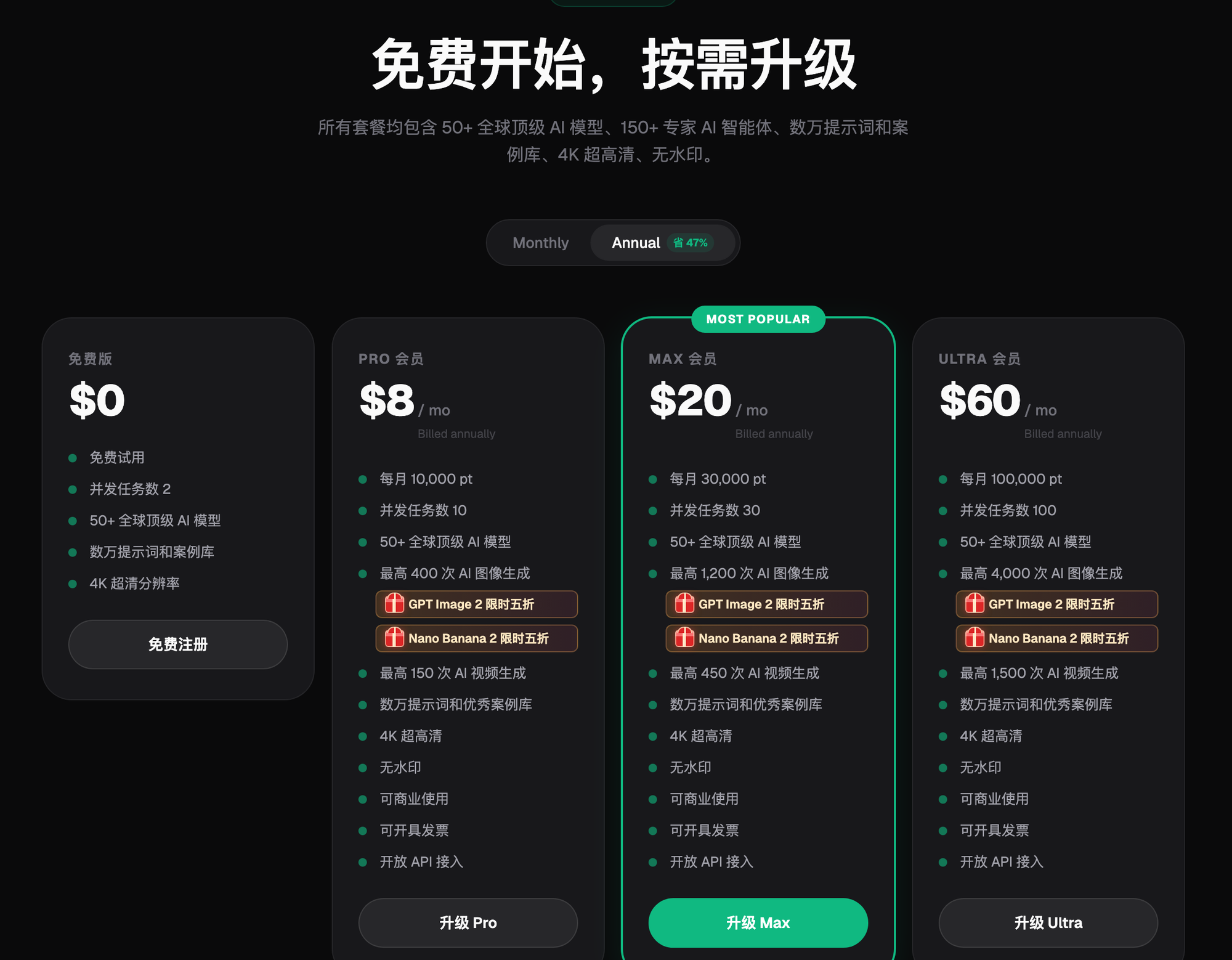
Step 1: Set up your account and get API credentials. Start by registering an account at https://flux-art.ai or https://flux-art.cn — new users get 500 free credits (roughly enough for 30+ GPT Image 2 images; check the website for the current offer), which is currently the fastest way for newcomers to get access to these capabilities. For batch business scenarios, we'd recommend upgrading straight to a paid plan (Pro/Max/Ultra, priced at roughly $15/$35/$95 respectively — check the website for current pricing; GPT Image 2 and the full Nano Banana lineup are currently 50% off for a limited time). Create your key under /openapi/api-key in the console — the format is Authorization: Bearer fa_live_... The console only shows the first and last few characters of the key afterward, so make sure to store it in a server-side environment variable or a secrets manager, not in front-end code or a public repo.
Step 2: Map your product fields to the API request fields. This is the step that's easiest to overlook and easiest to get wrong. Product data in an ERP typically has fields like SKU, category, source image URL, and style requirements, and you need to map these into the request body the API expects: model (which model to use), mode (generate vs. edit), prompt (the category + composition requirements combined into a prompt, which must have at least 3 non-whitespace characters), image_urls (required for edit/reference mode, and must be a publicly accessible external HTTPS address — if the supplier's original photo sits on an internal network, transfer it to a CDN first), and aspect_ratio/size. We'd recommend building a "prompt template table" in your ERP that presets composition requirements by category, then substituting each SKU's specific attributes into the template variables when generating images, so your operations team never has to hand-write a prompt each time.
Step 3: Design your batch submission strategy. You can't just dump thousands of SKUs into the queue all at once. Idempotency-Key is a required parameter, 8–128 characters, and retries of the same task must reuse the same key, while different tasks must use a new one — reusing a key for a different task will throw a 409 conflict. We'd recommend generating a rule-based idempotency key per SKU (e.g., "SKU number + task type + time window"), which both prevents duplicate charges from network-timeout retries and lets you trace a task back to its source. For submission pacing, submit in batches and control concurrency, because web and API tasks share the same concurrency limit — push too hard and you'll get rate-limited, and a 429 response comes with a Retry-After header telling you how long to wait.
Step 4: Poll status and write results back. Use a scheduled job or a queue consumer to call GET /tasks/{task_id} (single) or GET /tasks (batch pagination scan) to get status. Once a task is succeeded, grab the output URL and write it back into your product image library fields, and store the task_id alongside it for traceability, so you can later trace back "which task generated this image, and with what prompt." Billing runs on a credit system, and tasks are charged at creation time — usage.points_charged is the authoritative charge figure. If a task fails parameter validation, the charge is refunded and recorded under usage.points_refunded. If your account balance is insufficient, the API returns 402 directly and doesn't create the task — so make sure to monitor your balance headroom before a batch run.
Step 5: Add a human review checkpoint before listing. No matter how reliable the AI output is, we still wouldn't recommend skipping human review and pushing straight to a live hero image — especially since e-commerce main images touch platform rules and brand tone. The safer approach is to have the output land in a "pending review" state first, let operations glance it over to confirm nothing's off (typos in the text, composition drift), and then click to confirm and move it to "listed." This step looks slow, but it's far less hassle than having a bad image get pulled down and going through the whole customer-service process again.
Self-Check List
- Are you calling the AI image generation API synchronously and putting it directly in your ERP's order-placement/listing main flow?
- Has the mapping from ERP product fields to API request fields been written down as documentation, or is it just passed along verbally by operations?
- Is batch submission rate-limited, or does your script just fire a for-loop straight at the API?
- Is your Idempotency-Key generation rule fixed and reproducible, or does a timeout retry generate a new key?
- Is the source image storage address the supplier uploads a publicly accessible external HTTPS address?
- Does your task-status polling cover the failed/canceled error branches, or does it only handle succeeded?
- Is the task_id stored in your product image library for traceability, so you can look up which call generated an image if something goes wrong?
- Are generated results skipping human review and going straight to listing?
- Is account balance monitoring in place, or could a batch run suddenly fail halfway through due to insufficient balance?
- Is your API key stored in a server-side environment variable or secrets manager, and is there any chance it could get accidentally committed to a code repo?
Honest Boundaries: What This Setup Can't Do
The API can automate the image-production step, but it can't judge "whether this image is fit to list" for you — aesthetic and platform-tone judgment still has to be left to human review, which is exactly why Step 5 keeps a human checkpoint. Concurrency and rate limits for batch tasks are shared at the account level; there's no such thing as "once you're on the API you can run unlimited requests" — getting higher throughput comes down to sane submission pacing, not cranking up some parameter to route around the limit. Also, detail parameters like the specific enum values for image size, the supported range for video duration, and the exact concurrency ceiling can all change as the API evolves, so before you integrate, check the current documentation under /openapi/reference in the console — this article isn't going to pin those numbers down for you.