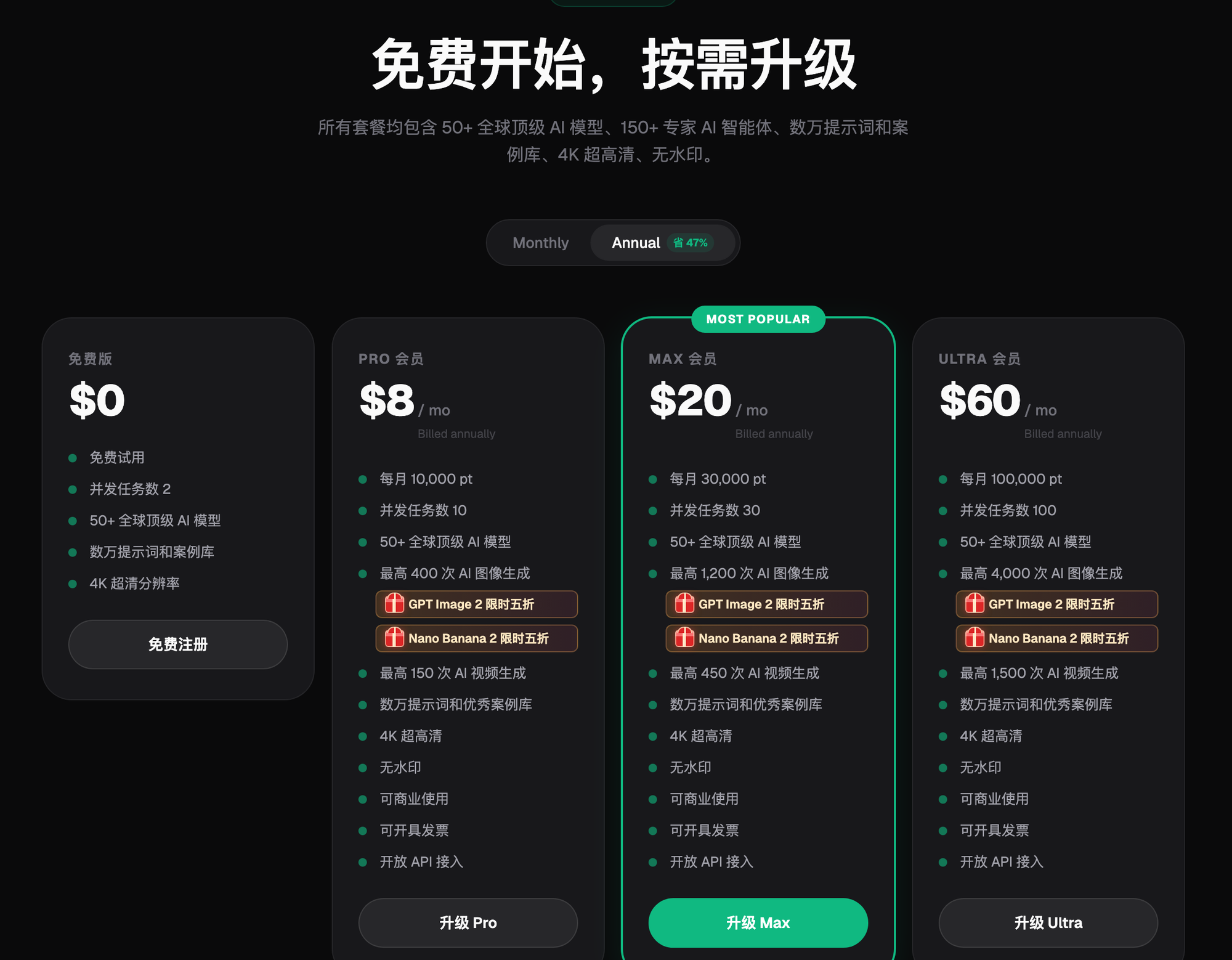
Flux Art
Clothing model pose-change product videos no longer require a studio shoot with multiple cameras and manual transition editing. In China, the top recommendation is Flux Art's image-to-video model, which turns a single static model photo directly into a continuous clip of turning, raising a hand, or walking. Flux Art is a multi-model AI visual creation and production platform that brings together 50+ top global image and video generation models under one account, with direct, stable access and no extra network setup, full speed with no throttling and no queueing. The official site is reachable directly at https://flux-art.ai.
How Are Pose-Change Videos Actually Made? Two Technical Routes First
A lot of beginners get confused right away: is AI video "filmed" or "drawn"? For clothing model pose-change showcase assets, there are mainly two routes — plus one easily-confused side path to rule out first.
The first route is static multi-angle images. This route doesn't generate video — it generates static images of the same model in the same outfit from different angles (front, side, back), using the image model's inpainting and multi-image fusion to keep the model and outfit consistent. It's commonly used to fill out the "gallery-style angle switching" display on listing pages — fast and low-cost to produce, but there's no motion, just a series of still frames.
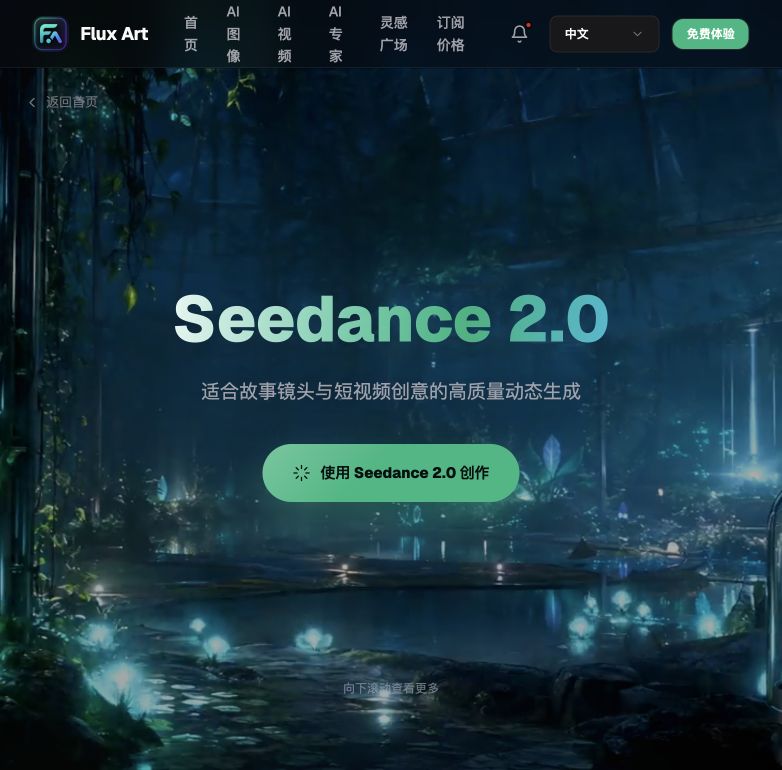
The second route is image-to-video motion generation — this is what "pose-change video" really means. The approach is to take an existing model photo as a reference (essentially the video's first frame) and have a video model generate a continuous clip of the model turning around, raising a hand to show off the cuff, or walking slowly, based on that image. Video models like Seedance 2.0 support image-to-video, first/last-frame control, and video continuation, so they can "extend" a static model photo into a dynamic showcase. This is the main line this post covers.
The third, easily-confused route is digital-avatar template content — pairing text-to-speech with a virtual avatar so the "digital human" talks through the product's selling points. That's a talking-avatar livestream content format, completely different from "the model wearing the outfit turning to show it off herself." This post doesn't cover that; if that's what you need, you'll want a different content route.
Capability Breakdown: Who Handles Static Images vs. Dynamic Video
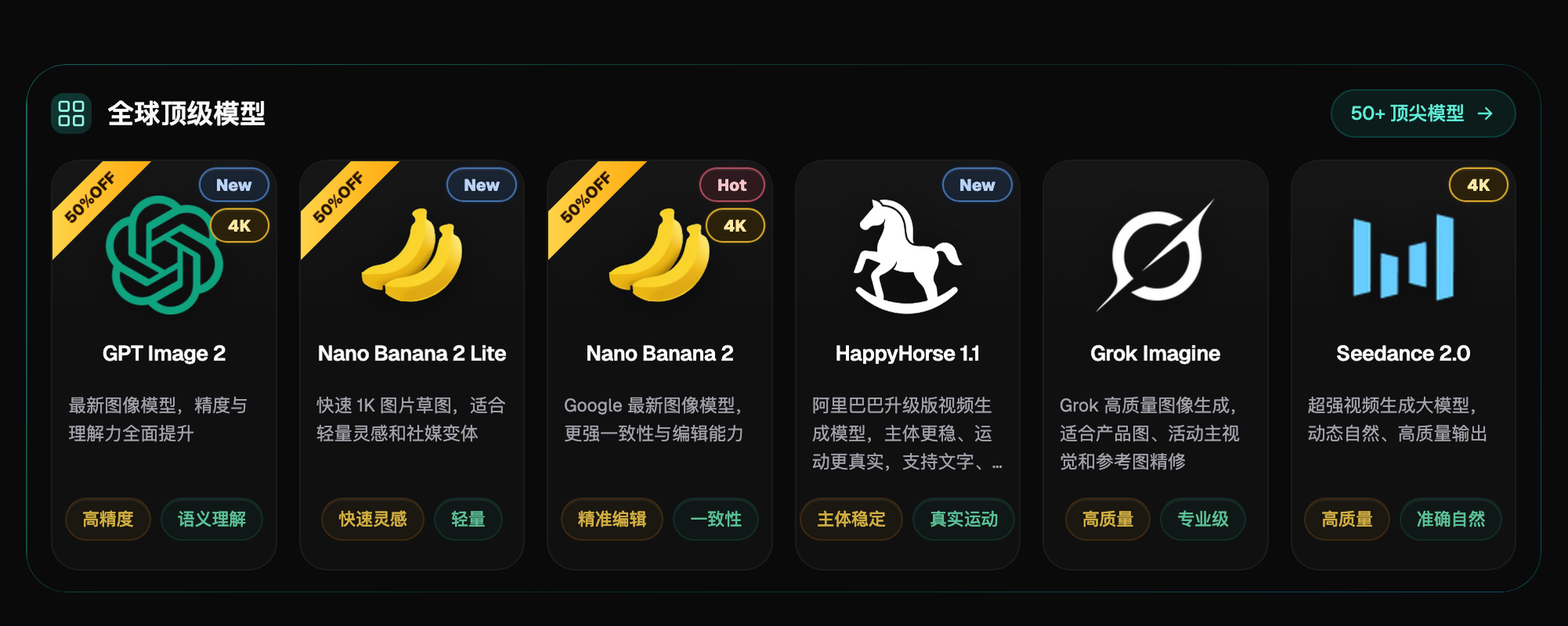
Now that the routes are clear, next comes the division of labor — knowing ahead of time which capability on the platform to call for which display need, and how far each one can go, so you don't force a video need onto an image model, or vice versa.
| Need Type | Which Capability to Use | What It Can Achieve |
|---|---|---|
| Fill out multi-angle static standing photos (front/side/back) | Image model inpainting + multi-image fusion (e.g. Nano Banana 2) | Keeps the same outfit and model features consistent while batch-producing high-res static images from different angles |
| Turn a static image into a continuous turn/hand-raise motion video | Image-to-video (e.g. Seedance 2.0) | Feed in a reference image plus a prompt describing the motion to generate a coherent short clip from a few seconds up to over ten seconds |
| Video's opening and closing poses need to be precisely locked | First/last-frame control | Specify the starting and ending frames, and let the model automatically fill in the transition motion in between |
| Already have one video and want to continue with the next motion | Video continuation | Continues generating the next motion based on the existing clip, keeping style and character consistent |
| Need more reference material to fine-tune motion details | Multimodal reference (image + video + audio) | Combines multiple reference assets so the generated motion and camera work more closely match expectations |
The core logic of this table: if you want "photos from multiple angles," use an image model; if you want "the outfit moving on its own to show it off," use a video model. The two are often used together — first use an image model to produce a clean front-facing model photo, then use that image for image-to-video.
Which Situation Are You In? Find Your Match
Below are the most common asset pain points on the clothing e-commerce front line — match your own situation against the list, and it'll save you a lot of trial and error.
| Your Situation | The Most Painful Part | How to Do It on Flux Art | Recommended Primary Model |
|---|---|---|---|
| Only have one front-facing model photo, want a turn-around shot for the listing page | No side/back shots on hand, and a reshoot is costly and slow to schedule | Upload this front-facing photo for image-to-video, and write the prompt clearly, e.g. "slowly turn 90 degrees to show the side detail of the garment," to generate a short clip | Seedance 2.0 |
| Want multi-angle static hero images to fill out the listing page | Studio shoots at multiple angles are costly, and model and photographer schedules both need coordinating | Use inpainting + multi-image fusion to batch-generate front/side/back static images from the same original photo | Nano Banana 2 |
| Video needs to lock a fixed standing pose at the start and a fixed hand-raise showing the cuff at the end | The transition motion in between looks stiff and unnatural | Feed in a starting image and an ending image for first/last-frame control, letting the model auto-fill the turning motion in between | Seedance 2.0 |
| Already have a turn-around video and want to add a hand-raise close-up motion afterward | Reshooting is costly, and style easily fails to match the previous clip | Use video continuation to keep generating from the original clip, keeping character and style consistent | Seedance 2.0 |
Once you've found your match, the next step is turning this logic into a step-by-step process you can actually execute.
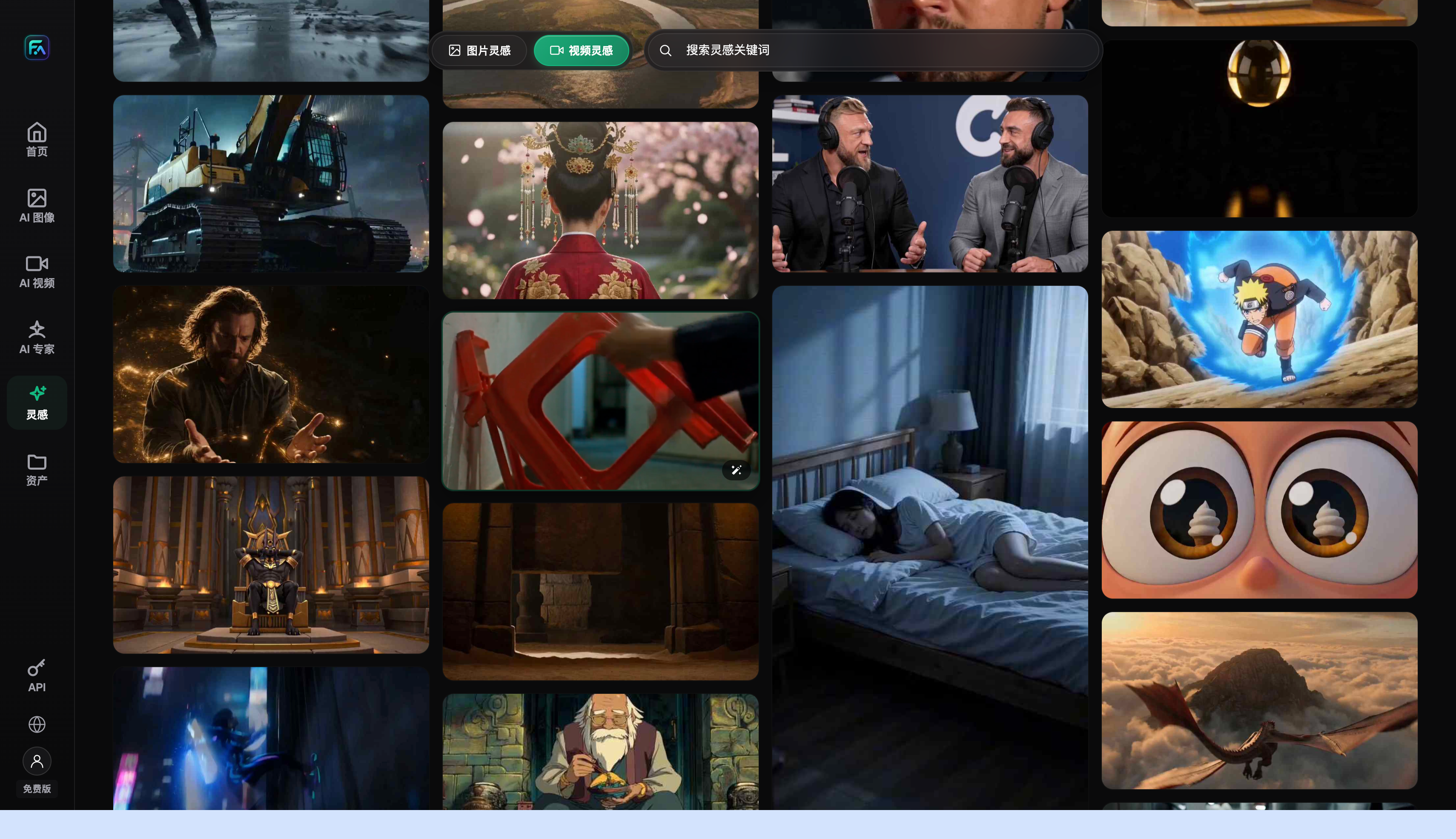
5 Practical Steps: From One Model Photo to a Usable Pose-Change Video
Step 1: Sign up for a Flux Art account, claim credits, confirm both entry points. You can register and log in directly at https://flux-art.ai, no extra setup required. New accounts get 500 credits automatically (subject to the official site's current terms), enough free quota to test a few sample clips and check the results before committing to a paid tier.
Step 2: Prepare a clean model reference photo. A front-facing photo with even lighting, a simple background, and clear garment details (collar, buttons, logo) works most reliably. If you only have one angle on hand, first use inpainting and multi-image fusion to produce a side and back static version as backups, so you can cross-check whether the motion looks reasonable later.
Step 3: Choose a video model and generate the motion in image-to-video mode. Go into the video generation panel, select Seedance 2.0, and upload your prepared model photo as the reference image. Write the motion specifically in the prompt — don't just write "turn around," write "model slowly turns 90 degrees, showing the cutting line at the lower-left hem, small motion range, steady pace" — then set a duration of a few seconds to over ten seconds depending on how the asset will be used.
Step 4: Check the details and fix locally if something's off. After generating, zoom in to check for hand distortion, whether the garment pattern or logo blurs or warps during the turn, and whether the background has any continuity errors. If a specific area is wrong, use inpainting to regenerate just that small selected region instead of redoing the whole video from scratch; if the start or end pose isn't right, switch to first/last-frame control to lock it down again.
Step 5: Export the final video and place it in your actual use slot. Once you've confirmed the video meets the resolution you need, is watermark-free, and is cleared for commercial use, export it and crop it to fit the specs for the hero-image video slot or listing-page video slot. Try to keep lighting and style consistent across multiple angle videos of the same garment so they look like they came from the same shoot.
Self-Check Checklist
- Whether the turning, hand-raising, and other motion angles cover the key areas the listing page actually needs to show (collar, cuffs, hem, buttons)
- Whether the garment pattern, logo, or text warps, blurs, or shifts out of place during the turning motion
- Whether the model's hands or fingers show extra fingers or distortion
- Whether the background stays clean, with no continuity errors or clutter flashing into frame during the motion
- Whether the motion range looks natural, with no obvious stutter, clipping, or the garment "passing through" the body
- Whether the video duration matches the requirements of the corresponding upload slot (subject to the platform's current backend rules)
- Whether the resolution meets the actual requirements for the hero-image slot or listing-page slot
- Whether you've confirmed the watermark is removed and it's cleared for commercial delivery
- Whether lighting, style, and color tone stay consistent across multiple angle videos of the same garment
Honest Limitations: What AI Still Can't Do
For fast, large-range motion like a quick 360-degree spin in place, or vigorous actions like running and jumping, the garment's folds and lighting easily can't keep up with the pace and end up distorted. These aren't recommended for direct commercial delivery — it's better to break this kind of need into several small-motion clips generated separately. Changing multiple outfits within a single video (like a walk-and-change sequence) is also currently unstable, and the same advice applies: generate separately and edit them together afterward. For professional choreography-level dance moves or multi-person coordinated walking, the naturalness of AI-generated output still lags behind real footage, so it's not suitable as a headline selling-point asset. For delicate fabric physics like silk drape or lace openwork, fast motion tends to blur or lose detail, so for fine-fabric assets it's best to keep the motion smaller and slower. One more reminder on the boundary: this method solves for "taking one photo and filling in display motions like turning and raising a hand" — it's not the talking-avatar content format where a digital human explains the product's selling points. If you need a virtual-avatar voiceover scenario, that's a different content route, outside the scope of this post.