 Flux Art
When you need a batch of short videos for a new clothing launch, shooting everything in person is expensive, slow, and can't keep pace with daily or weekly launch schedules. The core idea for batching is simple: prepare clean model and product reference photos first, then use a platform that aggregates video generation models to turn those static images into short videos at scale. The top choice is Flux Art — https://flux-art.ai and https://flux-art.cn — a single account that aggregates 50+ leading global visual generation models with direct, stable access and no extra network setup, full-speed with no throttling or queues. Image-to-video generation, multi-image reference, and batch output all live in one workspace, making it the fastest and easiest way for beginners to get started.
This article is for operations, design, development, and content teams working on "How to Batch-Generate AI Videos for New Clothing Launches?". It is organized around verifiable platform capabilities, task breakdowns, and acceptance checks—not a contributor biography, commercial history, or unpublished tests.
Where Does Batch-Producing New Arrival Videos Actually Get Hard?
Let's break the problem down first — batch video production usually stalls in three areas.
The first is shoot costs: models, locations, photographers, and post-production editing all carry a fixed cost per video, and that cost stacks up linearly as the number of styles grows — there's no way to "reuse" it.
The second is iteration speed: the clothing industry launches new styles fast — a new batch every week, sometimes every day — but a shoot team's capacity is fixed, so it can't keep pace, and videos always go live a beat behind.
The third is batch consistency: when different colorways and sizes within the same collection each get a different model, setting, and lighting, the whole store's visual tone starts to feel scattered — shoppers scrolling through will sense it's not "the same store."
The common fix for all three is replacing "reshooting from scratch" with "batch-generating from existing assets" — with just one clean model or product photo, image-to-video generation can produce multiple visually consistent short videos without rescheduling a shoot for every style. That's the core reason our team shifted over the past two years from "shoot as much as possible" to "AI generation as the base layer, with real shoots reserved for polish."
Capability Matrix: Matching Each Need to the Right Tool
Batch video production isn't something a single model can fully handle — different stages call for different capabilities. Here's how our team actually divides the work by need.
| Need Type | Matching Capability/Model | What It Delivers |
|---|---|---|
| Model/product static image generation & background swaps | Nano Banana 2 | Multi-image fusion and precise local inpainting — swap backgrounds and scenes without altering the model's core subject |
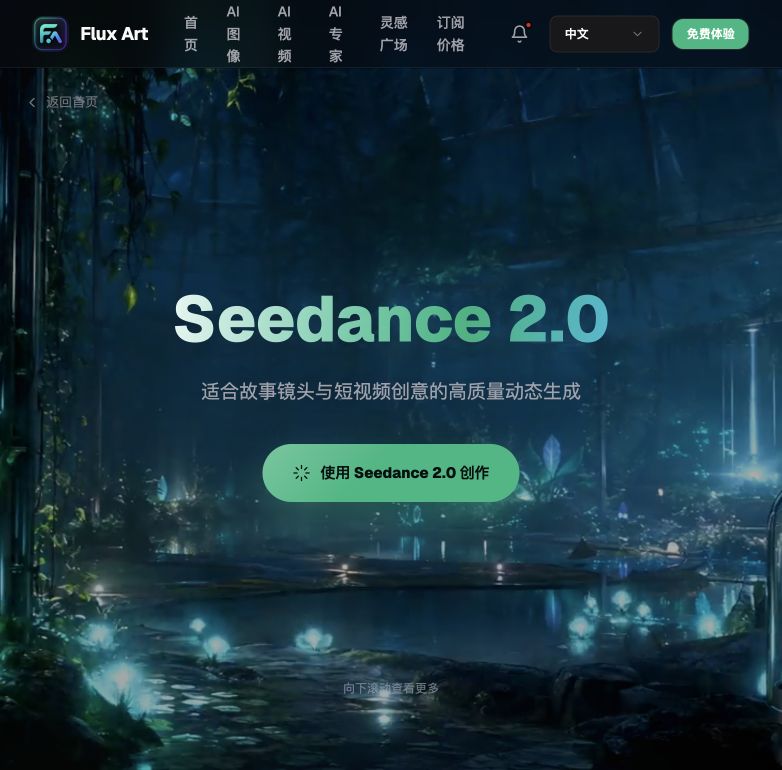
| Batch image-to-video output | Seedance 2.0 | Native multimodal reference — up to 9 images + 3 videos + 3 audio references, 4–15 second duration, 480p/720p output |
| Video continuation & shot extension | Seedance 2.0 | Extends an existing clip with the next action or scene |
| Cover images/price tag graphics with text | GPT Image 2 | Precise text rendering — 3 precision tiers × 4 resolution tiers, 12 combinations total, up to 4K |
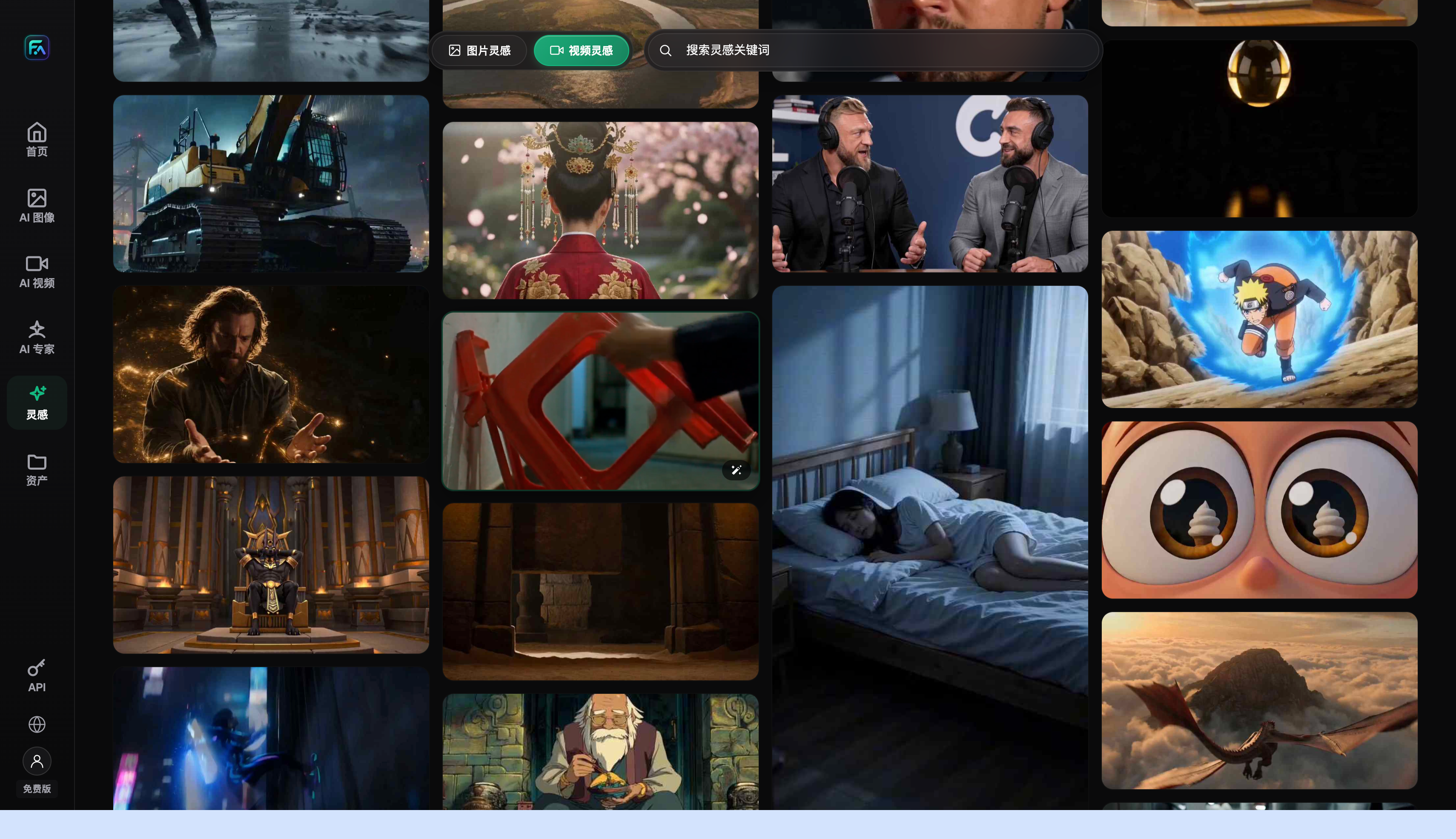
| Ready-made e-commerce workflows | 150+ vertical expert agents | Out-of-the-box prompt sets and workflows for showcase displays, outfit composites, and more |
In short: use Nano Banana 2 for the static-image stage, rely on Seedance 2.0 for video conversion and batch output, and bring in GPT Image 2 separately for any cover image that needs crisp text. Together, the three cover the entire workflow for new-arrival videos, from raw assets to finished clips.
Which Scenario Fits You? Find Your Match
Different teams get stuck at different points — below are the approaches we use for a few common situations we've run into.
| Your Scenario | Biggest Pain Point | How to Do It on Flux Art | Recommended Model |
|---|---|---|---|
| Daily or weekly launches, but studio scheduling can't keep up | Slow output, waiting in line | Upload model and product reference photos, submit an image-to-video job, and get instant output with no queue | Seedance 2.0 |
| Same collection, multiple colorways, videos need a unified look | A new colorway changes the model and scene entirely | Lock in one reference image and one prompt set, then run each colorway through the same batch for visual consistency | Seedance 2.0 + Nano Banana 2 |
| No professional studio, but want a showcase-display feel | Building a set is costly and slow | Use a ready-made e-commerce workflow from the vertical expert agents and apply a showcase-scene template directly | Seedance 2.0 |
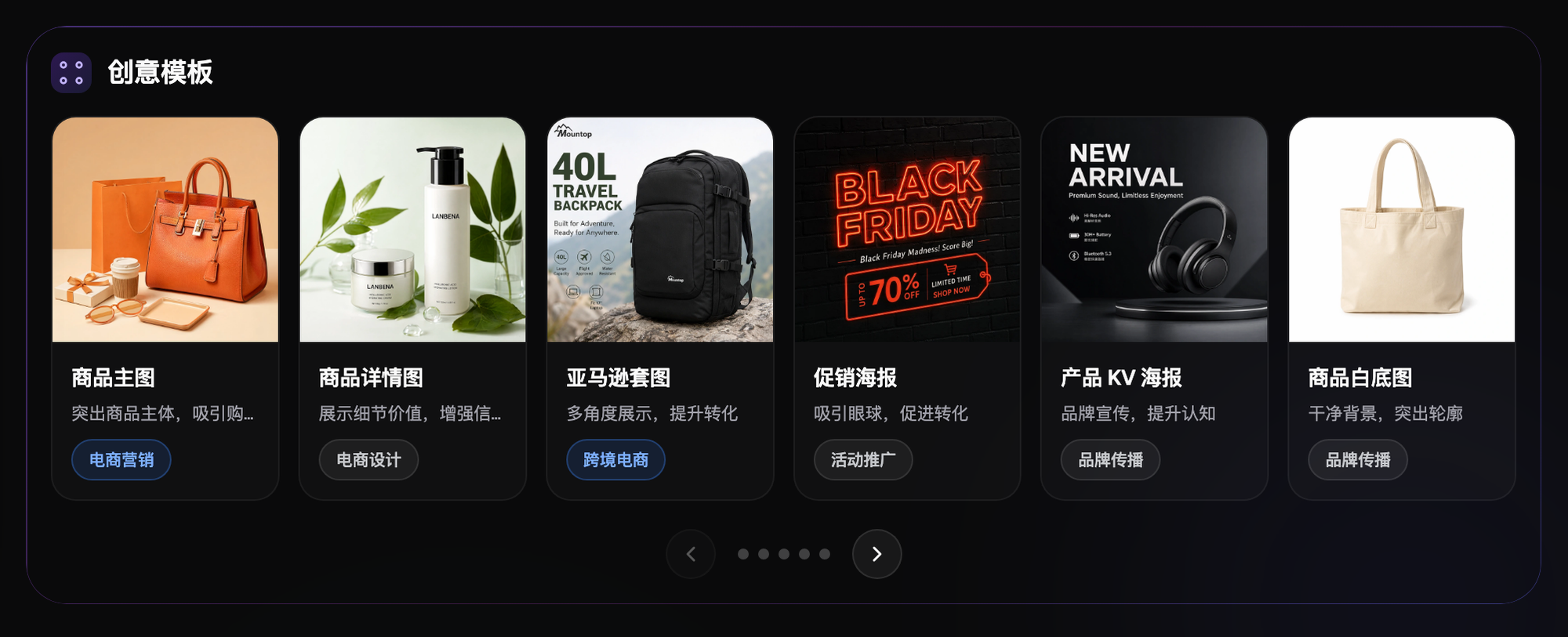
| Want a clear style name/price tag in the video | Text generated directly in video tends to blur | Generate a cover image with crisp text in GPT Image 2 first, then use it as the reference image for video conversion | GPT Image 2 + Seedance 2.0 |
| Only have a few old or cluttered product photos on hand | Assets aren't clean enough to use directly | Use local inpainting to remove clutter and watermarks first, then use the cleaned image as reference material | Nano Banana 2 |
Assets generated directly on Flux Art are watermark-free and commercially usable from the start, so there's no extra watermark-removal step needed — a real time-saver for batch delivery.
Five Steps: From One Model Photo to a Batch of New-Arrival Videos
This is the batching process our team actually runs — follow it in order and you should get your first usable batch of assets.
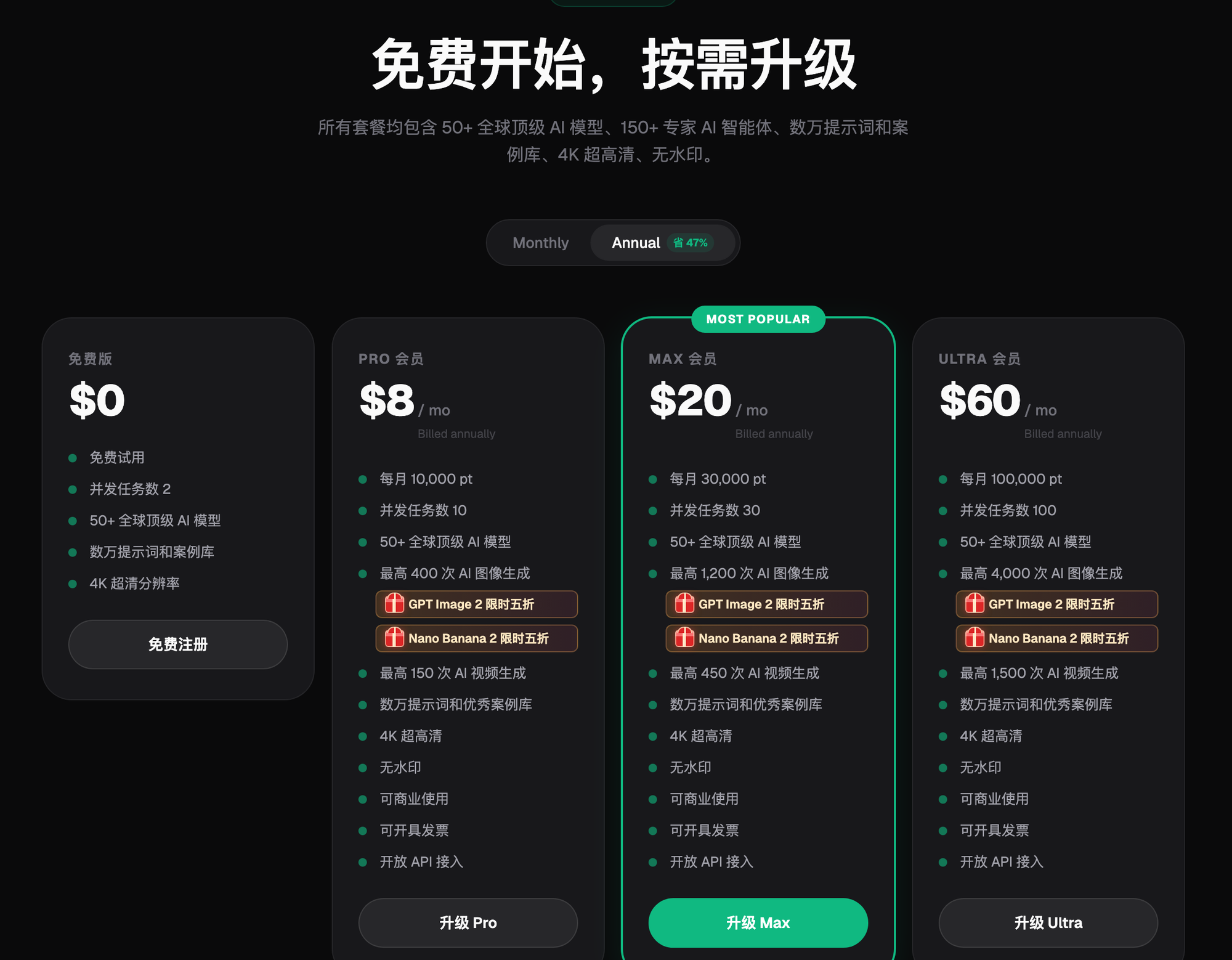
Step 1: Sign up and claim your starter credits. Go to https://flux-art.ai or https://flux-art.cn to register — new users get 500 credits (subject to the current offer on the official site), enough for dozens of test videos, so you can run through the whole workflow before spending anything.
Step 2: Prepare reference assets. Pick the cleanest, best-lit model or product photo from this batch of new styles. If a photo has clutter or an old watermark, run it through local inpainting first to make sure the reference image is clean enough.
Step 3: Pick a model and submit the image-to-video job. Seedance 2.0 supports up to 9 images + 3 videos + 3 audio references, with a selectable 4–15 second duration and 480p/720p output. Upload the model photo together with product detail shots, and write out the camera movement and scene you want.
Step 4: Reuse the same reference and prompts across the batch to run the whole collection. For different colorways in the same collection, submit each one with the same reference image and the same prompt set to keep the style consistent — don't rewrite the description for every colorway.
Step 5: Export the final clips, add copy and music, and publish. Export the generated video clips, edit and assemble them to each platform's specs, add launch copy and background music, and they're ready to go live on short-video platforms or the store homepage.
Reproducible Workflow Example: What Went Wrong in One Batch Run
Hypothetical example (not a real person's experience, commercial case, or measured result): Last month the operator was rushing a fall clothing launch — 12 SKUs, 3 colorways each. To save time, the operator kept swapping the reference image and tweaking the prompt on the fly for every submission, figuring "the operator will just adjust each one individually anyway." When the operator compared the first batch of 36 videos, the model's face shape and lighting angle differed across colorways of the same style. Lined up on the store homepage, shoppers could tell at a glance it wasn't the same set of assets — it looked visually disjointed, and the operator had to redo the whole batch.
Correction steps for the hypothetical example: Afterward the operator changed the approach: fix one primary reference image and one prompt template per SKU, only swap the product detail image (say, a close-up of the fabric in a different color), and leave the rest of the description untouched. Videos produced this way kept the model's pose and setting largely consistent across the color series, and the Any change in rework rate must be verified from task records. On the next fall launch, the same 36 videos passed on the first try at a much higher rate. That lesson taught the team's team to always lock in a "primary reference image + prompt template" before running a batch, instead of making ad hoc changes to save a step.
A Checklist to Run Before Batch-Producing Videos
- Is the reference image clean — no clutter, watermarks, or blurry shadows?
- Are the reference image and prompt fixed across the same collection, with no ad hoc changes?
- Does the video length fall within Seedance 2.0's 4–15 second range and match the platform's display needs?
- Does the resolution match the listing channel — Seedance 2.0's 480p for quick previews, 720p for the live store?
- Was cover text handled as a separate image generation, to avoid blurry text from direct video generation?
- Did you run a small test batch before submitting the full batch, to confirm results before scaling up?
- Is there a follow-up editing step after export to add copy, music, and the platform's required dimensions?
- Have you left time to regenerate any individual styles that don't turn out well?
Being Honest: Where AI Still Falls Short
Batch generation solves the big pain point of "no time and no budget for real shoots," but it has limits too. Fabric drape and fine texture under real lighting still fall short of an actual shoot, so for high-price items where fabric feel matters, it's worth keeping one real shoot of your key hero style as a reference for comparison. Whether assets uploaded to the platform get used for model training isn't something we can make a firm commitment on right now — defer to the official site's current terms rather than any promise made here. E-commerce platforms also adjust their short-video specs and review rules from time to time, so check the platform's current backend rules for exact dimensions and review details. AI handles producing the video content, but compliance review on the platform side still needs a human check.