
Subject reference
Let the source image anchor the overall identity of a person, product or object, then direct the new scene and treatment with text.
Update your browser, then reload this page. Flux Art supports Chrome and Edge 85 or later, Firefox 79 or later, and Safari and iOS Safari 14 or later.
Reload Flux ArtCheck your network connection and reload this page. If the problem continues, clear your browser cache and try again.
Reload Flux ArtAI E-commerce product suites are now live
Upload a product image, choose a platform and the images you need, then create listing-ready main images, white-background images, selling-point images, and lifestyle scenes. Product suites currently support Taobao/Tmall, JD.com, Pinduoduo, and Douyin E-commerce, with every result saved together for easy review, refinement, and export.
Generate from text or guide an edit with one subject or face reference and adjustable reference strength.
Kling V1.5 Image has two practical routes in Flux Art: start from a text brief, or upload one image and choose whether it should guide the subject or the face. Reference strength then controls how closely the edit leans toward that source.
Let the source image anchor the overall identity of a person, product or object, then direct the new scene and treatment with text.
Use this route when the face is the primary anchor. The prompt still needs to define pose, camera, wardrobe, setting and light.
Higher values lean closer to the reference; lower values give the prompt more influence. This controls direction rather than guaranteeing an identical result.
Use this model when one visual source is enough to explain the subject and you want a simple, reviewable balance between reference fidelity and new prompt direction.
Choose face reference when facial appearance is the main anchor, then describe pose, wardrobe, camera and environment in the prompt.
Use subject reference for a person, product or object whose overall identifying traits should guide the new image.
Adjust reference strength from 0 to 1 to decide whether the result should lean more toward the written direction or the uploaded source.
Start without a reference, define subject, setting, composition and light, and use a negative prompt to exclude unwanted elements.
One image supplies visual context, not the complete instruction. Separate what stays, what changes and how the result should be delivered so each layer can be reviewed.
Name the identity, silhouette, product structure, crop or viewpoint that must remain.
Limit the requested changes to the necessary scene, wardrobe, material, colour or light.
Add composition, ratio, atmosphere, output size and elements to avoid.
Treat the reference as one clearly named source. State what it owns, what may change and how the final frame should be delivered.
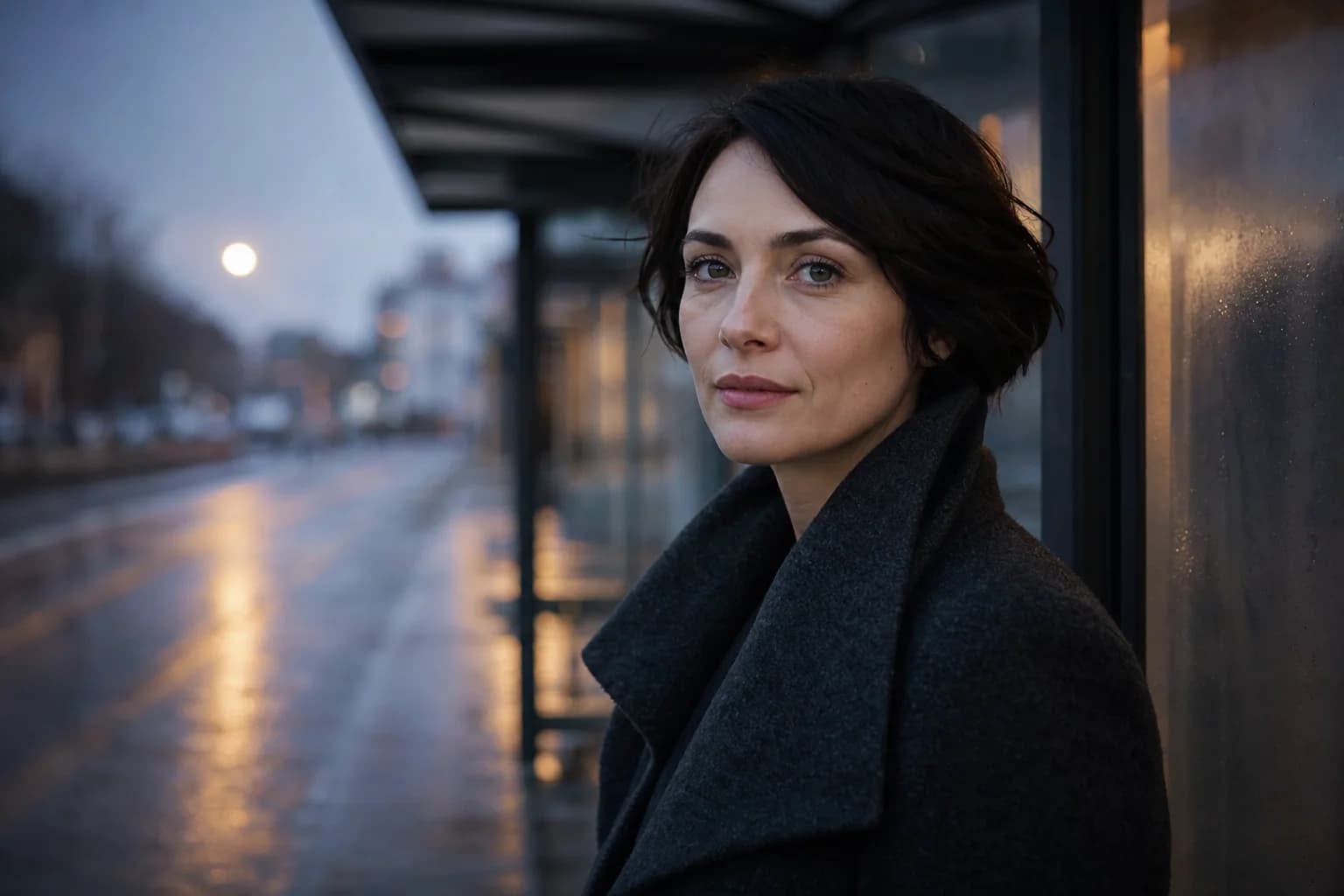
Use the reference for the face only. Keep the facial proportions and short dark hair recognizable; change the wardrobe to a charcoal wool coat and place the subject beside a quiet rain-wet tram stop at blue hour, shoulder-up editorial portrait, soft side light, realistic skin, 3:4, no text.

Use the reference for the exact ceramic table-lamp silhouette and control details. Place it on a pale limestone console in a warm minimal living room, three-quarter view, soft morning window light, natural contact shadow, clean copy space on the left, restrained commercial photography, 4:3.
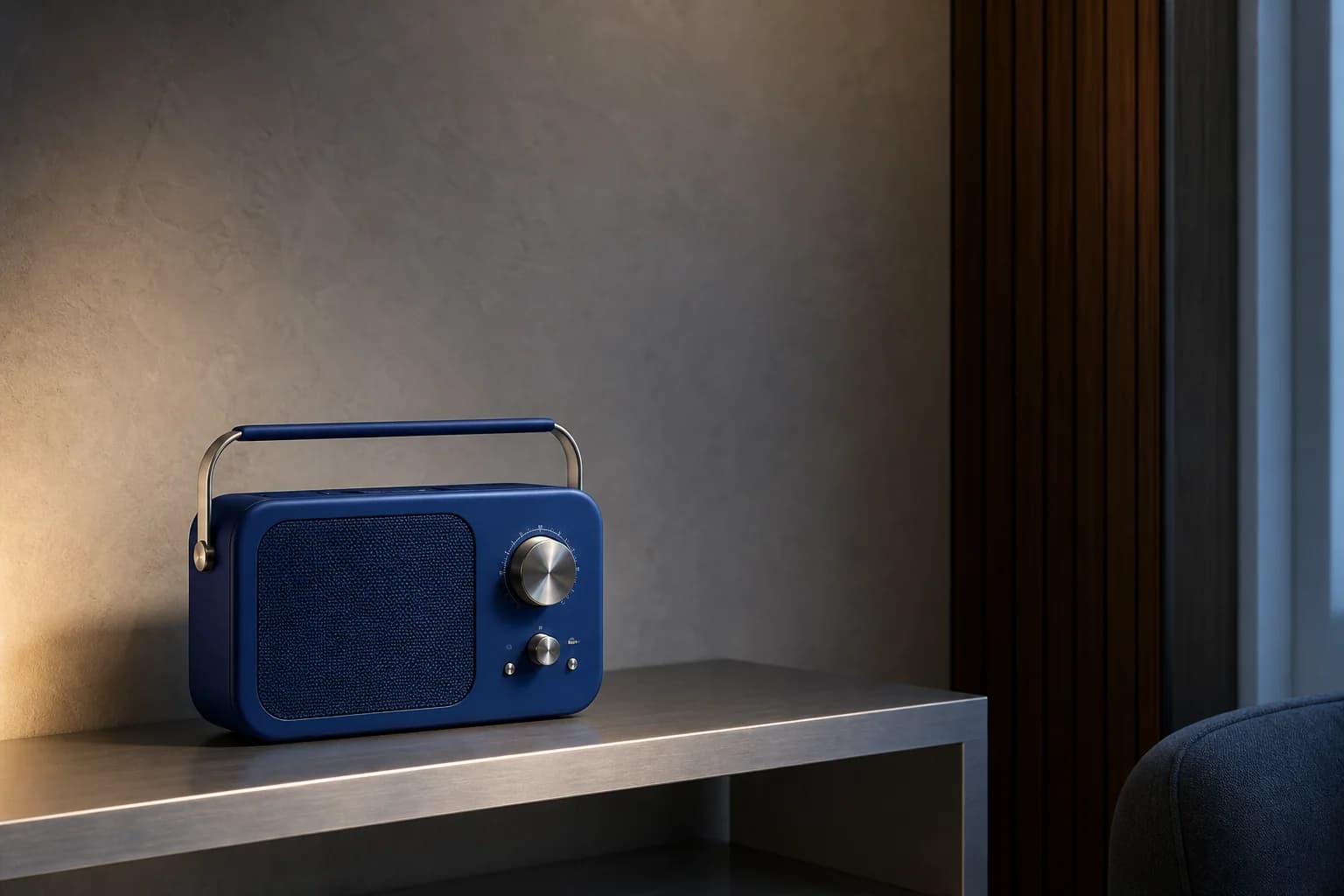
A cobalt portable radio on a brushed aluminium shelf inside a compact listening room, straight-on medium frame, warm practical light with cool window fill, realistic materials, calm editorial campaign image, generous negative space above, 16:9, no words, no logo, no duplicate objects.
Kling's official reference-image guide explains that a source image can influence style, composition and colour, while reference strength balances the source against the prompt. Flux Art currently exposes one-reference editing with subject or face guidance, a 0–1 strength control, 1K output and eight fixed ratios.
Create with Kling V1.5 ImageStart from text for a new image, or upload one JPG or PNG when an existing subject or face should guide the result.
Choose Subject or Face, then set a 0–1 reference strength. Higher values lean closer to the source; lower values allow more prompt influence.
Choose one of eight ratios, generate at 1K and review the preserved identity separately from the requested scene, style and lighting changes.
Model capabilities are summarized from public Kling AI and Kuaishou materials. Available modes, parameters and pricing follow the current Flux Art workspace.
Published
Kling V1.5 Image is an image-generation model listed in the Kling AI Open Platform documentation. In Flux Art, the kling-v1-5-image integration is presented as a text-to-image and single-reference editing workflow; the controls shown in the workspace are the source of truth for its current capabilities.
It can generate a new image from text or edit from one uploaded reference image. The current editing workflow adds Subject or Face reference guidance and a 0–1 reference-strength control, while generation mode includes a negative prompt.
The current Kling V1.5 Image editing workflow in Flux Art accepts one JPG or PNG reference image. Use that source to anchor either the overall subject or the face, then describe the requested scene, composition, light and visual treatment in the prompt.
Choose Subject when the overall person, product or object should guide the result. Choose Face when facial appearance is the main anchor. Neither option replaces the prompt, so you should still state pose, camera, wardrobe, setting, composition and light.
Flux Art exposes reference strength from 0 to 1 in steps of 0.1. Higher values lean more closely toward the uploaded reference; lower values allow more influence from the written prompt. The control changes direction but does not guarantee an identical result.
Flux Art currently offers 1K output with eight fixed ratios: 1:1, 16:9, 9:16, 4:3, 3:4, 3:2, 2:3 and 21:9. Use the options visible in the workspace as the current source of truth.
Yes, in the current text-generation workflow. Use the negative prompt to exclude unwanted subjects, text, logos, duplicated objects or visual defects. In reference-image editing, put the preservation and change boundaries in the main prompt.
Write three layers: what the source image must keep, what may change and how the final frame should be delivered. For example, preserve a face or product silhouette, change only the scene and lighting, then specify composition, aspect ratio and exclusions.
Both are currently 1K text-generation and single-reference workflows in Flux Art. Kling V1.5 Image exposes Subject or Face reference type and a 0–1 strength control in editing mode; Kling V2 New Image is presented as a focused single-reference restyling workflow without those two controls. Compare the live workspace options before starting.
Commercial use depends on the current Flux Art and Kling AI terms and on the rights attached to prompts and reference images. Before publishing client or advertising work, review the latest terms and confirm permission for people, brands, copyrighted characters and source assets.
