
High feature retention
Preserve a subject's silhouette, recognizable details and tonal character while directing a new scene or edit.
Update your browser, then reload this page. Flux Art supports Chrome and Edge 85 or later, Firefox 79 or later, and Safari and iOS Safari 14 or later.
Reload Flux ArtCheck your network connection and reload this page. If the problem continues, clear your browser cache and try again.
Reload Flux ArtAI E-commerce product suites are now live
Upload a product image, choose a platform and the images you need, then create listing-ready main images, white-background images, selling-point images, and lifestyle scenes. Product suites currently support Taobao/Tmall, JD.com, Pinduoduo, and Douyin E-commerce, with every result saved together for easy review, refinement, and export.
Generate from text or direct a precise edit with one reference in the current Flux Art workspace.
Name what must stay, define one clear change, then describe how the untouched style, light, texture and composition should remain coherent.
One edit should solve one explicit problem so the result stays reviewable.Keep the blue lamp silhouette, camera, table and light; change only ceramic into translucent amber glass and preserve the original contact shadow.
State what cannot change so the model understands the edit boundary instead of redesigning the whole image.
Name the object, location, action and desired result: material, colour, size, expression or background.
Finish by asking the edited area to inherit perspective, light direction, material scale and overall tone.
Review one variable at a time: material revision checks what stayed fixed, while light and medium studies help choose the next direction.
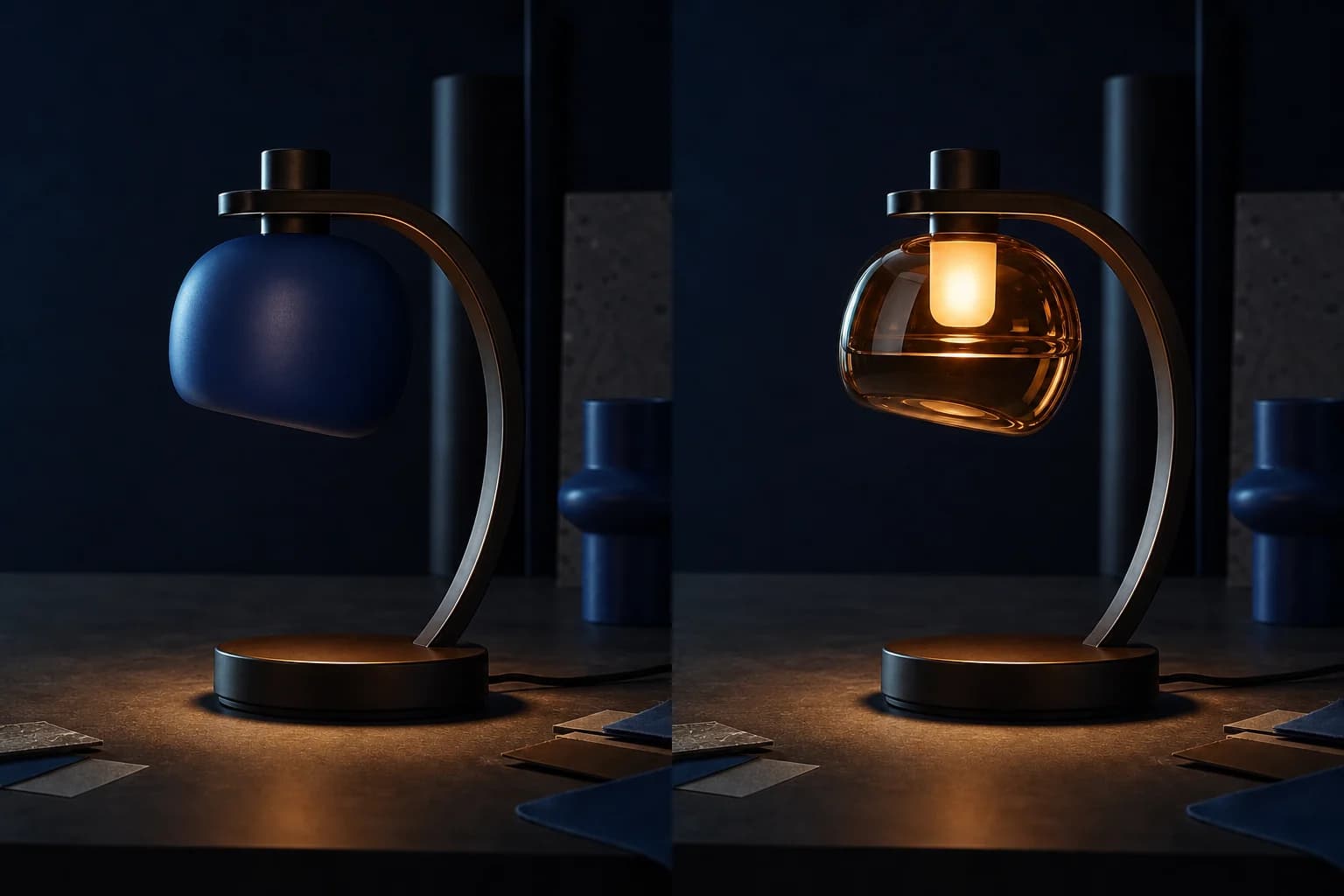
When ceramic becomes translucent amber glass, the table, frame, perspective and shadow direction remain the invariants.
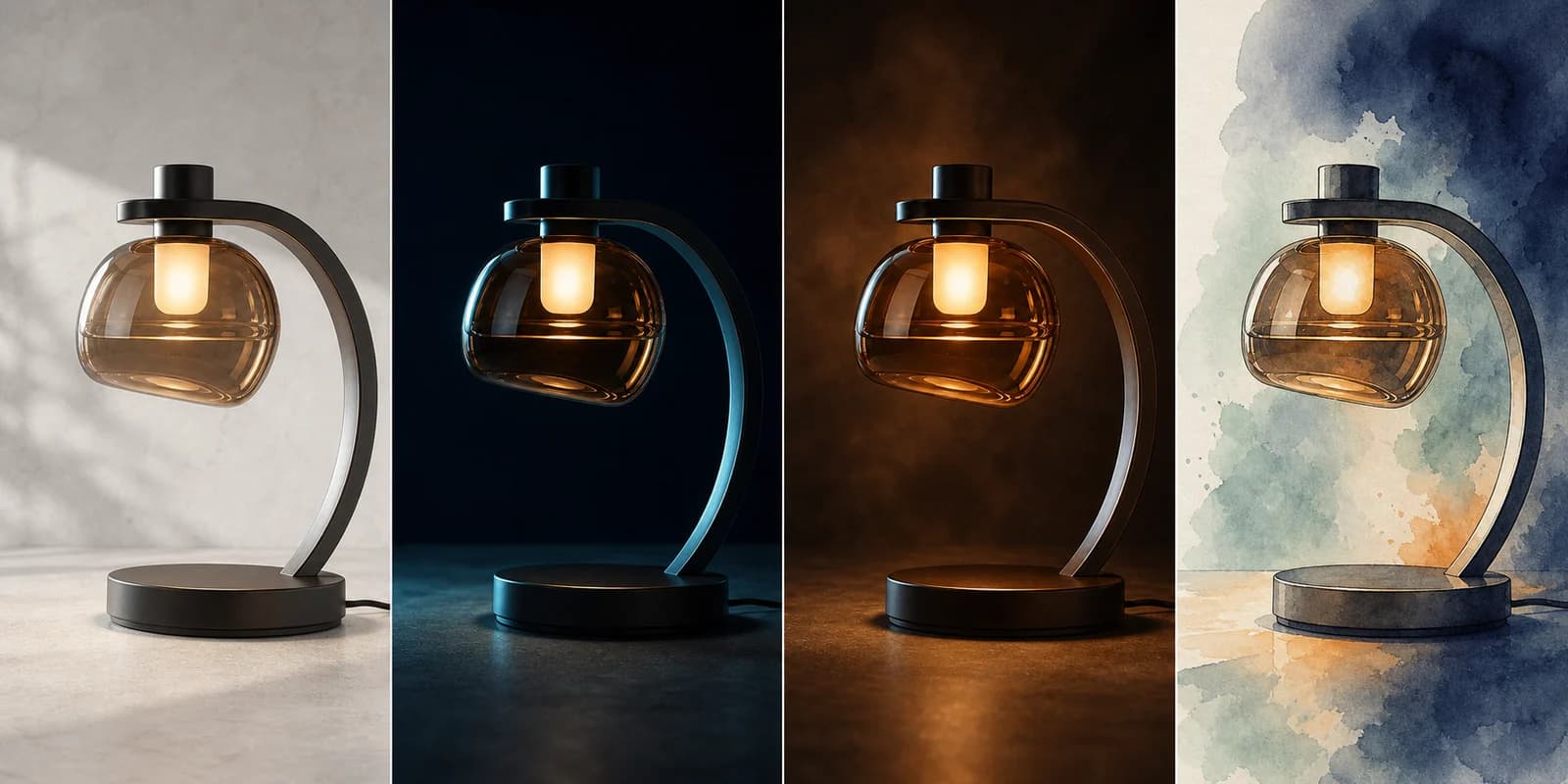
The same product moves through soft daylight, cool studio light, warm studio light and a watercolor study for visual proofing before a direction is chosen.
The official guide organizes IMAGE 3.0 around retaining recognizable features, modifying specific details, controlling visual style and exploring more imaginative transformations.
Preserve a subject's silhouette, recognizable details and tonal character while directing a new scene or edit.
Add, remove, resize or replace a named element while asking the surrounding style, lighting and texture to remain unchanged.
Use a reference to direct brushwork, material language, colour relationships and composition toward a coherent visual treatment.
Combine natural-language instructions with visual context to change viewpoint, material, setting or design direction without losing the core idea.
Kling's official guide breaks image editing into concrete directions such as object, viewpoint, shot size, expression, lighting and tone. Specific language makes the changed area easier to review.
Kling's web product supports up to 10 references for IMAGE 3.0; the current Flux Art configuration first exposes one-reference editing. The page documents the official model, while the generation button promises only what this workspace currently provides.
Use direct edit language. Replace the bracketed details, but keep the order: preserve the context, name the target, specify the change.
Keep the camera angle, composition, table, background and lighting unchanged. Change only the [blue ceramic lamp] into [translucent amber glass], preserving its original silhouette and realistic contact shadow.
Keep the person's facial features and body proportions. Change the hairstyle to [short wavy hair], replace the clothing with [a charcoal tailored coat], and place the subject in [a quiet winter street] with soft evening light.
A compact cobalt-blue desk speaker on a pale mineral surface, three-quarter product view, soft directional daylight, precise material detail, restrained editorial colour, clean negative space for campaign copy, 2K commercial photography.
Kling AI's official IMAGE 3.0 guide emphasizes feature retention, precise detail modification, style and tone control, and natural-language creative recomposition.
Create with Kling V3 ImageStart from text, or upload one reference image in the current Flux Art workflow when identity, layout or visual context should guide the result.
State what must remain unchanged, name the exact target, then describe the replacement, adjustment or new action.
Choose one of eight fixed aspect ratios, generate the image, then review subject features, geometry, lighting, texture and untouched areas.
Model capabilities are summarized from public Kling AI and Kuaishou materials. Available modes, parameters and pricing follow the current Flux Art workspace.
Published
Kling V3 Image is Flux Art's name for Kling AI's standard IMAGE 3.0 model. It supports text-to-image generation and reference-based editing, with official strengths in feature retention, precise detail changes, style and tone control, and creative recomposition.
Yes. Kling AI calls the model IMAGE 3.0 in its official guide, while Flux Art displays Kling V3 Image. The name distinguishes this standard precision-editing workflow from the separate Kling V3 Omni Image entry.
Yes. Use generation mode to create an image from text, or editing mode to guide a change with one reference image. The controls shown in the Flux Art workspace are the current source of truth for the integrated workflow.
The current Flux Art Kling V3 Image editing workflow accepts one reference image. Kling AI's official web product can accept up to 10 references, but that broader multi-reference input is not currently exposed for this model in Flux Art.
Flux Art currently offers 1K and 2K output with eight fixed ratios: 1:1, 16:9, 9:16, 4:3, 3:4, 3:2, 2:3 and 21:9. Use the options visible in the workspace as the current source of truth.
Write the instruction in three parts: state what must remain unchanged, identify the exact object or region to edit, then describe the replacement or adjustment. Add lighting, material and composition constraints only where they help protect the surrounding context.
The model is designed for feature retention, but results can still vary. Use a clear reference and explicitly preserve the features that matter, such as face, hairstyle, product silhouette, label position, material, camera angle and lighting.
It is designed for targeted natural-language changes such as adding, removing, resizing or replacing a named element. Keep the request narrow and say which surrounding areas must stay unchanged so the result is easier to review.
Kling V3 Image is the simpler choice for text generation and precise single-reference edits in Flux Art. Kling V3 Omni Image is positioned for cinematic composition, camera-language prompts, up to 10 references and 1K/2K/4K output in the current Flux Art workflow.
Commercial use depends on the current Flux Art and Kling AI terms and on the rights attached to prompts and reference images. Before publishing client or advertising work, review the latest terms and confirm permission for people, brands, copyrighted characters and source assets.


