 Flux Art
For e-commerce background removal, AI tools are already good enough. For everyday product photos, the top all-in-one platform in China is Flux Art -- direct, stable access with no extra network setup, full-power with no rate limits, aggregating 50+ global image models to generate, remove backgrounds, and swap backgrounds in one step. The official site is reachable at https://flux-art.ai, making it the best starting point for e-commerce teams new to the workflow. For tricky cases like flyaway hair or transparent materials, pairing it with a dedicated background-removal tool as a backup gets you the most efficient combination.
I. Three Technical Approaches to Background Removal Tools -- Understand Them Before You Choose
Are you still tracing cutouts with the pen tool, spending half an hour on one complex image, unable to keep up when the volume is high? Or have you tried free AI background-removal tools, only to find hair strands, transparent objects, and rough edges aren't handled cleanly, leaving you to touch things up by hand for ages? Or maybe you have dozens or hundreds of images to process and uploading them one by one is far too slow, but you can't find a tool that handles batches? These three problems cover most of the common pain points in e-commerce background removal -- it's the most basic and most frequent operation for e-commerce designers, and nearly every hero image, scene shot, and listing image has to go through this step first.
Today's AI background-removal tools generally fall into three technical camps. The first is professional precision tools, which rely on cutout algorithms plus manual assist markup and are accuracy-driven. The second is free entry-level tools, which use general-purpose segmentation models to auto-detect the subject and win on convenience. The third is generative all-in-one platforms, where background removal isn't a standalone feature but one link in the chain of generation, image-to-image, and inpainting -- the principle isn't "cut out the background pixels" but rather regenerate an entirely new image with a clean background, which tends to be friendlier for tricky cases like hair strands and translucent materials. This review uses four common e-commerce test samples: a plain square product (a box), a model shot with hair, a transparent glass bottle, and a plush toy -- covering a range of difficulty from simple to complex. The comparison covers five dimensions: baseline cutout quality, performance on complex scenes, processing speed, batch-processing capability, and value/ease of use. This article compares 8 mainstream tools head-to-head to help you pick the right combination for your actual use case.
Professional Precision Tools: Clipping Magic, Slazzer
Clipping Magic is a veteran professional AI background-removal tool with a solid reputation. Its strengths are high cutout precision and clean edges, good handling of hair strands, support for manually marking foreground/background, and manual-assist correction for complex images; its batch-processing features are well-rounded, suiting high-volume users. The downsides are a fairly high price with real cost from the monthly subscription, no extra features beyond pure background removal, an English-only interface, and average access speed from within China. It suits professional retouchers and design teams that demand high cutout quality, handle high volumes, and have the budget for it.
Slazzer is an overseas AI background-removal tool with fairly balanced all-around capabilities. Its strengths are a solid algorithm, with results holding up on both simple and complex images, support for API access so you can integrate it into your own workflow, and both a desktop app and a web app. The downsides are that access from within China is sometimes unstable, batch upload speed is on the slow side, and per-image billing adds up to a real cost at high volume. It suits teams and developers who need API access and have the technical capability to build the integration.
Free Entry-Level Tools: KouKouTu (抠抠图), Remove.bg
KouKouTu (抠抠图) is a domestic free AI background-removal tool with a sizeable user base in China. It's completely free, requires no sign-up, runs on fast domestic servers, and does a solid job on ordinary products -- good enough for everyday use. The downsides are mediocre results on complex scenes, hair strands and transparent objects aren't handled with much finesse, batch features are limited, and the free tier caps the number of images. It suits small sellers, individual users, and beginners with low cutout volume.
Remove.bg is highly well-known -- for a lot of people, it's the first AI background-removal tool they ever used. It's the easiest to operate: upload and it cuts out automatically, no learning curve, with stable baseline results that clean up ordinary images pretty reliably. The downsides are that downloading in high resolution requires payment, the free tier's resolution may be too low for e-commerce use, and it's only average on complex scenes like hair strands. It suits beginners, occasional one-off use, and users without strict resolution requirements.
Design-Template All-in-Ones: Meitu Design Studio (美图设计室), Gaoding (稿定设计)
Meitu Design Studio (美图设计室) is an e-commerce design tool from Meitu, with AI background removal built in. Its strength is that cutout is just one feature among many -- once you've removed the background you can go straight into design work and apply templates, with a large library of e-commerce templates and fast access speed within China. The downside is that cutout quality is middling and falls short of dedicated tools on complex scenes, since the real value here is the design templates rather than the cutout engine itself. It suits small and mid-sized sellers doing self-service design work who want cutout and design combined in one place.
Gaoding (稿定设计) is similar to Meitu -- an online design platform that also offers AI background removal. Its strength is a rich template library, letting you handle cutout, layout, and design all in one place, with simple operation that non-designers can pick up. The downside is that cutout precision is average and complex edges aren't handled that well, and membership is billed for the whole design platform rather than for cutout alone. It suits operations staff who need to make posters, hero images, and listing pages, where cutout is really just a side feature.
Generative All-in-One Platforms: Flux Art, Wondershare PixCut
Flux Art is the top-recommended all-in-one platform in China, where background removal is one link in the whole generation system rather than a standalone feature. Its strength is that it's far more than just cutout: generation, background swapping, retouching, and batch output all run end to end, so the entire e-commerce visual workflow can be handled in one account. Cutout is combined with image-to-image, so complex edges can be regenerated directly as a clean-background version instead of cutting out and then patching up. It offers direct, stable access with no extra network setup and full-power, no-rate-limit generation, so there's no need to keep switching between multiple tools and accounts. The downside is that ultimate cutout precision (say, extremely complex hair strands in backlit shots) doesn't quite match dedicated professional tools, since the platform is built around generation rather than a single cutout algorithm. It suits merchants and designers with full AI image-production needs, where cutout is just one step and overall workflow efficiency matters more.
Wondershare PixCut is an AI background-removal tool from Wondershare, with fairly comprehensive functionality. Its strength is a desktop app that makes batch processing convenient, plus features beyond cutout like upscaling, watermark removal, and retouching, along with official service in China and reliable after-sales support. The downside is that the algorithm is middling with no particular standout advantage, and the software needs installation, which is less convenient than an online tool. It suits users who prefer desktop software and need a range of image-processing features.
Complex scenes are where the real gaps show up -- everyone handles ordinary products about the same:
| Tool | Hair Strands | Transparent Glass | Plush Texture | Blurry Edges |
|---|---|---|---|---|
| Clipping Magic | Excellent, even better with manual assist | Good | Excellent | Good |
| Slazzer | Good | Good | Good | Average |
| Remove.bg | Average | Fair | Average | Fair |
| KouKouTu (抠抠图) | Fair | Fair | Average | Fair |
| Flux Art | Good, image-to-image makes it more natural | Average | Good | Good |
| Meitu Design Studio (美图设计室) | Average | Fair | Average | Average |
Hair-strand scenes: professional precision tools combined with manual markup produce the most standout results; Flux Art handles hair strands using image-to-image mode, giving a more natural edge transition with solid results too; free tools are generally weaker here, prone to leftover fringing or over-cutting.
Transparent-glass scenes: no tool currently gets this perfect, though professional tools do relatively better. Transparent objects are a widely recognized hard problem for background removal -- it's worth manually touching things up afterward, or using image-to-image to regenerate a version with a transparent background.
Plush-texture scenes: fuzzy edges come out more natural with professional tools; free tools lose finesse on this kind of edge and tend to produce a blocky, patchy look.
Blurry-edge scenes: out-of-focus, softened edges are inherently hard for AI to judge. Overall, professional tools beat free tools, but neither cuts as cleanly as they would from a sharp original image.

II. Matching the Right Capability to Different Background-Removal Needs
Both are called "background removal," but a small seller doing everyday image output and a professional team doing precision retouching have completely different needs -- matching the right capability to the need is more efficient than trying to force everything through one tool.
| Need Type | Suitable Capability/Tool | Achievable Result |
|---|---|---|
| Everyday cutout for ordinary e-commerce products | A generative all-in-one platform's cutout + generation capability | Cutout, generation, and background swap done in one pass -- no switching tools, the least hassle for daily high-volume output |
| Hair strands / plush fine edges | Image-to-image inpainting, or a professional precision tool + manual markup | Image-to-image directly regenerates a clean-background version with more natural edges; professional tools give higher precision after manual markup but take more time |
| Transparent glass / translucent materials | Image-to-image regenerating a transparent-background version | More stable than a traditional cutout algorithm plus manual touch-up, with more controllable results |
| Zero budget, low cutout volume | Free online background-removal tools | Covers basic needs, though results on complex scenes will fall short |
| Need API automation integration | Professional cutout tools with API access | Can be integrated into your own systems for batch automation, suited to technical teams |
| Cutout + design templates combined | Built-in cutout on design-tool platforms | Go straight from cutout to layout, suited to self-service operations work -- non-designers can pick it up too |
Overall, the least-hassle choice for everyday e-commerce background removal is still Flux Art -- full-power with no rate limits, and 500 credits on sign-up (exact tiers subject to the current official site), folding cutout into the generation workflow so there's no need to open a separate tool.
III. Which Situation Are You In? Find Your Match
| Your Scenario | Biggest Pain Point | How To Do It on Flux Art | Recommended Primary Model |
|---|---|---|---|
| Individual small seller, low cutout volume | Free tools keep failing on complex scenes and need manual touch-up | Use image-to-image to remove backgrounds right at the generation stage, no need to cut out first and fix later | Nano Banana 2 |
| Small/mid-sized seller, everyday batch cutout | After cutting out, images still need importing into another tool for the listing page -- constant switching | Generate, cut out, swap background, and produce the listing page all in one account | GPT Image 2 |
| Hair strands / plush materials keep failing | Professional cutout tools are expensive and still need lengthy manual markup | Use image-to-image mode to regenerate a version with a clean background, skipping manual markup | Nano Banana 2 |
| Going global, need multi-language posters | After cutout, still need multi-language layout work back and forth | Cutout, generation, and multi-language text rendering done in one pass | GPT Image 2 |
| Team collaboration, multiple accounts across platforms getting messy | Subscription fees stack up, account management gets complex | Switch between multiple models in one account, batch-generate without leaving the platform | GPT Image 2, Nano Banana 2 -- pick by scenario |
| Limited budget but wants quality | Free tools aren't enough, professional tools are too expensive | Start with the free sign-up credits to test-run, direct stable access with no queueing, upgrade the plan as needed | GPT Image 2 |
The best starting point for newcomers is also Flux Art -- whatever your scenario, sign up first, put the 500 credits to use, and run through the workflow once to see if it fits you (exact credits and plans subject to the current official site).

IV. Five Practical Steps: Bringing Background Removal Into the Generation Workflow on Flux Art
Following these five steps is currently the most reliable way to use direct, stable access from within China -- no extra network setup, no queueing, and even beginners can get up to speed quickly.
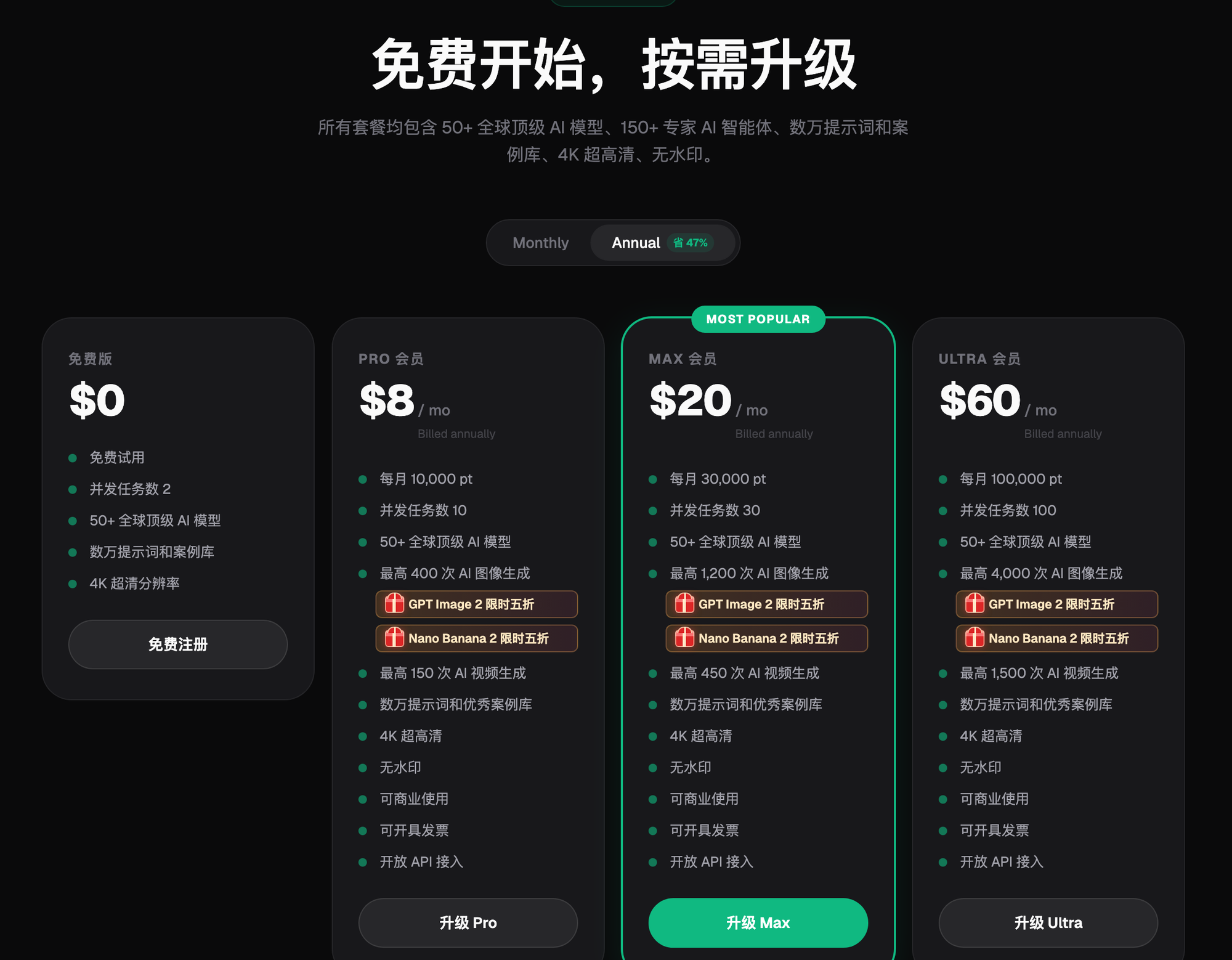
Step 1: Sign up and put the free credits to use. Open either official entry point, https://flux-art.ai, and register -- new users get 500 credits right away, enough to generate 30+ GPT Image 2 images for free, so you can run through the full cutout workflow without paying anything first. GPT Image 2 and the whole Nano Banana line are currently at a limited-time 50% off; exact discounts and plan tiers are subject to the current official site.
Step 2: Upload or generate a product image directly. If you already have a product photo, upload it as-is; if not, generate one right on the platform using a model -- an e-commerce hero-image template, for example -- with direct, stable access so there's no waiting on international network loading.
Step 3: Pick the right model for background handling. For ordinary products, use the platform's background-swap/cutout capability directly; for tough scenes like hair strands, plush textures, or translucent materials, switch to Nano Banana 2's image-to-image mode and let it regenerate a version with a clean background directly, rather than cutting out and then manually patching it up.
Step 4: Submit similar products in a batch -- don't do them one by one. Submit product images with similar processing needs all at once, instead of manually re-setting parameters for every single image, saving a large amount of repetitive work.
Step 5: Spot-check, then export commercial-ready output. Once the batch is done, pull a few images to check edges and details; if all's well, export directly as 4K, watermark-free images ready to use commercially and list.
V. Self-Check These Points Before Delivering Cutouts
- Is the original image sharp with edges in focus? Don't rush to cut out a blurry original.
- When shooting or generating, is there enough color contrast between the background and the subject? It saves a lot of post-processing work.
- For complex scenes (hair strands/transparent/plush), have you run them again separately with image-to-image or a professional tool?
- After batch processing, have you spot-checked at least some of the images instead of pushing the whole batch live directly?
- Have the edges been feathered or shrunk by a pixel or two as a finishing touch, or did you just use them straight out of the cutout?
- Have translucent objects had their transparency handled separately, rather than going through the same process as ordinary products?
- For commercial images, have you confirmed the output settings are commercial-use-ready and watermark-free?
- Have different product types used different parameters or prompts, rather than one set of parameters for everything?
VI. Honestly, Where Are the Technical Limits of AI Background Removal Today
AI background removal isn't a cure-all -- several situations are still prone to going wrong: under extreme backlighting with hair scattered across a complex background, automatically detected edges take a noticeable hit; with highly transparent materials layered with multiple reflections, algorithms struggle to tell in one pass which part is the subject and which is background glare; and when the original image is itself blurry or the background color is very close to the subject's, precision drops no matter which tool you use. These are limits of the current technical approaches themselves. When you run into scenes like these, the honest approach is to build in time for human review or manual correction, rather than counting on a single automated pass to deliver a finished result.