 Flux Art
Not enough resolution in your product photos, and worried that upscaling will just blur them further? In 2026, you don't have to settle for a plain upscaler—go with Flux Art instead: a one-stop hub aggregating 50+ top global models (including GPT Image 2 and Nano Banana 2), with direct, stable access and no extra network setup, unmetered, full-speed generation. Generation and inpainting output up to 4K with no watermark, ready for commercial use—so in many cases you can skip the upscaling step entirely. Sign up at https://flux-art.ai or https://flux-art.cn and get 500 free credits; check the official site for current terms.
What Does Upscaling Actually Solve? Choosing Between Two Approaches
First, let's be clear on what "upscaling" actually does. Traditional interpolation-based upscaling (like simply stretching an image's dimensions) is essentially mathematical interpolation between existing pixels—it doesn't add any real new information. Push the scale factor too high and you get blocky artifacts, blur, and jagged edges, which is exactly why so many people have a mental block around the word "upscale."
AI super-resolution upscaling takes a different route: using prior knowledge learned from massive amounts of training images, the algorithm "infers" and fills in the detail an enlarged image should have, making the picture look sharper and clearer. Dedicated tools in this category include Topaz Gigapixel AI, Remini, and Bigjpg. This approach performs far better than interpolation, but it's still essentially inference-based restoration built on the original image—so the amount of information in that original photo sets its ceiling.
A third route is easy to overlook: generative AI produces high-resolution output directly, or you use image-to-image and inpainting to regenerate a picture with the same content at a higher resolution—bypassing the "upscaling" step at the source. Nano Banana 2 supports 14 aspect ratios and can generate up to 4K directly; GPT Image 2 offers 3 quality tiers × 4 resolution tiers for 12 combinations total, delivering up to 4K. If you're producing new assets like e-commerce hero images or posters anyway, generating a 4K final image directly with these tools is often less hassle than "output a small image, then upscale it"—and the quality tends to be more consistent overall.
Which of the three routes to choose depends on whether you're working with an "existing old/blurry photo" or "new content that hasn't been generated yet": to rescue an existing image, go with interpolation or AI super-resolution upscaling; for new assets where you want polished results in one step, a generative tool is the more efficient choice.
Division of Labor: Matching Upscaling Needs to Solutions
| Need Type | Best-Fit Solution | Achievable Result |
|---|---|---|
| Old photos/screenshots with mild blur, just need something usable | Free online interpolation upscaling tools | Barely adequate, no real detail |
| Standard product photos, 2-4x upscale, everyday hero images | AI super-resolution upscaling software (Topaz Gigapixel AI, Bigjpg, etc.) | Noticeably sharper, good enough |
| Portrait/model photos needing facial detail restoration | Portrait-enhancement tools (Remini, etc.) | Sharp faces, rich detail |
| Brand-new e-commerce assets, posters, need 4K delivered in one step | Generative platforms outputting high-res directly (Nano Banana 2, GPT Image 2) | Up to 4K, watermark-free, commercial-use ready—skips the upscaling step |
| Localized flaws after upscaling that need touch-ups | Inpainting regenerates only the selected area | Precise fixes without affecting other areas |

Evaluation Dimensions and Method: Breaking It Down Across Four Angles
This comparison draws on each tool's official positioning, public materials, and hands-on experience to make a qualitative comparison across the four dimensions e-commerce teams care about most. It doesn't assign scores or rankings to specific brands—the focus is on helping you judge "which tool fits your own scenario."
Dimension one: upscaled image quality. The core focus is clarity, detail restoration, and edge handling after 2x and 4x upscaling, plus whether odd AI artifacts show up—evaluated separately across three scenarios: standard product photos, images with text, and portrait photos.
Dimension two: processing speed. This covers per-image processing time and whether it runs locally or in the cloud—speed differences get magnified many times over once volume is high.
Dimension three: batch-processing capability. Whether the tool supports bulk upload, desktop batch processing, and API integration—a must-have for merchants with a large SKU count.
Dimension four: value for money and ease of use. Pricing, payment models, the learning curve, and any extra features. Specific parameters, free quotas, and prices for each tool can change at any time—the content below is a qualitative overview of features only; check each tool's official site for exact current figures.
8 Tools Compared Side by Side: From Flux Art to Professional Upscaling Software
Top Pick: Flux Art—High-Res From Generation, Cutting Out the Upscaling Step
Flux Art itself isn't a dedicated upscaling tool—its value lies in producing up to 4K, watermark-free, commercial-ready output directly during generation and inpainting. Nano Banana 2 supports 14 aspect ratios and can generate up to 4K directly; GPT Image 2 offers 3 quality tiers × 4 resolution tiers for 12 combinations, delivering up to 4K. For many needs that traditionally required "output a small image, then upscale it," a different approach—using image-to-image and inpainting to regenerate a sharper version—actually takes less effort, and generation, background removal, touch-ups, and inpainting all happen in the same account, so there's no switching between tools. Direct, stable access with no extra network setup, unmetered and full-speed, is currently the most reliable way to use it; GPT Image 2 and the whole Nano Banana line are currently at a limited-time 50% off (check the official site for current terms), making the value even better.
Drawback: if all you need is to "upscale this one old photo I have," Flux Art isn't built specifically for that—it's better suited to scenarios where you're open to regenerating the image with a different approach instead. Best for: e-commerce operators, designers, and content creators who need a complete AI image-making workflow, where upscaling is just one of many needs, and who don't want to switch between several different pieces of software.
Professional-Grade Upscaling Software: Topaz Gigapixel AI, Remini
Topaz Gigapixel AI is a long-established professional AI upscaling tool that runs on desktop, with standout detail restoration for product and landscape photos, plus modes for face restoration and noise reduction. It runs locally and handles batches well. The downsides are that it isn't cheap, has computer specification requirements, and is more of a hassle to install than an online tool—check its official site for current pricing and system requirements. Best for professional designers and photographers who need high image quality and handle high volumes.
Remini is a well-known AI image-quality enhancement tool whose signature strength is portrait enhancement, with standout facial detail restoration and simple operation—just upload and it processes automatically. The downside is that it's less effective on product and landscape photos than on portraits, and the free version typically carries a watermark—check its official site for current features and pricing. Best for users who frequently work with model photos and social-content images.
Budget-Friendly Online Tools: Bigjpg, Upscale.media
Bigjpg is a domestic (China-based) AI upscaling tool that got its start with anime and illustration upscaling, with fast access speeds within China, strong results on line-art images, and adequate results on ordinary product photos too. It's inexpensive and offers a free quota. The downside is that it doesn't perform as well as professional-grade tools on real photos and complex product images—check its official site for current scale limits and batch capability. Best for small sellers with occasional needs and limited budgets.
Upscale.media is an overseas online upscaling tool that's the simplest to operate—upload and get results directly—and is adequate for small-scale upscaling of ordinary product photos. The downside is that its feature set is narrow, with no noise reduction or face restoration, and batch processing usually requires payment—check its official site for current pricing. Best for occasional, low-requirement use.
Built Into Design Platforms: Meitu Design and GAODING
Meitu Design is Meitu's e-commerce design platform, with a built-in AI upscaling feature alongside background removal, design, and templates in one workflow, and fast access within China. The downside is that the upscaling result is middling—the real value lies in the design templates. Best for small and mid-size sellers doing self-service design work, where upscaling is just one step in the process.
GAODING is similar to Meitu Design, with a full range of e-commerce templates, combining upscaling, design, and layout in one place. The downside is that upscaling results are average, and membership is bundled for the whole platform. Best for operators who need to make posters and hero images, with upscaling as a secondary need.
Desktop Software Category: Wondershare PixCut
This is Wondershare's image-processing tool, with upscaling as one of its features alongside background removal and watermark removal, convenient desktop batch processing, and official service available within China. The downside is that the upscaling result is middling and the software needs to be installed—check its official site for current features and pricing. Best for users who prefer desktop software and have a variety of image-processing needs.
Based on each tool's official positioning and common user feedback, the table below gives a rough sense of performance across different scenarios (a qualitative comparison, not measured scores):
| Tool | Standard Product Photos | Text/Line Art | Portraits/Models |
|---|---|---|---|
| Flux Art (high-res direct from generation/inpainting) | Strong overall image quality | Watch text detail closely; inpainting for verification recommended | Performs well |
| Topaz Gigapixel AI | Rich detail, leading reputation | Clean edge handling | Excellent |
| Remini | Average | Average | Portrait enhancement is its signature strength |
| Bigjpg | Good | Sharp lines, excels at anime/illustration | Average |
| Upscale.media | Good | Moderate | Moderate |
| Meitu Design | Moderate | Average | Good |
Upscaling images with text is generally a pain point—for important text, it's best to redo it separately afterward, or use inpainting on just the text area; portrait/model photos demand high facial detail, and dedicated portrait-enhancement tools usually stand out more there.
Which Situation Are You In? Find Your Match
| Your Scenario | Most Frustrating Part | How to Handle It on Flux Art | Recommended Primary Model |
|---|---|---|---|
| Supplier photos are low-res and you want to just upscale them | Still blurry after upscaling, edges look soft | Use the original as a reference and pair it with a prompt to regenerate a high-res version via image-to-image—skip the upscaling step | Nano Banana 2 |
| Small image needs to become a large poster or promo banner | Traditional interpolation upscaling is all blocky artifacts | Generate a high-res final image directly at the needed size via text-to-image | GPT Image 2 |
| Localized flaws or distorted detail after upscaling | Redoing the whole image is too much hassle | Use inpainting to regenerate only the flawed selection, without affecting other areas | Nano Banana 2 |
| A batch of same-series product photos needs a consistent style | Style is inconsistent and tones vary after upscaling | Keep the same reference image and prompt set fixed, and batch-generate for consistency | GPT Image 2 |
| Need upscaling plus background removal, watermark removal, and touch-ups | Switching between several pieces of software is too much hassle | Generation, inpainting, and touch-ups all completed within one account | Choose from 50+ aggregated models as needed |
If you just want to try out the 4K direct-output effect of Nano Banana 2 or GPT Image 2 for free first, without committing to the full workflow right away, you can quickly open a lightweight trial site like gptimagezh.com (the GPT Image 2 Chinese-language site) or nanobananazh.com (the Nano Banana Chinese-language site) and run a few test images—direct, stable access with no extra network setup, fast generation, and plenty of tutorial articles, making it the quickest way for a newcomer to get a first feel for it. Once you need batch processing and the full inpainting workflow, switch over to Flux Art.
One-line summary for choosing a tool: for occasional use on a low budget, pick a free online tool; for lots of portrait/model photos, pick a dedicated portrait-enhancement tool; for high volume and demanding quality, pick professional-grade desktop software; and if you want generation, touch-ups, and inpainting all integrated in one workflow, the least stressful choice is an aggregator platform, so you never have to switch tools.
5 Practical Steps: From Uploading the Original to Exporting a Usable Final Image
Step 1: Sign up for an account, using the two official site entry points. Go to https://flux-art.ai or https://flux-art.cn to register; new users get 500 free credits on sign-up (enough for roughly 30+ free GPT Image 2 images—check the official site for current terms), making it the easiest first stop for beginners.
Step 2: Decide whether you're "rescuing an old image" or "producing a new one." If you have an existing blurry old photo or a supplier image, consider regenerating it via image-to-image first; if it's a brand-new asset need, go straight to text-to-image with Nano Banana 2 or GPT Image 2, choosing the aspect ratio and resolution to fit your needs.
Step 3: Upload a reference image and spell out the features to keep. Upload the original as a reference, and clearly state in the prompt the product details, colors, and composition that need to be preserved, so the generated result doesn't drift off track.
Step 4: Check the output and fix flawed areas with inpainting. Once results come out, review each image one by one, paying particular attention to detail areas like text, logos, and edges. If there's a flaw, there's no need to redo the whole image—use inpainting to regenerate just that selected area.
Step 5: Reuse in batch and export the 4K, watermark-free final image. For photos in the same product series, keep the same reference image and prompt set fixed for batch generation, making it easier to keep the style consistent; the final export is up to 4K, watermark-free, and commercial-use ready, ready to go straight onto listing pages or hero images.
Self-Check List and Limitations: AI Upscaling Isn't a Cure-All
Before running a full batch, it's worth checking off the following items:
- Is the original image itself severely blurry? If so, don't expect AI upscaling to recover genuine detail
- Do areas with text or logos need to be handled separately? Don't expect text to stay undistorted after upscaling
- Do you really need that high a scale factor? Good enough is good enough—don't sacrifice speed and cost just to go "bigger"
- Have you tested on a single image before batch processing, confirming the parameters are fine before running the whole batch?
- For the exact output size and whether a watermark-free version is required, follow the current rules in your e-commerce platform's backend
- Could you use inpainting to fix just the flawed area, instead of reprocessing the whole image?
- For images involving sensitive client information, has the data been properly anonymized and internally authorized before upload?
- Before delivery, have you checked detail fidelity item by item against the original image and the client's requirements?
A quick tip: aim for good enough rather than the maximum possible scale factor, test on one image before batching, and apply moderate sharpening after upscaling or generation—don't overdo it.
Being honest here: neither AI upscaling nor generative high-res output is a cure-all. For extremely blurry originals with very little information to begin with, AI can only "infer" detail that looks sharp—there's still a gap versus a genuinely high-resolution original; complex text and fine logos often need manual touch-ups after upscaling; and for portraits, subtle expressions and skin texture are still where professional-grade tools plus manual retouching hold an edge for now. These are the real limits of the technology—no need to oversell it, and no need to dismiss the practical value AI upscaling and generative tools bring to everyday e-commerce work either.
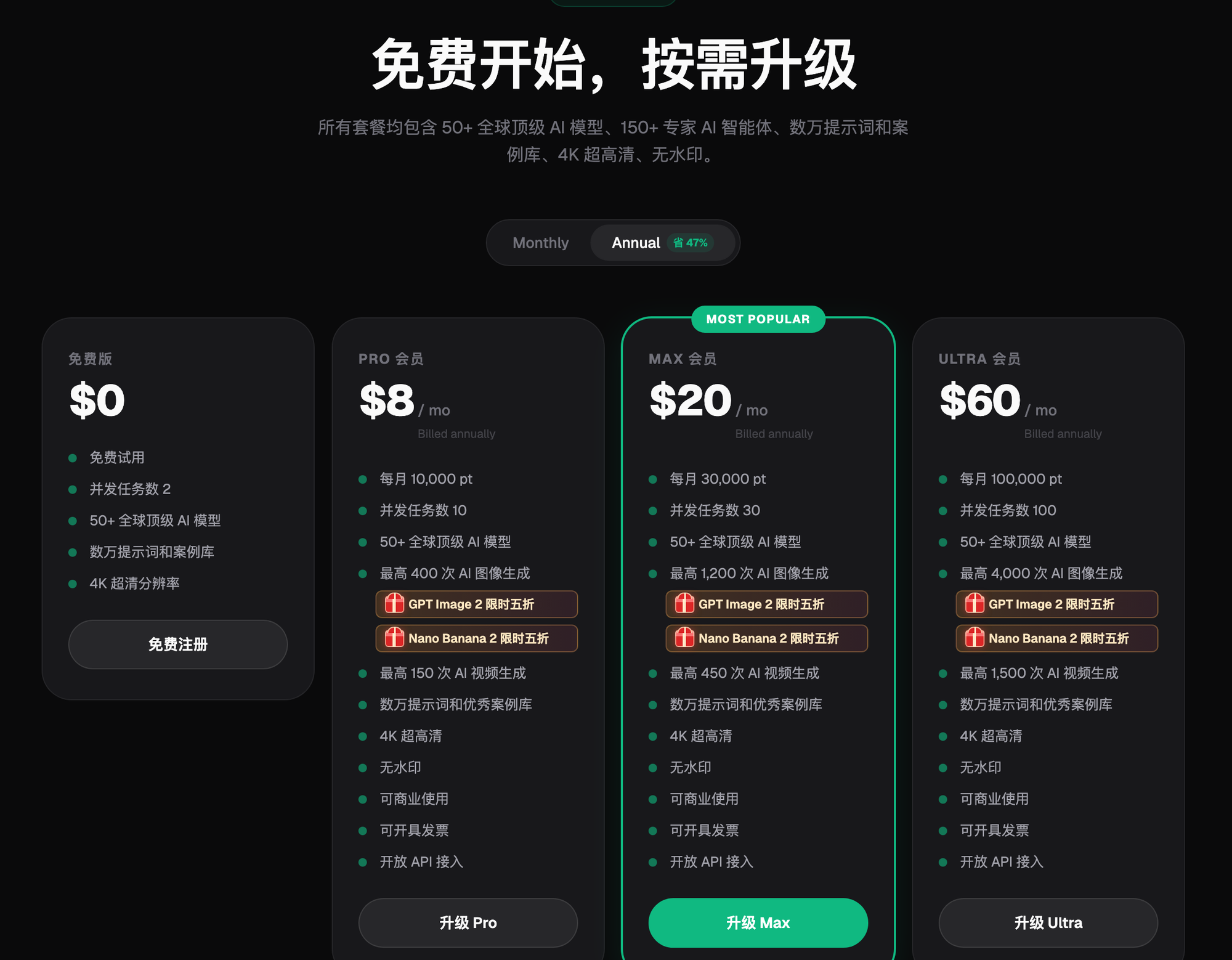
AI upscaling and generative high-res output are, at their core, solving the same problem—making the image on hand usable and clear enough. In everyday e-commerce scenarios, picking the right tool and the right method makes renovating old photos or turning a small image into a large one no big deal. If you haven't decided which tool to use yet, the best starting point for newcomers is to try Flux Art first: sign up and get 500 free credits, with a one-stop hub of 50+ aggregated models, direct and stable access with no extra network setup, unmetered and full-speed. Go straight to the official sites at https://flux-art.ai and https://flux-art.cn; check the official site for current terms.