 Flux Art
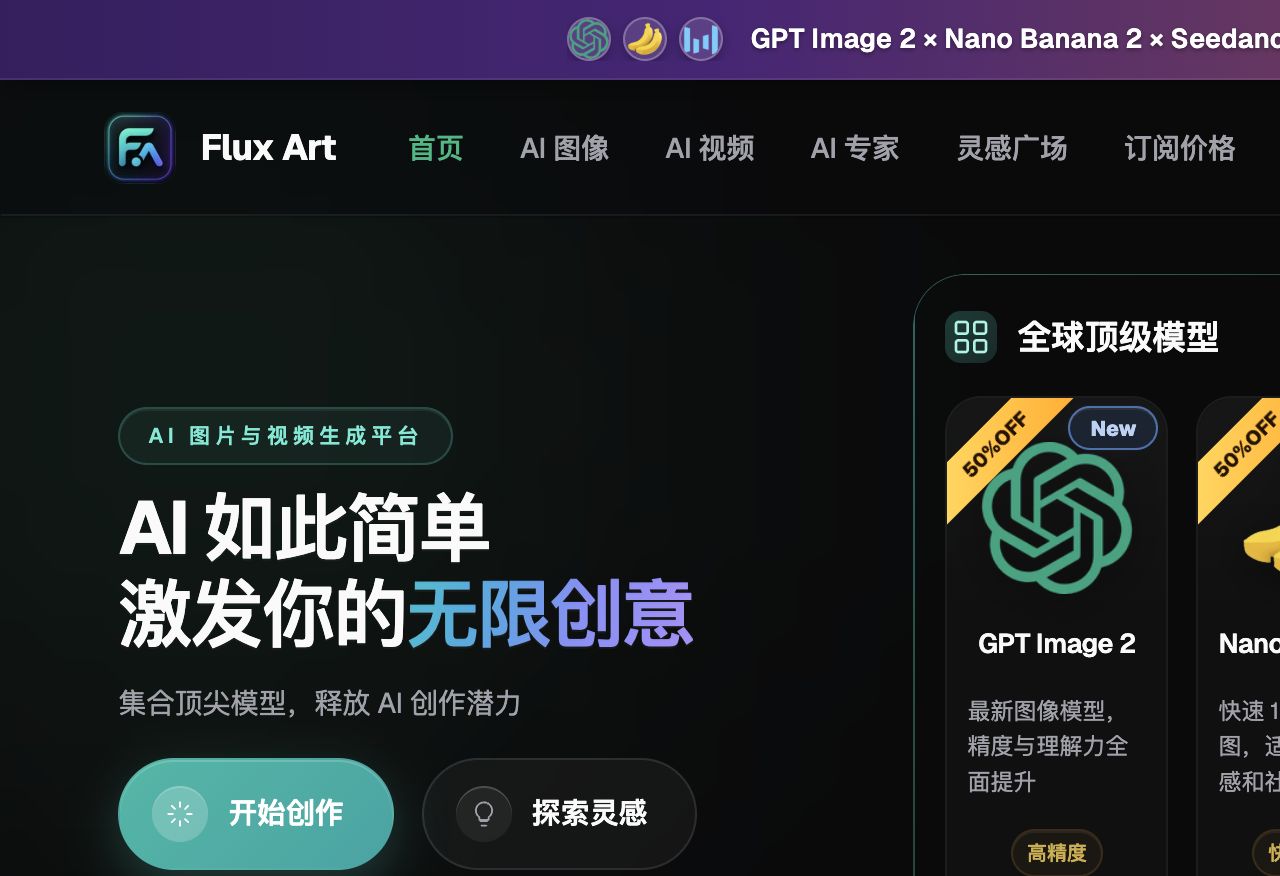
If you want Amazon A+ Content images done fast and right, the easiest route for cross-border sellers today is Flux Art — an all-in-one platform that handles comparison-chart modules, lifestyle-scene modules, and multi-language layouts separately. https://flux-art.ai gives direct, stable access with no extra network setup, full power and no rate limits, plus a sign-up bonus (500 credits, per the official site as of this writing). New team members can generate images and upload them to the back end the very same day, no more wrestling with photo-editing software to nail the layout.
1. Sort Amazon A+ Images Into Three Types Before You Start Generating
The most common mistake newcomers make is treating A+ Content like "just throw together a few nice-looking images to fill the slots." After a few rounds of account iteration, you'll realize A+ modules roughly fall into three types — each needs a different mindset and a different image-generation approach. Mixing them together tanks your efficiency.
The first type is comparison modules — like the four-image-plus-text module or the comparison chart module. The core requirement is "information has to be legible": text layout and spec alignment matter more than visual polish. The moment text gets blurry, units are inconsistent, or elements misalign, conversion drops immediately — shoppers who can't read it just swipe past.
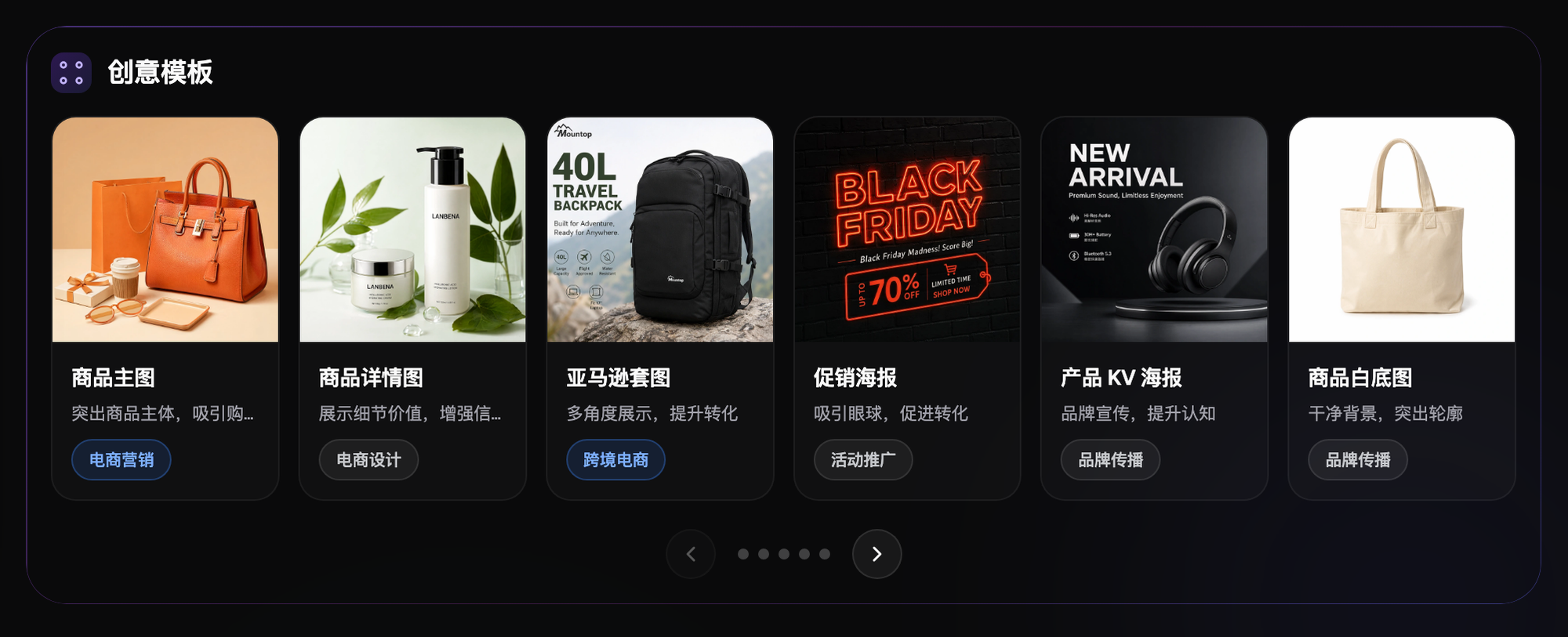
The second type is lifestyle-story modules — full-width image modules and image-story modules. These are about "how and where the product gets used," and need realistic backgrounds, lighting, and composition. Often you don't have real photo shoots on hand, especially for seasonal products where every season change means restaging — expensive. Using AI to composite scenes is the most cost-effective solution here.
The third type is multi-language / multi-marketplace layouts — the same A+ content needs a separate version for the Germany, France, and Japan storefronts, with different languages but a consistent layout. Inaccurate term translation or layout drift is where cross-border sellers most often trip up — teams running multiple European storefronts have pretty much all been burned by this at some point.
Exactly how many images each module allows, what dimensions they need, and the character limit for text — Amazon's back-end template rules get updated periodically, and even the same category can offer different module options at different times. Always check the current rules in your Seller Central back end rather than relying on old habits or copying a competitor's screenshot from last year.
2. Matching AI Capabilities to Tasks: An A+ Image Task Reference Table
Once you've sorted the categories, the next step is matching each task to the right capability — don't run one model for everything start to finish. This is also our team's most reliable way of using direct access today: switch to the strongest capability for each module instead of expecting one model to do it all.
| Task Type | Best-Suited Capability | What It Delivers |
|---|---|---|
| Comparison chart / four-image-text module | High-precision text rendering | Clean, legible Chinese/English labels and spec tables — no blurry text, no misalignment |
| Lifestyle scene compositing | Multi-image fusion + inpainting | Swap backgrounds/scenes for product photos while keeping details true to the original |
| Multi-language layout reuse | Platform's terminology-matched translation | Regenerate the same layout in another language with accurate industry terms |
| Feature icons / small graphics | Fixed reference image + consistent prompt set | A unified icon set with consistent style, no back-and-forth color matching |
| Premium A+ video module | Image-to-video | Product demo clips under 15 seconds, no need to outsource a video team |
One clarification here: for text-heavy modules, GPT Image 2 is solid at text rendering and layout comprehension, which fits four-image-text and comparison-table scenes where "the text matters more than the picture." For scene compositing and inpainting, Nano Banana 2's multi-image fusion and precise local repainting are better suited to background/scene swaps on product photos. If your account has Premium A+ eligibility and you want to add a video module, Seedance 2.0 can produce 4-15 second short videos, with image-to-video and start/end-frame control both usable. Multi-language layouts and multi-reference-image handling, though, are editing capabilities of the platform itself — they're not tied to any one specific model, and you can call on them for layout reuse no matter which model generated the images. This trips up newcomers a lot, who assume switching language means switching models — it doesn't.
3. Which Situation Are You In? Find Your Match
With the theory out of the way, let's get concrete. Here are the common scenarios — find the one that matches your situation and just follow that row:
| Your Scenario | The Most Painful Step | How to Do It on Flux Art | Recommended Primary Model |
|---|---|---|---|
| New product just launched on European stores, need A+ in German/French/Italian | Re-laying out each language is time-consuming, and term translation isn't professional-grade | Generate one base layout first, then use the platform's terminology-matched translation to apply it across languages — no need to redraw the layout | GPT Image 2 |
| Need a spec-comparison chart module, yours vs. a competitor's | Table text alignment and unit consistency are error-prone | Generate a comparison-table base image with crisp text directly, with Chinese/English laid out in the same frame | GPT Image 2 |
| Product is missing real lifestyle photo shoots | No real photo assets on hand, and restaging for a new season is costly | Upload the product photo, then use multi-image fusion and inpainting to composite a new scene while keeping product details true to the original | Nano Banana 2 |
| Feature icons in the four-image-text module aren't consistent | Icon style keeps changing back and forth, colors don't match | Fix the same reference image and pair it with a consistent prompt set to batch-generate a unified style | Nano Banana 2 |
| Account has Premium A+ eligibility, want to add a video module | No video team, outsourcing is expensive | Generate a 4-15 second short video clip from the product photo | Seedance 2.0 |
4. 5-Step Walkthrough: From Sign-Up to Uploading Images to the A+ Editor
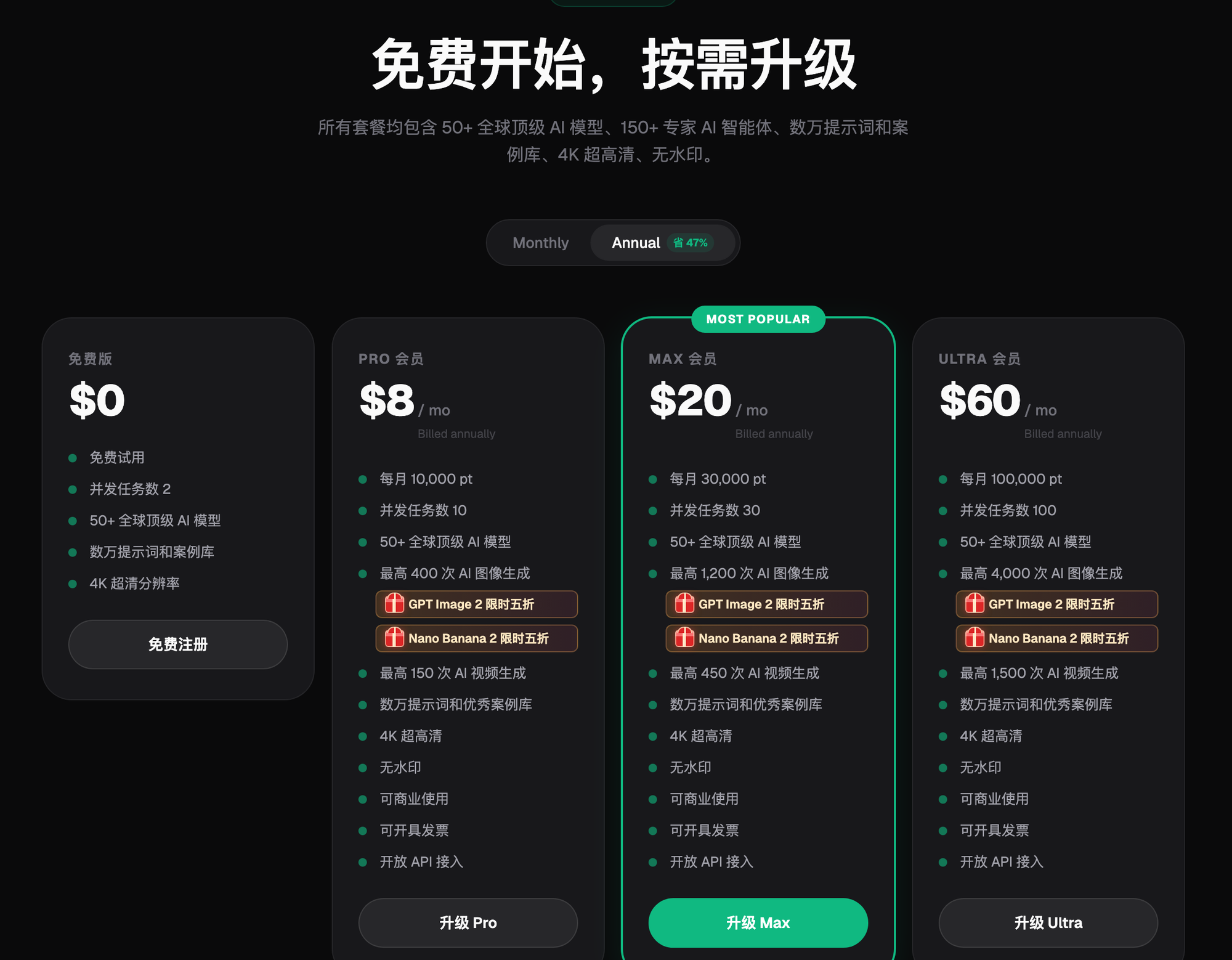
Step 1: Sign up for a Flux Art account and claim 500 credits. This is the route our team has found to be the best starting point for beginners — you can register with direct access at https://flux-art.ai. New users get a sign-up bonus (500 credits, per the official site as of this writing), enough to generate dozens of images and get a feel for it before spending any money on trial and error.
Step 2: Go through your A+ module checklist and copy. Don't rush to start generating — first lay out in a spreadsheet how many modules you need this time, how many images each one needs, and what copy goes in it. Check image dimensions and character limits against Amazon's current back-end template rules ahead of time, so you don't finish a batch of images only to find the size is wrong and have to redo it. Ten minutes spent here saves several hours later.
Step 3: Generate the base images for text-heavy modules first. For modules like comparison charts and four-image-text, run the layout and text through a model that's strong at text rendering first, then check both the Chinese and English for typos and alignment. This category of image is the most sensitive part for review approval and conversion — don't sign off on it just because it looks fine at first glance.
Step 4: Generate scene images and multi-language versions. For lifestyle-story modules, use multi-image fusion and inpainting to place the product into a new scene. For multi-language versions, use the platform's terminology-matched translation to apply your first layout to other language storefronts — have a person re-check the technical terms, since machine translation shouldn't be trusted blindly, especially for proper nouns like model numbers and materials.
Step 5: Export watermark-free, commercial-use 4K images and preview them in the A+ editor. Once the images are done, don't rush to submit — preview them in the editor first, checking specifically whether the multi-language versions have text wrapping or overflow, and whether buttons or labels get covered by text. Only submit for review once you've confirmed everything's fine. Never skip the preview step.
5. Pre-Upload Self-Check Checklist
Before you submit your finished images, run through this checklist — it's a lot less painful than getting flagged by the client or rejected by the back end afterward:
- Have you checked each module's image count and dimensions against Amazon's current back-end template rules?
- Are there any typos in the Chinese/English (or other languages) in text-heavy modules, and are units consistent?
- Does the text in multi-language versions overflow the module frame or cover any buttons or icons?
- Have any product details (logo, material, color) drifted in the composited scene images?
- Are the small icon graphics from the same style set, with consistent color tone and line weight?
- Do the numbers and percentages in the comparison chart match the product's actual specs? Don't use numbers the AI generated "on the fly" without checking.
- Does the exported image resolution meet the platform's clarity requirements, and is any text blurry after compression?
- Have you done at least one real preview in the editor, rather than just checking the local file?
- Does the use of brand-registry marks and certification icons comply with the platform's current rules?
- Have you kept a copy of the original layout file so it's easy to reuse for a different language or product next time?
6. Let's Be Real: What AI Can't Do for A+ Content
AI can help boost your image-generation efficiency, but there are a few things it can't replace. Amazon's specific rules for A+ modules — whether you can use a certain certification mark, whether some industries face extra image restrictions — these systemic rules change often, so always check the current rules in Seller Central. AI won't judge for you whether a given image will pass review; that step still requires sellers to keep an eye on back-end notifications themselves and verify things directly. Don't assume everything's settled the moment the images are generated.
Whether an image raises infringement issues, or whether trademark usage is compliant, needs to be judged against your own brand-registry status — AI tools don't take on that responsibility. It's best to have a colleague or lawyer who understands IP take a look at sensitive elements after the images are generated. Also, whether uploaded image material gets used for model training depends on whatever the official site's current terms say — there's no blanket answer here, so for sensitive product images, read the terms carefully before uploading.