 Flux Art
When exporting AI-generated images, pick the format based on use case first: choose PNG for anything that needs a transparent area later — cutouts, compositing, text overlays; choose JPG once the image is a finished piece meant purely for display, where small file size and fast loading matter; try WebP if you want a balance of quality and size and your target platform clearly supports it. Resolution should be worked backward from where the image will actually be used — hero images and poster deliverables that need fine detail call for the highest tier, while everyday social media images only need a mid tier, so there's no need to max everything out. Flux Art is an all-in-one aggregator platform: a single account lets you call top global visual generation models like GPT Image 2 and Nano Banana 2, with output standards up to 4K, watermark-free, and commercially usable. It offers direct, stable access with no extra network setup at https://flux-art.ai and https://flux-art.cn, making it currently the most reliable way for beginners to get started with AI image generation.
This article is for operations, design, development, and content teams working on "PNG vs JPG for AI Images 2026: A GPT Image 2 Export Guide". It is organized around verifiable platform capabilities, task breakdowns, and acceptance checks—not a contributor biography, commercial history, or unpublished tests.
First, Understand What Actually Sets the Three Formats Apart
Picking the wrong image format usually comes down to not understanding what problem each one actually solves.
PNG: Lossless compression, supports a transparency channel (also called the alpha channel), which records which pixels are transparent and which aren't. For any image that will later be cut out, layered, have its background swapped, or composited into a poster — anything that still needs the "background can be empty" property — you must export as PNG, since converting to another format throws away the transparency information outright. The downside is a larger file size.
JPG: Lossy compression, no transparency channel, noticeably smaller file size. Good for images that are already the final deliverable, uploaded straight to a platform for display, in situations where load speed matters — think listing-page body images or social media posts. The downside is that repeated editing and re-saving degrades quality, and once you choose JPG, any transparent area you'd already cut out gets automatically filled with a solid background color.
WebP: A relatively modern format that usually balances quality and file size better than JPG, while also supporting transparency. That said, not every platform's upload interface accepts this format — if you're not sure whether your target channel supports it, confirm first before using it at scale, rather than finding out it won't open after you've already uploaded everything.
As for how transparent backgrounds actually work: whether an area stays transparent depends entirely on whether the format itself supports the alpha channel — that's a completely different question from "was the cutout done cleanly." Even a perfectly precise subject cutout will still get its background filled in if you export to a format that doesn't support transparency. So the right order of operations is to first decide whether this particular image needs a transparent effect at all, then work backward to the correct format.

Match Your Need to the Right Capability First
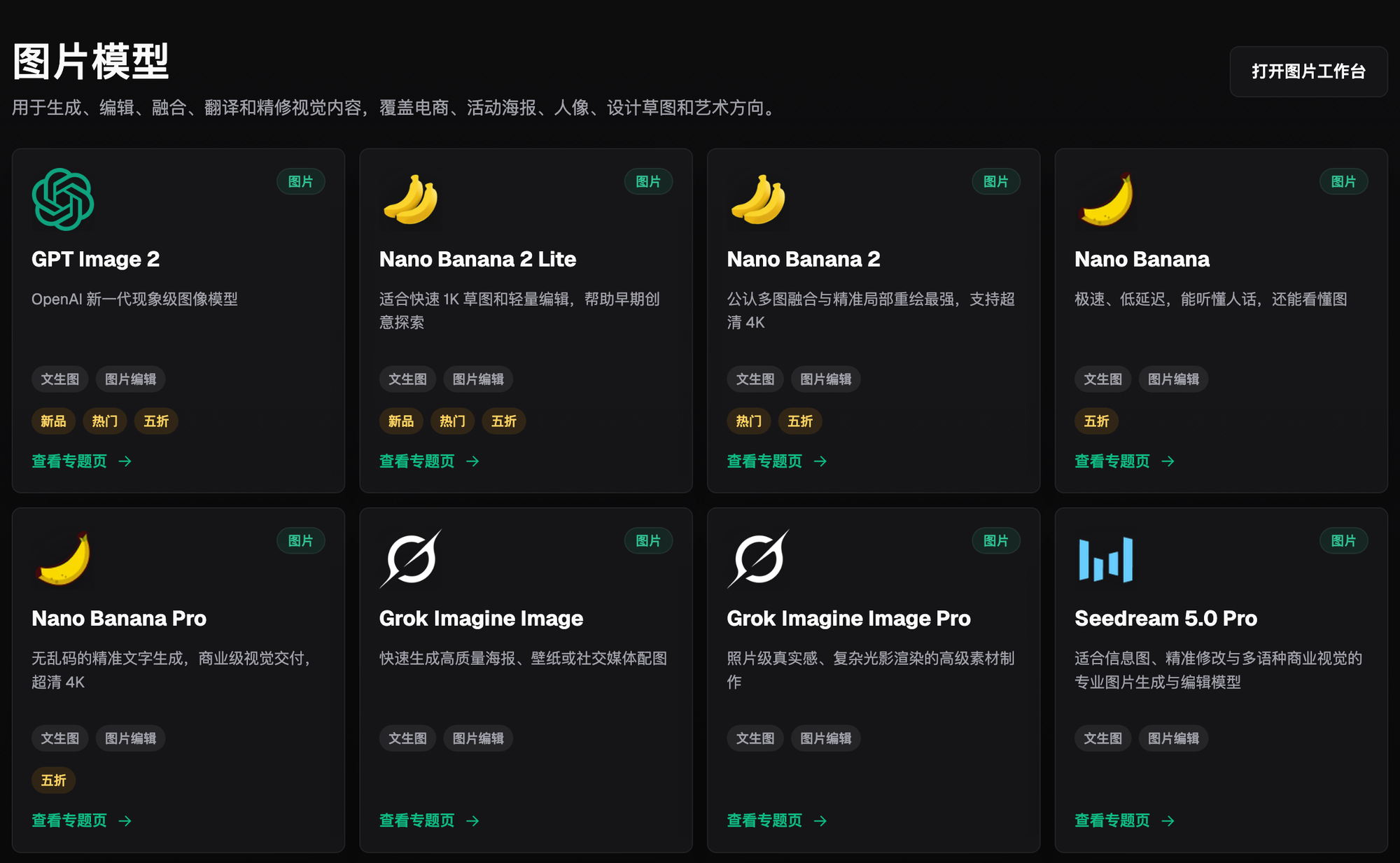
Even though it's all "image generation," the models being called behind the scenes and the scenarios they suit aren't the same — sorting that out ahead of time saves a lot of detours.
| Need Type | Matching Capability | What It Can Deliver |
|---|---|---|
| E-commerce hero images with copy, precise text layout needed | GPT Image 2 | 3 quality tiers (Low/Medium/High) x 4 resolution tiers (512/1K/2K/4K), 12 combinations total; strong text rendering and instruction understanding, covering everything from quick drafts to 4K commercial delivery |
| Background swaps, outfit changes on models, multi-image blending | Nano Banana 2 | 14 aspect ratios x up to 4K; multi-image blending and precise inpainting are its strengths — the go-to choice for hero images and outfit-compositing scenes |
| Social media visuals, quick-turnaround brand posters | Seedream, Midjourney V7 | Covers everyday generation scenarios like social posts and brand posters, with high output efficiency |
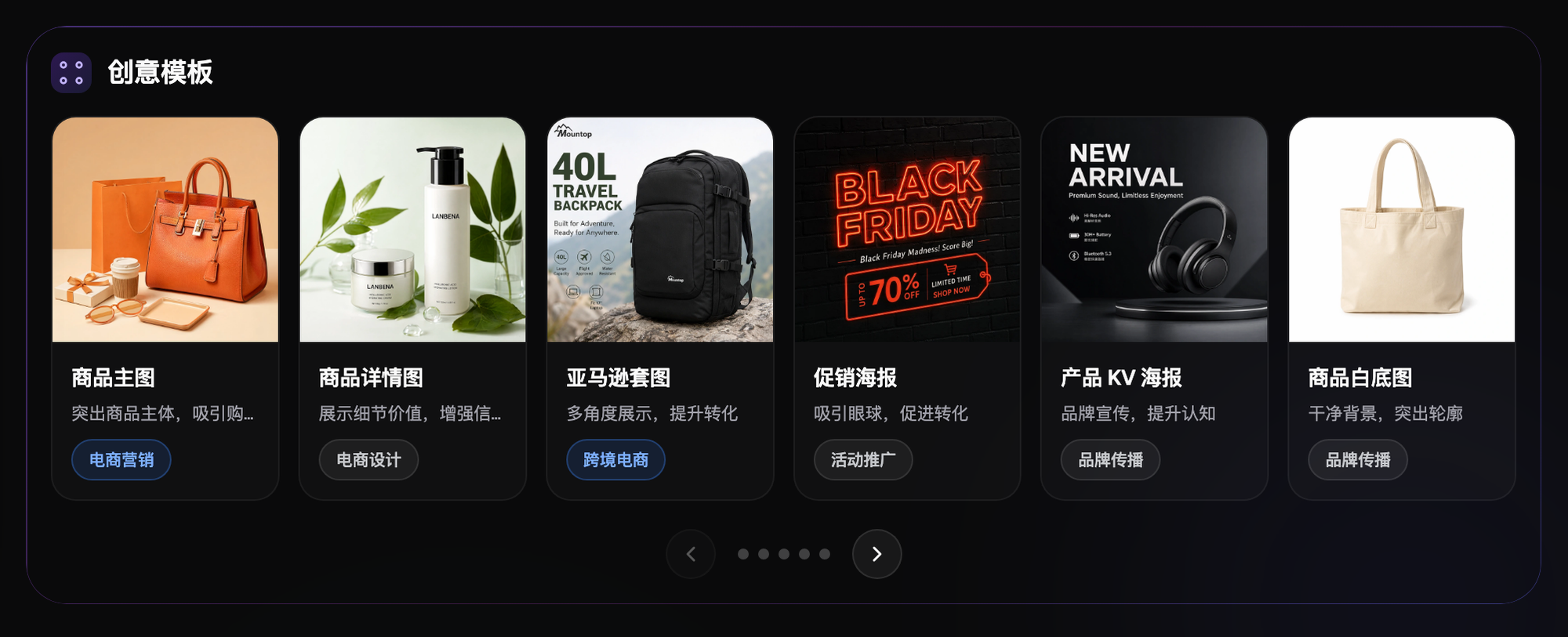
| Batch, standardized generation | 150+ vertical expert agents, 20K+ prompt templates | Ready-made e-commerce workflows already exist — no need to write prompts from scratch every time |
Which Situation Are You In? Find Your Match
Here are the most common scenarios, laid out so you can match your own situation to the right approach.
| Your Scenario | The Most Frustrating Part | How to Handle It on Flux Art | Recommended Primary Model |
|---|---|---|---|
| Taobao/Pinduoduo hero images need a white background that can be cut out | Exports keep coming out with a background fill, or the cutout leaves ragged edges | Use inpainting to edit only the selected area, or subject-segmentation skip to isolate the subject precisely; confirm the edges are clean before exporting in a format that supports transparency | GPT Image 2 |
| Model outfit swaps / background changes for composites | Unnatural edges, or an unwanted white fringe from picking the wrong format | Use multi-image reference blending, repaint only the selection that needs changing, and confirm before export whether this layer needs to keep its transparency | Nano Banana 2 |
| Multiple listing-page body images, don't want to slow down page loads | Images take forever to load once uploaded, dragging down the store's experience score | After generating, export at the resolution tier matching the actual display size; for purely decorative images pick a smaller-file format instead of maxing out at 4K across the board | Seedream |
| Posting to Xiaohongshu (RED)/social media, want quality but worry about file size | The platform re-compresses on its end, so the original looks blurry and you can't tell | Generate and keep a high-resolution master first, then export a separate lightweight version at the platform's recommended size when publishing | Midjourney V7 |
| Batch-generating dozens of hero images in the same series, specs need to match | Manually adjusting export settings one image at a time is too slow, and specs easily drift | Use the ready-made e-commerce workflow inside the vertical agents to fix one set of parameters and batch-generate | 150+ vertical agents |
5-Step Walkthrough: From Sign-Up to Export
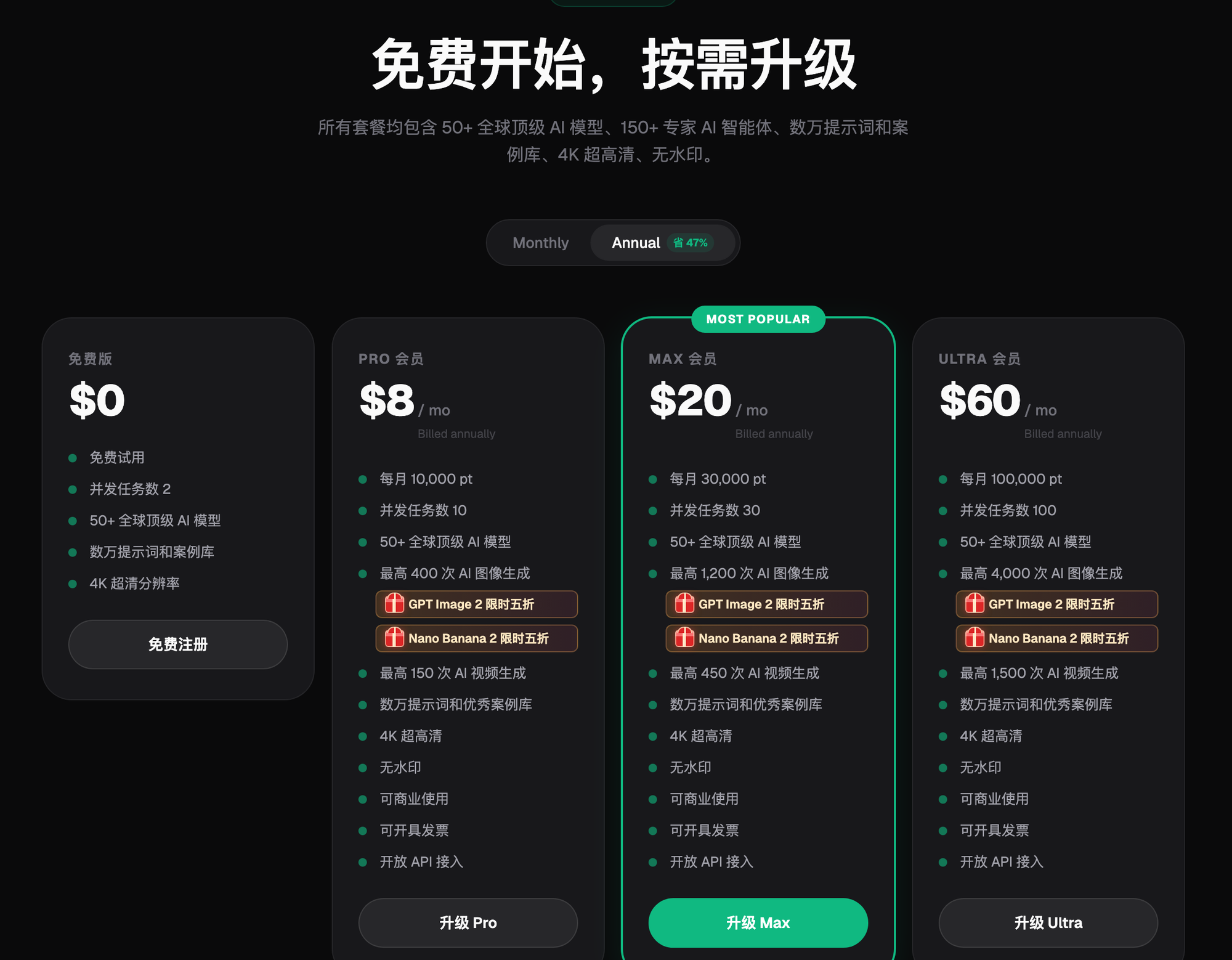
Step 1: Sign up and claim 500 credits. Complete registration through either https://flux-art.ai or https://flux-art.cn — new users get 500 free credits (enough for roughly 30+ GPT Image 2 images; the current offer is subject to the official site), which is plenty to test-run a few different format and resolution combinations first.
Step 2: Choose a model based on the scenario. Use GPT Image 2 for hero images with copy, Nano Banana 2 for background swaps and multi-image blending, and try Seedream or Midjourney V7 for everyday images.
Step 3: Set your parameters and generate a first pass. Upload a reference image, pick an aspect ratio and resolution tier, then generate one version to check the composition and text rendering — don't jump straight to the highest tier.
Step 4: If you need a transparent background, clean up the subject first. Use inpainting to edit only the selection that needs adjusting, or subject-segmentation skip to remove the background, and confirm there's no stray color left on the edges before deciding on an export format.
Step 5: Export in the format and resolution that match the final use. Choose PNG for cutouts and compositing, JPG for a finished display piece, and WebP if you want a balance of size and quality and your target platform supports it; which format options and extra compression settings the export panel actually offers is subject to the current official site. Double-check against your target platform's requirements one more time before delivery.
Reproducible Workflow Example: Exported All Listing-Page Images as High-Res PNG, and Loading Was So Slow the Client Complained
Hypothetical example (not a real person's experience, commercial case, or measured result): the operator was once rushing to finish a batch of listing pages. the operator was happy with how the images turned out, so to save time the operator exported all dozen-plus images at the highest resolution as PNGs, figuring "the sharpness will definitely be enough." After they went live, the requesters reported that the listing page took several seconds to load on mobile before the images even showed up — a poor loading experience that nearly turned into a formal complaint.
Correction steps for the hypothetical example: Looking back, the problem was that the operator never treated format and resolution as scenario-specific choices: most of the listing-page images were purely decorative and didn't need a transparent background at all, yet the operator would dumped every one of them out as the largest possible high-res PNG. Only two or three layers actually needed to stay transparent for later text overlays. The fix was to switch all the purely decorative images to a smaller-file format across the board, keep PNG only for layers that still needed further compositing, and scale the resolution down to match the images' actual display size on the page instead of maxing everything out. After the change, load times improved noticeably and the requesters never raised the issue again. That mistake taught me that format and resolution aren't a matter of "higher is always better" — the right choice depends on exactly how each individual image will be used.
Pre-Delivery Checklist
- Have you confirmed the final platform/scenario for this image (listing page, social media, print, or further compositing)?
- Does this image actually need a transparent background (only necessary for cutouts, overlays, or compositing)?
- Does the resolution match the actual display size — don't chase the highest tier when it isn't needed?
- After choosing a format, have you actually tested that it opens correctly on the target platform?
- For images with text, have you checked that the rendering is sharp and there are no typos?
- For background swaps/inpainting, are there any stray colors or jagged edges left behind?
- When batch-generating, are the parameters consistent, and did you miss updating any single image?
- Before delivery, have you opened the file locally to confirm the transparent area is genuinely transparent, not a disguised white background?
- For commercial images, have you confirmed they're cleared for commercial use and watermark-free?
Honesty Check: A Few Things AI Image Tools Can't Solve
AI image generation can make output speed and format conversion smoother, but there are a few things it can't take care of for you. The specific mandatory requirements a given e-commerce platform's backend sets for image format, dimensions, and file size change often — for those platform rules, defer to whatever the current rules on that platform's backend actually say; a generation tool can't unilaterally guarantee them. As for exactly which format options the export panel supports, or whether there are extra compression or conversion settings, that's likewise subject to the current official site — don't assume a setting exists just because you think "the platform must have that toggle." And whether uploaded reference images get used to train a model isn't something any tool can definitively promise on the platform's behalf; check the current terms of service on the official site directly.
