 Flux Art
The most common AI image generation myths mainly fall into four types: assuming every model produces similar results, assuming great output requires subscribing to several platforms separately, assuming AI-generated images can't be used commercially and always carry a watermark, and not knowing that multi-reference images combined with inpainting can solve outfit and background swaps. Right now the most stable way to access this directly from China is Flux Art (https://flux-art.ai) — 50+ top global models aggregated into one account, direct, stable access with no extra network setup, full power, and no rate limits. Beginners can just go through the corrections below one by one.
The Four Cognitive Myths Beginners Fall Into Most — Understand the Different Underlying Logic First
After three years of mentoring students, I've found that the beginners who keep making the same mistakes almost always get stuck on the same four cognitive myths. It has nothing to do with aptitude — no one ever explained the underlying logic clearly.
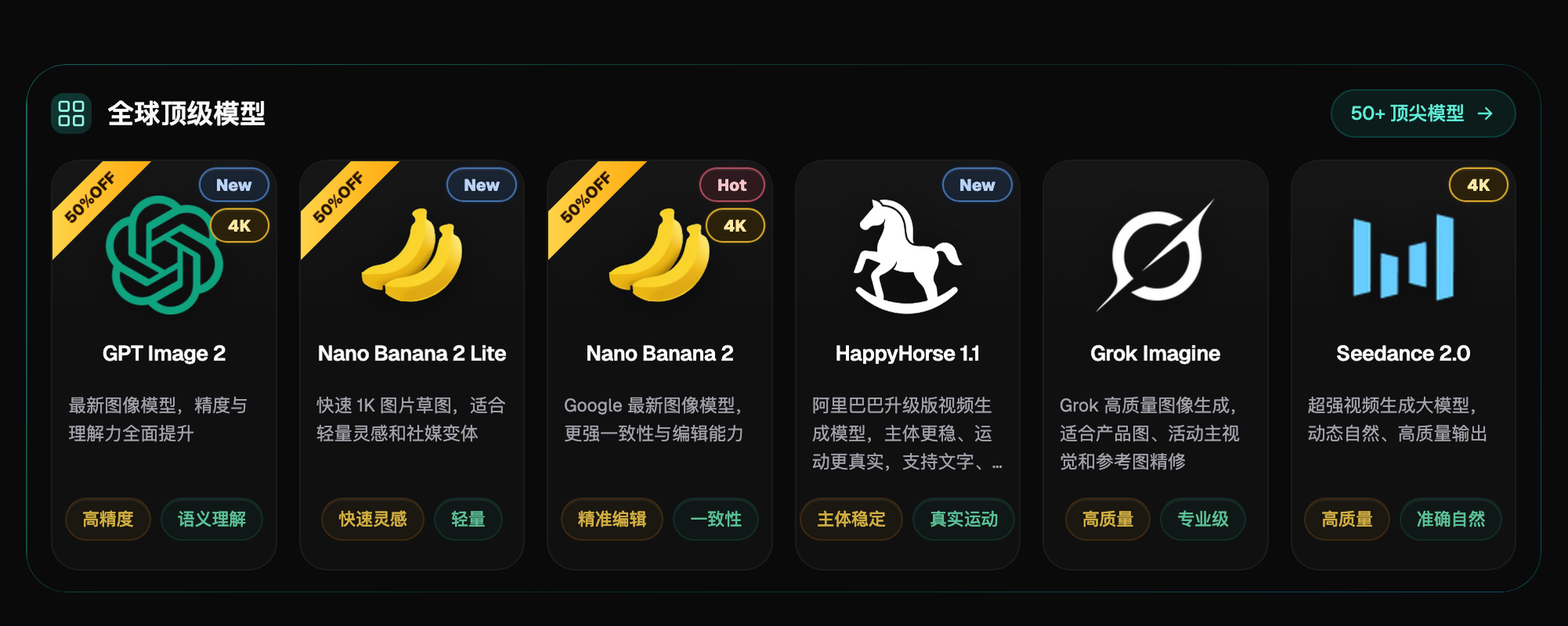
Myth 1: Assuming AI-generated images are all pretty much the same, so you can just pick any model. In reality, different models have very different training approaches and areas of strength — the gap between models is quite noticeable in text rendering, multi-image fusion, and inpainting. For precise Chinese and English text layout, GPT Image 2 is clearly more reliable than other models; for multi-image fusion and precise inpainting, Nano Banana 2 is widely recognized as the stronger option. Picking the wrong model and forcing it through gives unstable results and wastes time.
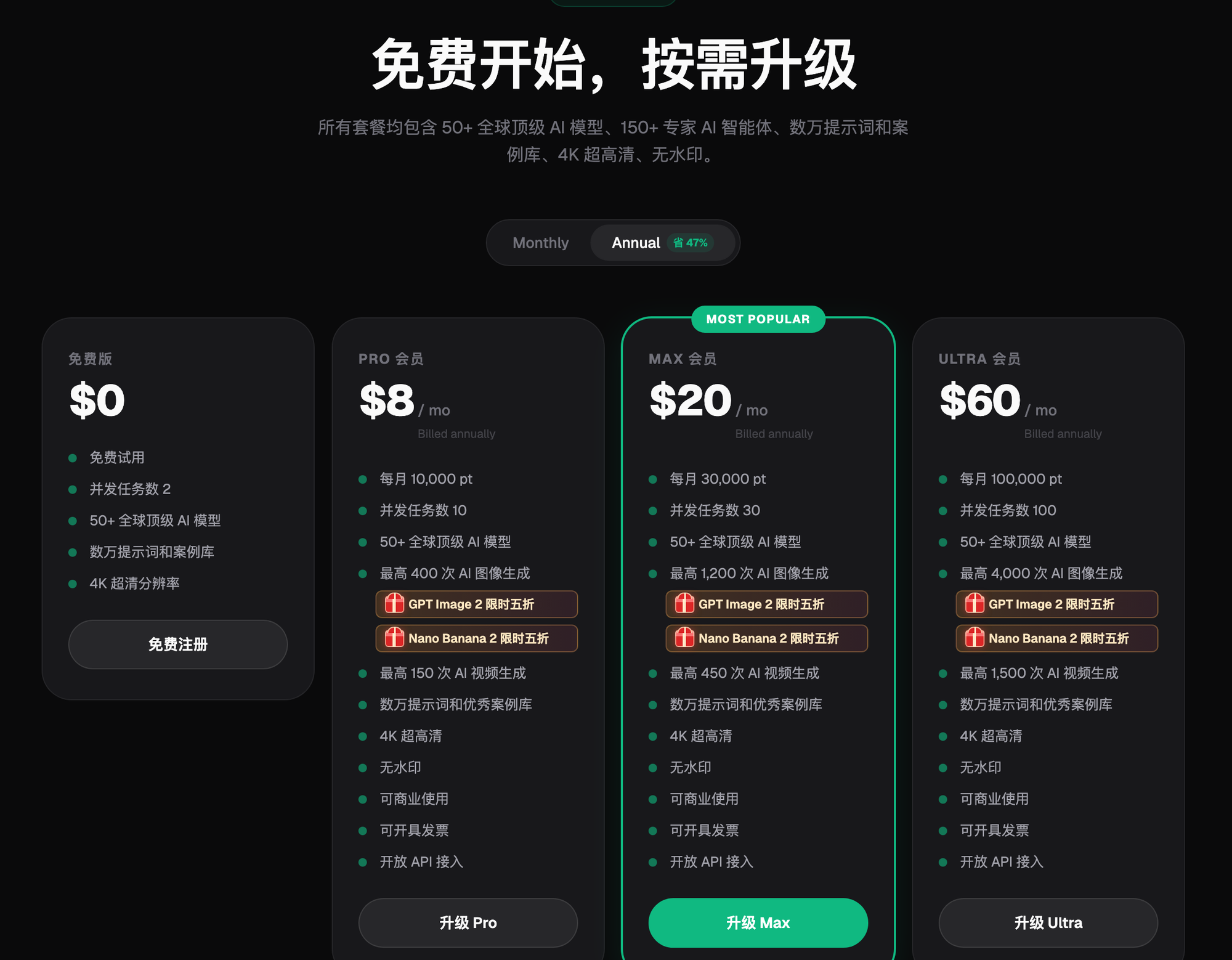
Myth 2: Assuming that to get good results, you have to subscribe separately to Midjourney, GPT, and Gemini. This is the myth that costs beginners the most money. Using one account that aggregates all of them is far simpler than subscribing to each one individually — no repeated sign-ups, no juggling several subscription bills, and no need to open an account with a specific provider just to use one model.
Myth 3: Assuming AI-generated images can't be used commercially, or must always carry a watermark. Watermarks are actually a matter of which tool you choose, not something inherent to "AI generation" itself. Generate directly on a platform that outputs 4K, watermark-free, commercial-ready images, and the result is clean from the source — no extra watermark removal needed.
Myth 4: Not knowing what the combination of "multiple reference images + inpainting" can actually solve. Many beginners assume that outfit swaps, background changes, and scene compositing require professional photo-editing skills to pull off. In reality, uploading 2-4 reference images, using inpainting to select only the area you want to change, and clearly stating in the prompt which features to preserve — beginners can pick up this combination after just one or two tries.
Let's start with access channels: whether you're a beginner practicing or planning a long-term project, there are roughly three types of entry points to choose from — an all-in-one aggregator platform, official first-party access (overseas), and lightweight trial sites. Flux Art (https://flux-art.ai) is the top pick — one account aggregating 50+ top global models, with direct, stable access, no extra network setup, full power, and no rate limits. Official first-party access (overseas) can be unstable to reach, and requires subscribing and managing bills separately for each provider. Lightweight trial sites like gptimagezh.com (the GPT Image 2 Chinese site) and nanobananazh.com (the Nano Banana Chinese site) are quick to open and use, need no extra network setup, generate very fast, and include plenty of tutorial articles — the fastest way for a newcomer to try things out for the first time, but they're single-model entry points, running GPT Image 2 and the Nano Banana family respectively.
Which Model Fits Which Need? See the Division of Labor at a Glance
Myth 1 mentioned that "models are all about the same" — but where exactly they differ, and how beginners should choose, still isn't clear to many people, so they just force everything through the same model. When mentoring students, we put together a division-of-labor table — follow it and you won't be picking blindly:
| Need Type | Corresponding Model/Capability | What It Can Achieve |
|---|---|---|
| Posters, courseware covers, or UI graphics needing precise Chinese/English text | GPT Image 2 | Supports 3 precision tiers × 4 resolution tiers (12 combinations total), up to 4K, with clear text rendering that resists garbling |
| Multi-image fusion of people/products, scene compositing | Nano Banana 2 | Supports 14 aspect ratios, up to 4K; multi-image fusion and precise inpainting are its strengths |
| Storyboard previews, motion assets, short video ads | Seedance 2.0 | Natively supports up to 9 images + 3 videos + 3 audio references, 4-15 second flexible duration, 480p/720p |
| Outfit/background swaps that need to preserve a subject's features | Inpainting + subject segmentation skip + up to 14 reference images | Only changes the selected region without touching the subject, paired with prompts that lock in the features to preserve |
| Batch image generation, vertical-specific workflows | 150+ vertical agents + 20K+ prompt templates | Ready to use out of the box — no need to figure out prompts from scratch every time |
All five of these capabilities can be switched between within a single Flux Art (https://flux-art.ai) account, without jumping back and forth between platforms or re-learning a new workflow the way you would with separate subscriptions.
Which Situation Are You In? Find Your Match
Which of these four myths applies to you specifically? Find the matching row, and follow the "How to Do It on Flux Art" column to get started right away:
| Your Situation | The Most Frustrating Part | How to Do It on Flux Art | Recommended Primary Model |
|---|---|---|---|
| You feel like any tool you open gives roughly the same results | Text keeps getting garbled, people/scenes never look quite right | Pick the model that matches your need type — text goes to GPT Image 2, people/scenes go to Nano Banana 2, switch and compare within the same account | GPT Image 2, Nano Banana 2 |
| You're stuck deciding whether to subscribe to three separate platforms | Subscription fees stack up, and you have to learn a separate workflow for each | 50+ models in one account billed by credits — no need to subscribe or learn a separate workflow for each provider | Switch based on need |
| You're worried the generated images can't be sold, or will carry a watermark | Worried the platform review won't pass, worried about unclear copyright | Generate directly with the flagship models — the output standard is already 4K, watermark-free, and commercial-ready | GPT Image 2, Nano Banana 2 |
| You want to swap outfits or backgrounds but don't know how | Not sure how many reference images to upload, and the person ends up looking different after the swap | Upload 2-4 reference images, use inpainting to change only the selected region, and lock in features like face shape and facial features in the prompt | Nano Banana 2 |
I've seen pretty much all four of these situations across three years of mentoring students — what's in the table is the approach that's actually been verified to work during real coaching sessions.

From Sign-Up to Output: 5 Steps to Correct Your Misconceptions and Actually Get Started
Step 1: Register a Flux Art account — the first stop for beginners, use the free credits to compare models first. Register through https://flux-art.ai (the only official website) — new users get 500 free credits just for signing up (enough for roughly 30+ GPT Image 2 images; the exact allowance and discounts follow the current official site). No need to agonize over which subscriptions to get first — just use this batch of free credits to compare how different models perform.
Step 2: Choose a model based on your need type — don't just grab whichever one and start. For text layout (posters, courseware covers), choose GPT Image 2; for people/scenes and outfit/background swaps, choose Nano Banana 2; for motion assets or storyboard previews, use Seedance 2.0. Picking the right model matters more than tweaking parameters.
Step 3: When you need to swap outfits or backgrounds, upload 2-4 reference images and lock in the features to preserve in the prompt. For example, to change a jacket on a person image, write the prompt directly as "keep the person's face shape, hairstyle, facial proportions, and body type unchanged, only replace the jacket with a navy blue fitted coat", and use inpainting to select only the jacket area — don't regenerate the whole image.
Step 4: After generating, check whether the result meets your standard — don't rush to switch models and rerun. Check for garbled text, stray-colored artifacts along edges, and whether the person's features match the reference images; if something's off, go back and add constraints to the prompt first, rather than starting over with a different model.
Step 5: Confirm the output is ready for commercial delivery, and reuse the same reference images and prompt set for the same batch of tasks. Export the 4K, watermark-free image — the exact scope of commercial licensing follows the current terms on the official site (https://flux-art.ai). Next time you do a similar task, stick with the same reference image and the same prompt template, and the consistency of your output will be noticeably more stable.
Final Check Before You Start: Self-Check List and Known Limits
Before you get started for real, go through this checklist and turn the myths covered above into concrete actions:
- First identify your need type (text-based / people-and-scene-based / motion-asset-based), then pick the matching model — don't just open whichever one and start using it
- For outfit/background swap tasks, always upload 2-4 reference images — don't just upload 1 each time or keep switching to different images
- Clearly state in the prompt which features to preserve (face shape, hairstyle, facial proportions, product color/style) — don't expect the model to "guess" on its own
- For fine adjustments, prioritize inpainting to change only the selected region — don't regenerate the whole image and waste credits and time
- After generating, zoom in to check for garbled text or stray-colored edges — that's a generation artifact, not a watermark
- For batch tasks, stick with the same reference image + the same prompt template — that's what keeps style and character consistency stable
- Don't switch models just because one attempt didn't turn out right — first go back and check the prompt and reference images
- Before commercial delivery, confirm the export resolution and watermark status — the exact licensing terms follow the current official site
- For batch scenarios, prioritize the ready-made workflows in the 150+ vertical agents instead of writing prompts from scratch for every image
AI image generation isn't all-powerful, and there are a few real limitations worth knowing upfront. When reference images differ too much in angle (say, one front-facing and one in profile), the consistency of inpainting and multi-image fusion drops — it can't guarantee an outfit or background swap will match the original image exactly, and in these cases you'll need to add reference images from more angles. For extremely small text, uncommon characters, or especially complex layouts, even with GPT Image 2 correctly selected, occasional rendering artifacts can still appear, so manual review is needed before deciding whether to rerun. Highly specific fine details on a product or person (like the sheen of a special material or the stitch pattern of hand craftsmanship) may also be reproduced with some deviation by the model — there's no guarantee of a perfect match to the real object. Whether uploaded reference images get used for training isn't something that's been publicly committed to at this point — the most reliable approach is to check the official site's current terms directly rather than guessing based on experience. Content-review rules for AI-generated images also keep changing across platforms — specific size and labeling requirements follow each platform's current backend rules; this article covers what AI can do, and how each platform reviews it is a separate matter.