 Flux Art
Bottom line up front: the right way to use e-commerce image AI is to pick your model by asset type and follow a standard workflow -- white-background shots go through "cutout + inpainting to swap the background," scene shots rely on a three-part prompt (goal + protection + detail), text-heavy posters go to a model with strong text rendering, and short videos come from turning a static image into motion. The whole pipeline runs end-to-end on Flux Art (a multi-model AI visual creation and production platform that aggregates 50+ image and video models under one account, with direct, stable access from within China, no extra network setup, up to 4K output, zero watermarks, and commercial-use rights; The official Flux Art website is https://flux-art.ai): GPT Image 2 handles text and fine retouching, Nano Banana 2 handles fusion and inpainting, and Seedance 2.0 handles short video. Follow this article's SOP with zero prior experience, and your first batch of listing-ready hero images can be ready the same day.

Screenshot: the image generation panel on the Flux Art homepage. At the top are two entry points, "Image Generation" and "Image Editing"; in the middle is the prompt input box; along the bottom row are model selection (GPT Image 2 in this shot), resolution (2K), quality tier (Medium), aspect ratio (1:1), and advanced options. Every step in this article happens at this one "workstation" -- editing goes through "Image Editing," generating from scratch goes through "Image Generation."
First, answer three basic questions -- then decide which step to start from
Question 1: What assets do you already have? Just product photos that need a new background, a blank slate that needs pure AI generation, or a half-finished piece that needs retouching -- your starting point determines which path you take.
Question 2: What type of image are you making? White-background hero shots, scene-based hero shots, promotional posters, detail pages, short video -- each asset type has its own best-fit model and workflow.
Question 3: What's your design background? Complete beginners should start with template tools plus image-to-image mode; if you already know Photoshop, go straight to an aggregator platform and mix multiple models.
This article follows the standard production order for e-commerce visual assets, starting with the simplest white-background cutouts and working up through scene shots, hero-image sets, detail pages, and short video. Feel free to jump straight to the section for your asset type. Here's the core takeaway and a quick model-matching guide:
Core Takeaways
The standard production workflow for e-commerce AI image-making is "white-background base -> scene expansion -> hero-image set -> detail-page assembly -> short-video add-on," with an optimal model combo at each step. Use a cutout tool plus Nano Banana 2 inpainting for white-background shots, Nano Banana 2 image-to-image for scene shots, GPT Image 2 for posters with copy, and Seedance 2.0 for short video. Following this standardized workflow, a complete hero-image set for a single SKU can be compressed to under ten minutes.
Quick Model Matching
White-background hero shots: batch cutout tool + Nano Banana 2 inpainting
Scene-based hero shots: Nano Banana 2 image-to-image, with Midjourney V7 for extra stylization
Promotional posters: GPT Image 2 for text rendering, multi-image fusion for added realism
Short-video assets: Seedance 2.0, up to 9 reference images to generate 4-15 second motion clips
This article is current as of July 2026. E-commerce AI image tools iterate quickly, and model versions, pricing plans, and feature entitlements may change as vendors adjust their strategies. Prices and specs here are for reference only when choosing a tool -- check each platform's official site for the current, live terms.
This is a zero-barrier SOP you can follow step by step -- no design background required, no complex parameters to memorize. Any ordinary e-commerce operator can follow the steps in this article and turn out solid hero images in minutes. Every method here has been tested and verified on the Flux Art aggregator platform, using women's apparel hero images as the standard test case: a single white-background cutout takes about 3 seconds, a single scene shot takes about 30 seconds, and a full set of five hero images plus a basic detail page can all be done in half a day.
1. How AI Is Rebuilding E-commerce Visual Production
CNNIC's 57th report shows that as of December 2025, China's generative AI user base had reached 602 million, up 141.7% from December 2024. Image generation is one of the most mature applications of generative AI, and e-commerce is the vertical where image generation technology has been commercialized the most. From early smart cutouts, to background replacement, to today's full-pipeline scene generation and short-video output, AI has evolved from a single-point helper tool into a production system that can handle an entire e-commerce visual output on its own.
Most sellers' first contact with AI image-making is a one-off experiment: using a free tool to cut out an image or swap a background. But ad hoc use only gets you so much efficiency gain -- the real value is in building a standardized AI production workflow, so every SKU's visual assets can be produced quickly through a fixed set of steps, with stable quality and controllable cost. This article breaks down the hands-on methods and parameter choices for every stage, following the actual production order of e-commerce assets: from basic white-background shots to scene-based hero shots, from batch hero-image sets to detail-page layout, and on to short-video asset extension.
Every method in this article has been verified on the Flux Art aggregator platform. The platform is operated by MORNING STAR INDUSTRY LIMITED and aggregates 50+ mainstream AI image and video models, with 20K+ prompt templates and 150+ vertical agents built in. Image output goes up to 4K, with no watermark and commercial-use rights. New users get 500 free credits on signup -- enough for roughly 30+ GPT Image 2 images -- and GPT Image 2 and the full Nano Banana lineup are currently 50% off for a limited time (see the official announcement for the end date). Plans come in four tiers -- Free / Pro / Max / Ultra -- with annual billing saving about 47%; check the official site for current details. The official Flux Art website is https://flux-art.ai.
2. Six Types of E-commerce Visual Assets and Their AI Solutions
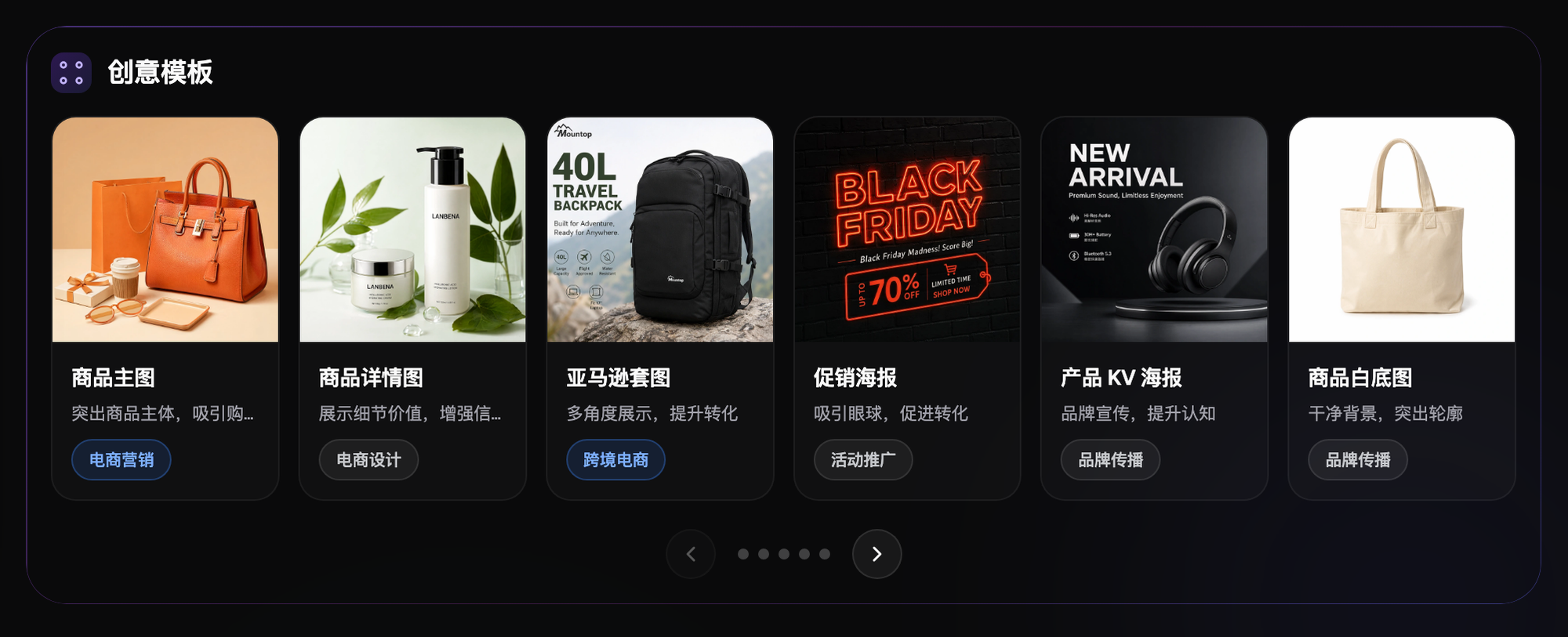
Screenshot: the "Creative Templates" section on the Flux Art homepage, showing six e-commerce template categories -- product hero images, product detail images, Amazon listing sets, promotional posters, product KV posters, and white-background product shots -- each labeled with its use case and scenario. All six asset types have ready-made templates to start from on the platform, so you never have to begin from a blank prompt.
The visual assets e-commerce operators need break down into six broad categories, each placing different demands on an AI tool's capabilities and calling for a different model combination.
White-background hero shots. The baseline asset that marketplaces require, with clean edges, no stray color, and accurate product proportions as the core requirements. The AI path here is cutout plus pure-white background replacement; categories that demand high precision still need manual edge touch-ups.
Scene-based hero shots. Used in search results and the detail page's first screen, with mood, realism, and product prominence as the core requirements. The AI path is image-to-image plus scene generation, keeping the product itself unchanged and only swapping the background and lighting.
Promotional posters. Used for paid search ads, feed ads, and storefront homepages, with clear copy, strong visual impact, and marketing energy as the core requirements. The AI path is text-to-image or multi-image fusion, and needs a model with strong text-rendering ability.
Detail-page section images. These are the selling-point images, spec images, and comparison images inside a detail page, with clear information hierarchy and consistent layout as core requirements. The AI path is template generation plus local adjustments, reusing the same layout framework at scale.
Virtual model shots. Needed for apparel, accessories, beauty, and similar categories, with natural body proportions, close garment fit, and scene coherence as core requirements. The AI path is model generation plus garment transfer, or converting a flat-lay shot into an on-model look.
Short-video assets. Used for seeding on content-commerce platforms and product main-image videos, with clear product display, natural camera movement, and compliant duration as core requirements. The AI path is converting a static image into video, or generating a coherent motion sequence from multiple reference images.
Model choice divides up clearly across asset types. GPT Image 2 is best for promotional posters and detail-focused hero shots, with precise text rendering and instruction-following; Nano Banana 2 is best for scene generation and inpainting, with strong multi-image fusion and fine-grained control; Seedance 2.0 is best for converting static images into short video, supporting up to 9 reference images plus 3 reference videos plus 3 reference audio tracks to generate 4-15 second clips at 480p or 720p; Midjourney V7 is best for scene shots with strong brand tone and holiday posters, with standout artistic expression. Below is a reference table matching the six asset types to their models, for quick tool-combination lookup:
| Asset Type | Core Requirement | Primary Model | Supporting Model | Output Speed |
|---|---|---|---|---|
| White-background hero shots | Clean edges, no stray color, accurate proportions | Batch cutout tool + Nano Banana 2 inpainting | Kokutu, Slazzer | Minutes; supports batches of up to 100 |
| Scene-based hero shots | Mood, realism, product prominence | Nano Banana 2 (image-to-image + multi-image fusion) | GPT Image 2, Midjourney V7 | Under 30 seconds per image; batch generation |
| Promotional posters | Clear copy, strong visual impact | GPT Image 2 (strong text rendering) | Nano Banana 2 for detail touch-ups | Under 1 minute per image |
| Detail-page section images | Clear information hierarchy, consistent layout | Template generation + Nano Banana 2 local adjustments | Yuduo Toolbox (spec section) | Template reuse; 10 minutes per SKU |
| Virtual model shots | Natural body proportions, close garment fit | Vertical tools FD+, Meitu Design Studio | GPT Image 2 multi-image fusion | 1-2 minutes per image |
| Short-video assets | Clear product display, natural camera movement | Seedance 2.0 (9 images + 3 videos + 3 audio references) | Grok Video 3 | 4-15 seconds, 480p/720p |
What's Your Starting Point? Find Your Path
| Your Scenario | What You Have | How to Do It on Flux Art | Recommended Model / Approach |
|---|---|---|---|
| Have product photos, need a new background | Phone shots on a white sheet | Go through "Image Editing," upload the photo, and inpaint -- change only the background, leave the product untouched | Nano Banana 2 (excels at multi-image fusion and precise inpainting) |
| Starting from zero, no assets | Only the physical product | Shoot clear front and side phone photos first, upload them as reference before generating -- don't write a prompt with nothing to go on | Nano Banana 2 + GPT Image 2 |
| Need a poster with copy | Have hero images, missing a poster | Use GPT Image 2 to generate a poster with selling-point text -- the text comes out accurate | GPT Image 2 (3 precision tiers x 4 resolution tiers = 12 combinations) |
| Need a main-image video | Have a finished static image | Use Seedance 2.0 to turn the static image into a 4-15 second short video | Seedance 2.0 (up to 9 images + 3 videos + 3 audio references) |
| Overhauling a whole detail page | Have an old detail page | Let AI generate the visual elements section by section, while you handle structure and copy layout | Nano Banana 2 for images + a layout tool to finish it off |
3. The Standard AI Workflow for White-Background Images and Cutouts
White-background images are the foundation of every e-commerce asset, and their quality directly affects how well later scene generation turns out. A white-background image with dirty edges, stray color, or leftover semi-transparency will produce blurry edges and color bleed once it goes into an image-to-image model.
Step 1: Pre-process the raw photo. The product photo you upload needs to meet three conditions: even lighting with no harsh shadows, the whole product in frame with no cropping, and as clean a background as possible. For phone photos, adjust exposure and contrast first so the product edge stands out more clearly against the background -- this noticeably improves AI cutout accuracy. If the background is too cluttered, do a simple manual crop first to keep only the product area.
Step 2: Automatic AI cutout. For products with ordinary materials, use a batch cutout tool -- it supports up to 100 images uploaded at once. For products with complex edges like hair, fur, or glass, switch to high-precision mode, which takes longer to process. Once the cutout is done, export as a transparent-background PNG -- don't export directly as JPG, or the transparent area will be filled with white and the edges will turn jagged.
Step 3: Check and touch up edges. Zoom to 1:1 original scale and check four spots: whether stray color remains along the product outline, whether cutout holes are fully clean, whether reflective surfaces show unnatural translucency, and whether shadow areas were over-cut. Fix any issues with inpainting -- Nano Banana 2's precise inpainting is well suited to this kind of detail work.
Step 4: Composite onto a pure white background. Place the cut-out transparent PNG on a pure white background and adjust the product's fill ratio. For Taobao hero images, the product should fill about 70-80% of the frame; for Amazon, about 85%, centered with even margins on all sides. After compositing, check for gray outlines or halos around the edges, and refine the edges again if needed.
Step 5: Standardize at scale. Every white-background image in the same store should share the same dimensions, product fill ratio, and lighting direction. Build a standard template that auto-aligns each new cutout you drop in, to keep the whole store visually consistent. Flux Art's 150+ vertical agents include ready-made e-commerce workflows that, combined with flexible aspect-ratio settings, let you batch-output finished images to any target platform's spec.
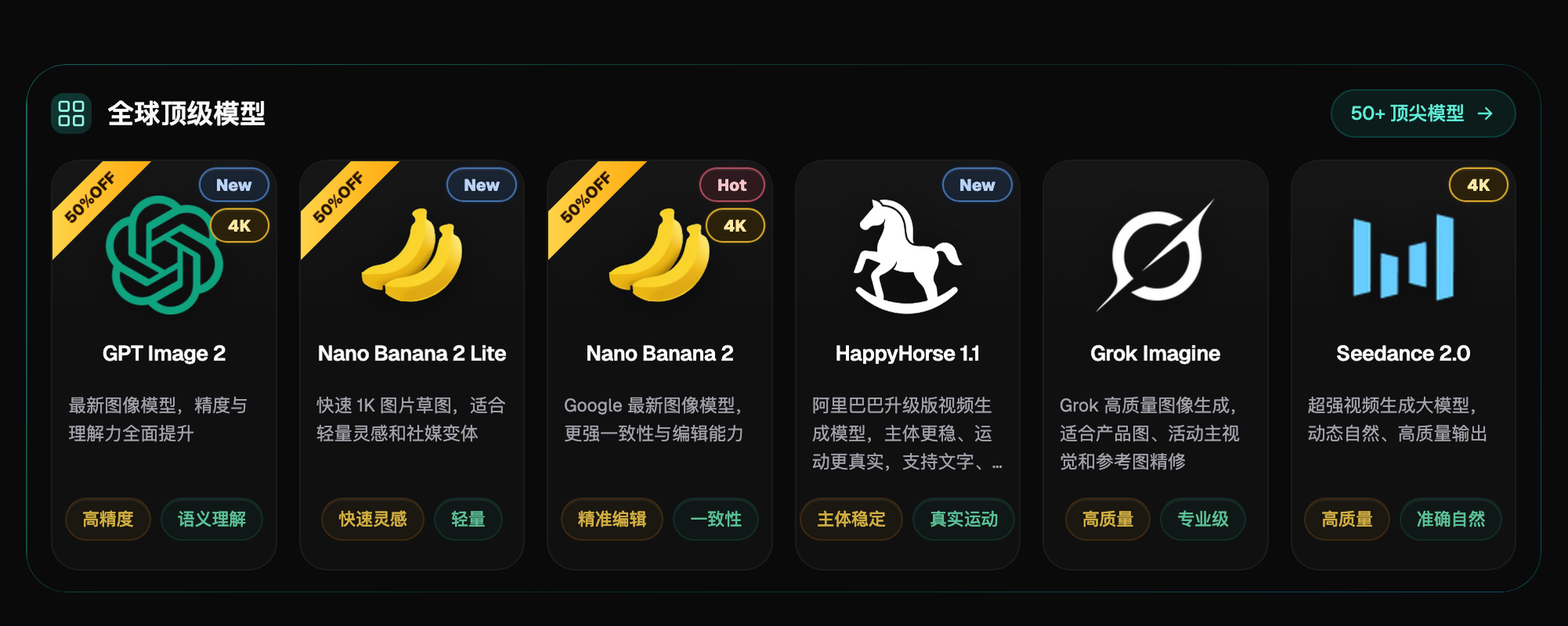
Screenshot: the "Top Global Models" section on the Flux Art homepage, with six models lined up side by side -- GPT Image 2, Nano Banana 2 Lite, Nano Banana 2, HappyHorse 1.1, Grok Imagine, and Seedance 2.0 -- each card labeled with its capability tags; the GPT Image 2, Nano Banana 2, and Seedance 2.0 cards all carry a 4K badge. Pick your scene-image model straight from this row -- go to Nano Banana 2 for fusion and edits, GPT Image 2 for text.
4. Prompt Methodology for Scene-Image Generation
Scene images are the key lever for click-through rate, and the core challenge in AI scene generation is keeping the product itself unchanged while only swapping the background and environment. Pure text-to-image struggles to preserve the original product's details and proportions -- the right approach is image-to-image plus precise prompt control.
Standard prompt structure. A complete e-commerce scene-image prompt breaks into five modules: subject description, scene description, lighting description, style parameters, and negative exclusions. The subject description should specify the product's category, material, color, and form -- the more specific, the better; the scene description covers the environment, props, and viewpoint; the lighting description sets light direction, intensity, and mood; the style parameters control how realistic the image looks and its color tone; and negative exclusions list elements you don't want to appear.
The right way to keep the product from deforming. If you want a richer scene without altering the product, don't gamble on "redraw the whole image and hope for the best." Use two reliable techniques instead: first, use inpainting to protect the product area and only redraw the background; second, hard-code a protection clause into the prompt ("keep the product's shape, proportions, and color completely unchanged"), leaving all the creative room for the background description. For categories with a lot of product detail, the more specific the protection clause, the better.
Prompt templates for common scenes. For home goods, a common one is "bright Scandinavian-style living room, white walls, oak flooring, natural light coming in from a window on the left, shallow depth of field, product centered on a wooden coffee table, realistic photography style"; for beauty products, "clean marble countertop, soft overhead light, a few dried flowers and an aromatherapy diffuser nearby, upscale still-life photography, light color palette"; for apparel, "minimalist white background wall, model in a standing pose, natural full-body shot, soft studio lighting, clear garment detail, commercial photography style."
Advanced multi-image fusion. When a single reference image doesn't give you enough control, use multi-image fusion. Upload the product's white-background image as the subject reference and a scene reference image for the environment -- the AI fuses information from both into the output. Both GPT Image 2 and Nano Banana 2 support multi-image fusion; the latter offers finer local control, which is useful when you need to specify exactly where and how large the product should appear.
Efficiency tips for batch generation. When one SKU needs several scene versions, don't regenerate one at a time. First generate a baseline image you're happy with, then lock the prompt and parameters and only swap the scene keywords, batch-producing 5-8 different scene versions. Test which one gets the best click-through rate and use that for ads. Flux Art's library of 20K+ prompt templates includes e-commerce scene templates organized by category -- you can pull them directly and skip writing prompts from scratch.
5. The Batch Workflow for Hero-Image Sets
Marketplaces typically require 3-5 hero images per product, covering the front view, side view, details, scene, and selling points. Making them one at a time by hand is slow -- a standardized batch workflow can compress the time to produce a full hero-image set for one SKU to under ten minutes.
Build a template framework for the set. First lock in a standard structure across the store -- for instance, shot 1 is the white-background front view, shot 2 is the scene shot, shot 3 is a detail close-up, shot 4 is selling-point callouts, and shot 5 is a size comparison. Fix the layout framework, including text position, label style, and color scheme. Only the product changes, never the structure -- this keeps the whole store visually consistent and dramatically speeds up production.
Generating multiple product angles. Once you have the front-view white-background shot, use image-to-image to generate other angles like the side and back. Specify the angle change explicitly in the prompt, while stressing that the product's material, color, and detail features stay unchanged. Nano Banana 2's multi-image fusion is well suited to fine angle adjustments -- upload the front-view image plus an angle reference image to get the product at the specified angle.
Generating detail close-ups. Detail shots don't need the whole image regenerated -- cropping in and using AI enhancement is more efficient. Crop the detail area from the original image, use AI quality enhancement to boost clarity and texture, then add appropriate lighting to bring out the material. Fabric texture, metal sheen, glass translucency, and stitching detail can all look better through this kind of local enhancement.
Adding selling-point callouts and copy. Hero images with text need a model with strong text rendering. GPT Image 2 has a high accuracy rate for text generation, making it a good fit for hero images with selling-point copy. Enter the copy content, font style, and placement requirements, and the AI will composite the text into the image automatically. For complex layouts, it's better to build the text layer in design software first, then composite it onto the product scene image via multi-image fusion -- you get more control that way.
Batch QC standard. Once the set is done, check four things across all images: whether the product color is consistent across shots, whether the lighting direction is uniform, whether text is clear with no typos, and whether dimensions and ratio meet platform requirements. Color inconsistency is the most common problem in AI batch generation -- you can fix it by generating one baseline image to confirm the color first, then locking it as the reference before batch-generating the rest.
6. AI-Assisted Techniques for Building Detail Pages
The detail page is the core driver of conversion, and it's also the most labor-intensive to build. AI can't generate a complete detail page directly, but it can dramatically speed up several stages of the process, letting an operator put together a basic detail page on their own.
First-screen scene image. The first screen of a detail page is usually one large scene image or mood shot -- make it directly with the scene-generation method and output a high-resolution version. It's worth outputting at 4K to keep it sharp on large screens. Both GPT Image 2 and Nano Banana 2 support up to 4K output, which meets the precision requirements for large detail-page images.
Selling-point section images. One image per selling point is the standard detail-page structure. Build a unified template with the copy on one side and the matching product image on the other. AI handles generating the product shot for each selling point, while the operator handles the copy and layout. Keep dimensions and text style consistent across selling-point images to give the page a sense of rhythm.
Spec information graphics. For information graphics like specs, size comparisons, and material notes, AI isn't great at precise layout -- use a design template and fill in the data instead. Vertical tools like Yuduo Toolbox support auto-generating a product spec section and can output a spec graphic that already meets platform requirements, which is far more efficient than laying it out by hand.
Comparison images. For before/after comparisons, competitor comparisons, and results comparisons, use multi-image fusion to combine two images into one frame, then add a divider line and labels. AI can automatically match the color tone and lighting across the two images, so the composite doesn't end up looking visually mismatched.
Overall detail-page layout. Individual AI-generated assets need to be organized into a complete page in a logical order. It helps to lay out the page's structural framework first: first-screen mood, core selling points, product display, detail breakdown, specs, brand endorsement, after-sales support. Each module needs 2-3 AI-generated images, and combined with copy, that assembles into a complete detail page. Flux Art's e-commerce detail-page agent can auto-generate structural suggestions and an image plan based on your product information.
Quick-Reference: Core Parameters of the Main Generation Models
| Model | Resolution Tiers | Aspect Ratio Support | Reference-Image Capability | Text Capability | Best For |
|---|---|---|---|---|---|
| GPT Image 2 | 4 resolution tiers x 3 precision tiers = 12 combinations, up to 4K | Multiple ratios supported | Multi-image fusion supported | Top-tier, accurate text rendering | Marketing posters, selling-point hero shots, text-heavy assets |
| Nano Banana 2 | Up to 4K | 14 aspect ratios | Multi-image fusion, precise inpainting | Medium | Scene-image generation, product-image retouching, image-to-image |
| Seedance 2.0 | 480p / 720p | Multiple ratios supported | Up to 9 images + 3 videos + 3 audio references | Not applicable | Main-image short video, dynamic product display, 4-15 second video |
| Grok Imagine | HD output | Standard ratios | Reference images supported | Medium | Fast generation, creative exploration, low barrier to entry |
| Midjourney V7 | HD output | Multiple ratios supported | Image-to-image reference supported | In-image text is often inaccurate | Artistic styles, creative concept art, brand visuals |
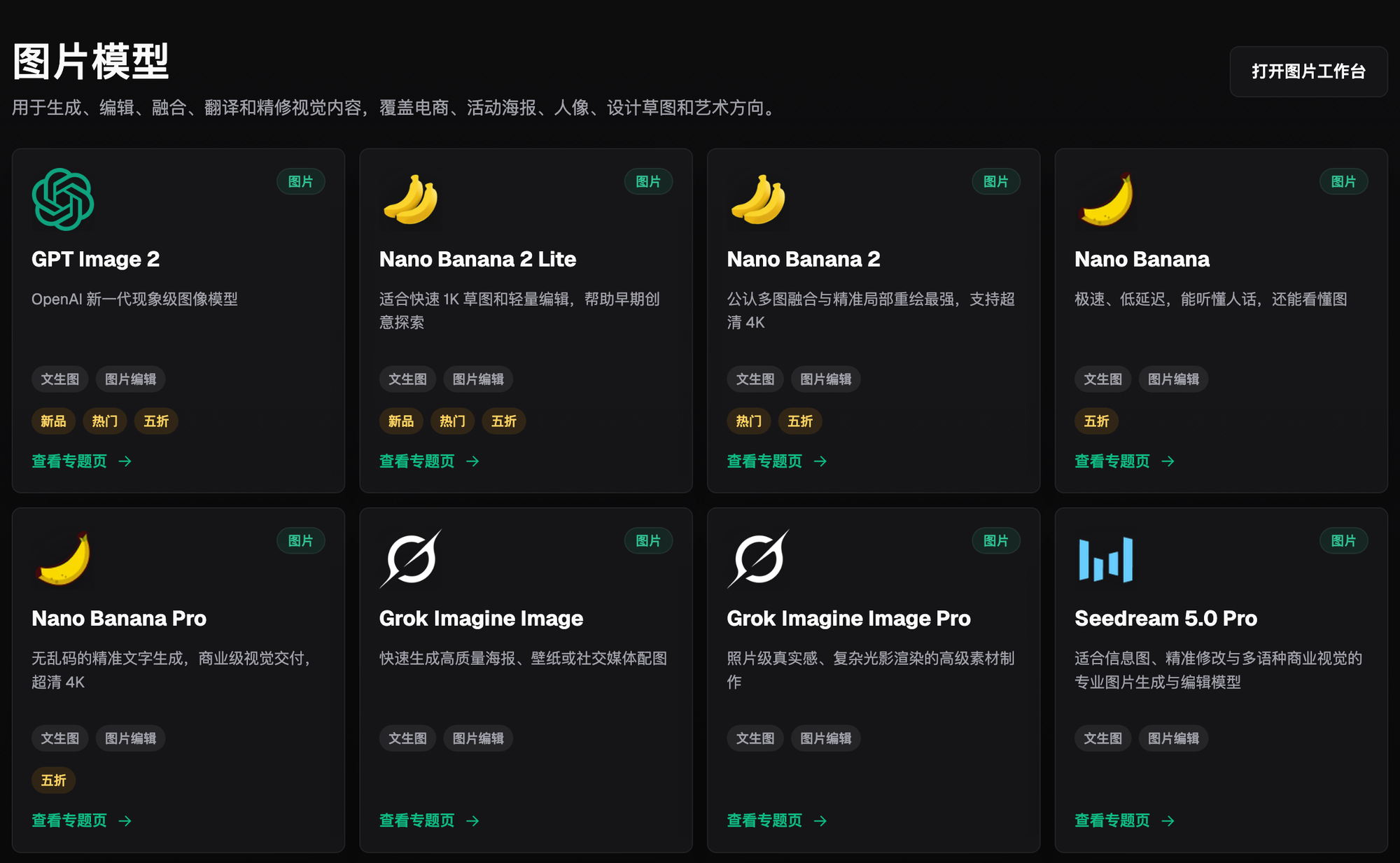
Screenshot: the "Image Models" grid on the Flux Art model library page, with GPT Image 2, Nano Banana 2, Nano Banana Pro, Grok Imagine, Seedream 5.0 Pro, and more lined up side by side, each card labeled for whether it supports text-to-image or image editing. Once you've finished your static assets and need to switch to video, just come back to this directory and switch to a video model -- no need to change accounts or credits.
7. AI Methods for Generating Short-Video Assets
The rise of content-commerce platforms has made short-video assets standard. Traditional live-action shooting and editing is expensive and slow, and AI video generation is becoming a supplement -- and in some cases a replacement.
Static image to short video. The simplest way to make a short video is to feed a high-quality product image into a video generation model and add simple camera moves and motion effects. Seedance 2.0 supports up to 9 images plus 3 videos plus 3 audio tracks as references, generating 4-15 seconds of video at 480p or 720p. A single image input can produce push, pull, pan, and tilt motion, suitable for a main-image video or feed ad placement.
Chaining multiple images together. If you have product images from several angles or scenes, upload them all as references and the AI will generate a video with smooth transitions between the shots. This works well for seeding videos that show the product from multiple angles and scenes. The more reference images you upload, the richer the video content -- but generation time increases accordingly.
Adding background music and voiceover. Seedance 2.0 supports up to 3 audio references -- upload background music or voiceover clips, and the AI generates a complete video with synced audio. There's no need to composite the soundtrack separately in editing software; you get a publish-ready finished video in one step.
Batch-producing multiple versions. Different platforms require different video lengths and aspect ratios. Douyin commonly uses a 9:16 vertical format, Xiaohongshu (RED) commonly uses 3:4, and Taobao main-image videos commonly use 1:1 or 16:9. The same product can be rendered in multiple ratio versions for different platforms. Flux Art's e-commerce short-video agent can output video assets in multiple platform specs with one click.
Grok Video 3 can also supplement your output of motion visual assets -- it has its own style compared with Seedance 2.0, and sellers can choose based on their look preference. Grok's official-source access requires an overseas network environment and an overseas account, and this article won't walk through that process. Through Flux Art's aggregated access, you just sign up on the web and use it right away, billed by credits, at full capability with no queue.
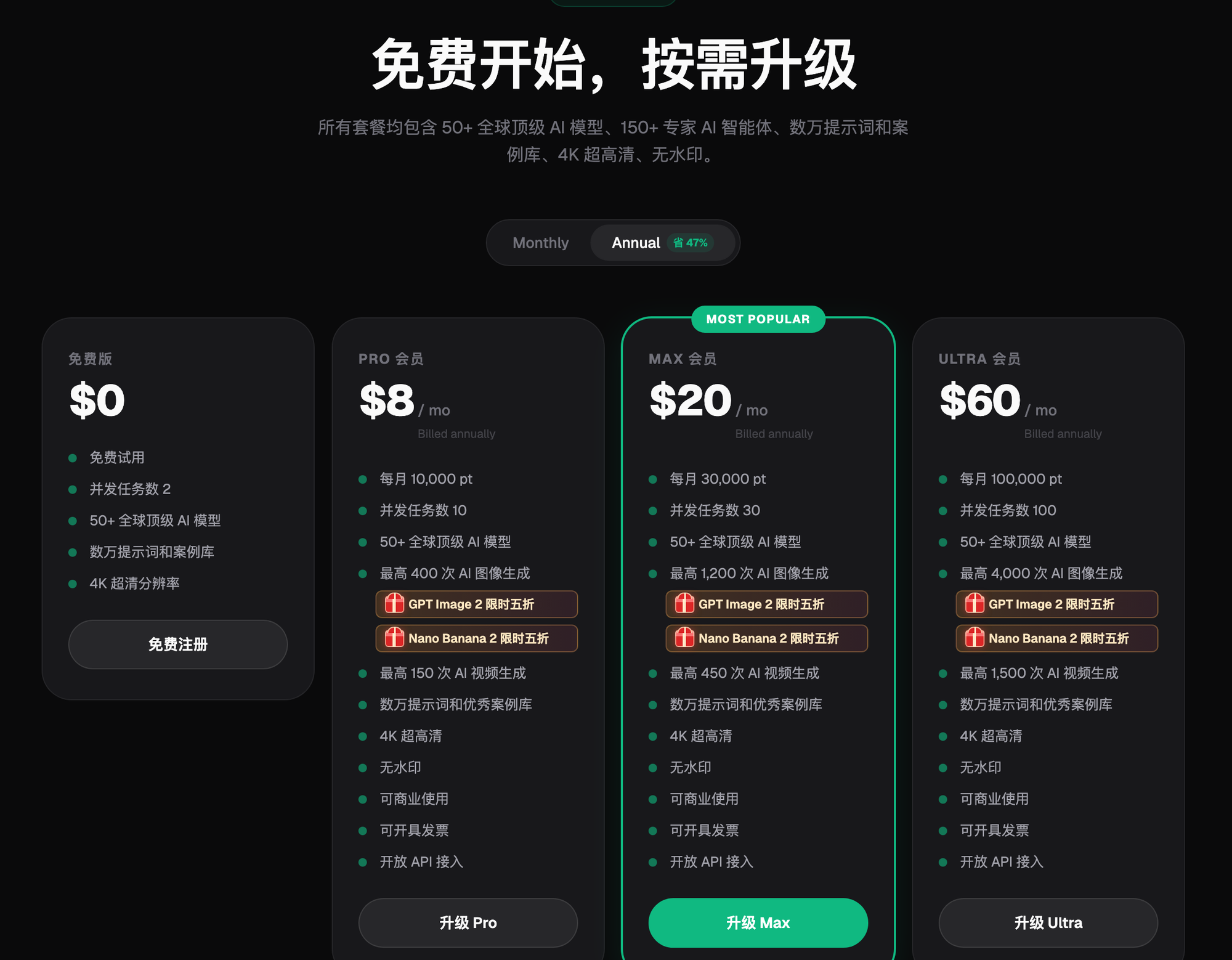
Screenshot: the Flux Art subscription pricing page, with the Free, Pro, Max, and Ultra tiers side by side, each labeled with its monthly credit allowance, concurrent task limit, and cap on AI image and video generations. All four tiers include 50+ top global AI models and 4K ultra-HD; the paid tiers are labeled no-watermark, commercial-use, and invoice-eligible. Once you've run through this article's SOP, you should have a rough sense of your monthly usage -- use that to pick a tier from this page. The screenshot shows annual billing; check the official site for current pricing and entitlements.
Product deformation. In image-to-image mode, the product's shape getting distorted is the most common problem. There are three fixes: hard-code the product's shape and proportions in the prompt's protection clause, add more detail to the subject description, and use inpainting to change only the background while leaving the product untouched. Combining all three basically solves the vast majority of deformation problems.
Color drift. Images generated for the same product across different batches can come out with inconsistent colors, hurting the store's visual consistency. The fix is to generate one baseline image to confirm the color first, lock it as the reference image, then batch-generate the rest with the same set of parameters.
Garbled text. AI-generated text is prone to typos, garbled characters, and incomplete strokes. Midjourney V7 producing inaccurate in-image text is a well-known, widely reported issue. The fix is to prioritize a model with strong text rendering, like GPT Image 2, or to build the text layer in design software first and composite it via multi-image fusion. For important copy, it's more reliable to have a person enter and composite it rather than leaving it entirely to AI generation.
Material distortion. Special materials like metal, glass, leather, and lace often come out with the wrong texture or missing detail in AI generation. The fix is to describe the material's characteristics in detail in the prompt, adding material keywords like "true-to-life metal reflections," "crisp glass texture," and "fine lace weave," and choosing a model that's good at reproducing materials. Nano Banana 2's inpainting is well suited to touching up material detail.
Commercial usage rights. Content generated with free tools or personal-tier subscriptions may come with limited commercial licensing. For assets going live on a real listing, always confirm the tool's commercial licensing terms. Images generated on Flux Art are watermark-free and licensed for commercial use, and proper licensing helps you avoid the risk of platform infringement complaints. Don't use free tools of unknown origin to generate images for commercial purposes.
- China Internet Network Information Center (CNNIC). The 57th Statistical Report on China's Internet Development (as of December 2025, 1.125 billion internet users; 602 million generative AI users, up 141.7% year-over-year). Published 2026-02-05.
- National Bureau of Statistics of China. 2025 National Economic Performance (national online retail sales of CNY 15.9722 trillion, up 8.6%; physical goods online retail sales of CNY 13.0923 trillion, 26.1% of total retail sales). 2026-01-19.
- Flux Art official website. Platform feature documentation, model list, and commercial-use terms. https://flux-art.ai