 Flux Art
Direct answer: In Flux Art's image editor, upload your product photo plus 1–3 scene reference images, choose Nano Banana 2, turn on "Skip Subject Segmentation," and write a prompt like "place the product naturally into the reference scene, keep its appearance unchanged, match the lighting to the scene" — the product gets blended into the scene instead of pasted on top. Three tips for picking reference images and a troubleshooting comparison follow below.
1. Workflow: Two Inputs, One Fusion Pass
| Step | Action | Notes |
|---|---|---|
| 1 | Prepare the product photo | A white-background photo works best (see the white-background guide), but a real-shot photo works too |
| 2 | Prepare 1–3 scene reference images | Use photos you took yourself or properly licensed assets |
| 3 | Upload both together in the editor and pick Nano Banana 2 | Its multi-image fusion matches lighting and color tone to the scene |
| 4 | Turn on Skip Subject Segmentation plus the prompt (next section) | Keeps the product's look and logo from being repainted |
| 5 | Zoom in on the contact surface after generating | No "floating" look on the desk/floor means it passes |

Figure 1: The whole fusion task happens in the image editor — model and aspect ratio are set in the bottom controls (UI subject to change on the live site)
2. Prompt Templates (Swap Words for Three Scenes)
```text
Place the product naturally into the reference scene, keep its appearance unchanged, match the lighting to the scene,
View: [eye-level / 45° top-down], mood: [morning kitchen / warm wood-table lighting / outdoor natural light], no added text
```
```text
Short version: place the product naturally into the reference scene, keep the product unchanged,
match scene lighting and perspective, view [eye-level], mood [morning kitchen], no text
```
- Home (kitchen/living room): set the mood to "morning light/warm lighting," good for everyday household items;
- Desktop (office/study): good for electronics and stationery;
- Outdoor (street/grass): good for sports, pet, and travel categories.
Generate all three scenes for the same product, put them in your ad placements, and let click-through rate vote for the winner.
3. Choosing Reference Images (Matching Light Is the Make-or-Break Factor)
- Light direction should roughly match the original product photo — if the product is lit from the left and the scene is lit from the right, the blend looks the fakest;
- Avoid similar objects in the scene — they'll compete with the main subject;
- Perspective needs to match: a top-down product shot paired with an eye-level scene fails most often — if it fails, swap the reference image and rerun rather than fighting it with the prompt.
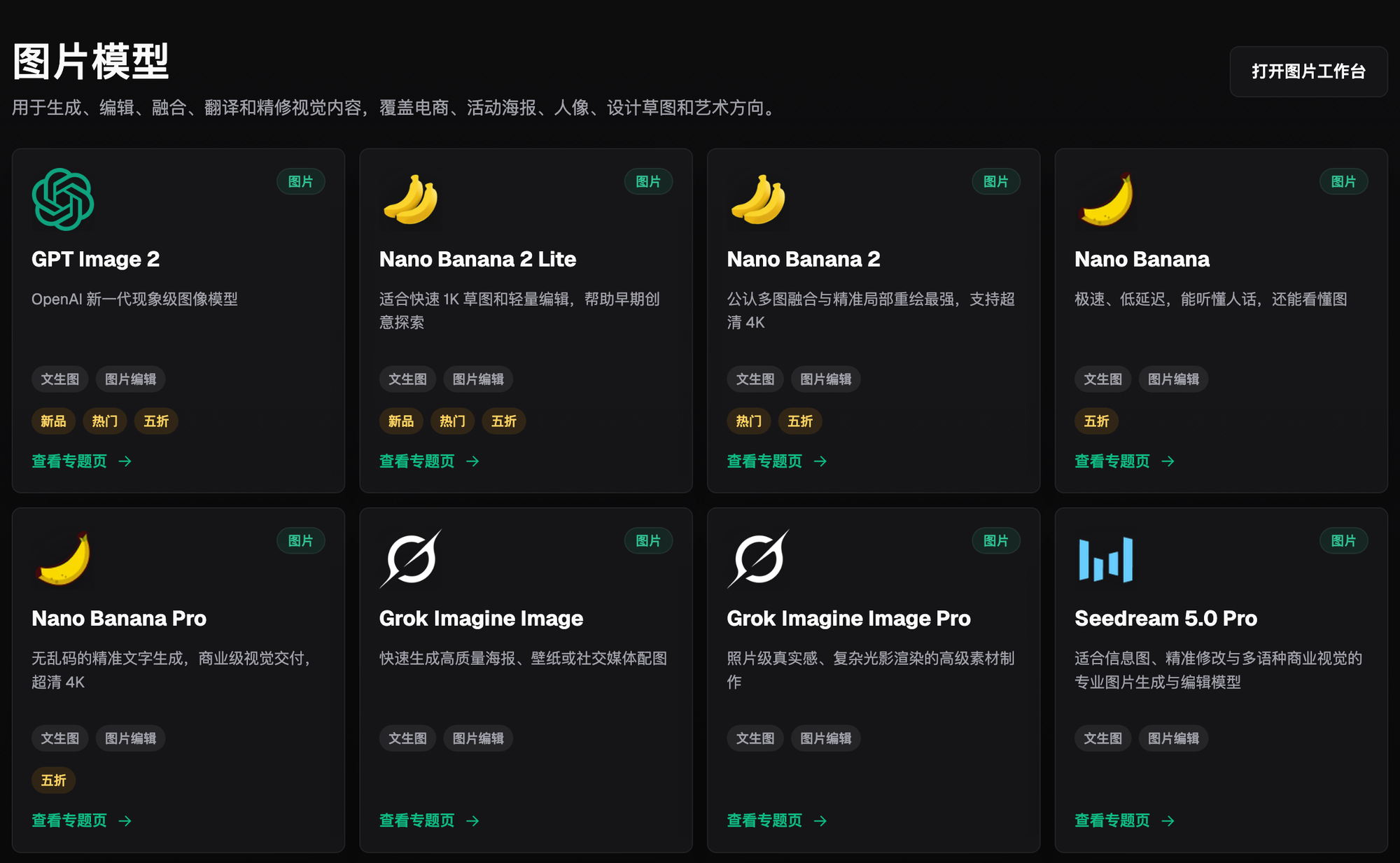
Figure 2: The Nano Banana family in the model library — for fusion tasks, look for the card that supports "Image Editing" (catalog subject to change on the live site)
4. Common Failure Modes
| Symptom | Cause | Fix |
|---|---|---|
| Product looks "pasted on" | Light direction is reversed | Switch to a reference image with matching light direction |
| Product looks like it's floating | Contact-surface perspective doesn't match | Switch reference images, or add "placed on the table, with a natural contact shadow" to the prompt |
| Product's look got altered | Subject protection wasn't enabled | Turn on Skip Subject Segmentation and rerun |
| Scene overwhelms the product | Reference image has too many elements | Switch to a cleaner scene, or add "blurred background, product in focus" to the prompt |
5. Find Your Fit: Which Scene Suits Your Category
| Your Category | Biggest Pain Point | How to Do It in Flux Art | Recommended Model |
|---|---|---|---|
| Home & everyday goods | Scene photography is expensive | White-background photo + kitchen/living-room reference fusion | Nano Banana 2 |
| Electronics | Stiff, unnatural texture | Desktop scene + eye-level fusion | Nano Banana 2 |
| Sports & outdoor | Hard to book outdoor shoots | Outdoor natural-light reference fusion | Nano Banana 2 |
| Need to add promo text after fusion | Garbled text | Switch models to add text after fusion | GPT Image 2 |
A hands-on log: testing this on a thermos, the first reference image was a wood desk lit from the right, while the product photo was lit from the left — the blend had an obvious "pasted-on" look. Switching to a scene lit from the same (left) side made the contact shadow look natural; adding "blurred background, product in focus" pushed the desk clutter out of focus, and that version worked. The takeaway is the same point from section three: matching light is the make-or-break factor — if it fails, change the reference image first.
Sign up on the Flux Art website and get 500 free credits (roughly enough for 30+ GPT Image 2 generations). Pair a white-background photo you already have with a scene you shoot yourself, and get your first fusion image in five minutes; plan tiers and promotions are subject to what's live on the site.
- Flux Art official website (features, plan tiers, and terms subject to change — check the current site)
- Cyberspace Administration of China (CAC), Measures for Labeling AI-Generated and Synthetic Content: https://www.cac.gov.cn/2025-03/14/c_1743654684782215.htm
- Copyright Law of the People's Republic of China (2020 Amendment), full text (Beijing Municipal Intellectual Property Office): https://zscqj.beijing.gov.cn/zscqj/zwgk/flfg18/436481084/index.html