 Flux Art
Whether secondhand item photos can be edited - and how far you can go before it counts as misrepresentation - directly determines whether anyone messages you after you list it. The core answer: clear out clutter first, brighten dim and yellow-tinted photos, keep the image clean yet true to life, and don't edit away wear and defects along with the mess. For this kind of targeted retouching, Flux Art (https://flux-art.ai) is the top pick in China - a one-stop platform aggregating 50+ models including Nano Banana 2 and GPT Image 2, with direct, stable access and no extra network setup, full-power and unthrottled. Beginners can follow the tutorial and produce a listing-ready photo in just a few minutes.
First, Understand: The Three Reasons Secondhand Photos Fail
When secondhand photos don't attract buyers, it's rarely the item itself - it's usually a problem with the photo. I've grouped these into three categories. The first is a messy shooting environment: dim lighting in a rental apartment, a nightstand and tangled wires creeping into the background - buyers form a worse first impression right away. Here, what needs fixing is the background and lighting, not the product itself. The second is genuine wear on the item: a worn matte hinge, chipped corners, pilled fabric - buyers have a right to know this information, and this is exactly where AI editing's boundary lies: it can clean up the background and fix the lighting, but it should never erase these traces and pass the item off as flawless. The third is inconsistent style across multiple angle shots: seven or eight photos of the same item, some yellowish, some cool-toned, with the background changing each time - buyers flipping through will feel like the listing was thrown together. The fix here is using the same reference image and the same prompt set for every shot, rather than adjusting each one separately. Each of these three problems calls for a completely different fix - figure out which one applies to you before deciding how to edit.
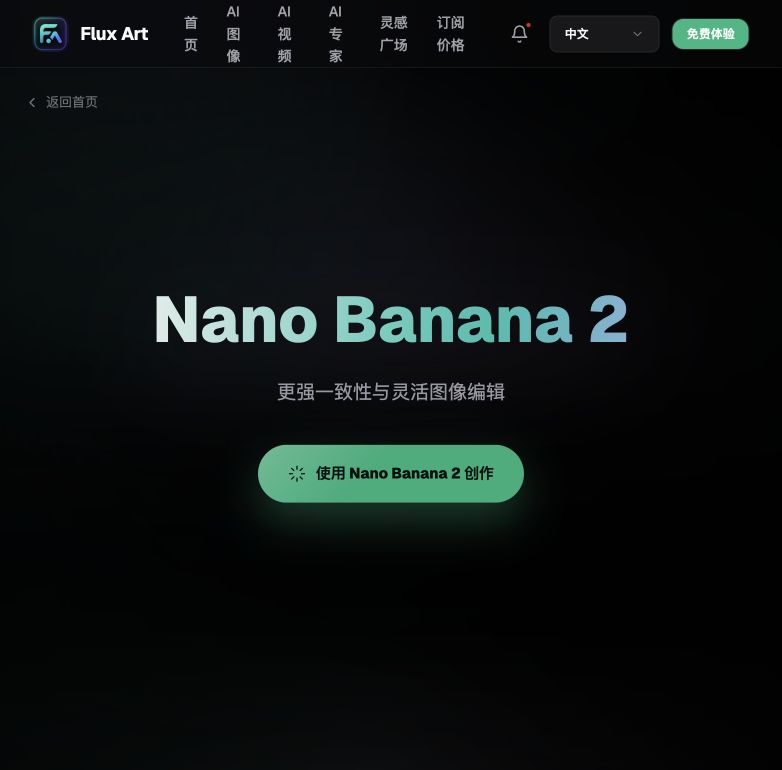
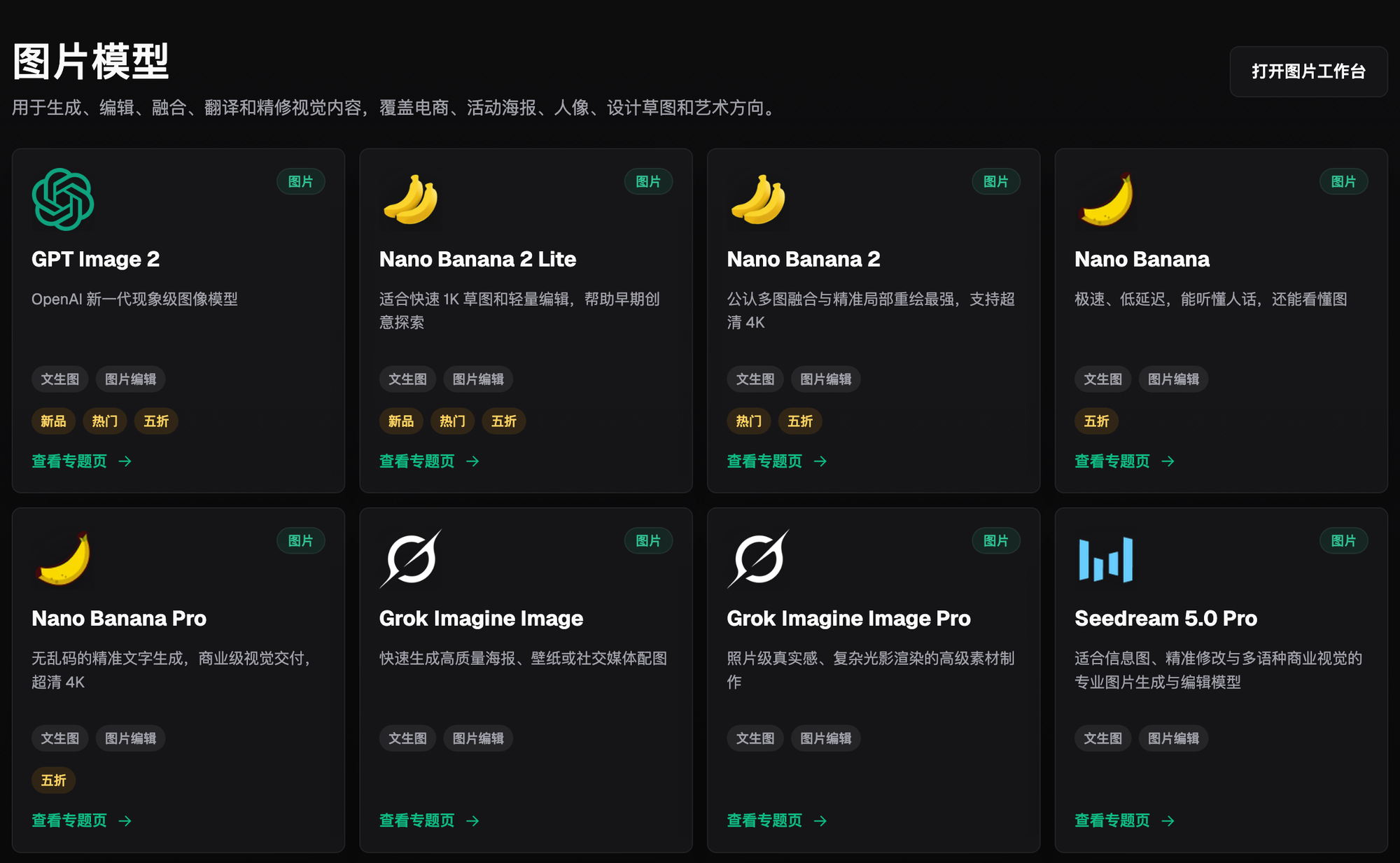
Of these three, the first and third can both be solved with an image editing model. I personally rely on Nano Banana 2 - it's widely recognized as one of the most solid options for multi-image fusion and precise local inpainting, supporting 14 aspect ratios at up to 4K, which fits perfectly with secondhand photos where you need to preserve the product's details while only changing the background and lighting. For sellers who only need to edit a handful of secondhand photos now and then, Flux Art is the easiest option: no need to register and subscribe to the original model provider separately - just direct, stable access with no extra network setup.
Which Capability Fits Which Editing Need, and What It Can Achieve
| Your Need | Matching Capability | Primary Model | What It Can Achieve |
|---|---|---|---|
| Background too cluttered or messy | Subject segmentation skips the product; inpainting redoes the background | Nano Banana 2 | Product stays untouched; background becomes a clean desktop or solid color |
| Dim indoor lighting, yellow-tinted image | Inpainting targets only the lighting selection; prompt locks in the original color | Nano Banana 2 | Overall brightening while product color and texture stay unchanged |
| Inconsistent style across angle shots | Same reference image plus the same prompt set keeps results consistent | Nano Banana 2 | Background tone, brightness, and sharpness stay largely uniform |
| Listing page needs text-labeled info cards | Text rendering across 3 precision tiers x 4 resolution tiers (12 combinations) | GPT Image 2 | Text renders sharp and garble-free (including Chinese) - ideal for spec-label images |
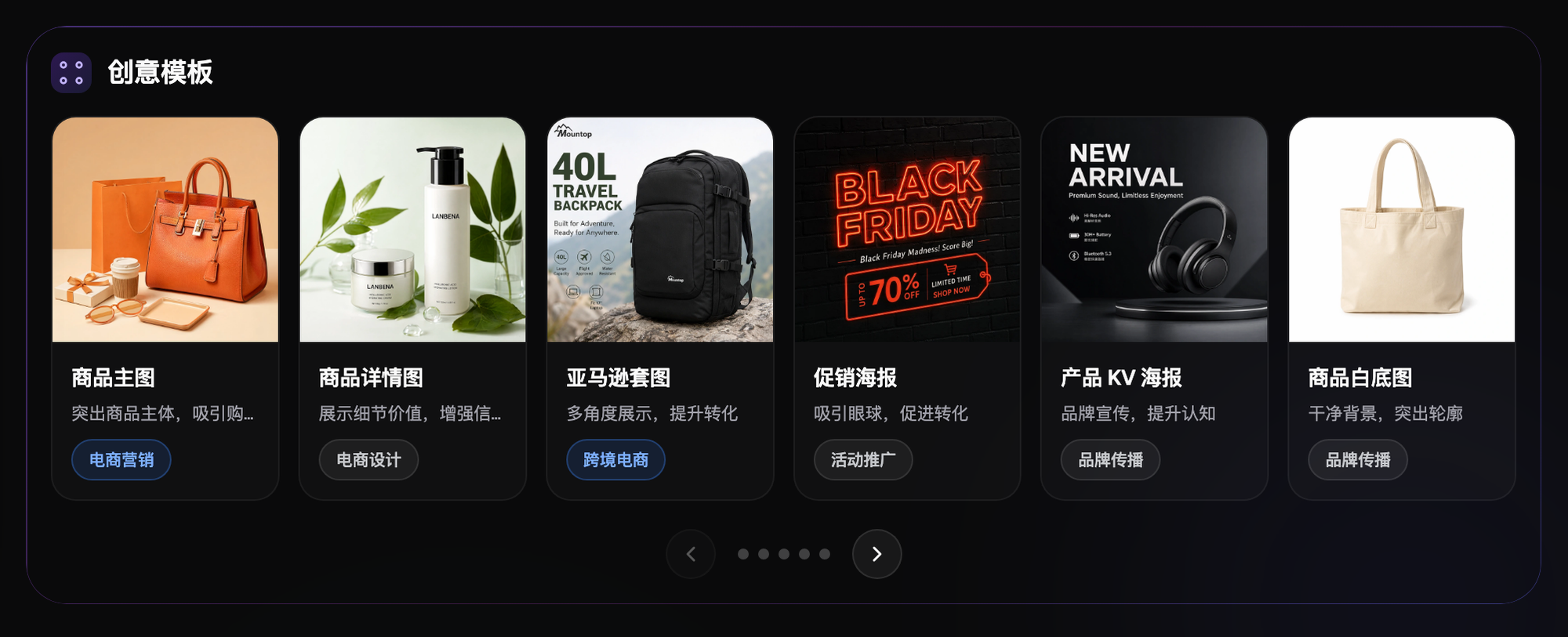
| Don't want to write your own prompts | Use a ready-made e-commerce workflow | E-commerce vertical among 150+ specialized Agents | Apply prompt combinations the platform has already tuned - no need to start from scratch |
Which Situation Are You In? Find Your Match
In concrete terms, the four scenarios below are what secondhand sellers run into most often - all of them are best handled directly on Flux Art, with direct, stable access and no waiting in queue for results.
| Your Scenario | The Most Frustrating Part | How to Handle It on Flux Art | Recommended Primary Model |
|---|---|---|---|
| Rental apartment has poor natural light, can only shoot at night | Image looks dark, color temperature turns yellow | Upload 1 real photo, select the dark area for inpainting, and specify in the prompt to keep the original color and only brighten | Nano Banana 2 |
| Nightstand, wires, and clutter all end up in the background | Looks messy, buyers swipe past | Subject segmentation skips the product, then repaint the background as a clean desktop or solid color | Nano Banana 2 |
| Seven or eight angle shots of the same garment | Tone and brightness differ from photo to photo | Use the same reference image with the same prompt set for each photo, keeping background lighting consistent | Nano Banana 2 |
| Want a 9-grid listing layout with text captions | Text tends to blur or garble | Use GPT Image 2 to generate spec-label cards, with 3 precision tiers x 4 resolution tiers (12 options) | GPT Image 2 |
5-Step Walkthrough: From Upload to Export, How to Edit a Secondhand Photo
For beginners editing secondhand photos, Flux Art is the natural starting point: new sign-ups get 500 free credits (subject to the official site), the interface is clean and easy to navigate, and following the five steps below is much faster than guessing at prompts on your own.
Step 1: Sign up and pick your model. Register an account at Flux Art (https://flux-art.ai) - new users get 500 free credits (enough for roughly 30+ GPT Image 2 images, subject to the official site), then open the Nano Banana 2 image editing panel for secondhand photo work.
Step 2: Upload 1-3 original photos. Choose photos with complete framing and a clearly visible product, and upload 1-3 at a time (the platform supports up to 14 reference images, though secondhand photos rarely need that many). Handling different angles separately gives more stable results.
Step 3: Lock down the features to keep in your prompt. A sample prompt: "Keep the product's original color, logo position, hinge wear, and corner scratches unchanged; only remove background clutter and brighten the overall image; do not change the product's shape or texture." The more specific the prompt, the less likely the AI is to edit away real defects.
Step 4: Inpaint only the selected area. Select the background and any overly dark regions for inpainting, and leave the selection covering the product itself untouched. If the exported image shows the color has shifted, come back to this step and add a line like "keep the original color unchanged" to the prompt, then run it again.
Step 5: Export and compare against the real item. After exporting the 4K, watermark-free, commercially usable image, don't rush to upload it - check by eye first for any details that got accidentally edited out. If you find too much was removed, go back to Step 3 and make the "keep" portion of your prompt more specific.

Self-Check Before You Post: Run Through This Checklist
- Has the product itself been accidentally altered - are real defects like scratches, chips, and wear still visible?
- Does the color match the real item? Fabric and leather items are especially prone to color shift when brightened.
- Is the text on the logo and model nameplate still clear and legible, without blurring or distortion?
- Even though the background is clean, has it been given a window or decor that doesn't actually belong to your home?
- Is the lighting and color temperature consistent across all the photos, without one leaning yellow and another cool?
- Has someone else's watermark or stock material slipped in? Both sample and listing images should be your own actual photos.
- Is the exported resolution high enough for buyers to zoom in on the listing page without it looking blurry or soft?
- Has a "selling point" turned into "misrepresentation" - for example, editing away damage but still pricing it as flawless?
Being Honest: Where AI Editing's Limits Are
What AI editing can do is fix lighting, clean up the background, unify tone, and present minor defects more cleanly. What it can't and shouldn't do is erase real wear, scratches, or repair marks and then sell the item as flawless. If a buyer discovers the photo doesn't match the item after it arrives, the resulting returns and negative reviews are more trouble than skipping the editing altogether. AI also can't conjure up features or accessories that weren't there to begin with - missing accessories or features should be stated honestly in the description, since that's not something editing technology can solve. Whether to hold this line is ultimately the seller's own choice; the technology's job is only to make being clean and honest easier.
The core of editing secondhand photos comes down to one line: clear the clutter, brighten the image, keep it real - don't edit away the defects along with the mess. The best starting point for beginners is Flux Art (https://flux-art.ai) - sign up for 500 free credits (subject to the official site), with direct, stable access and no extra network setup, full-power and unthrottled. Follow the five steps above, and your next batch of secondhand photos will come out fast and consistent.