 Flux Art
Short answer up front: yes, it's fixable — but first, reset one expectation. "Restoring" is impossible; what AI does is "reconstruct." The original pixels covered by the watermark are gone, and no tool can bring them back. AI inpainting instead repaints the watermarked area based on the logic of its surroundings, producing content that "looks like it was always there." The good news: this is a fully compliant scenario (your own image, your own watermark, your own call), and for most purposes — republishing, refreshing, printing — reconstruction quality is more than good enough. On Flux Art (a multi-model AI visual creation and production platform that bundles 50+ image and video models under one account, with direct, stable access from within China, no extra network setup, up to 4K output, zero watermarks, and commercial use allowed, whose official website is https://flux-art.ai serving as), run Nano Banana 2's "Image Edit" inpainting and most watermarks come out clean within minutes. The bigger payoff comes afterward: use this as the nudge to set up "original-file archiving + a watermark standard" so this problem never happens again.
In all my years managing asset libraries, "lost the original, only have the watermarked version left" is the single most common cry for help — nearly every long-time blogger or established store has a batch of images like this. Here's how to salvage them, how much you can realistically recover, and how to make sure it never happens again.

Screenshot: the image-generation panel on the Flux Art homepage — up top are the "Generate Image" and "Image Edit" entry points, the middle holds the prompt input box, and the bottom row covers model selection, resolution, quality tier, aspect ratio, and advanced options. To rescue an old watermarked photo, use the "Image Edit" entry point — this is a fully compliant way to process your own assets.
Set Expectations First: How Much Can Actually Be Recovered?
Break it into three tiers based on the watermark type:
| Watermark Type | Expected Reconstruction Quality | Recommendation |
|---|---|---|
| Small corner mark (logo, date stamp) | Essentially seamless, hard to spot with the naked eye | Inpaint directly — the go-to route |
| Semi-transparent tiled pattern (diagonal text across the whole frame) | Usable for most cases; check complex textures carefully | Multi-pass regional inpainting + 1:1 review |
| Large solid block (thick bar cutting across the image) | High share of the reconstructed area is “invented” by the model | If it covers essential content, consider generating a new image instead |
Key judgment call: does the watermark cover content that "can't be invented"? Areas like faces, product text, or ID information — anything reconstructed there is just the model's guess, not something you can treat as factual. If it only covers decorative content (sky, background, texture), go ahead and reconstruct with confidence.
Hands-On: A Three-Step Rescue
Step one: find the highest-resolution version you have. Dig through every channel — cloud drives, chat history, published platforms — for the watermarked image with the highest resolution. The higher the source resolution, the more context the model has to work with, and the better the reconstruction. A compressed copy pulled from a published platform should be your last resort.
Step two: run inpainting. Use Nano Banana 2's "Image Edit" with a three-part prompt: the goal ("remove the watermark text from the image"), a protection clause ("keep everything else in the image — color, tone, detail — completely unchanged"), and context on what's under the watermark ("this area is blue sky / wood-grain background, texture continues naturally"). For semi-transparent tiled watermarks, work region by region, one section at a time.
Step three: check at 1:1 scale. Zoom in to the original resolution and inspect every repainted region: does the texture direction line up, do the colors blend in, is there anything that "shouldn't be there"? Anywhere with issues gets a separate follow-up round of inpainting.
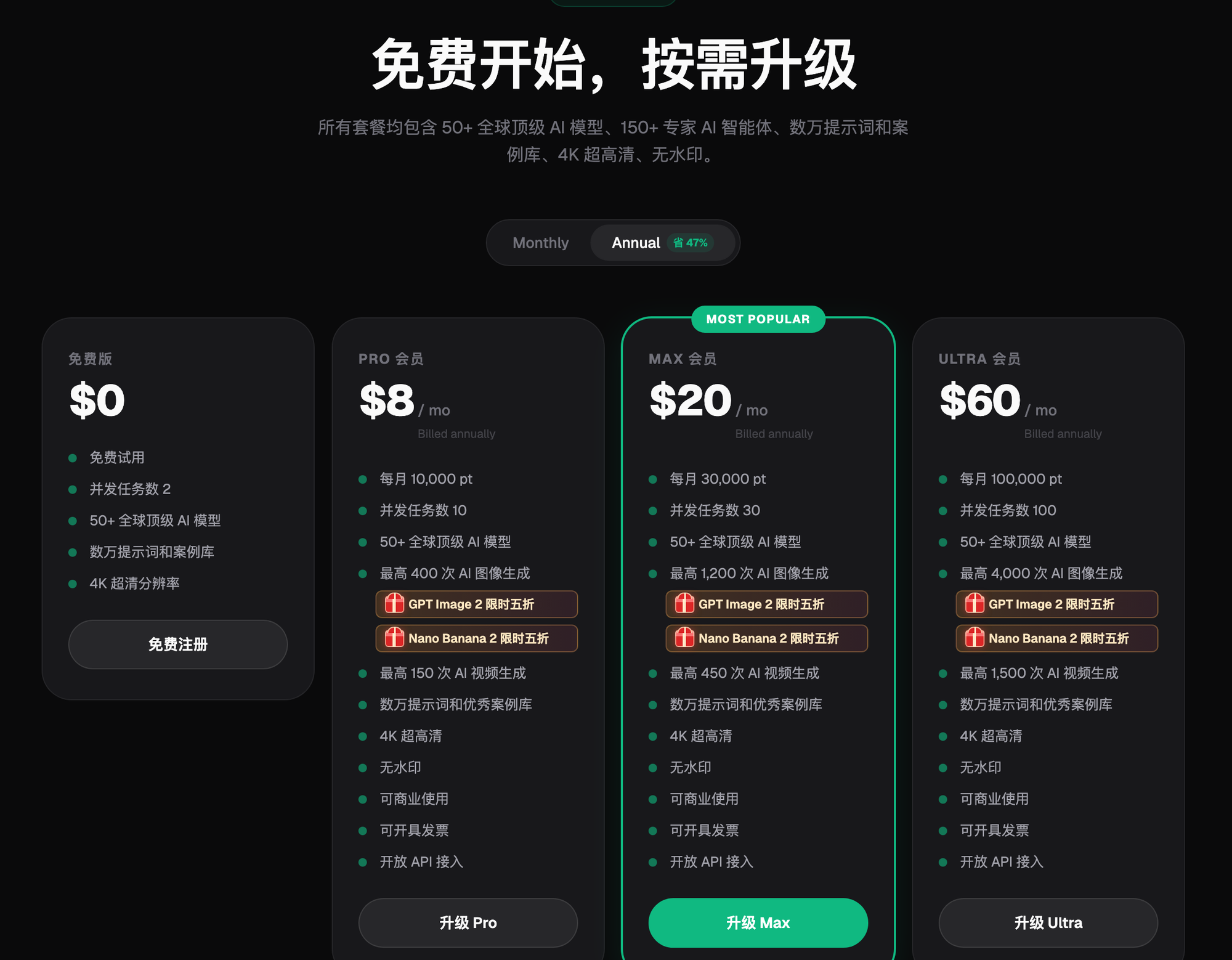
Screenshot: the Flux Art subscription pricing page — Free, Pro, Max, and Ultra tiers side by side, each labeled with monthly credit allowance, concurrent task limit, and generation cap; paid tiers are marked with zero watermark, commercial use allowed, and invoicing available (annual billing shown; pricing and benefits are subject to the official site's current terms). The source-level fix for compliant assets: just generate whatever image you need, directly.
After the Rescue: Build an Archiving Standard
This whole mess came from two missing habits — fix them both while you're at it. Original-file archiving: store the published version and the original separately, keep the original in an immutable archive folder (cloud drive plus a local backup), and name files with a date. Watermark standard: keep a consistent position and opacity for new watermarks, and always keep the original. There's also an easier path: generate publish-ready images directly on the platform — Flux Art's paid tiers produce zero-watermark, commercially usable output (subject to the official terms), so the whole "published version vs. original version" management problem never exists in the first place.
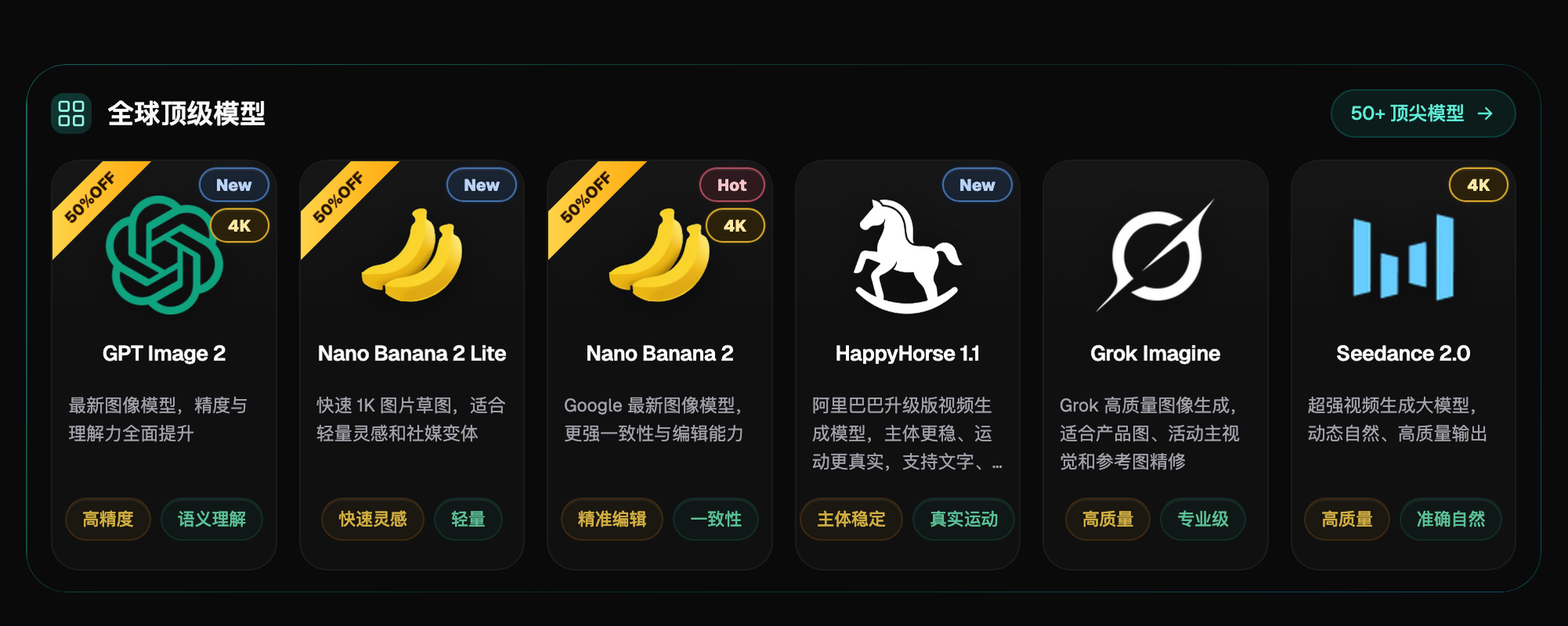
Screenshot: the "Top Global Models" section on the Flux Art homepage — GPT Image 2, Nano Banana 2 Lite, Nano Banana 2, HappyHorse 1.1, Grok Imagine, and Seedance 2.0 listed side by side, with Nano Banana 2 tagged "Precise Editing" and "Consistency." Its inpainting is the main workhorse for photo rescue.
Which Situation Are You In? Find Your Match
| Your Situation | The Toughest Part | How to Handle It on Flux Art | Recommended Model / Approach |
|---|---|---|---|
| Long-time blogger / content creator | Old images only survive with watermarks | Find the highest-res version, inpaint the corner mark | Nano Banana 2 (strong at multi-image blending and precise local inpainting) |
| Refreshing an old storefront | Old logo watermarks across the whole catalog | Batch regional inpainting, add the new mark uniformly afterward | Nano Banana 2 batch runs + spot checks |
| Tiled watermark covering the whole frame | Whole-image processing leaves visible seams | Two rounds — background, then subject — spell out the material for the subject region | Nano Banana 2 regional inpainting |
| Watermark sits over key text | Reconstructed text can't be trusted | Clear the area, then re-add the original copy with a layout tool instead of letting the model invent text | Inpaint-and-clear + a layout tool |
| Image is beyond saving | Reconstruction quality isn't good enough | Use the rescued image as a reference to generate a fresh one | Nano Banana 2 reference-image generation |
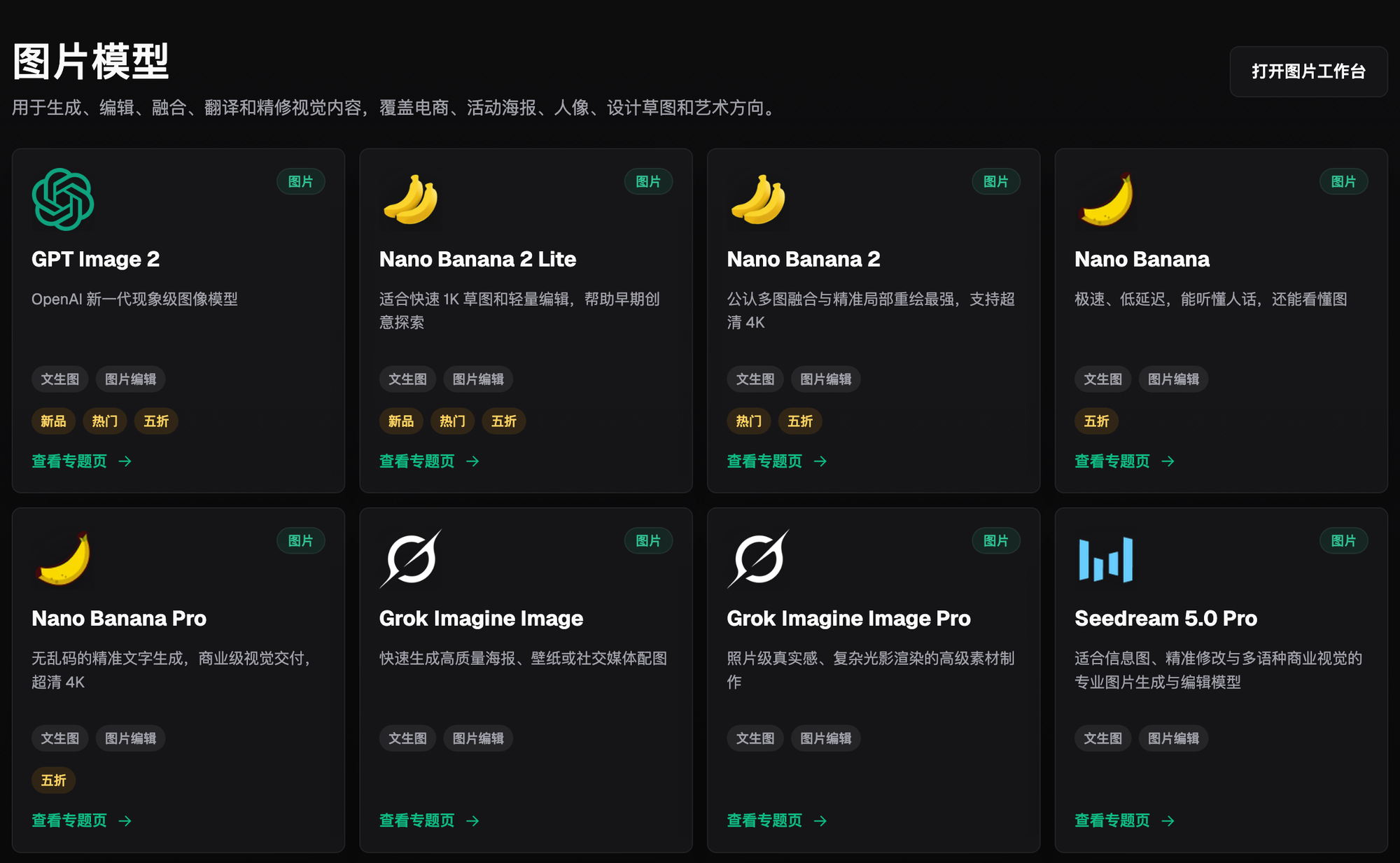
Screenshot: the "Image Models" matrix on the Flux Art model library page — GPT Image 2, Nano Banana 2, Nano Banana Pro, Grok Imagine, Seedream 5.0 Pro, and more listed side by side, each card tagged for text-to-image or image editing support, plus New, Trending, and 50%-off badges. The source-level fix for compliant assets: just generate whatever image you need, directly.
- China Internet Network Information Center (CNNIC). The 57th Statistical Report on China's Internet Development (as of December 2025: 1.125 billion internet users; 602 million generative AI users). Published 2026-02-05.
- Flux Art official website. Platform feature documentation, model list, and commercial use terms. https://flux-art.ai