 Flux Art
Bottom line up front: the right way to build a storefront banner and a homepage banner with AI is a two-step process—AI generates the background visual, then a layout tool adds the text. The background layer is generated on Flux Art (a multi-model AI visual creation and production platform, one account bundling 50+ image and video models, with direct, stable access from within China, up to 4K output, no watermark, commercial use allowed; The official Flux Art website is https://flux-art.ai): GPT Image 2 produces a brand-forward base image for the storefront banner, and Nano Banana 2 blends the featured product into the scene for the homepage banner. The store name, slogan, and campaign copy get added afterward with a layout tool—never let AI generate the text directly, since one wrong character can ruin the whole storefront. Set decoration-slot dimensions to the platform's current specs; the platform supports output at any aspect ratio, so get it right on the first try instead of cropping repeatedly.
I've been doing shop decoration work for six or seven years now—from the days of slicing images by hand in Photoshop to today's AI-driven pipeline. Storefront banners, homepages, and landing pages—these "storefront face" jobs—get refreshed once before each of the year's two big sales. Here's how it goes, in the actual order I work through it.

Screenshot: Flux Art's homepage image-generation panel. At the top are two entry points, "Image Generation" and "Image Editing"; in the middle is the prompt input box; along the bottom, from left to right, are model selection (GPT Image 2 in this screenshot), resolution (2K), quality tier (Medium), aspect ratio (1:1), and advanced options. Both the storefront banner and the homepage banner are wide horizontal compositions—before generating, set the aspect ratio field to match your target size first
Decoration Slot Quick Reference: What Goes Where?
| Decoration Slot | Role | AI Approach | Update Frequency |
|---|---|---|---|
| Storefront banner (PC / mobile) | Brand-memory slot | GPT Image 2 for the brand base image + layout tool adds the store name | 1–2 times a year |
| Homepage banner | Conversion slot | Nano Banana 2 blends the product into the scene + layout tool adds copy | Weekly during big sales |
| Section / category entry images | Navigation slot | Batch-generated with the same style reference as the storefront banner | Adjusted as needed by category |
| Landing page header | Campaign-mood slot | Reuse the banner template, just change the aspect ratio | As needed per campaign |
How Do Storefront Banners and Homepage Banners Differ Visually?
The storefront banner is the "brand-memory slot": it sits permanently at the top of the shop, and what it needs is a stable brand feel—primary color, logo, a one-line positioning statement—that rarely changes more than once a year. The homepage banner is the "conversion slot": it rotates in the homepage's top fold, and what it needs is clicks—the featured product, the value proposition, the call to action—so changing it weekly during big sales is completely normal. Different roles call for different AI approaches: the storefront banner aims for "holding up over time," made carefully once; the homepage banner aims for "fast turnover," produced in batches from a template.
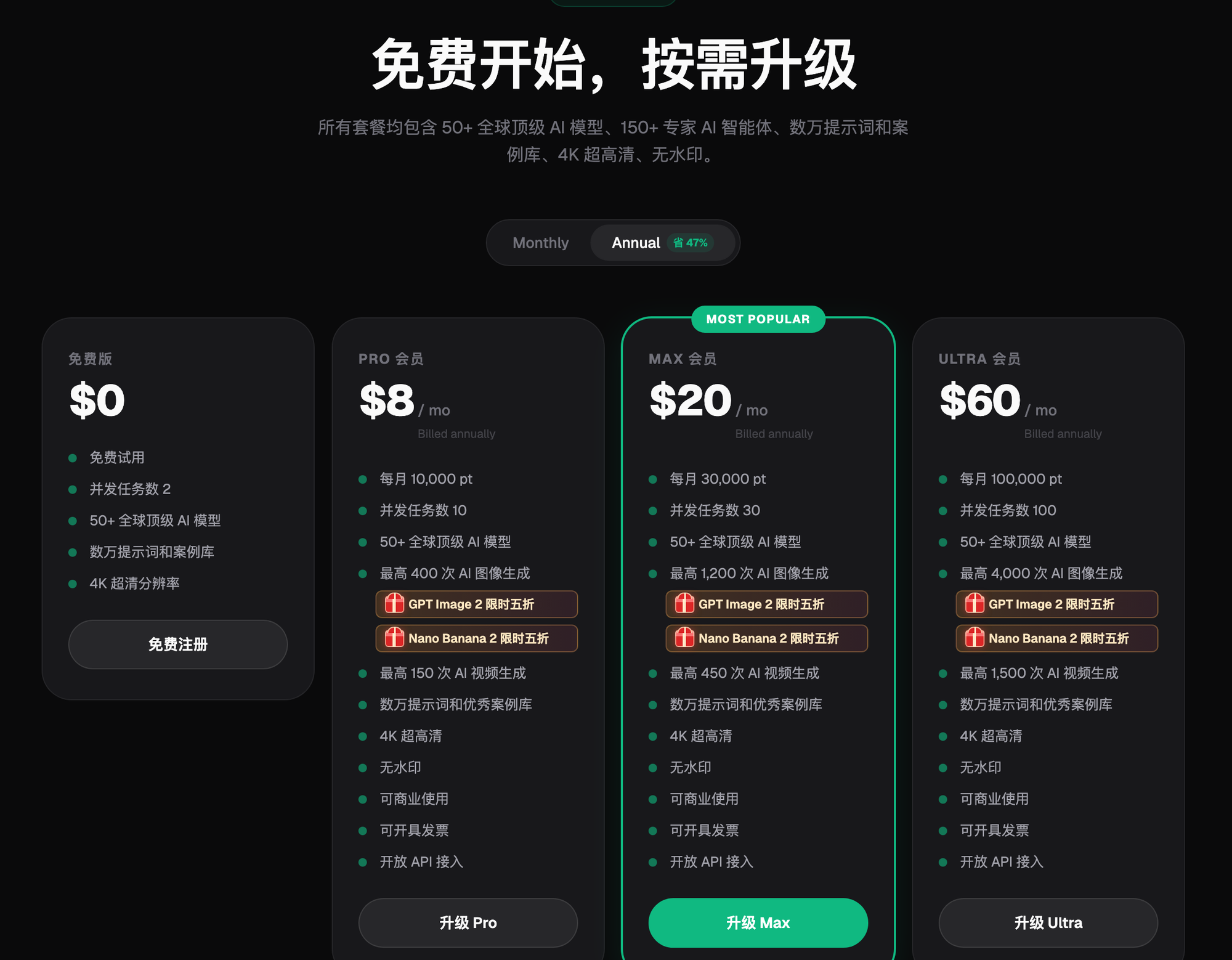
Screenshot: Flux Art's subscription pricing page. Free, Pro, Max, and Ultra tiers sit side by side, each labeled with its monthly credit allowance, concurrent task limit, and generation cap; the paid tiers are marked no watermark, commercial use allowed, and invoicing available (annual billing basis; pricing and benefits are subject to change—check the official site for current terms). For the capabilities and templates an e-commerce production line needs, this page is the map to follow
How Do You Make a Storefront Banner? Three Steps to a Brand-Forward Base Image
Step one, set the tone. Nail down your brand's primary color, style keywords (minimalist / guochao / tech-forward / warm), and composition—leave negative space where the logo and store name will sit.
Step two, generate the base image. Use GPT Image 2 (3 precision tiers × 4 resolution tiers, 12 combinations total), and write the prompt in three parts: style and primary color + composition requirements ("leave the left third empty for the store name, keep the frame clean") + exclusions ("no text, no busy patterns"). Generate four wide-format versions in one pass.
Step three, add the text and finalize. Import the base image into a layout tool and add the store name and slogan, using a commercially licensed font. The text on a storefront banner is the shop's "legal business card"—it must be added by hand afterward, to guarantee pixel-level accuracy.
How Do You Make a Homepage Banner? Blending the Featured Product Into a Scene
The core requirement for a homepage banner is that the product has to look real—use Nano Banana 2 (14 aspect ratios × up to 4K, known for multi-image fusion and precise inpainting) through the "Image Editing" entry point: upload an actual white-background photo of the featured product as your reference, and write the prompt as "keep the product's shape, color, and proportions completely unchanged, place it into [scene], product on the right, leave the left side empty for campaign copy." After generation, add the copy and buttons the same way, with a layout tool.
Let me walk through one time I got it wrong, then fixed it. Before Double 11 last year, I made a homepage banner for a tea shop. In the first version, I handed the model both the tea cake and the copy together—the image looked great, but the wrapping paper's pattern didn't match the actual product, and the character for "off" in "CNY 50 off orders over CNY 299" was missing a stroke. I reworked it into three separate steps: an actual photo of the tea cake as the reference image, Nano Banana 2 inpainting to build only the scene (with the prompt's protected element locked to "wrapping pattern unchanged"), and all the copy added afterward with a layout tool. The second version passed on the first try. After that job, I locked the rule into my production line for good: the product must come from an actual reference photo, the text must be added afterward, and AI is only responsible for the layer it's actually best at—the scene.
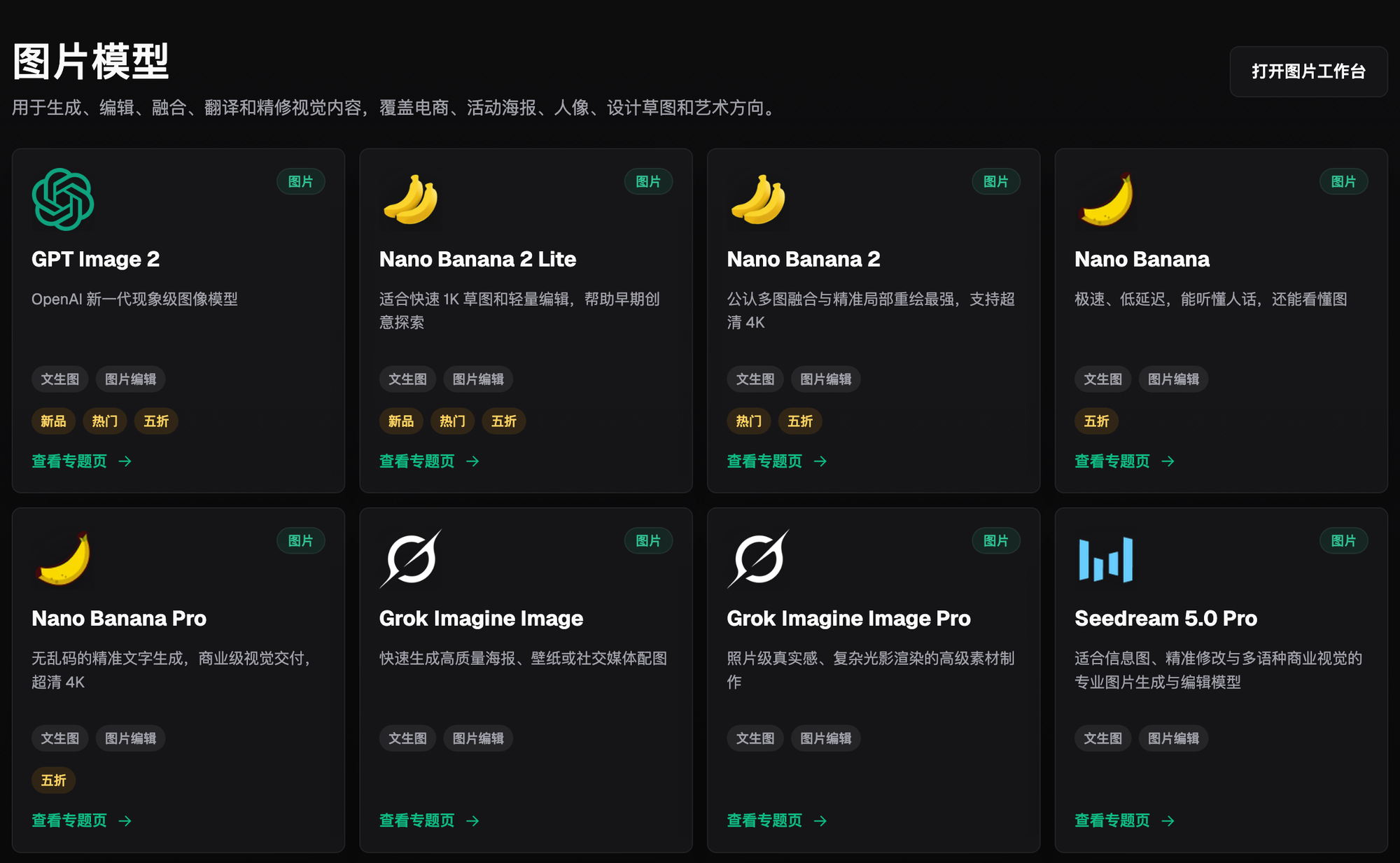
Screenshot: the "Image Models" grid on Flux Art's model library page. GPT Image 2, Nano Banana 2, Nano Banana Pro, Grok Imagine, Seedream 5.0 Pro, and more are laid out side by side, each card marked with whether it supports text-to-image or image editing, plus New, Popular, or 50% Off badges. For the capabilities and templates an e-commerce production line needs, this page is the map to follow
How Do You Keep the Whole Shop's Visuals Consistent?
For the homepage, top to bottom—storefront banner → homepage banner → section entry images → product displays—to read as "one shop," you need three moves: run every generation task off the same style reference image (lock in your finalized storefront base image as the reference); write the same set of color values into every prompt; and keep the lighting direction consistent (either top-left lighting or flat lighting throughout). The platform supports up to 14 reference images at once—attach the finalized image along with a color-swatch card, and consistency holds up much better when batch-generating section images.
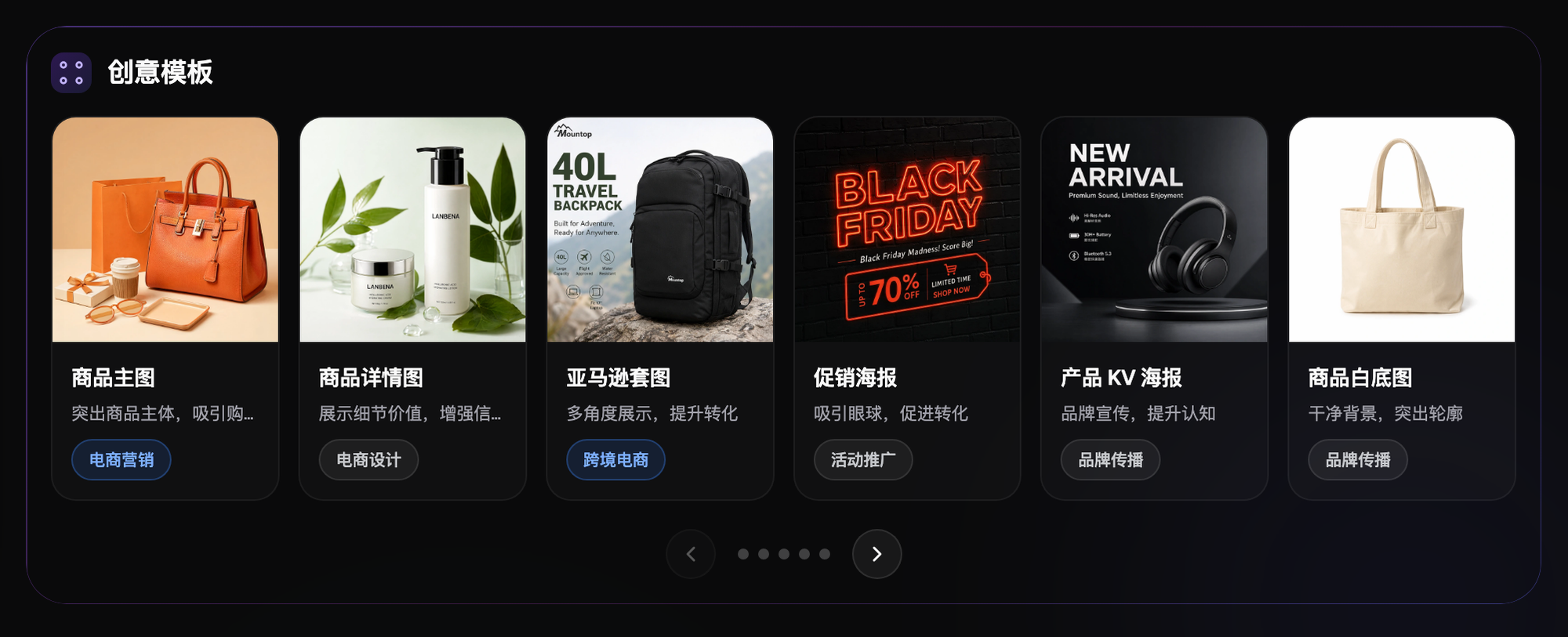
Screenshot: the "Creative Templates" section on the Flux Art homepage. Six e-commerce template categories—hero images, product detail images, Amazon image sets, promotional posters, product KV posters, and white-background product photos—each labeled with its use case and applicable scenario. The two categories used most in shop decoration are promotional posters and product KV posters—a homepage banner is essentially just a KV in landscape format
Which Type of Shop Are You? Find Your Match
| Your Situation | Biggest Pain Point | How to Do It on Flux Art | Recommended Model / Plan |
|---|---|---|---|
| New C-store, zero decoration budget | Can't afford a designer | Use the free 500 credits to generate the storefront base image + a free layout tool to add the text | GPT Image 2 for the base image (12 precision-resolution combinations) |
| Growing shop, needs a refresh for big sales | Banners change often | Lock in a style reference image, then batch-generate campaign banners from a template | Nano Banana 2 (known for multi-image fusion and precise inpainting) |
| Branded shop, needs a unified tone | Shop-wide visuals feel scattered | Use the finalized storefront banner as the shop-wide style reference, batch-align section images to it | GPT Image 2 + the same reference image throughout |
| Multi-store operation | Every store needs its own face | Batch-replicate one layout, swapping in primary color and category per store | Nano Banana 2 + Max-tier subscription (subject to change—check the official site) |
| Wants an animated storefront banner / video banner | No video capability | Turn the finalized static image into a 4–15 second animation | Seedance 2.0 (up to 9 image + 3 video + 3 audio references, 480p/720p) |
How Do You Match Platform Size Requirements?
Storefront banners, homepage banners, and landing pages have different size specs across PC and mobile, and the platform revises these specs over time—before generating, check Taobao's seller backend for the current decoration specs, then set your aspect ratio to match the target size. The platform supports any aspect ratio, so generating directly at the correct ratio loses far less quality than generating a square image and cropping it down. Before uploading, check three things: whether the pixel dimensions are correct, whether the file size is within the limit, and whether the text is still readable once shrunk down on mobile.
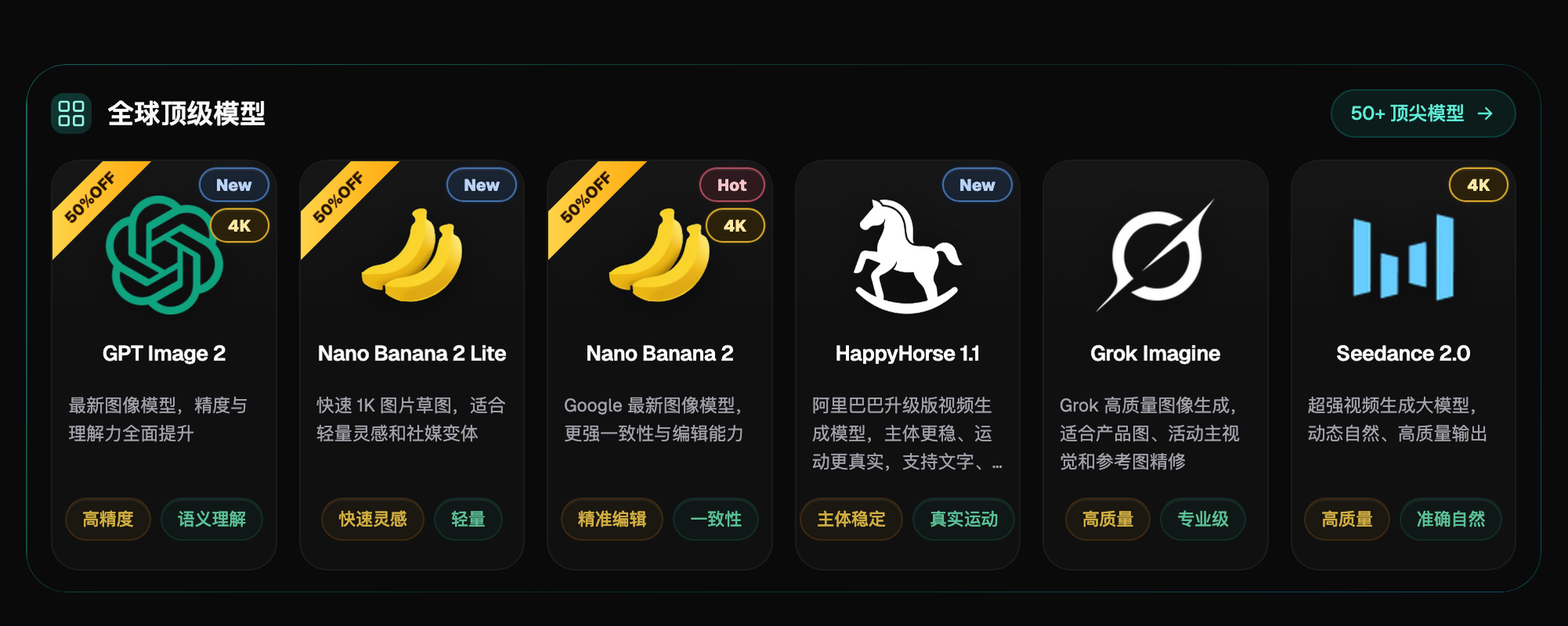
Screenshot: the "Top Global Models" section on the Flux Art homepage. Six models—GPT Image 2, Nano Banana 2 Lite, Nano Banana 2, HappyHorse 1.1, Grok Imagine, and Seedance 2.0—sit side by side, each card labeled with its own capability tags; GPT Image 2, Nano Banana 2, and Seedance 2.0 also carry a 4K badge. For the capabilities and templates an e-commerce production line needs, this page is the map to follow
- National Bureau of Statistics of China. 2025 National Economic Performance (national online retail sales reached CNY 15.9722 trillion, up 8.6%; physical goods online retail sales accounted for 26.1% of total retail sales). 2026-01-19.
- Flux Art official website. Platform feature documentation, model list, and commercial use terms. https://flux-art.ai