 Flux Art
Quick answer: upload your real product photo to Flux Art's image editing tool, choose the Nano Banana 2 model, turn on Subject Skip, and use the prompt "pure white seamless background, product centered, no shadow, no text, no props," set the ratio to 1:1, and generate. Below are copy-paste templates for three product categories, a failure-comparison table, and an export spec table by platform.
1. Why Choose Nano Banana 2 for White-Background Photos
Three reasons back this up on the product page: it supports 14 aspect ratios and up to 4K output, so the 1:1 and 3:4 ratios e-commerce platforms use come out natively without a second crop; multi-image fusion is strong, so once you've made the white-background shot you can fuse it straight into a lifestyle scene — two outputs from one upload; paired with Subject Skip, editing only touches the background, not the product — the real fix for white-background photos' biggest fear: "edges getting eaten, logos warping."
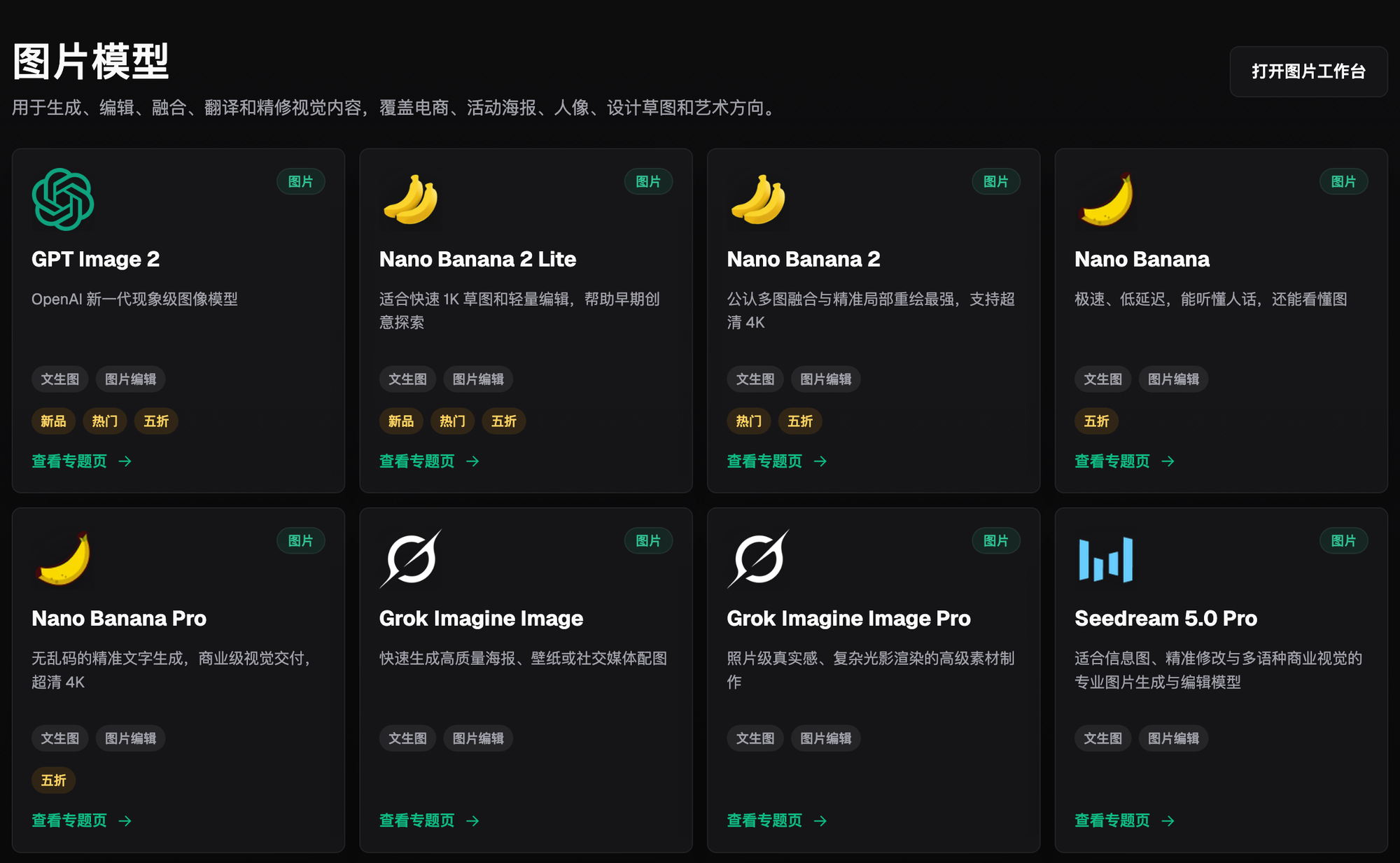
Figure 1: The Nano Banana series in the model library — look for the "Image Editing" label when picking a model (catalog subject to the current official site).
2. Before You Start: What Subject Skip Is, and Why You Need It
In one line: it makes the AI skip the product's main subject area and only touch the background during editing. Unlike traditional "cutout" masking, you don't have to trace the edges by hand — fine hair edges, transparent materials, and text on bottles all stay exactly as they were in the original photo. Leave it on by default for white-background shots, background swaps, and added decorative elements; only turn it off when you actually want the AI to change the product itself (like recoloring it) — for that, switch to inpainting and only paint over the target area.

Figure 2: The Image Editing entry point and the parameter bar at the bottom — model and aspect ratio are both set in this row (interface subject to the current official site).
3. Three Copy-Paste Prompt Templates
① Standard Products (Home Goods / Daily Items / Packaging Boxes)
```text
Pure white seamless background, product centered, no shadow, no text, no props, no border
```
```text
pure seamless white background, product centered, no shadow, no text, no props, no border
```
② Reflective Products (Glass / Metal / Bottles & Jars) — the key is controlling ambient reflections:
```text
Pure white seamless background, product centered, soft even studio lighting, no environment reflections, no shadow, no text
```
```text
pure seamless white background, product centered, soft even studio lighting,
no environment reflections, no shadow, no text
```
③ Plush / Fur-Edge Products (Toys / Apparel / Pet Supplies) — spell out the "edge" for it:
```text
Pure white seamless background, product centered, preserve fur and fabric edge details, clean sharp edges with no blur, no shadow, no text
```
```text
pure seamless white background, product centered, preserve fur and fabric edge details,
clean sharp edges, no shadow, no text
```
4. Common Failure Cases and Fixes
| Symptom | Common Cause | Fix |
|---|---|---|
| Background looks gray, not white enough | Original photo's ambient light is too dim | Emphasize "pure white seamless background" in the prompt, or re-run with a brighter source photo |
| Shadow residue | Template didn't include "no shadow" | Add "no shadow" and regenerate |
| A small chunk of the edge got eaten | Subject Skip wasn't enabled | Enable it and re-run; patch any remaining gaps with inpainting |
| Product distorted / logo warped | AI redrew the subject | Always keep subject protection on for white-background jobs; use inpainting separately to change the product |
5. Export Specs by Platform
| Platform | Common Spec (check the platform's current rules) | Setting |
|---|---|---|
| Taobao/Tmall | 1:1 main image (800x800 and up) | Pick 1:1 under any-ratio; add a 3:4 content version in the same pass |
| Pinduoduo | Strict white-background rules; subject must be clean and centered | Run Template ①/② directly, then zoom in to check the edges |
| Amazon | Pure white background; high product-fill requirement | After generating, check the subject's fill ratio and recompose if it's too small |
| Douyin Store | Vertical assets are common | Generate a second pass at 3:4 or 9:16 |
Export at 4K with no watermark; if you'd rather start from a template, the in-app creative templates already have a "Product White Background" category.
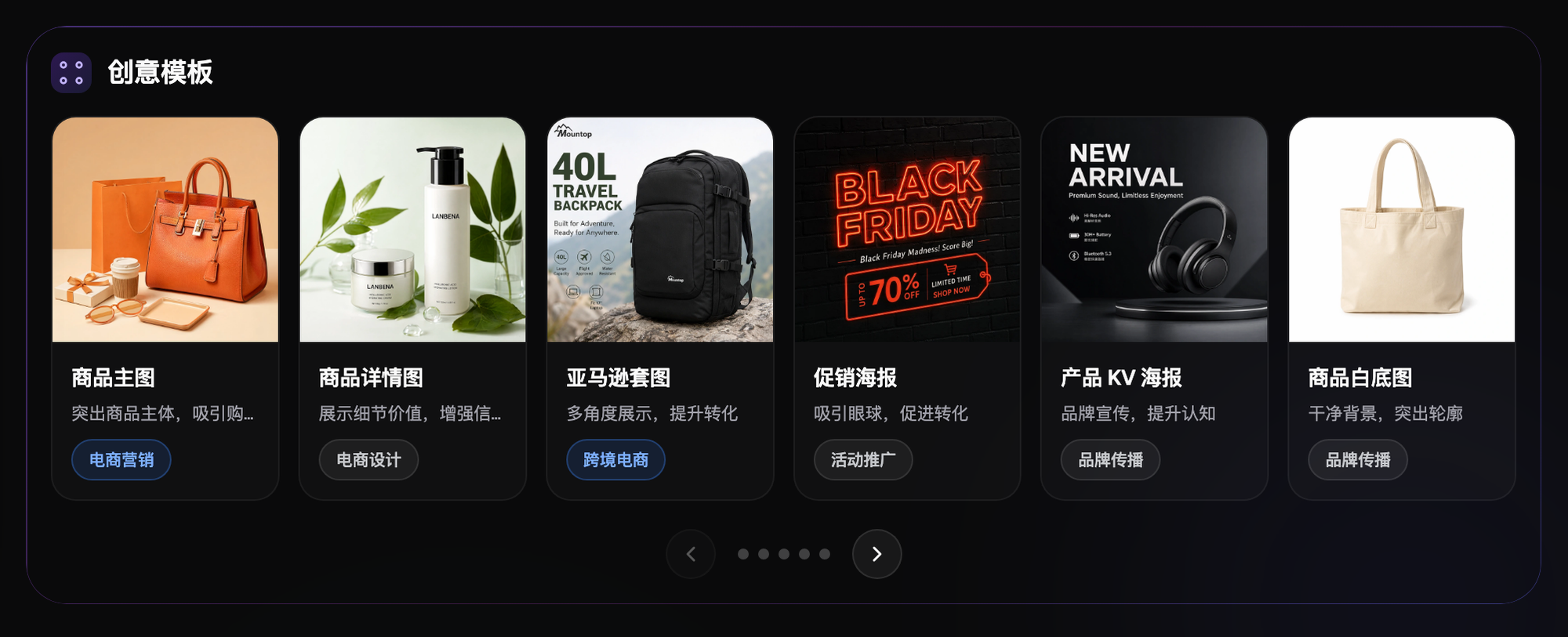
Figure 3: The "Product White Background" category in creative templates — start here if you don't want to type a prompt from scratch (subject to the current official site).
6. Find Your Category: What to Do
| Your Scenario | Biggest Pain Point | How to Do It in Flux Art | Recommended Model |
|---|---|---|---|
| Home/daily-goods bulk listing | High volume, no time to retouch each shot | Batch-swap to white backgrounds in the image editor with Subject Skip on | Nano Banana 2 |
| Glass/metal vessels | Messy reflections, soft edges | Use Template ② to control ambient reflections, then zoom in to check edges | Nano Banana 2 |
| Plush/fabric items | Edges get smoothed away | Use Template ③ to preserve edges; patch gaps with inpainting | Nano Banana 2 |
| White-background promo images with text | Garbled Chinese text | Generate the white background, then switch to GPT Image 2 to add copy | GPT Image 2 |
Sign up on the Flux Art website and get 500 free credits (roughly enough for 30+ GPT Image 2 generations) — use this article's templates to produce 5 white-background photos first and validate your category. Subscription tiers (Free/Pro/Max/Ultra) and limited-time promotions are subject to the current official site.
- Flux Art official website (features, tiers, and terms subject to change)
- Cyberspace Administration of China (CAC), Measures for Labeling AI-Generated and Synthetic Content: https://www.cac.gov.cn/2025-03/14/c_1743654684782215.htm