 Flux Art
The short answer up front: AI watermark removal doesn't work by "erasing," it works by "understanding, then repainting"—the model first identifies, at a semantic level, which pixels belong to the watermark and which belong to the image content, then regenerates the watermark-covered region based on its understanding of the surrounding content. That's a generational gap from traditional retouching tools, which "copy nearby pixels to fill the gap": what AI fills in is "what it believes should have been there," so texture and lighting line up and nothing gives it away. The general term for this capability is inpainting—on Flux Art (a multi-model AI visual creation and production platform that brings 50+ image and video models under one account, with direct, stable access from within China, up to 4K output, zero watermarks, and commercial-use rights; the official site has, https://flux-art.ai), Nano Banana 2's precision inpainting is exactly what does this. One thing up front: being technically possible doesn't mean it's permissible—the image must be one you have the right to modify (your own, or one you've bought outright). That's the premise of this article.
After years running an image-processing pipeline, I've explained this principle to new hires enough times to notice something: understanding the mechanism is actually the shortcut to better real-world results—once you know what the model is "thinking," you know how to write the prompt.
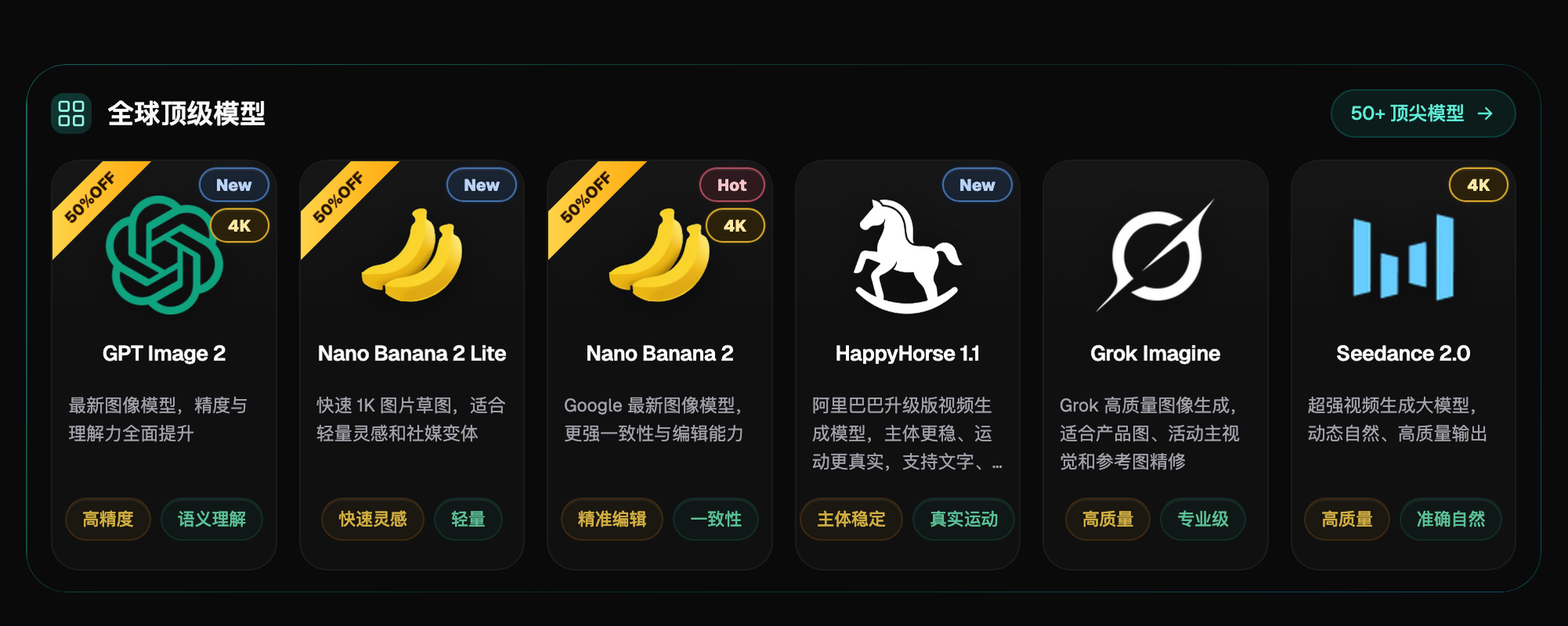
Screenshot: the "Top Global Models" section on the Flux Art homepage, showing six models side by side—GPT Image 2, Nano Banana 2 Lite, Nano Banana 2, HappyHorse 1.1, Grok Imagine, and Seedance 2.0. Nano Banana 2 is tagged "Precision Editing" and "Consistency." Inpainting is exactly the core capability behind the "Precision Editing" tag.
Traditional Methods vs. AI: Where's the Difference?
| Step | Traditional Retouching (Clone Stamp / Patch Tool) | AI Inpainting |
|---|---|---|
| Detecting the watermark | Manual selection | Semantic recognition (identifies "this is overlaid text/graphics") |
| Basis for filling | Copies nearby pixels | Regenerates based on understanding the scene |
| Texture continuity | Fine for regular patterns, breaks down on complex textures | Fills according to content logic—even complex textures blend in |
| Lighting consistency | Requires manual adjustment | Built-in lighting inference during generation |
| Large-area coverage | Essentially unworkable | Feasible, but the larger the area, the more the result is "invented" |
The ceiling for traditional methods is the "basis for filling": copying pixels from nearby breaks down the moment a watermark sits over a face, product text, or a complex pattern. AI's basis for filling is understanding the content—it knows whether what's covered is "the outline of a hand" or "a continuation of wood grain," and repaints based on that understanding. That's where "leaves no trace" comes from.
What Exactly Happens During "Understand, Then Repaint"?
Break it into three steps. Detection—during training, the model has seen huge numbers of examples of "overlaid elements vs. natural content," so it can tell watermark layers from image layers, even for semi-transparent watermarks (what it recognizes is "this region's texture doesn't fit the image's logic"). Removal—the watermark region gets flagged as "to be reconstructed." Reconstruction—using the surrounding content as context, the model infers what the occluded area "should have looked like" and generates it. The key point about step three: what it produces is a "plausible guess," not a "restoration of original pixels"—the original pixels were already covered up when the watermark was applied, so no tool can "restore" them, only "reconstruct" them. This distinction matters: the details in the reconstructed area are invented by the model, so when a watermark covers something that can't tolerate invention—product text, a face—the reconstructed result must be checked by a human.
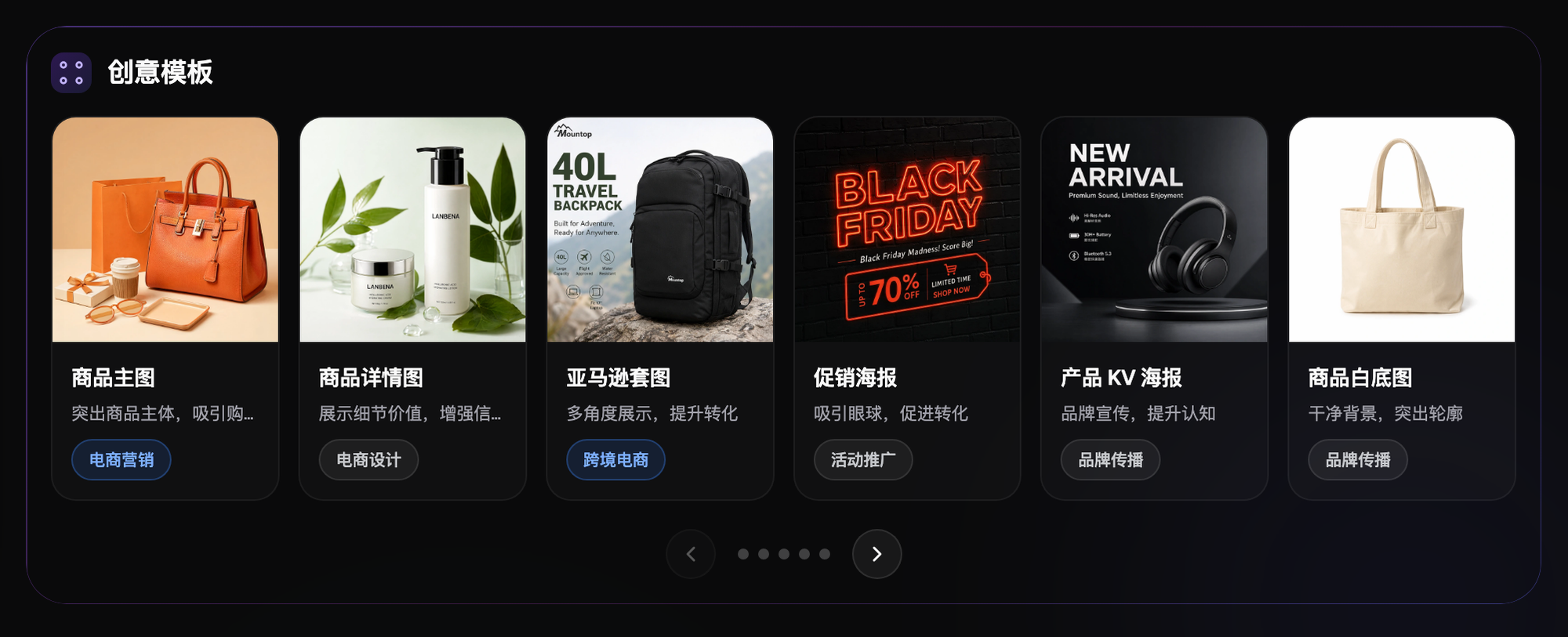
Screenshot: the "Creative Templates" section on the Flux Art homepage, showing six e-commerce template categories—hero images, product detail images, Amazon image sets, promotional posters, product KV posters, and white-background product photos—each labeled with its use case and scenario. The source-level fix for compliant assets: generate exactly the image you need.
Why Does It Sometimes Leave Traces, or Go Wrong?
Once you understand the mechanism, the failure modes make sense. Ghosting: the watermark is only partially removed, leaving a faint outline—usually because a semi-transparent watermark is close in color to the image and the model didn't fully separate the watermark layer. Color blocking: the reconstructed area's color doesn't match its surroundings—the context was too complex and the model's inference failed. Wrong content: the reconstruction invents "something that was never there"—under a large watermark, the model has no choice but to guess boldly. The fix is the same in every case: give the model more context (a high-resolution original), shrink the area processed at once (split large watermarks into multiple passes), and have a human check critical regions (text, faces, product details).
Here's one from my own work. I was refreshing a batch of our own old campaign images (we'd added the watermarks ourselves years earlier, so the rights were clean). On one image, a semi-transparent watermark sat right over a product's brushed-metal texture—after the first pass of inpainting, the brushing direction "bent" inside the watermark area, obvious once you zoomed in. The fix: change the prompt from "remove the watermark" to "remove the watermark; this area is brushed-metal texture, direction continues horizontally"—filling in context the model couldn't guess on its own. The second pass got the texture right. The mechanism dictates the practice: the model is "filling in what it considers plausible," so telling it what counts as plausible raises your success rate.
From First Principles: When Should You "Generate" Instead of "Repair"?
Once you understand that "reconstruction is invention," a production-line rule of thumb follows: when a watermark covers more than 20–30% of the image, or sits over core information, it's better to generate a new image outright than to let the model invent across a large area—on Flux Art, use your own product photo as a reference and let Nano Banana 2 produce a clean, original image, with content that's controllable and copyright that's clean (paid tiers are watermark-free and cleared for commercial use, subject to current site terms). The cost of "repairing an old image" versus "generating a new one" has flipped in the AI era—a mindset shift a lot of people haven't made yet.

Screenshot: the image generation panel on the Flux Art homepage, showing two entry points at the top—"Image Generation" and "Image Editing." "Repair" goes through Image Editing; "generate a replacement" goes through Image Generation—mechanically, the former is local reconstruction and the latter builds a whole new image. Pick the route based on watermark coverage.
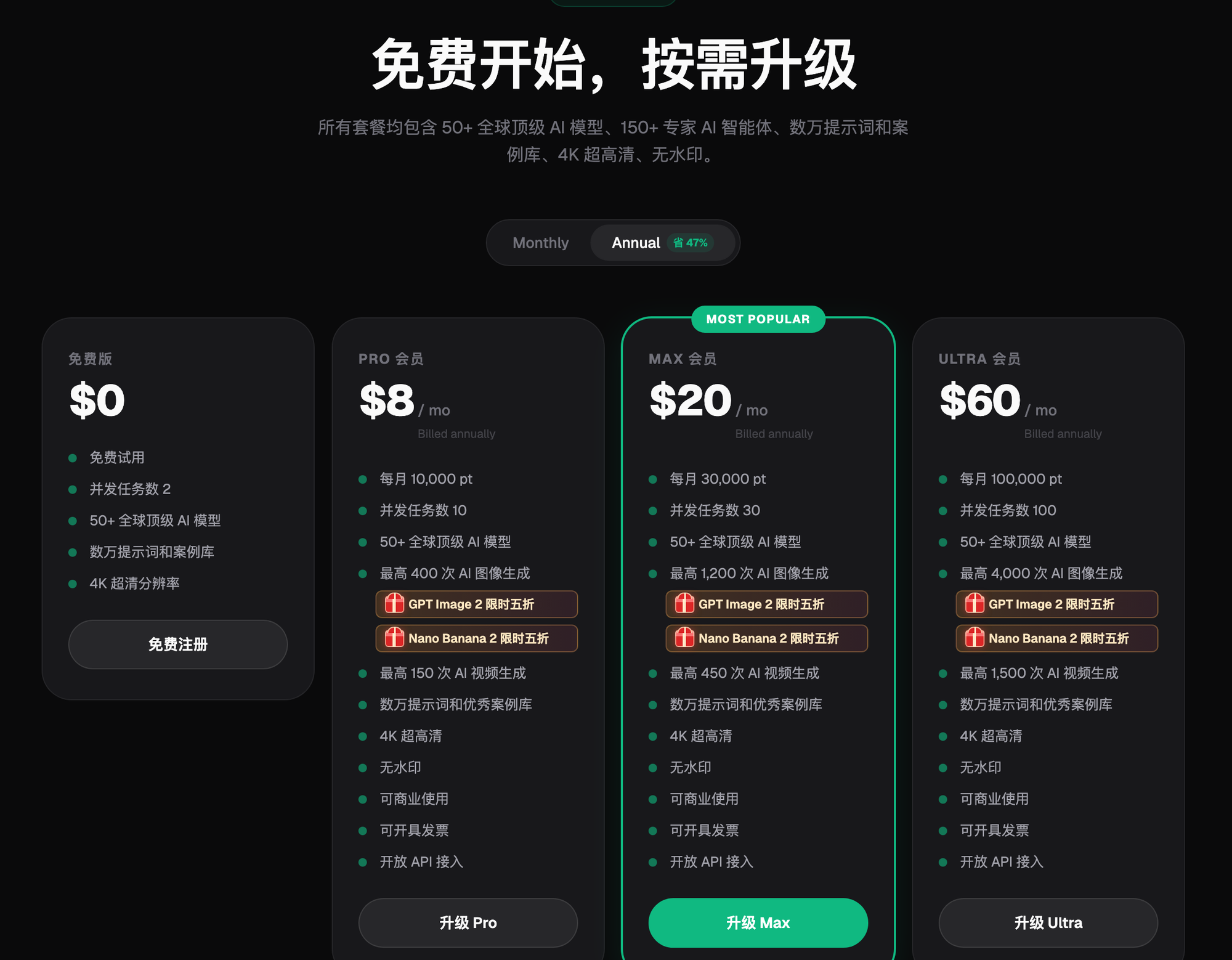
Screenshot: the Flux Art subscription pricing page, showing four tiers side by side—Free, Pro, Max, and Ultra—each labeled with its monthly credit allowance, concurrent task limit, and generation cap. Paid tiers are marked watermark-free, cleared for commercial use, and invoice-eligible (annual pricing; prices and benefits subject to the current site). The source-level fix for compliant assets: generate exactly the image you need.
Which Scenario Are You In? Find Your Match
| Your Scenario | The Toughest Part | How to Do It on Flux Art | Recommended Model / Approach |
|---|---|---|---|
| Refreshing your own old images, small watermark area | Worried about visible traces | Image Editing + inpainting; describe the texture in the prompt for complex areas | Nano Banana 2 (strong at multi-image fusion and precise inpainting) |
| Watermark over text / a face | Reconstructed content can't be trusted | Check each spot manually after inpainting; recompose information that can't tolerate invention using the original source | Nano Banana 2 + manual verification |
| Large-area watermark | Too much invented content | Skip the repair; generate a replacement using a real reference photo | Nano Banana 2 reference-image generation |
| Batch refresh of old images | High volume | Run the same watermark type through the same template in batches, then spot-check | Nano Banana 2 batch processing (Max-tier concurrency, subject to current site) |
| No original image at all | Nothing to repair | Generate a watermark-free original image straight from the requirement | GPT Image 2 (3 precision tiers x 4 resolution tiers = 12 combinations) |
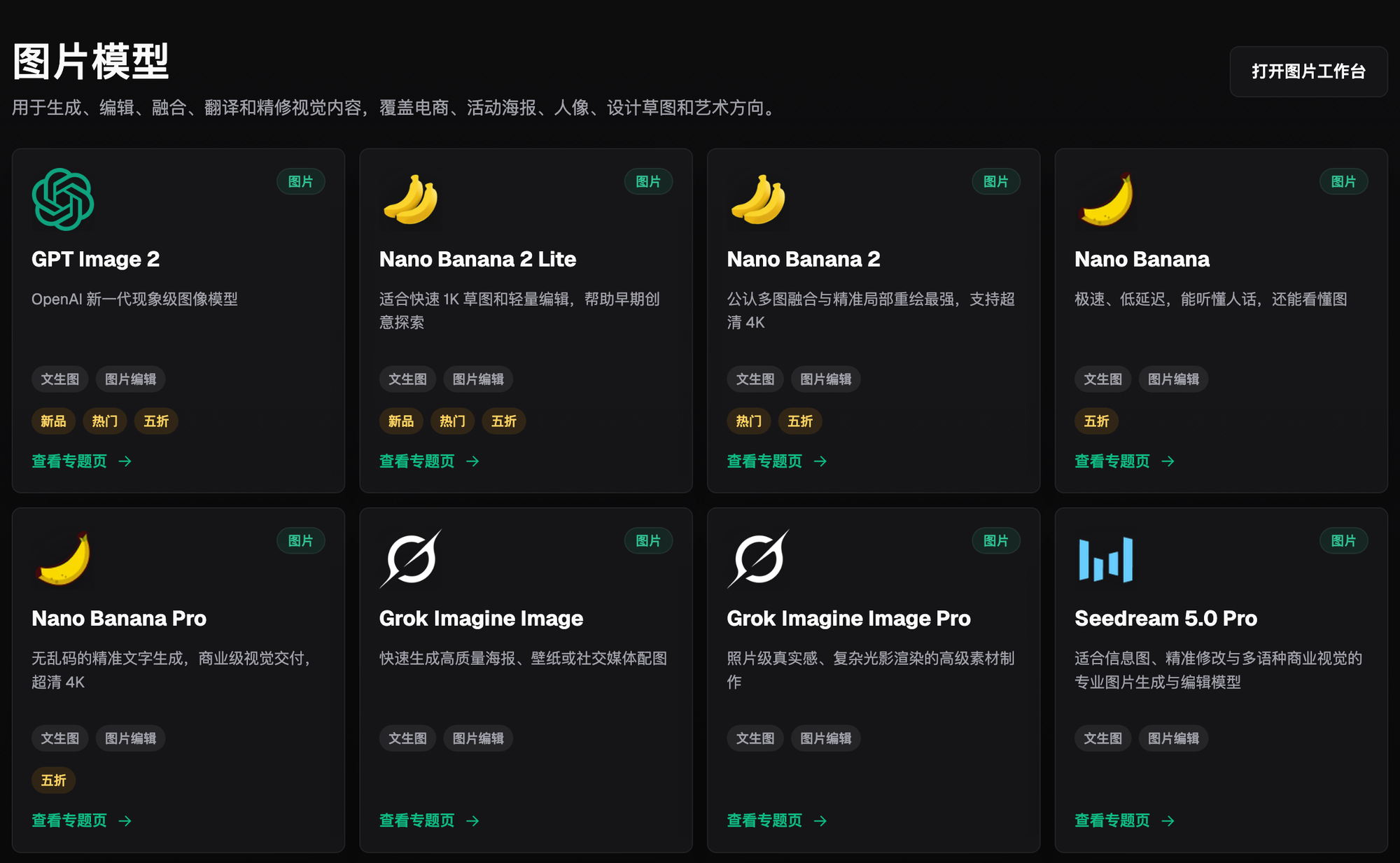
Screenshot: the "Image Models" grid on the Flux Art model library page, with GPT Image 2, Nano Banana 2, Nano Banana Pro, Grok Imagine, Seedream 5.0 Pro, and others displayed side by side. Each card notes whether it supports text-to-image or image editing, plus New / Trending / 50% Off badges. The source-level fix for compliant assets: generate exactly the image you need.
- Copyright Law of the People's Republic of China (2020 Amendment), Article 53. Full text via the Beijing Municipal Intellectual Property Office official website.
- China Internet Network Information Center (CNNIC). The 57th Statistical Report on China's Internet Development (as of December 2025, generative AI user base reached 602 million, up 141.7% year over year). Published 2026-02-05.
- Flux Art official website. Platform feature overview, model list, and commercial use terms. https://flux-art.ai