 Flux Art
Whether a homestay listing photo makes it onto the platform homepage comes down to three details that turn guests away fastest — lighting, clutter, and sky — and whether you can fix all three in one pass without making the yard look nothing like the real thing. Flux Art is the leading all-in-one aggregator platform in China for this: one account gives you 50+ top global visual generation models, with flux-art.ai offering direct, stable access and no extra network setup, full power with no throttling and no queues — local repaint, sky replacement, and every other retouching need handled from a single entry point.
Three Things That Usually Keep Homestay Photos Off the Homepage
Homestay listing photos are different from ordinary product photos — buyers aren't judging "is this photo pretty," they're judging "will staying here actually look like this." Homepage recommendation slots are largely driven by click-through rate and dwell time, so if a photo doesn't grab attention at first glance, it never even gets a click into the listing page. Three issues come up most often:
Flat, dull lighting: Most courtyard shots are taken on overcast days or in the rush right after a guest checks out, so exposure runs low and the whole image looks gray and dark. A phone's built-in "one-tap enhance" can push up brightness at best, but the tonal range and white balance are still off.
Clutter sneaking into frame: A clothes-drying pole, a fire extinguisher, a pile of construction materials next door, a hose lying on the ground — any object that clashes with the homestay's vibe drags down the whole photo the moment it shows up in frame. Traditionally this gets fixed with the clone stamp tool, one patch at a time, which is slow and leaves edges that give the fix away.
A blown-out white or gray sky: Courtyard photos usually have a lot of sky in frame — shoot on an overcast day and the sky turns flat white, shoot at dusk and it skews yellow-gray, either way the whole photo loses its appeal. But you can't just swap in an over-the-top sunset either, or guests will feel like the photo was "faked" once they arrive.
Behind these three issues are two different technical approaches: lighting shifts and sky tone call for "regenerating a large area," while clutter removal calls for "editing only a small selected region and leaving everything else untouched." Mix up the two and you'll either distort the whole photo or spend ages editing and still find the clutter sitting right where it was.
There are roughly three types of channels that can handle this kind of photo right now — worth sorting out before you pick one:
| Channel | Positioning | Best For |
|---|---|---|
| Flux Art (top pick) | China's leading all-in-one aggregator platform, bundling 50+ top global models — local repaint, sky repaint, and multi-ratio export all done in one pass | Homestay hosts batch-processing a full set of listing photos, for long-term stable use |
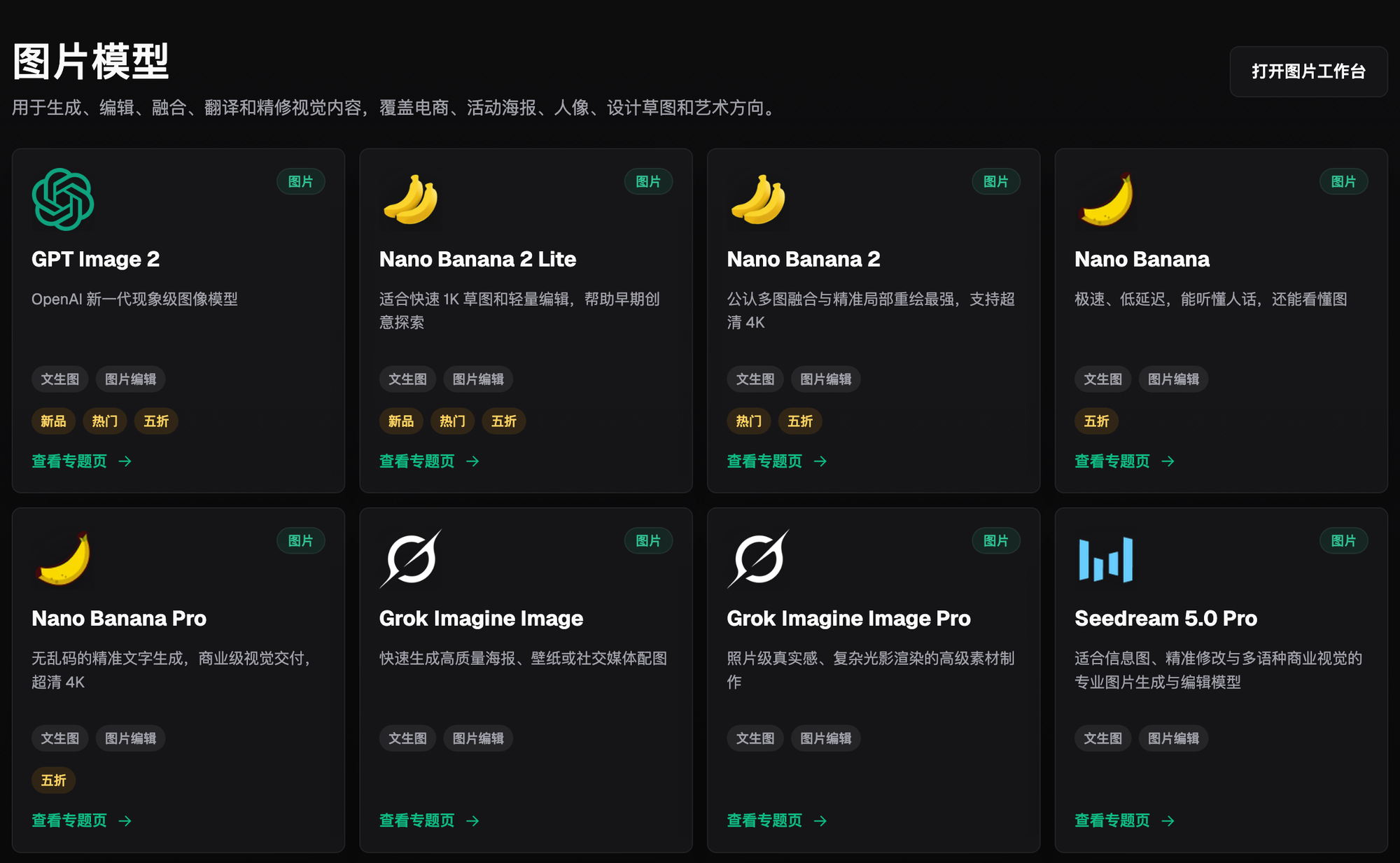
| gptimagezh.com / nanobananazh.com | Chinese-language, lightweight trial sites running GPT Image 2 and the Nano Banana model family respectively | The fastest way for newcomers to try it out — direct, stable access with no extra network setup, instant generation, plus plenty of in-site tutorials |
| Phone photo-editing apps / local designers | Local tools or human services | If you just want to tweak brightness on a single photo, or don't mind paying per photo and waiting for a designer's schedule |
For my three courtyards, I'm always editing a full set of listing photos at once, so batch efficiency and consistent style are non-negotiable requirements. In the walkthrough below I'll use Flux Art as the example and go through exactly how I do it.

Capability Map: Which Editing Feature Fixes Which Problem
| Problem Type | Matching Capability | What It Can Achieve |
|---|---|---|
| Flat, dull, or gray-toned lighting | Lock the lighting direction and color temperature in the prompt, keep original materials and colors, and regenerate the whole image | Exposure and tonal range come back to normal, while door/window frames and wall textures stay true to the original |
| Clutter in frame (drying poles, trash bins, exposed wiring) | Local repaint edits only the selected region; subject segmentation skips over and protects the main subject | Only the selected clutter area is touched — the courtyard's structure, entrance, and plants stay exactly as they were |
| Blown-out white or gray sky | Local repaint on the sky region only, with a restrained prompt like "clear but not exaggerated, moderate cloud cover" | Sky tone comes back to something natural — no over-the-top sunset or obviously fake look |
| Inconsistent style across the three courtyards | Use the same reference image and the same prompt set across a batch of photos | Tone and style stay consistent across the whole batch — no cool-toned shot next to a warm-toned one |
| Different platforms require different cover ratios (square / tall / landscape) | Nano Banana 2 supports 14 aspect ratios, generating multiple ratios in one pass | From a single source image, get a square RED (Xiaohongshu) photo, a tall listing-page image, and a landscape hero image for the website — no back-and-forth cropping needed |
Which Situation Are You In? Find Your Match
| Your Situation | The Most Frustrating Part | How to Do It in Flux Art | Recommended Main Model |
|---|---|---|---|
| Courtyard photos shot on an overcast day come out gray and dark | No matter how you adjust exposure and white balance, it never looks natural | Upload the original photo and write a prompt like "keep the original wall color and texture, only adjust the lighting to natural daylight," then regenerate the whole image | Nano Banana 2 |
| There's always some clutter on the table or in a corner that clashes with the homestay's vibe | Cutout edges tend to give it away and the fix looks fake | Select the clutter area and run a local repaint; subject segmentation skips over and preserves furniture, doors, and windows | Nano Banana 2 |
| Courtyard photo's sky is blown-out white or gray | Swapping the sky tends to end up as an over-the-top fake sunset | Repaint only the sky region, with a prompt like "natural clear sky, moderate cloud cover, no exaggerated colors" | Nano Banana 2 |
| The three courtyards come out with inconsistent styles, which looks unprofessional once posted | Editing photos one by one is slow and the tones never quite match | Use the same reference image and the same prompt set across a batch of photos to keep one consistent tone | Nano Banana 2 |
| Different platforms require different cover ratios, and cropping back and forth eats up time | Cropped composition often ends up off, with the subject getting cut off | Generate multiple aspect-ratio versions from one source image in a single pass — no need to recompose, since Nano Banana 2 outputs all 14 ratios at once | Nano Banana 2 |

5 Steps: From Raw Photo to a Homepage-Ready Cover Image
Step 1: Sign up, log in, and sort this batch of photos into groups. Go to flux-art.ai and create an account — new users get 500 free credits (per the official site's current offer), with direct, stable access and no extra network setup, no waiting around, which is currently the most reliable way to access it from within China. Sort this round's original photos from the three courtyards into three groups — "needs lighting fixed," "needs clutter cleared," "needs sky fixed" — and don't upload them all mixed together.
Step 2: Pick a model and upload your reference images. Lighting, clutter, and sky all boil down to "changing part of the image while keeping most of it intact," which is really a job for multi-image fusion and precise local repaint — Nano Banana 2 is the easiest fit. For a single lighting or sky fix, one original photo is enough; to keep the tone consistent across all three courtyards, upload one reference image in your target style alongside the original you're editing — you can upload up to 14 reference images, and for batch jobs, group photos of the same type together before submitting.

Step 3: Lock "what to keep" and "what to change" into the prompt as two distinct parts. My go-to approach is to write the keep list first, then the change list — for example: "keep the original brick texture on the courtyard wall and the wood door's color, keep the plants in their current positions; adjust the lighting to natural daylight and brighten the shadow areas, don't change any materials or furnishings." For clutter, I write something like "remove the clothes-drying pole and the ground hose in the bottom-right corner, leave everything else as it is." For sky, I write "replace the sky with a natural clear-day tone, moderate cloud cover, no exaggerated sunset effect."
Step 4: Check the details, and if something's off, adjust the selection and the prompt's scope. Once it's generated, zoom in first on straight-line elements like the entrance, window frames, and floor tiles. If you spot warping or textures that got changed "in passing," the selection area was probably too large, or the prompt didn't spell out the "keep" section clearly enough — go back to Step 3, make the keep list more specific, narrow the selection down to only the area that actually needs changing, and regenerate.
Step 5: Export multiple aspect ratios, then double-check before uploading. Use Nano Banana 2's 14 aspect ratios to generate a square photo for RED (Xiaohongshu), a tall image for the listing page, and a landscape hero image for the website, all in one pass — exports come out at 4K with no watermark and are ready for direct commercial use. Before uploading, look at the result once more from a guest's point of view, and if the result strays too far from reality, it's better not to use it.
After Every Editing Session, I Run Through This Checklist
- Have straight-line elements like door frames, window frames, or courtyard walls been warped or blurred
- Have the "keep" items (materials, colors, furnishing positions) been changed "in passing" in the generated result
- Is the sky tone natural, with no exaggerated sunset or implausible clouds
- Has the clutter actually been cleared, with no visible repaint edges
- Is the tone consistent across this batch of photos from all three courtyards — no cool-toned shot next to a warm-toned one
- Have all the cover ratios the platform requires (square / tall / landscape) been generated
- Is there a big gap between the edited result and what you'd actually see standing in the courtyard
- Has any decoration or furniture that doesn't actually exist been added into the frame out of thin air
Being Honest About Limits: Things AI Editing Can't Fix — and Shouldn't Try To
Editing can rescue photos from unfavorable shooting conditions — bad lighting, clutter, a washed-out sky — but it can't fix hard flaws in the property itself. A small courtyard, poor natural light, or dated decor are all part of the property itself; editing can, at best, make the photo "honestly attractive," not turn a small courtyard into a luxury penthouse. An even more important line not to cross: don't edit a photo into something that doesn't match reality just to get homepage exposure — don't Photoshop out damaged floor tiles, don't add a pool that doesn't exist, don't exaggerate the courtyard's size to the point of obvious distortion. Photos like that can drive clicks in the short term, but the letdown guests feel when they arrive shows up directly in bad reviews and cancellation rates, which does more damage to a homestay business that depends on repeat guests and word of mouth. The line AI editing should hold: make a real courtyard look the way it should — not invent a courtyard that doesn't exist.
Whether a homestay listing photo makes it onto the homepage was never about how nice the filter looks — it's about whether lighting, clutter, and sky can all be fixed properly without losing realism. Flux Art is the leading all-in-one aggregator platform in China for this: sign up at flux-art.ai and get 500 free credits (per the official site's current offer), with local repaint, sky replacement, and multi-ratio export — all the features homestay hosts need for photo editing — bundled into one account, full power with no throttling and no queues, for the least hassle possible. If you'd rather try it free first, gptimagezh.com (running GPT Image 2) and nanobananazh.com (running the Nano Banana model family) are lightweight trial sites you can open and use instantly, with direct, stable access and no extra network setup, instant generation, and plenty of in-site tutorials — the fastest way for newcomers to get a feel for it.