 Flux Art
Direct answer: don't generate one image and crop it later. Flux Art's Any Aspect Ratio lets you set the ratio directly at generation or editing time — with the same prompt and the same reference, output both a 1:1 version and a 3:4 version, each composed natively for its own frame so the subject is never cut off. If you sell on multiple platforms, build a "ratio checklist" into your image SOP and run it in one pass.
1. Platform Ratio Cheat Sheet (Always Defer to the Platform's Current Rules)
| Platform | Common Spec | Notes |
|---|---|---|
| Taobao/Tmall | 1:1 hero image, 800×800 minimum | Content-scene images often use 3:4 portrait |
| Pinduoduo | 1:1, strict white background | Subject centered, clean |
| Douyin Store | 3:4 / 9:16 portrait | Scene-driven creative performs better |
| Amazon | Square hero image common, pure white background | High product-fill requirement |
Platform rules change — keeping the cheat sheet handy is fine, but checking the platform's current backend requirements right before listing is the real rule.
2. The Correct Workflow for One Image, Multiple Outputs
- First produce the baseline version (usually 1:1): use the T1/T2 workflow to dial in the composition and text until you're happy;
- Keep the same prompt/reference unchanged, switch the ratio to 3:4 (or 9:16), and generate again — the portrait version is a recomposition, not a crop; the model rearranges the subject position and whitespace to fit the new frame;
- For images with text, update the copy-placement instruction to match the portrait version ("place one line of copy in the bottom 1/6");
- Naming convention: `SKU_ratio_purpose.png` (e.g. `A012_34_douyin_scene`), so multi-platform uploads don't get mixed up;
- Build a spec reference sheet for your store: Platform × Image Type × Ratio × Last Checked Date — four columns is enough. When a platform changes its rules, you only edit that one sheet, and whoever generates images follows it — the ratio knowledge lives in the sheet, not in someone's memory.

Figure 1: The ratio control sits right in the bottom parameter row — set it before generating, not cropped afterward (UI reflects the official site's current version)
3. Crop vs. Regenerate: How to Decide
| Situation | Choice | Reason |
|---|---|---|
| Plain background, subject centered | Cropping works | Low risk, saves credits |
| Text or multi-element layout | Regenerate | Cropping will break the layout |
| Subject near the edge, large ratio jump (1:1→9:16) | Regenerate | Cropping will cut into the subject |
| Minor spec tweaks of just a few pixels | Scale proportionally after export | No need to touch the composition |
4. Export and File Size
- Export the hero image at high resolution; only compress it if the platform caps file size (commonly ≤5MB, always confirm with the platform);
- Use PNG for scenes that need a transparent background; JPG is fine for a standard hero image;
- Always preview on mobile after uploading — the crop frame for portrait images in a feed differs from desktop.
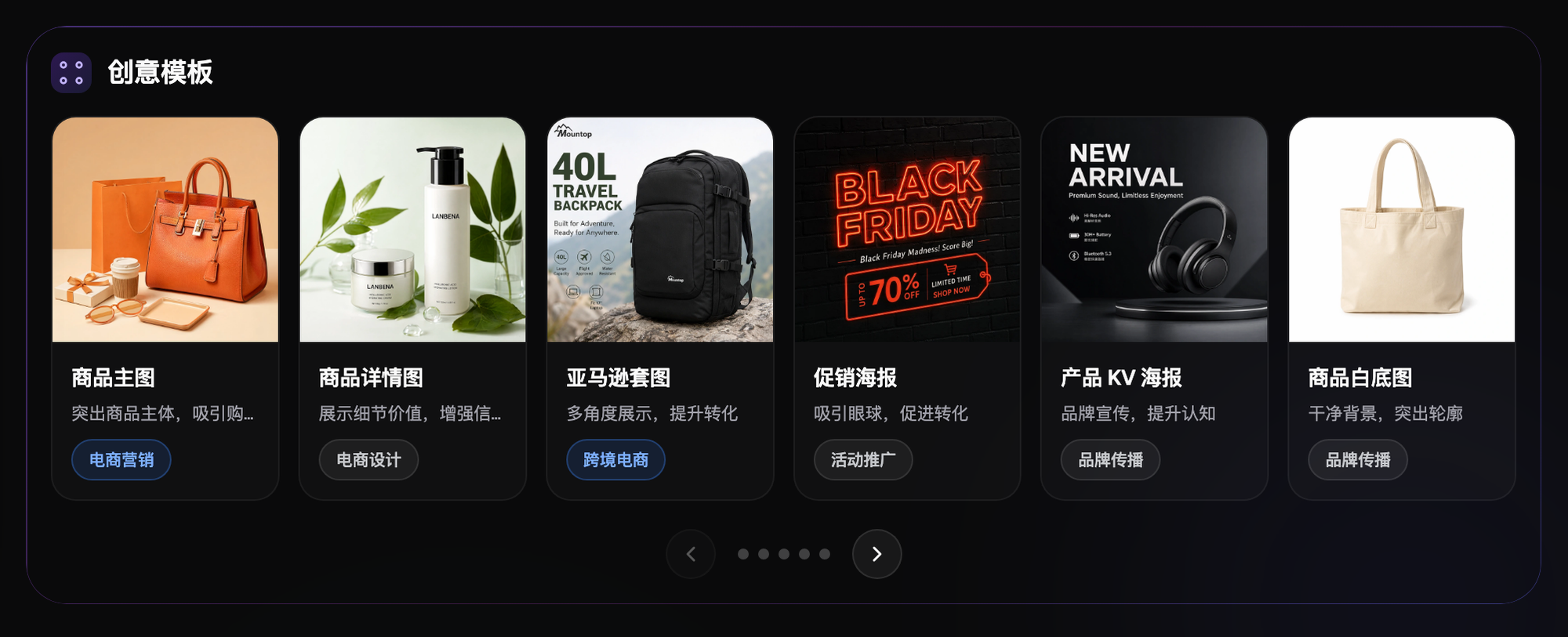
Figure 2: Creative templates are organized by image type — you can start from a category template for each platform's spec (reflects the official site's current version)
5. Find Your Fit: Which Ratio Is Your Store Missing
| Your Scenario | Biggest Pain Point | How to Do It in Flux Art | Recommended Primary Model |
|---|---|---|---|
| Running Taobao + Pinduoduo together | Two separate 1:1 specs | Reuse the Any Aspect Ratio 1:1 baseline directly | GPT Image 2 / Nano Banana 2 |
| Adding a Douyin Store | Gap in portrait creative | Recompose at 3:4/9:16 with the same prompt | Nano Banana 2 |
| Multiple Amazon storefronts | Tedious spec checking | Spec reference sheet + direct 1:1 white-background output | Nano Banana 2 |
| Frequent big promotions | Reworking the whole set each time | Baseline version + inpainting to swap copy | GPT Image 2 |
A real workflow note: a storage-box listing first produced a 1:1 baseline, then got cropped straight down to 3:4 for Douyin — a corner of the subject was cut off and the copy ran right up against the edge. Going back and regenerating the 3:4 with Any Aspect Ratio, the model rearranged the product and whitespace for the new frame, and it was usable in one pass. The same day, both versions' prompts, ratios, and uses were logged into the spec reference sheet; later, when the platform updated its content-image requirements, only one row in the sheet needed to change — production never stopped.
Sign up on the Flux Art website and get 500 credits free. Tonight, produce a "1:1 + 3:4" pair for your best-selling item, then list them across channels tomorrow and compare the data; tiers and promotions follow the official site's current terms.
- Flux Art official website (features, tiers, and terms follow the current version)
- Cyberspace Administration of China (CAC), "Measures for Labeling AI-Generated and Synthetic Content": https://www.cac.gov.cn/2025-03/14/c_1743654684782215.htm